Ana içeriğe geç

Alienware AW610M Side Button Replacement

Neye ihtiyacın var

  1. Alienware AW610M Side Button Replacement, Battery: adım 1, 3 resimden 1. Alienware AW610M Side Button Replacement, Battery: adım 1, 3 resimden 2. Alienware AW610M Side Button Replacement, Battery: adım 1, 3 resimden 3.
    • Power off the mouse and disconnect any wired connections.

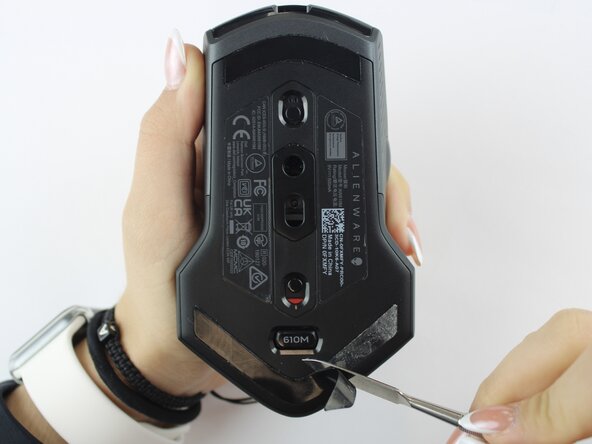
  2. Alienware AW610M Side Button Replacement: adım 2, 2 resimden 1. Alienware AW610M Side Button Replacement: adım 2, 2 resimden 2.
    • Use a spudger to gently lift and remove the old mouse feet.

    • If the feet are sticky, try lifting slowly from one corner to avoid tearing them.

    • Be careful not to scratch the mouse surface or damage the plastic housing.

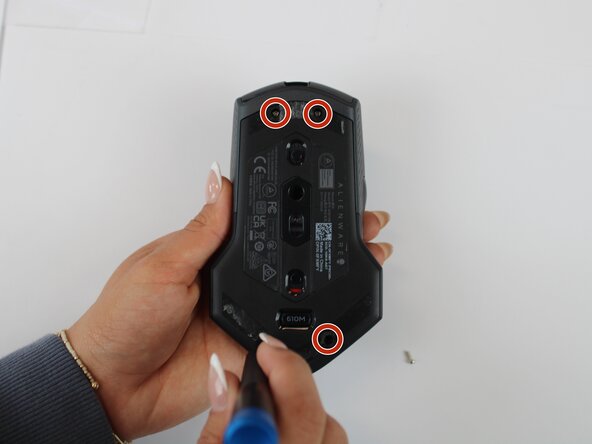
  3. Alienware AW610M Side Button Replacement: adım 3, 2 resimden 1. Alienware AW610M Side Button Replacement: adım 3, 2 resimden 2.
    • Remove the four 6.5 mm screws using a Y1 Tri-Point screwdriver.

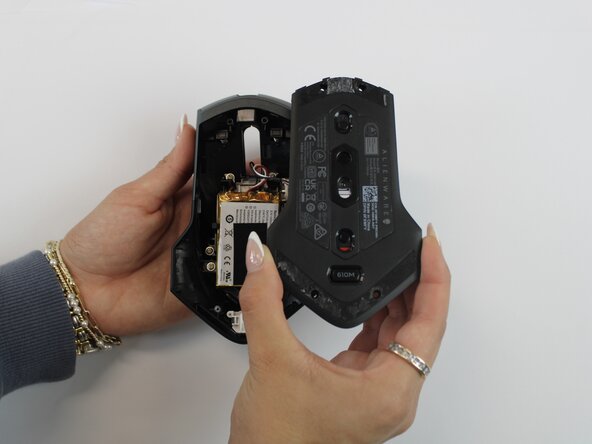
  4. Alienware AW610M Side Button Replacement: adım 4, 2 resimden 1. Alienware AW610M Side Button Replacement: adım 4, 2 resimden 2.
    • Using an opening tool, gently pry apart the two halves of the mouse case. Start at the seam and work your way around until the housing is separated.

    • Don't pull the halves completely apart, as internal wires still connect them.

  5. Alienware AW610M Side Button Replacement: adım 5, 3 resimden 1. Alienware AW610M Side Button Replacement: adım 5, 3 resimden 2. Alienware AW610M Side Button Replacement: adım 5, 3 resimden 3.
    • Remove the battery pack inside the mouse.

    • If you are having trouble, use a small flat tool to help ease it out.

    • The battery is lightly glued to the mouse, so ease it out gently to avoid breaking the battery or wiring

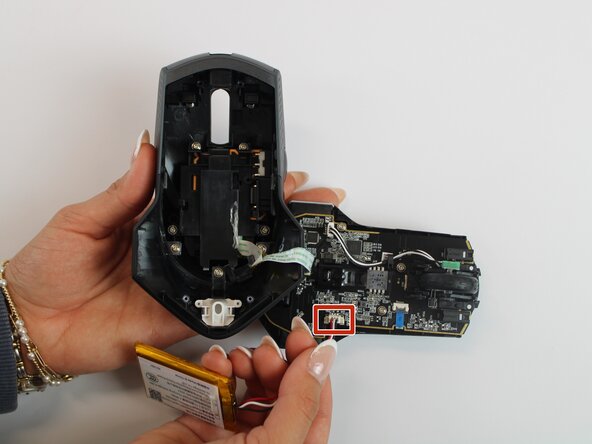
  6. Alienware AW610M Side Button Replacement: adım 6, 2 resimden 1. Alienware AW610M Side Button Replacement: adım 6, 2 resimden 2.
    • Remove the old battery from its spot. Lift the wire connector away from the mainboard to disconnect it.

    • Make sure all wires are inside the mouse before sealing it shut for easy reassembly.

  7. Alienware AW610M Side Button Replacement, Side Button: adım 7, 2 resimden 1. Alienware AW610M Side Button Replacement, Side Button: adım 7, 2 resimden 2.
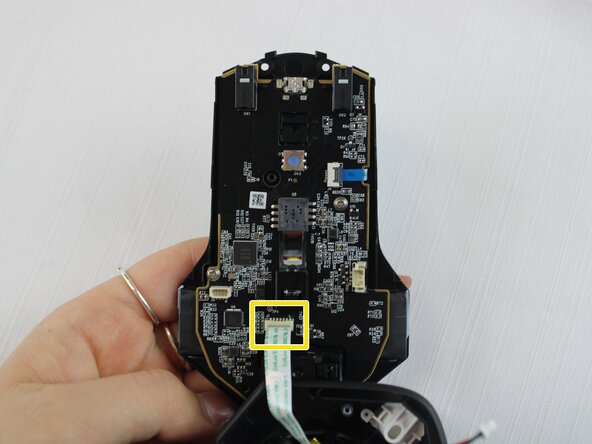
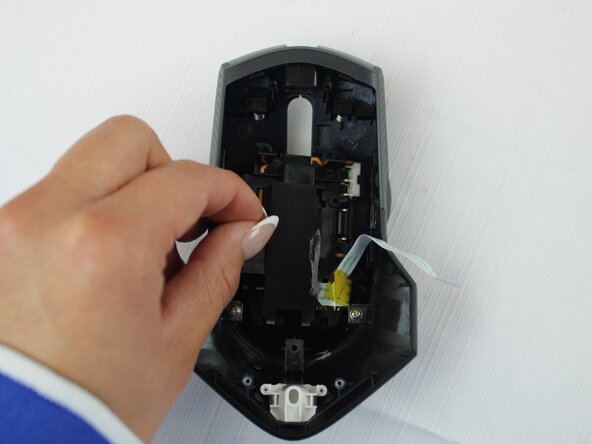
    • Remove the single 5.4 mm screw using a Phillips #1 screwdriver.

    • Detach the cable connector, and remove the scroll wheel.

    • Gently detach the last connector using your fingers.

    • Be careful when unplugging all connectors to prevent tearing them.

  8. Alienware AW610M Side Button Replacement: adım 8, 1 resimden 1.
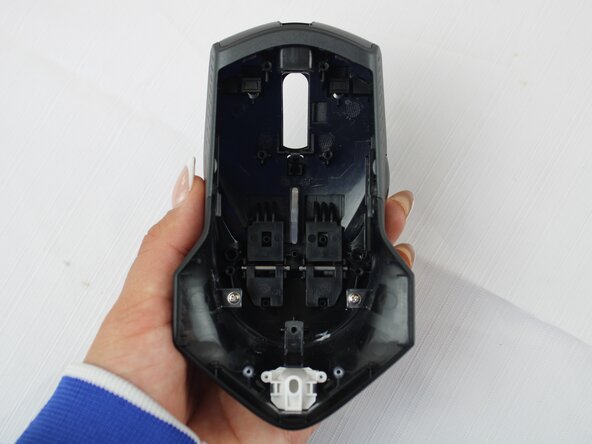
    • Turn the large shell casing so that the inside faces you.

    • Using a Phillips #1 screwdriver, remove six 5.4 mm screws.

  9. Alienware AW610M Side Button Replacement: adım 9, 2 resimden 1. Alienware AW610M Side Button Replacement: adım 9, 2 resimden 2.
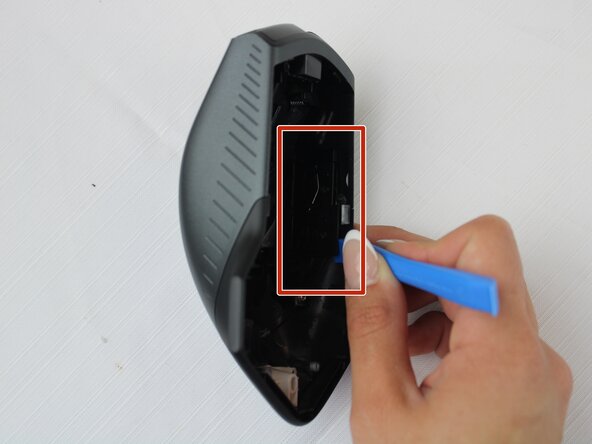
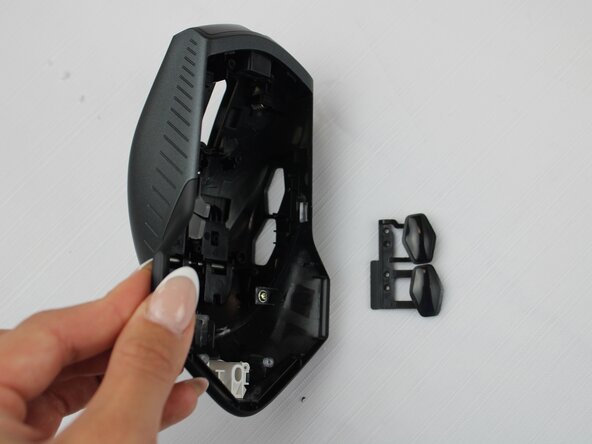
    • Using your fingers, disconnect the plastic tab in the middle of the large shell casing to access the side buttons.

  10. Alienware AW610M Side Button Replacement: adım 10, 3 resimden 1. Alienware AW610M Side Button Replacement: adım 10, 3 resimden 2. Alienware AW610M Side Button Replacement: adım 10, 3 resimden 3.
    • Remove the side button on the inner side of the wall using a plastic opening tool.

    • Be gentle prying the side buttons off to avoid breaking them.

    • When reassembling, position the new side button assembly into the slot, aligning it with tabs. Snap it securely into place using a plastic opening tool or your fingers.

Sonuç

To reassemble your device, follow these instructions in reverse order.

Darby Brandt

Üyelik tarihi: 09/24/25

391 İtibar

2 adet Kılavuz yazıldı

Ekip

Texas Tech, Team 46-4, Johansen Fall 2025 Texas Tech, Team 46-4, Johansen Fall 2025 üyesi

TTU-JOHANSEN-F25S46G4

4 Üyeler

5 adet Kılavuz yazıldı

0Kılavuz Yorumları

Yorum Ekle

İstatistikleri Görüntüle:

Son 24 Saat: 4

Son 7 gün: 11

Son 30 gün: 24

Her zaman: 55