Ana içeriğe geç
Onarım Topluluğuna Katılın - Hesap Oluşturun

Asus ROG G751JL-DS71 RAM Replacement

Neye ihtiyacın var

  1. Asus ROG G751JL-DS71 RAM Replacement, CD-ROM Player: adım 1, 2 resimden 1. Asus ROG G751JL-DS71 RAM Replacement, CD-ROM Player: adım 1, 2 resimden 2.
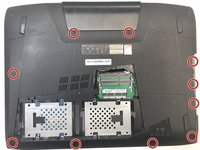
    • Lift the rubber cover found on the bottom of the laptop.

    • Remove the 5.2 mm screw with a Phillips 1 Screwdriver.

    FixBot'a Sor
  2. Asus ROG G751JL-DS71 RAM Replacement: adım 2, 3 resimden 1. Asus ROG G751JL-DS71 RAM Replacement: adım 2, 3 resimden 2. Asus ROG G751JL-DS71 RAM Replacement: adım 2, 3 resimden 3.
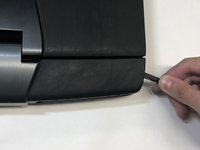
    • Use the nylon spudger to remove the back center panel.

    FixBot'a Sor
  3. Asus ROG G751JL-DS71 RAM Replacement: adım 3, 2 resimden 1. Asus ROG G751JL-DS71 RAM Replacement: adım 3, 2 resimden 2.
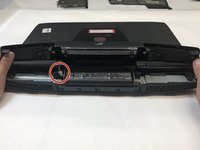
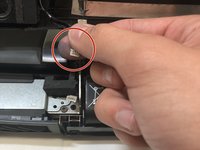
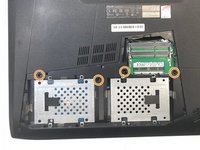
    • Use a Phillips 1 Screwdriver to remove the 5 mm screw that is located underneath the back panel.

    FixBot'a Sor
  4. Asus ROG G751JL-DS71 RAM Replacement: adım 4, 2 resimden 1. Asus ROG G751JL-DS71 RAM Replacement: adım 4, 2 resimden 2.
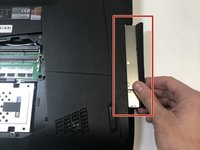
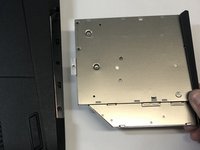
    • Pull out the optical drive found on the side of the laptop.

    FixBot'a Sor
  5. Asus ROG G751JL-DS71 RAM Replacement, Top Rear Panel: adım 5, 2 resimden 1. Asus ROG G751JL-DS71 RAM Replacement, Top Rear Panel: adım 5, 2 resimden 2.
    Bu adımda kullanılan alet:
    Tweezers
    $4.99
    • Use a pair of tweezers to remove the top four rubber stoppers found on the bottom of the laptop.

    FixBot'a Sor
  6. Asus ROG G751JL-DS71 RAM Replacement: adım 6, 2 resimden 1. Asus ROG G751JL-DS71 RAM Replacement: adım 6, 2 resimden 2.
    • Use a Phillips 1 Screwdriver to remove the top four 8.5 mm screws.

    FixBot'a Sor
  7. Asus ROG G751JL-DS71 RAM Replacement: adım 7, 3 resimden 1. Asus ROG G751JL-DS71 RAM Replacement: adım 7, 3 resimden 2. Asus ROG G751JL-DS71 RAM Replacement: adım 7, 3 resimden 3.
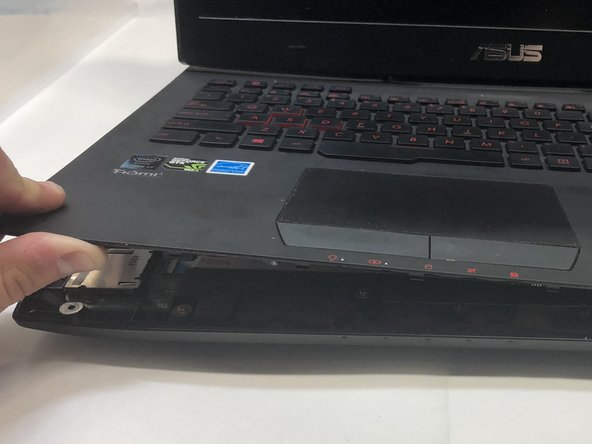
    • Use a nylon spudger to carefully pry the top back panel off.

    • While removing the top back panel, be careful not to break the four pin connector located underneath.

    • Disconnect the four-pin connector and remove the top back panel from the computer.

    FixBot'a Sor
  8. Asus ROG G751JL-DS71 RAM Replacement, Keyboard: adım 8, 3 resimden 1. Asus ROG G751JL-DS71 RAM Replacement, Keyboard: adım 8, 3 resimden 2. Asus ROG G751JL-DS71 RAM Replacement, Keyboard: adım 8, 3 resimden 3.
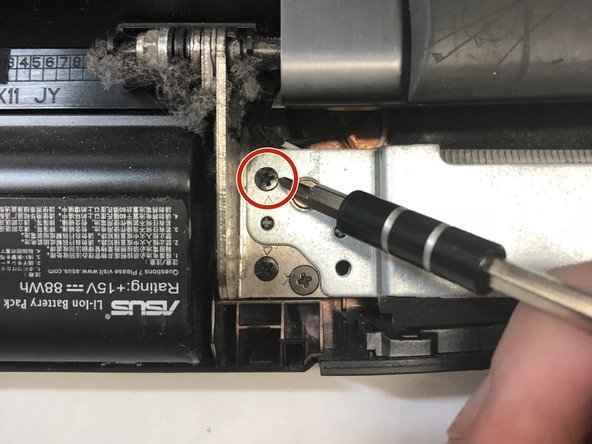
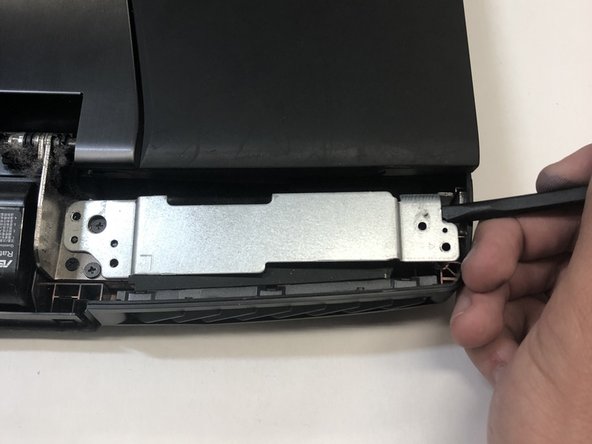
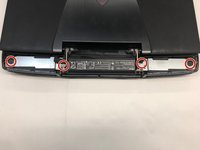
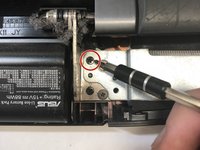
    • Use a Phillips 1 Screwdriver to remove the four 6.8 mm screws underneath the back panel.

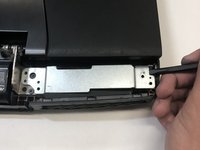
    • Lift away the metal housings from each side of the laptop.

    FixBot'a Sor
  9. Asus ROG G751JL-DS71 RAM Replacement: adım 9, 2 resimden 1. Asus ROG G751JL-DS71 RAM Replacement: adım 9, 2 resimden 2.
    • Use a Phillips 1 Screwdriver to remove the ten 5.2 mm screws holding the main panel in place.

    • Use a Phillips 1 Screwdriver to remove the four 5.2 mm screws underneath the center panel.

    FixBot'a Sor
  10. Asus ROG G751JL-DS71 RAM Replacement: adım 10, 3 resimden 1. Asus ROG G751JL-DS71 RAM Replacement: adım 10, 3 resimden 2. Asus ROG G751JL-DS71 RAM Replacement: adım 10, 3 resimden 3.
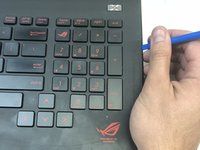
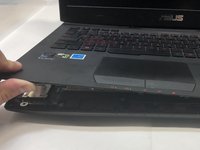
    • Use a plastic opening tool to pry the keyboard from the base of the laptop.

    • Lift the keyboard carefully so as to not tear or break the four ribbon connectors underneath the keyboard.

    FixBot'a Sor
  11. Asus ROG G751JL-DS71 RAM Replacement: adım 11, 2 resimden 1. Asus ROG G751JL-DS71 RAM Replacement: adım 11, 2 resimden 2.
    Bu adımda kullanılan alet:
    Tweezers
    $4.99
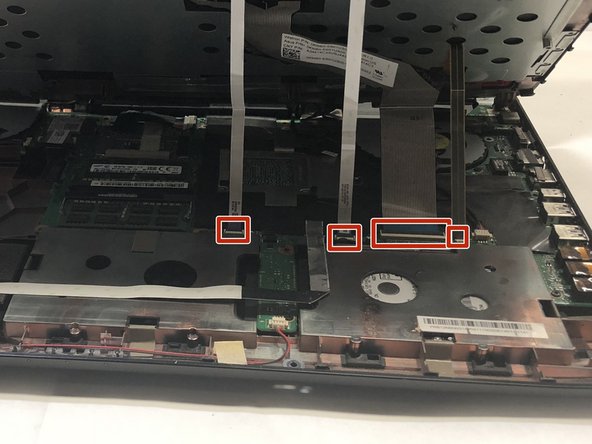
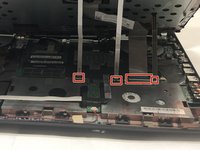
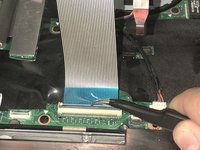
    • Use a pair of tweezers to undo each of the four ribbon connectors.

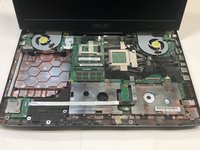
    • The keyboard is now completely disconnected from the laptop and you can remove it.

    FixBot'a Sor
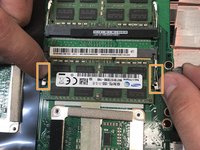
  12. Asus ROG G751JL-DS71 RAM Replacement, RAM: adım 12, 2 resimden 1. Asus ROG G751JL-DS71 RAM Replacement, RAM: adım 12, 2 resimden 2.
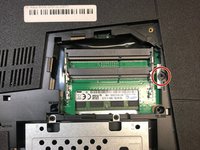
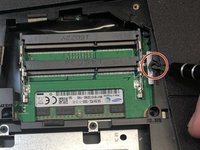
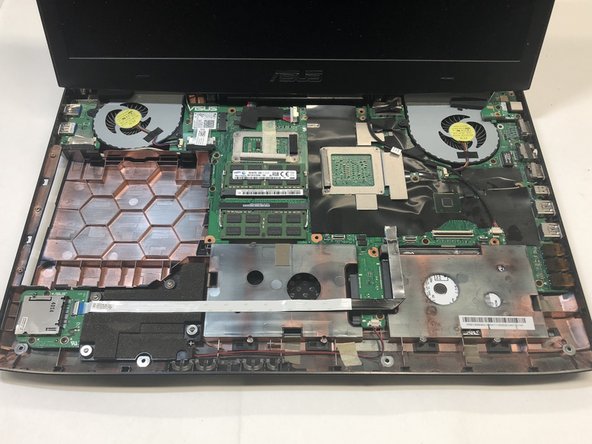
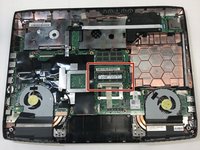
    • First locate the RAM.

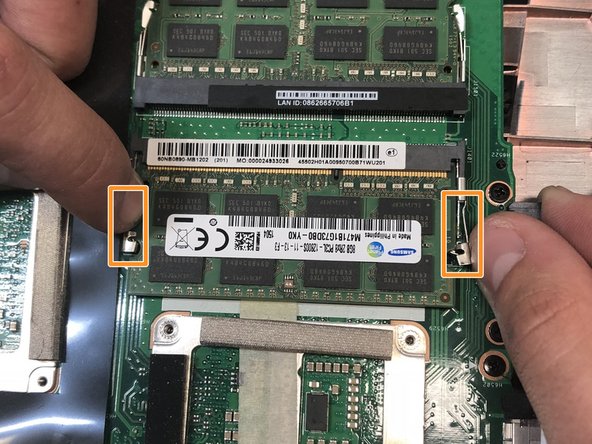
    • Then pull the tabs located on the left and right of the RAM outwards to release the RAM.

    • You can now remove the RAM and replace it.

    FixBot'a Sor
Sonuç

To reassemble your device, follow these instructions in reverse order.

Bir başkası bu kılavuzu tamamladı.

Gwennie Kidd

Üyelik tarihi: 01/22/18

147 İtibar

1 Kılavuz yazıldı

Ekip

Cal Poly, Team S16-G1, Banghart Winter 2018 Cal Poly, Team S16-G1, Banghart Winter 2018 üyesi

CPSU-BANGHART-W18S16G1

4 Üyeler

22 adet Kılavuz yazıldı

0Kılavuz Yorumları

Yorum Ekle

İstatistikleri Görüntüle:

Son 24 Saat: 0

Son 7 gün: 5

Son 30 gün: 65

Her zaman: 1,388