Ana içeriğe geç
Onarım Topluluğuna Katılın - Hesap Oluşturun

Canon PowerShot A75 LCD Screen Replacement

Neye ihtiyacın var

  1. Canon PowerShot A75 LCD Screen Replacement, Batteries: adım 1, 1 resimden 1.
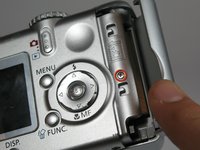
    • Turn the camera over and locate the "BATT OPEN" sliding switch.

    FixBot'a Sor

    Yorum Ekle

  2. Canon PowerShot A75 LCD Screen Replacement: adım 2, 3 resimden 1. Canon PowerShot A75 LCD Screen Replacement: adım 2, 3 resimden 2. Canon PowerShot A75 LCD Screen Replacement: adım 2, 3 resimden 3.
    • Slide the switch to the right.

    • The battery cover should slide down and spring open.

    FixBot'a Sor

    Yorum Ekle

  3. Canon PowerShot A75 LCD Screen Replacement: adım 3, 3 resimden 1. Canon PowerShot A75 LCD Screen Replacement: adım 3, 3 resimden 2. Canon PowerShot A75 LCD Screen Replacement: adım 3, 3 resimden 3.
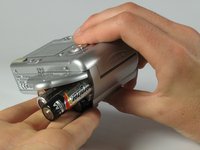
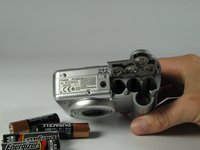
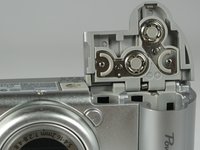
    • Remove the 4 AA batteries.

    • Watch for the orientation of the batteries as they slide out.

    • The battery orientation is shown under the battery flap itself and on a sticker next to the battery flap.

    FixBot'a Sor

    Yorum Ekle

  4. Canon PowerShot A75 LCD Screen Replacement, Casing: adım 4, 1 resimden 1.
    • Remove the three 2.5mm screws on the bottom of the camera.

    FixBot'a Sor

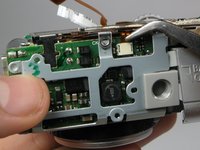
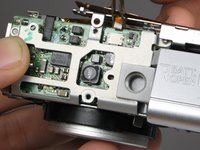
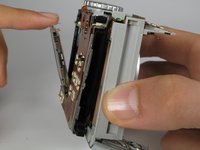
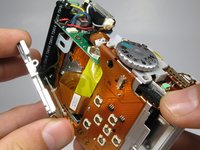
    Yorum Ekle

  5. Canon PowerShot A75 LCD Screen Replacement: adım 5, 1 resimden 1.
    • Remove the 3.8mm screw underneath the flap that covers the A/V port.

    FixBot'a Sor

    Yorum Ekle

  6. Canon PowerShot A75 LCD Screen Replacement: adım 6, 2 resimden 1. Canon PowerShot A75 LCD Screen Replacement: adım 6, 2 resimden 2.
    • Remove the 2.4mm screw located underneath the cover of the memory card slot.

    FixBot'a Sor

    Yorum Ekle

  7. Canon PowerShot A75 LCD Screen Replacement: adım 7, 2 resimden 1. Canon PowerShot A75 LCD Screen Replacement: adım 7, 2 resimden 2.
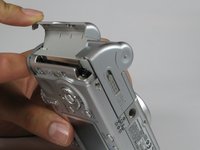
    • Open the memory card slot by sliding it laterally until you hear a click.

    • Remove the 5.9mm screw in the upper corner of the memory card slot.

    FixBot'a Sor

    Yorum Ekle

  8. Canon PowerShot A75 LCD Screen Replacement: adım 8, 1 resimden 1.
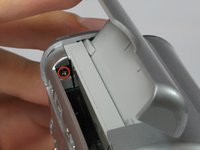
    • Remove the two 4.1mm screws at the bottom of the battery flap.

    FixBot'a Sor

    Yorum Ekle

  9. Canon PowerShot A75 LCD Screen Replacement: adım 9, 2 resimden 1. Canon PowerShot A75 LCD Screen Replacement: adım 9, 2 resimden 2.
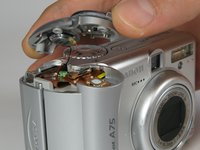
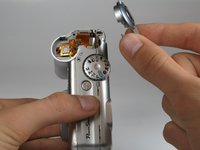
    • Lift the shutter button and speaker part from the top of the camera.

    • DO NOT pull the part too hard because there is a plug connecting the speaker to the camera.

    FixBot'a Sor

    Yorum Ekle

  10. Canon PowerShot A75 LCD Screen Replacement: adım 10, 3 resimden 1. Canon PowerShot A75 LCD Screen Replacement: adım 10, 3 resimden 2. Canon PowerShot A75 LCD Screen Replacement: adım 10, 3 resimden 3.
    Bu adımda kullanılan alet:
    Tweezers
    $4.99
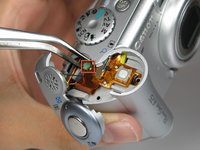
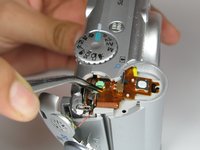
    • Using a pair of tweezers, grab the plug that connects the speaker to the camera and gently pull it out.

    FixBot'a Sor

    Yorum Ekle

  11. Canon PowerShot A75 LCD Screen Replacement: adım 11, 1 resimden 1.
    • Remove the rightmost 4.2mm screw underneath the battery cover, not the center screw.

    FixBot'a Sor

    Yorum Ekle

  12. Canon PowerShot A75 LCD Screen Replacement: adım 12, 3 resimden 1. Canon PowerShot A75 LCD Screen Replacement: adım 12, 3 resimden 2. Canon PowerShot A75 LCD Screen Replacement: adım 12, 3 resimden 3.
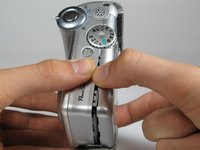
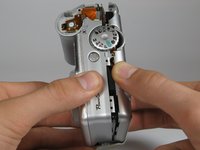
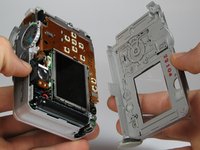
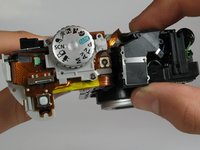
    • Separate the back casing and front casing of the camera using your hands.

    • Pulling the two halves apart can be difficult, especially at the top. Use a moderate amount of force.

    FixBot'a Sor

    Yorum Ekle

  13. Canon PowerShot A75 LCD Screen Replacement: adım 13, 3 resimden 1. Canon PowerShot A75 LCD Screen Replacement: adım 13, 3 resimden 2. Canon PowerShot A75 LCD Screen Replacement: adım 13, 3 resimden 3.
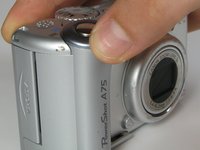
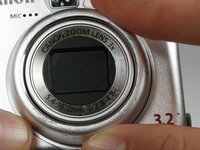
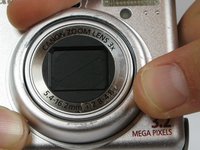
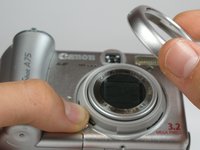
    • On the front of the camera, press the button on the lower left of the lens.

    • Twist the outer lens casing counter-clockwise and slide it out.

    FixBot'a Sor

    Yorum Ekle

  14. Canon PowerShot A75 LCD Screen Replacement: adım 14, 3 resimden 1. Canon PowerShot A75 LCD Screen Replacement: adım 14, 3 resimden 2. Canon PowerShot A75 LCD Screen Replacement: adım 14, 3 resimden 3.
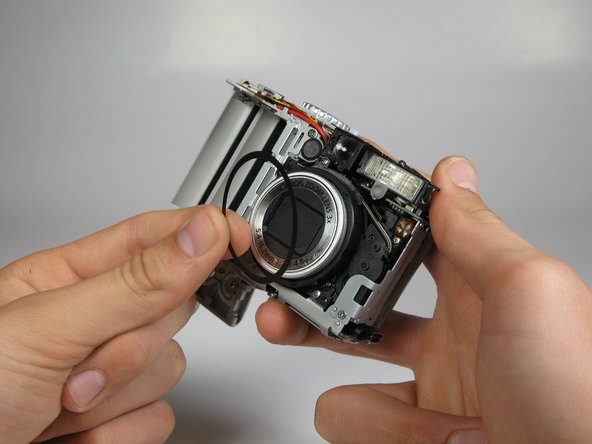
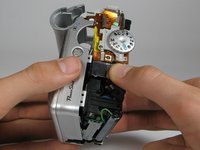
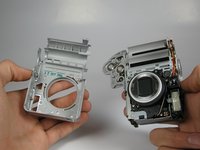
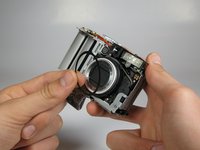
    • Take off the front casing.

    • There is a black rubber washer around the lens that comes out after you take the casing off. Make sure to replace it when putting the camera back together.

    FixBot'a Sor

    Yorum Ekle

  15. Canon PowerShot A75 LCD Screen Replacement, LCD Screen: adım 15, 3 resimden 1. Canon PowerShot A75 LCD Screen Replacement, LCD Screen: adım 15, 3 resimden 2. Canon PowerShot A75 LCD Screen Replacement, LCD Screen: adım 15, 3 resimden 3.
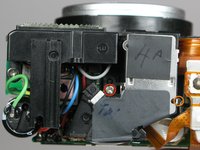
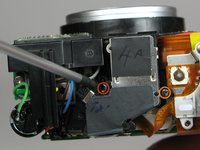
    • Remove the 4.4mm screw directly behind the eyepiece on the top of the camera.

    • Remove the 4.3mm screw to the right of the eyepiece housing in the crack in between the eyepiece and a ribbon cable on top of the camera.

    FixBot'a Sor

    Yorum Ekle

  16. Canon PowerShot A75 LCD Screen Replacement: adım 16, 3 resimden 1. Canon PowerShot A75 LCD Screen Replacement: adım 16, 3 resimden 2. Canon PowerShot A75 LCD Screen Replacement: adım 16, 3 resimden 3.
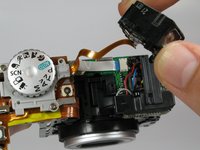
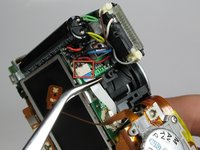
    • Gently wiggle the eyepiece out of its place. It should snap out of place.

    • There should be a white ribbon cable underneath attached to the motherboard.

    FixBot'a Sor

    Yorum Ekle

  17. Canon PowerShot A75 LCD Screen Replacement: adım 17, 3 resimden 1. Canon PowerShot A75 LCD Screen Replacement: adım 17, 3 resimden 2. Canon PowerShot A75 LCD Screen Replacement: adım 17, 3 resimden 3.
    Bu adımda kullanılan alet:
    Tweezers
    $4.99
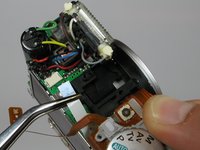
    • Locate the white cable on top of the camera where the eyepiece was.

    • Using tweezers, grasp the white cable as close to the connection point as possible and gently remove the cable.

    • The cable should just slide out with a slight tug.

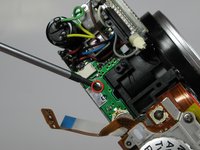
    • Remove the 2.9mm screw directly underneath the white cable.

    FixBot'a Sor

    Yorum Ekle

  18. Canon PowerShot A75 LCD Screen Replacement: adım 18, 1 resimden 1.
    • Remove the 4.2mm screw directly under the battery flap.

    FixBot'a Sor

    Yorum Ekle

  19. Canon PowerShot A75 LCD Screen Replacement: adım 19, 2 resimden 1. Canon PowerShot A75 LCD Screen Replacement: adım 19, 2 resimden 2.
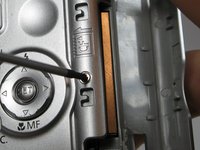
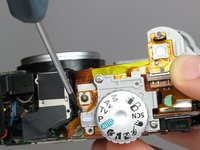
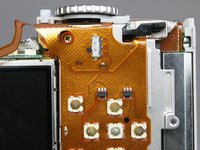
    • Remove the 3.4mm screw inside a deep hole on the back copper panel beneath the circular mode switcher.

    • This screw is a little difficult to get out.

    FixBot'a Sor

    Yorum Ekle

  20. Canon PowerShot A75 LCD Screen Replacement: adım 20, 1 resimden 1.
    • Remove 2.5mm the screw in the silver housing on the bottom of the camera. This screw is holding the back panel in.

    FixBot'a Sor

    Yorum Ekle

  21. Canon PowerShot A75 LCD Screen Replacement: adım 21, 2 resimden 1. Canon PowerShot A75 LCD Screen Replacement: adım 21, 2 resimden 2.
    • Remove the 3.4mm screw near the bottom of the back face of the camera on the copper ribbon.

    • Remove the 2.9mm screw on the back face of the camera in the bottom left corner.

    FixBot'a Sor

    Yorum Ekle

  22. Canon PowerShot A75 LCD Screen Replacement: adım 22, 3 resimden 1. Canon PowerShot A75 LCD Screen Replacement: adım 22, 3 resimden 2. Canon PowerShot A75 LCD Screen Replacement: adım 22, 3 resimden 3.
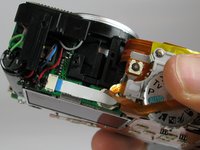
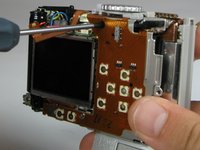
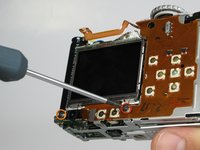
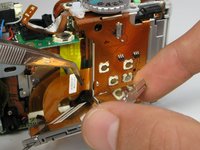
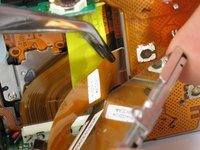
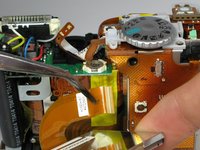
    • Locate the copper ribbon cable attaching the LCD screen to the bottom motherboard.

    • Grasp the cable near the white connector and gently remove the cable.

    FixBot'a Sor

    Yorum Ekle

  23. Canon PowerShot A75 LCD Screen Replacement: adım 23, 2 resimden 1. Canon PowerShot A75 LCD Screen Replacement: adım 23, 2 resimden 2.
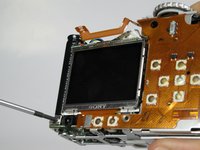
    • Gently pull back the LCD screen to around 45 degrees from the back of the camera.

    • Do not pull the back panel too far, it is connected to the top of the camera with ribbon cables and is not meant to separate from the camera.

    • Locate the larger ribbon cable connecting the screen to the body of the camera.

    FixBot'a Sor

    Yorum Ekle

  24. Canon PowerShot A75 LCD Screen Replacement: adım 24, 3 resimden 1. Canon PowerShot A75 LCD Screen Replacement: adım 24, 3 resimden 2. Canon PowerShot A75 LCD Screen Replacement: adım 24, 3 resimden 3.
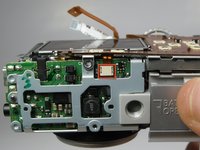
    • Gently grasp and pull the cable from the motherboard. The cable should easily slide out.

    • This ribbon cable may be easier to remove using your hands instead of the tweezers.

    • The LCD should now be out after the cable is removed.

    FixBot'a Sor

    Yorum Ekle

Sonuç

After all the steps are done, you can make any necessary repairs to the LCD screen. To reassemble your device, follow these instructions in reverse order.

İptal et: Bu kılavuzu tamamlamadım.

Austin Fox

Üyelik tarihi: 04/11/12

1 İtibar

2 adet Kılavuz yazıldı

Ekip

Cal Poly, Team 17-30, Amido Spring 2012 Cal Poly, Team 17-30, Amido Spring 2012 üyesi

CPSU-AMIDO-S12S17G30

5 Üyeler

12 adet Kılavuz yazıldı

0Kılavuz Yorumları

Yorum Ekle

İstatistikleri Görüntüle:

Son 24 Saat: 0

Son 7 gün: 11

Son 30 gün: 54

Her zaman: 3,295