Ana içeriğe geç
Onarım Topluluğuna Katılın - Hesap Oluşturun

Canon PowerShot S230 Motherboard Replacement

Neye ihtiyacın var

  1. Canon PowerShot S230 Motherboard Replacement, Battery: adım 1, 1 resimden 1.
    • On the bottom of the camera, use your thumb to press the rubber battery cover towards the side of the camera with the strap base. The cover will shift to extend beyond the rest of the camera.

    FixBot'a Sor

    Yorum Ekle

  2. Canon PowerShot S230 Motherboard Replacement: adım 2, 1 resimden 1.
    • Hold the end of the battery cover that extends beyond the camera and lift it up.

    FixBot'a Sor

    Yorum Ekle

  3. Canon PowerShot S230 Motherboard Replacement: adım 3, 1 resimden 1.
    • Locate the orange tab next to the battery. Next roll the tab back in order for the battery to come out.

    FixBot'a Sor

    Yorum Ekle

  4. Canon PowerShot S230 Motherboard Replacement: adım 4, 1 resimden 1.
    • Pull the battery out.

    FixBot'a Sor

    Yorum Ekle

  5. Canon PowerShot S230 Motherboard Replacement, Memory Card: adım 5, 3 resimden 1. Canon PowerShot S230 Motherboard Replacement, Memory Card: adım 5, 3 resimden 2. Canon PowerShot S230 Motherboard Replacement, Memory Card: adım 5, 3 resimden 3.
    • Locate the sliding button labeled "CF open" on the back of the camera.

    • Press and slide down the button labeled "CF open". The memory card cover will pop open.

    FixBot'a Sor

    Yorum Ekle

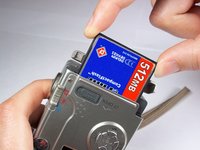
  6. Canon PowerShot S230 Motherboard Replacement: adım 6, 3 resimden 1. Canon PowerShot S230 Motherboard Replacement: adım 6, 3 resimden 2. Canon PowerShot S230 Motherboard Replacement: adım 6, 3 resimden 3.
    • Push down on the black square button next to the memory card slot. This will release the memory card from the slot.

    FixBot'a Sor

    Yorum Ekle

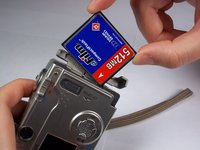
  7. Canon PowerShot S230 Motherboard Replacement: adım 7, 2 resimden 1. Canon PowerShot S230 Motherboard Replacement: adım 7, 2 resimden 2.
    • Pull the memory card out of the memory card slot.

    FixBot'a Sor

    Yorum Ekle

  8. Canon PowerShot S230 Motherboard Replacement, Camera Casing: adım 8, 1 resimden 1.
    • Remove two 2.4mm Phillips screws from the right side of the camera.

    FixBot'a Sor

    Yorum Ekle

  9. Canon PowerShot S230 Motherboard Replacement: adım 9, 1 resimden 1.
    • Remove two 2.4mm Phillips screws above the label on the bottom of the camera.

    • Remove two 2.8mm Phillips screws next to the tripod hole.

    FixBot'a Sor

    Yorum Ekle

  10. Canon PowerShot S230 Motherboard Replacement: adım 10, 1 resimden 1.
    • Remove the two 3.2mm Phillips screws that are closer to the top and bottom edges of the camera.

    • Remove the two 3.8mm Phillips screws on either side of the strap base.

    FixBot'a Sor

    Yorum Ekle

  11. Canon PowerShot S230 Motherboard Replacement: adım 11, 1 resimden 1.
    • Remove one 1.6mm Phillips screw from the above the CF open button on back of the camera.

    FixBot'a Sor

    Yorum Ekle

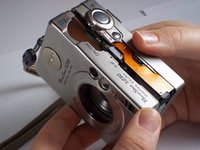
  12. Canon PowerShot S230 Motherboard Replacement: adım 12, 3 resimden 1. Canon PowerShot S230 Motherboard Replacement: adım 12, 3 resimden 2. Canon PowerShot S230 Motherboard Replacement: adım 12, 3 resimden 3.
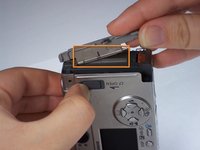
    • Gently pull the front casing from the camera.

    • The following items will either fall off or will be loose: the strap base, the gray rubber cover labeled "Digital A/V Out", and the black rubber piece over the view finder.

    • Remove the memory card cover by sliding down the CF open button and moving the pin.

    FixBot'a Sor

    Yorum Ekle

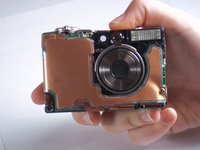
  13. Canon PowerShot S230 Motherboard Replacement: adım 13, 2 resimden 1. Canon PowerShot S230 Motherboard Replacement: adım 13, 2 resimden 2.
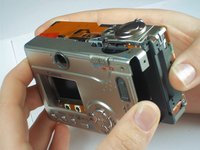
    • Gently pull the back casing from the camera.

    FixBot'a Sor

    Yorum Ekle

  14. Canon PowerShot S230 Motherboard Replacement, Buttons: adım 14, 2 resimden 1. Canon PowerShot S230 Motherboard Replacement, Buttons: adım 14, 2 resimden 2.
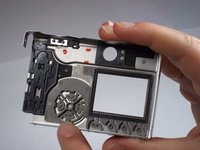
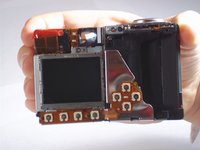
    • Locate the reverse side of the buttons by looking at the inside of the back camera casing.

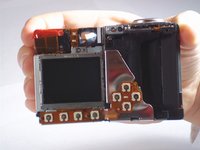
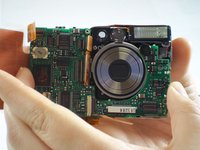
    • Locate the button sensors, which connect to the logic board by a connecting ribbon, by looking at the back of the camera once the back casing has been removed.

    • The button sensors on the back of the camera should appear to match up with the reverse side of the buttons on the inside of the back camera casing. Imagine one as being the reverse image, or mirror image, of the other. This will help you locate where a problem is occuring if a button or a button sensor has been damaged.

    FixBot'a Sor

    Yorum Ekle

  15. Canon PowerShot S230 Motherboard Replacement: adım 15, 1 resimden 1.
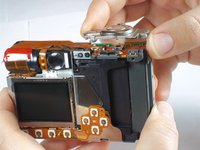
    • Remove one 4.3mm screw directly below the power button on the top of the camera.

    • This screw attaches the entire panel for the power and picture-taking buttons. Be sure you are removing the screw from the top of the camera, as it is close to another screw on the back side of the camera.

    FixBot'a Sor

    Yorum Ekle

  16. Canon PowerShot S230 Motherboard Replacement: adım 16, 2 resimden 1. Canon PowerShot S230 Motherboard Replacement: adım 16, 2 resimden 2.
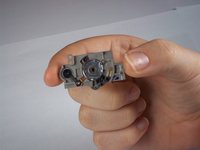
    • Gently lift the button panel from the top of the camera.

    • This is what the reverse side of the button panel looks like after removal.

    FixBot'a Sor

    Yorum Ekle

  17. Canon PowerShot S230 Motherboard Replacement, Motherboard: adım 17, 1 resimden 1.
    • Remove the two 3.9mm screws holding down the copper flap that insulates the motherboard.

    FixBot'a Sor

    Yorum Ekle

  18. Canon PowerShot S230 Motherboard Replacement: adım 18, 3 resimden 1. Canon PowerShot S230 Motherboard Replacement: adım 18, 3 resimden 2. Canon PowerShot S230 Motherboard Replacement: adım 18, 3 resimden 3.
    • The motherboard can be damaged easily and must be treated with care. Try to avoid removing ribbon cables with your fingers, since motherboards are extremely sensitive to static discharge. Use a spudger or plastic opening tool to lift any flaps or tabs or to pry connectors straight off their sockets on the motherboard.

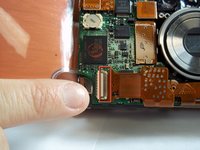
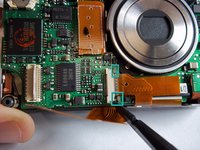
    • Before the motherboard can be removed, several ribbon cables must be disconnected from their respective ports. A few of the ribbon cables are held in place by locking ZIF connectors, which you must release before removing the cables. Removing each ribbon cable may require a gentle tug.

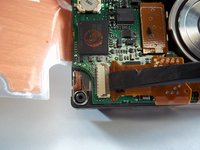
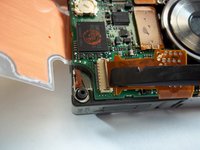
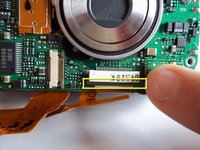
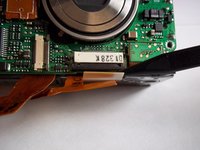
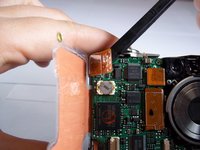
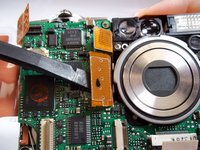
    • First, release the ZIF connector securing the ribbon cable in the bottom left corner of the motherboard. To do this, insert the flat end of a spudger under the connector's dark brown flap and gently wedge the flap open.

    FixBot'a Sor

    Yorum Ekle

  19. Canon PowerShot S230 Motherboard Replacement: adım 19, 2 resimden 1. Canon PowerShot S230 Motherboard Replacement: adım 19, 2 resimden 2.
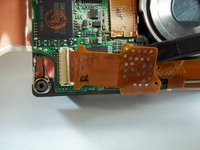
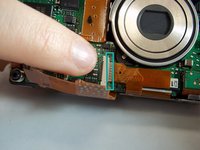
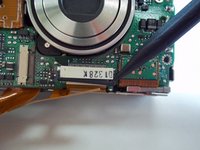
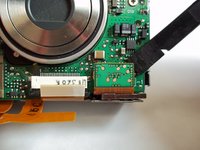
    • Now, insert the spudger under the ribbon cable and gently pull the cable out of its port.

    FixBot'a Sor

    Yorum Ekle

  20. Canon PowerShot S230 Motherboard Replacement: adım 20, 3 resimden 1. Canon PowerShot S230 Motherboard Replacement: adım 20, 3 resimden 2. Canon PowerShot S230 Motherboard Replacement: adım 20, 3 resimden 3.
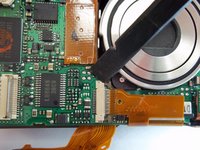
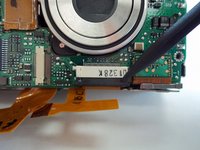
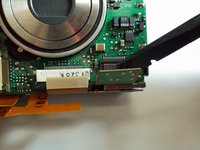
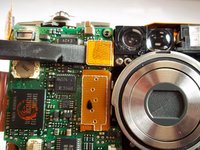
    • Release the ZIF connector securing the next ribbon cable. To do this, insert the flat end of a spudger between the dark brown piece and the white piece of the connector. Since the dark brown piece is under the ribbon cable, move this piece to the right by wedging one end at a time.

    FixBot'a Sor

    Yorum Ekle

  21. Canon PowerShot S230 Motherboard Replacement: adım 21, 2 resimden 1. Canon PowerShot S230 Motherboard Replacement: adım 21, 2 resimden 2.
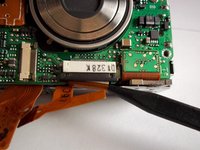
    • Insert the spudger under the ribbon cable and gently pull the cable out of its port.

    FixBot'a Sor

    Yorum Ekle

  22. Canon PowerShot S230 Motherboard Replacement: adım 22, 3 resimden 1. Canon PowerShot S230 Motherboard Replacement: adım 22, 3 resimden 2. Canon PowerShot S230 Motherboard Replacement: adım 22, 3 resimden 3.
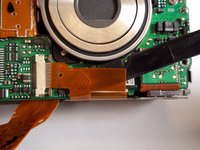
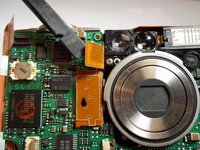
    • Release the ZIF connector securing the ribbon directly below the lens. To do this, insert the pointed end of the spudger between the black piece of the connector and the white piece. Wedge the black piece down.

    FixBot'a Sor

    Yorum Ekle

  23. Canon PowerShot S230 Motherboard Replacement: adım 23, 2 resimden 1. Canon PowerShot S230 Motherboard Replacement: adım 23, 2 resimden 2.
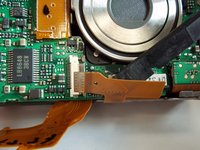
    • Insert the pointed end of the spudger under the ribbon cable and gently pull the cable out of its port.

    FixBot'a Sor

    Yorum Ekle

  24. Canon PowerShot S230 Motherboard Replacement: adım 24, 2 resimden 1. Canon PowerShot S230 Motherboard Replacement: adım 24, 2 resimden 2.
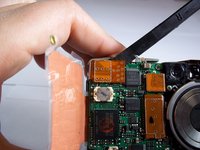
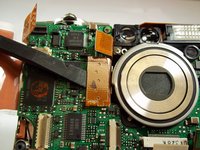
    • The rest of the ribbon cables are not secured with ZIF connectors. Remove the ribbon cable on the bottom right corner of the motherboard by using the flat end of the spudger to pry the cable from the board.

    FixBot'a Sor

    Yorum Ekle

  25. Canon PowerShot S230 Motherboard Replacement: adım 25, 2 resimden 1. Canon PowerShot S230 Motherboard Replacement: adım 25, 2 resimden 2.
    • Remove the ribbon cable on the top left corner of the motherboard by using the flat end of the spudger to pry the cable from the board.

    FixBot'a Sor

    Yorum Ekle

  26. Canon PowerShot S230 Motherboard Replacement: adım 26, 2 resimden 1. Canon PowerShot S230 Motherboard Replacement: adım 26, 2 resimden 2.
    • Remove the next ribbon cable by using the flat end of the spudger to pry the cable from the board.

    FixBot'a Sor

    Yorum Ekle

  27. Canon PowerShot S230 Motherboard Replacement: adım 27, 2 resimden 1. Canon PowerShot S230 Motherboard Replacement: adım 27, 2 resimden 2.
    • Remove the last ribbon cable by using the flat end of the spudger to pry the cable from the board.

    • When replacing the ribbon cables, keep in mind that these last four cables simply snap back onto the motherboard.

    FixBot'a Sor

    Yorum Ekle

  28. Canon PowerShot S230 Motherboard Replacement: adım 28, 3 resimden 1. Canon PowerShot S230 Motherboard Replacement: adım 28, 3 resimden 2. Canon PowerShot S230 Motherboard Replacement: adım 28, 3 resimden 3.
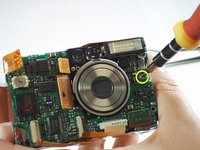
    • Remove one 3.9mm screw from the right side of the motherboard and under the flash.

    • The ends of the connecting ribbons may get caught on the motherboard as you remove it from the camera.

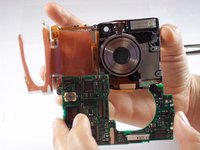
    • Gently pull the motherboard away from the front of the camera.

    FixBot'a Sor

    Yorum Ekle

Sonuç

To reassemble your device, follow these instructions in reverse order.

İptal et: Bu kılavuzu tamamlamadım.

Bir başkası bu kılavuzu tamamladı.

Tanya Malalang

Üyelik tarihi: 01/12/11

340 İtibar

3 adet Kılavuz yazıldı

Ekip

Cal Poly, Team 13-1, Forte Winter 2011 Cal Poly, Team 13-1, Forte Winter 2011 üyesi

CPSU-FORTE-W11S13G1

4 Üyeler

5 adet Kılavuz yazıldı

0Kılavuz Yorumları

Yorum Ekle

İstatistikleri Görüntüle:

Son 24 Saat: 3

Son 7 gün: 12

Son 30 gün: 48

Her zaman: 2,481