Ana içeriğe geç
Onarım Topluluğuna Katılın - Hesap Oluşturun

Canon PowerShot S500 AV Port Replacement

Neye ihtiyacın var

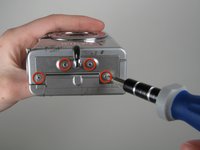
  1. Canon PowerShot S500 AV Port Replacement, Front and Rear Casing : adım 1, 2 resimden 1. Canon PowerShot S500 AV Port Replacement, Front and Rear Casing : adım 1, 2 resimden 2.
    • Unscrew five Phillips screws using a #0 Phillips screwdriver.

    • One screw is on upper right corner of the back panel.

    • The other four screws are on the bottom of the camera.

    FixBot'a Sor

    Yorum Ekle

  2. Canon PowerShot S500 AV Port Replacement: adım 2, 1 resimden 1.
    • Open the memory card cover by moving the slide switch toward the top end of of the camera.

    • Remove the memory card from the slot.

    FixBot'a Sor

    Yorum Ekle

  3. Canon PowerShot S500 AV Port Replacement: adım 3, 1 resimden 1.
    • Remove the rear cover from the rest of the camera.

    • This may require gentle rocking of the case to free it.

    FixBot'a Sor

    Yorum Ekle

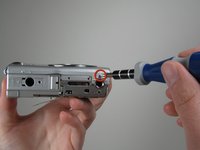
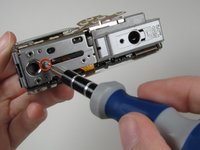
  4. Canon PowerShot S500 AV Port Replacement: adım 4, 2 resimden 1. Canon PowerShot S500 AV Port Replacement: adım 4, 2 resimden 2.
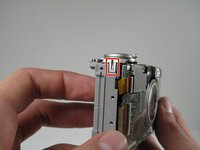
    • Unscrew the four Phillips screws from the side of the casing and one screw from the bottom using a #0 Phillips screwdriver.

    FixBot'a Sor

    Yorum Ekle

  5. Canon PowerShot S500 AV Port Replacement: adım 5, 1 resimden 1.
    • Free the front cover from the rest of the camera.

    • The cover may require gentle rocking to remove.

    FixBot'a Sor

    Yorum Ekle

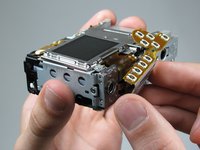
  6. Canon PowerShot S500 AV Port Replacement, LCD: adım 6, 1 resimden 1.
    • Unscrew two Phillips screws above the LCD using a #0 Phillips screwdriver.

    FixBot'a Sor

    Yorum Ekle

  7. Canon PowerShot S500 AV Port Replacement: adım 7, 1 resimden 1.
    • Gently separate the top of LCD from the rest of the camera using your thumb.

    • Be careful not pull the LCD too far because of the ribbon cable connection.

    • Place the Spudger in the hole of the electrical ribbon.

    • Gently pull the ribbon down using the Spudger until it is free from the camera but still connected to the LCD.

    • The LCD will still be connected to the rest of the camera

    FixBot'a Sor

    Yorum Ekle

  8. Canon PowerShot S500 AV Port Replacement: adım 8, 2 resimden 1. Canon PowerShot S500 AV Port Replacement: adım 8, 2 resimden 2.
    • Unscrew single Phillips screw with a #0 Phillips screwdriver.

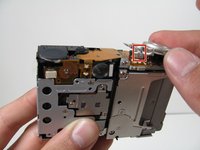
    • Free the bottom panel and attached ribbon from the rest of the camera.

    • Be careful not to damage the ribbon.

    FixBot'a Sor

    Yorum Ekle

  9. Canon PowerShot S500 AV Port Replacement: adım 9, 1 resimden 1.
    • Turn over the camera.

    • Lift the clear plastic from the face of the camera, peeling the adhesive just below the zoom lens.

    • The plastic will still be connected on the left side.

    FixBot'a Sor

    Yorum Ekle

  10. Canon PowerShot S500 AV Port Replacement: adım 10, 1 resimden 1.
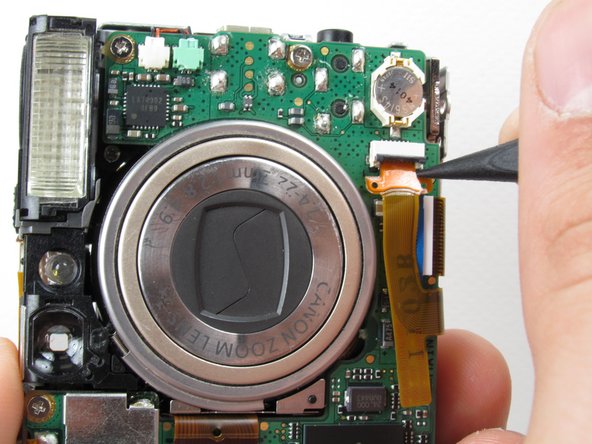
    • Place the Spudger between the orange ribbon and the black ribbon gate.

    • Lift the ribbon gate using the Spudger.

    FixBot'a Sor

    Yorum Ekle

  11. Canon PowerShot S500 AV Port Replacement: adım 11, 1 resimden 1.
    • Place the Spudger in the corner of the ribbon above the hole.

    • Remove the ribbon from the ribbon gate by pulling the Spudger away from the gate.

    FixBot'a Sor

    Yorum Ekle

  12. Canon PowerShot S500 AV Port Replacement: adım 12, 1 resimden 1.
    • Free this ribbon and the bottom panel from the rest of the camera.

    • Be careful not to damage the ribbon.

    FixBot'a Sor

    Yorum Ekle

  13. Canon PowerShot S500 AV Port Replacement: adım 13, 1 resimden 1.
    • Turn the camera over so you can see the LCD.

    • Remove single Phillips screw below the LCD using a #0 Phillips screwdriver.

    FixBot'a Sor

    Yorum Ekle

  14. Canon PowerShot S500 AV Port Replacement: adım 14, 1 resimden 1.
    • Lift the blue ribbon gate using the Spudger.

    FixBot'a Sor

    Yorum Ekle

  15. Canon PowerShot S500 AV Port Replacement: adım 15, 1 resimden 1.
    • Insert the Spudger into the hole of the ribbon.

    • Move the Spudger away from the gate to fully remove ribbon.

    • Be careful not to damage the ribbon.

    FixBot'a Sor

    Yorum Ekle

  16. Canon PowerShot S500 AV Port Replacement: adım 16, 1 resimden 1.
    • Lift the LCD away from the rest of the camera.

    FixBot'a Sor

    Yorum Ekle

  17. Canon PowerShot S500 AV Port Replacement, Logic Board: adım 17, 2 resimden 1. Canon PowerShot S500 AV Port Replacement, Logic Board: adım 17, 2 resimden 2.
    • Lift off the capture button by wiggling it back and forth while pulling upward.

    • Be careful not to damage the two clips.

    FixBot'a Sor

    Yorum Ekle

  18. Canon PowerShot S500 AV Port Replacement: adım 18, 2 resimden 1. Canon PowerShot S500 AV Port Replacement: adım 18, 2 resimden 2.
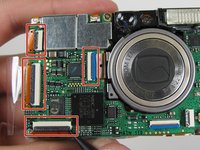
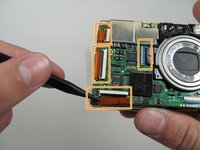
    • Flip open the four ribbon gates using the Spudger.

    • Gently pull out the ribbon cables from the gates using the Spudger.

    FixBot'a Sor

    Yorum Ekle

  19. Canon PowerShot S500 AV Port Replacement: adım 19, 1 resimden 1.
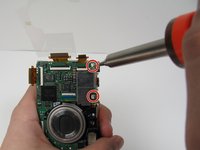
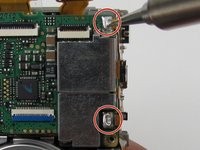
    • Unscrew the four Phillips screws using a #0 Phillips screwdriver.

    FixBot'a Sor

    Yorum Ekle

  20. Canon PowerShot S500 AV Port Replacement: adım 20, 2 resimden 1. Canon PowerShot S500 AV Port Replacement: adım 20, 2 resimden 2.
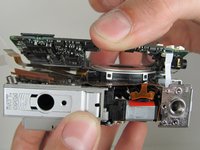
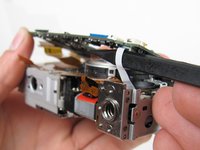
    • Gently lift the logic board.

    • Be careful not to pull too hard and damage the white ribbon cable.

    • Place the Spudger so that it is between the logic board, the white ribbon cable, and the rest of the camera.

    • Remove the white ribbon cable by pulling the Spudger away from the camera, keeping it parallel to the logic board.

    FixBot'a Sor

    Yorum Ekle

  21. Canon PowerShot S500 AV Port Replacement: adım 21, 1 resimden 1.
    Bu adımda kullanılan alet:
    Tweezers
    $4.99
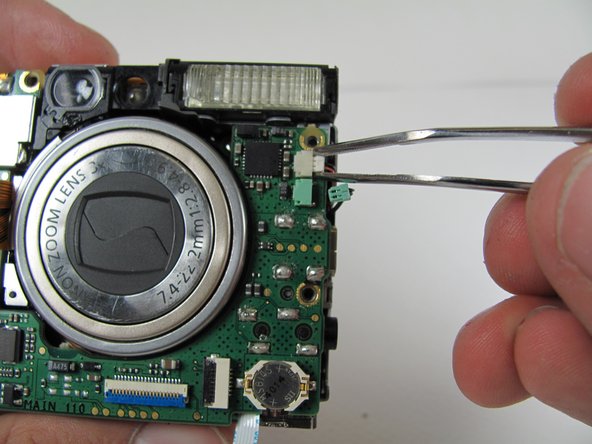
    • Lay the logic board back down so that it is resting on the body of the camera.

    • Pull the two plugs (white and green) out to the right from the logic board using the tweezers.

    FixBot'a Sor

    Yorum Ekle

  22. Canon PowerShot S500 AV Port Replacement: adım 22, 2 resimden 1. Canon PowerShot S500 AV Port Replacement: adım 22, 2 resimden 2.
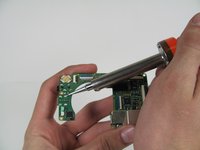
    • We're now ready to begin the desoldering process. You'll need a soldering iron, solder, and desoldering wick. You should be able to find these items at a Radio Shack if you don't already have them.

    • Please do not perform this step if you are not comfortable or have previous experience with soldering. Doing so, could cause severe damage to your camera.

    • Desolder the two soldered ribbon cables attached to the logic board.

    FixBot'a Sor

    Yorum Ekle

  23. Canon PowerShot S500 AV Port Replacement: adım 23, 1 resimden 1.
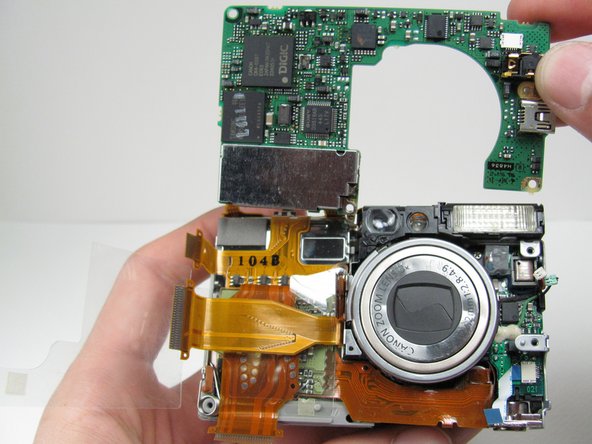
    • Free the logic board from the rest of the camera.

    FixBot'a Sor

    Yorum Ekle

  24. Canon PowerShot S500 AV Port Replacement, AV Port: adım 24, 1 resimden 1.
    • Pick up the Logic Board

    FixBot'a Sor

    Yorum Ekle

  25. Canon PowerShot S500 AV Port Replacement: adım 25, 2 resimden 1. Canon PowerShot S500 AV Port Replacement: adım 25, 2 resimden 2.
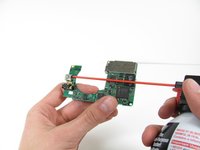
    • Blow the Particles out of the AV Port or USB Port using compressed air.

    • If the pins are damaged or missing, flip over the logic board and desolder the component from the logic board.

    FixBot'a Sor

    Yorum Ekle

Sonuç

To reassemble your device, follow these instructions in reverse order.

İptal et: Bu kılavuzu tamamlamadım.

Nathan Balcom

Üyelik tarihi: 01/21/10

102 İtibar

8 adet Kılavuz yazıldı

Ekip

Cal Poly, Team 16-28, Maness Winter 2010 Cal Poly, Team 16-28, Maness Winter 2010 üyesi

CPSU-MANESS-W10S16G28

4 Üyeler

9 adet Kılavuz yazıldı

0Kılavuz Yorumları

Yorum Ekle

İstatistikleri Görüntüle:

Son 24 Saat: 1

Son 7 gün: 11

Son 30 gün: 58

Her zaman: 3,464