Ana içeriğe geç
Onarım Topluluğuna Katılın - Hesap Oluşturun

Craig CMP801 LCD Screen Replacement

Neye ihtiyacın var

    1. Craig CMP801 LCD Screen Replacement, Back Cover: adım 1, 2 resimden 1. Craig CMP801 LCD Screen Replacement, Back Cover: adım 1, 2 resimden 2.
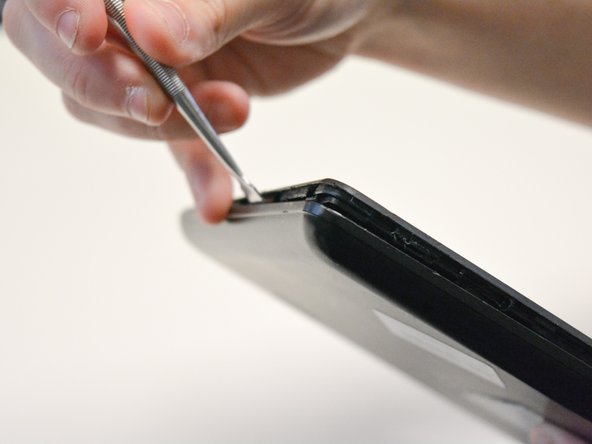
      • Locate the opening line between the cover and the device. Then locate the groove near the charging port.

      FixBot'a Sor

      Yorum Ekle

    2. Craig CMP801 LCD Screen Replacement: adım 2, 2 resimden 1. Craig CMP801 LCD Screen Replacement: adım 2, 2 resimden 2.
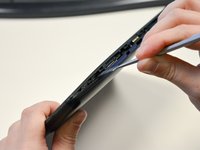
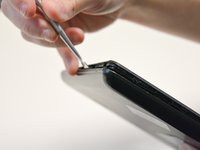
      • Use a metal spudger to separate the back cover from the front touch screen.

      • To do this, place the metal spudger in between the groove near the charging port of the device to unlatch the first clip.

      FixBot'a Sor

      Yorum Ekle

    3. Craig CMP801 LCD Screen Replacement: adım 3, 2 resimden 1. Craig CMP801 LCD Screen Replacement: adım 3, 2 resimden 2.
      • Continue to separate all of the clips around the device until the back cover comes off completely.

      FixBot'a Sor

      Yorum Ekle

    1. Craig CMP801 LCD Screen Replacement, Volume Controls: adım 4, 2 resimden 1. Craig CMP801 LCD Screen Replacement, Volume Controls: adım 4, 2 resimden 2.
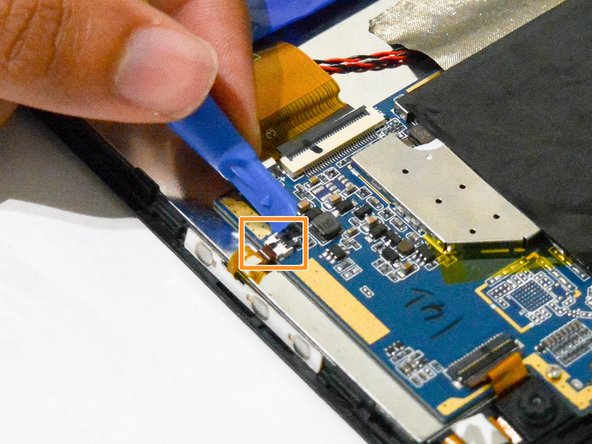
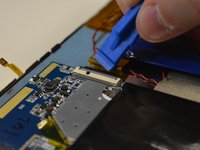
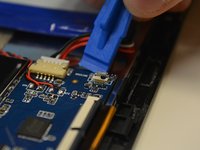
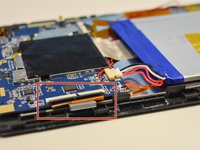
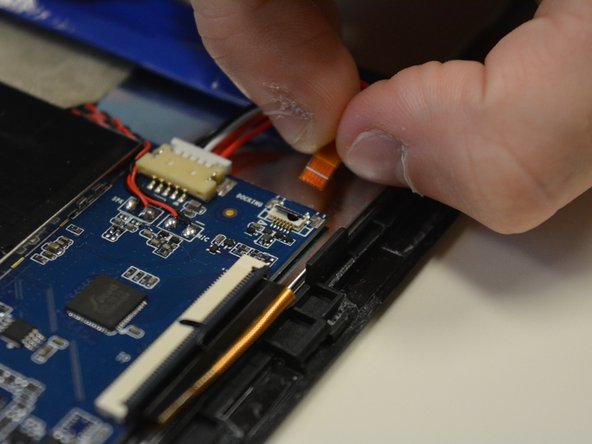
      • After taking out the back cover, locate the black flap.

      • Open the black flap with the plastic opening tools.

      • Be careful not to break the flap when you open it.

      FixBot'a Sor

      Yorum Ekle

    2. Craig CMP801 LCD Screen Replacement: adım 5, 2 resimden 1. Craig CMP801 LCD Screen Replacement: adım 5, 2 resimden 2.
      Bu adımda kullanılan alet:
      Tweezers
      $3.99
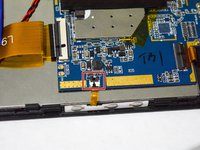
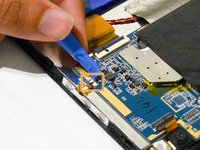
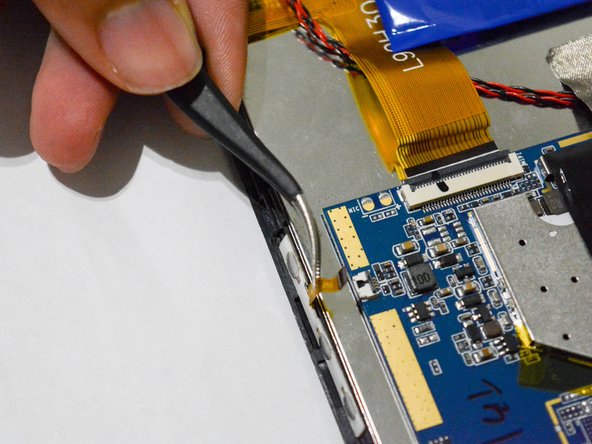
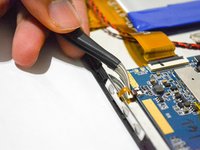
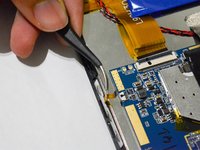
      • Once the tab is released, use the angled tweezers to take out the tab.

      • Be careful not to scratch the tab.

      FixBot'a Sor

      Yorum Ekle

    3. Craig CMP801 LCD Screen Replacement: adım 6, 2 resimden 1. Craig CMP801 LCD Screen Replacement: adım 6, 2 resimden 2.
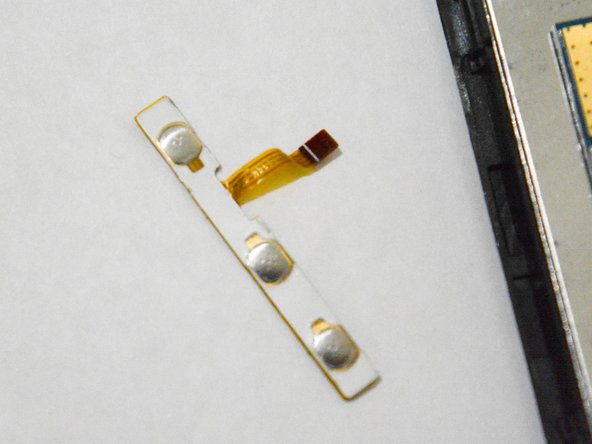
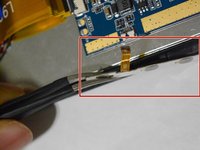
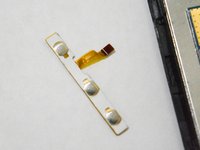
      • Use the angled tweezers to pull the volume controls out and replace it with a new one.

      FixBot'a Sor

      Yorum Ekle

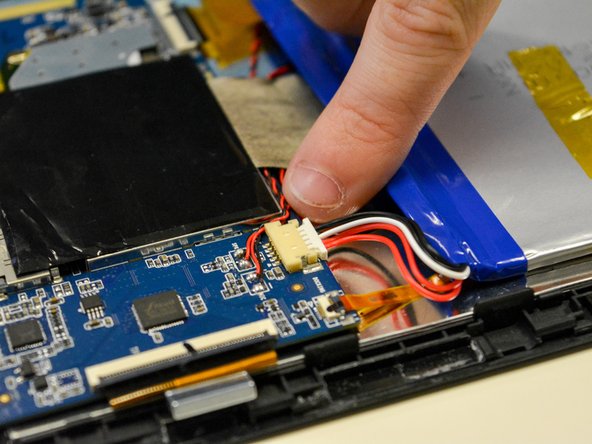
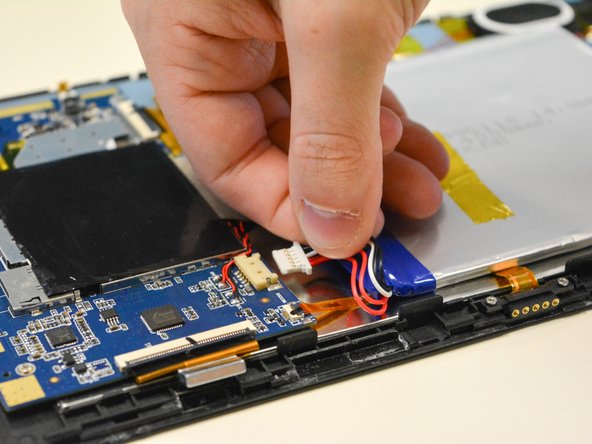
    1. Craig CMP801 LCD Screen Replacement, Battery: adım 7, 3 resimden 1. Craig CMP801 LCD Screen Replacement, Battery: adım 7, 3 resimden 2. Craig CMP801 LCD Screen Replacement, Battery: adım 7, 3 resimden 3.
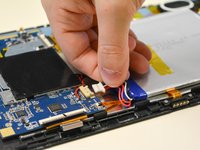
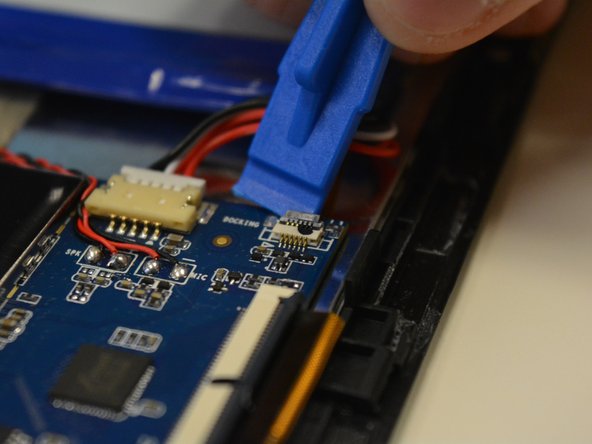
      • Locate the white plug next to the battery.

      • Use your fingers to pull off white plug that connected to the battery.

      • Be careful not to pull or break the wires on the bottom.

      FixBot'a Sor

      Yorum Ekle

    2. Craig CMP801 LCD Screen Replacement: adım 8, 3 resimden 1. Craig CMP801 LCD Screen Replacement: adım 8, 3 resimden 2. Craig CMP801 LCD Screen Replacement: adım 8, 3 resimden 3.
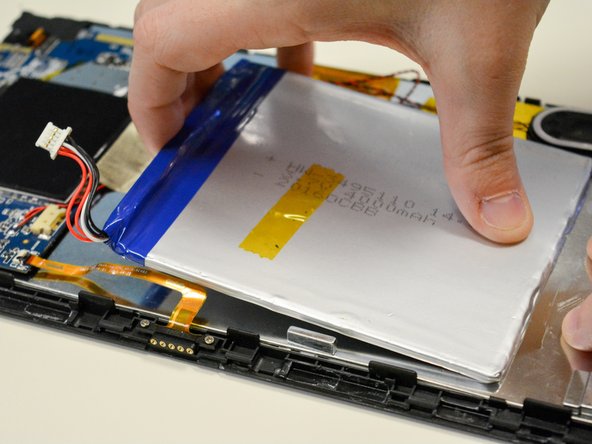
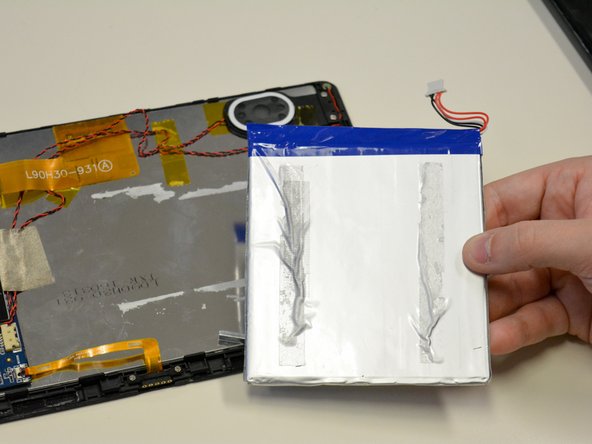
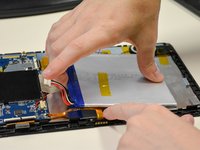
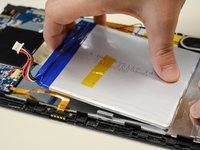
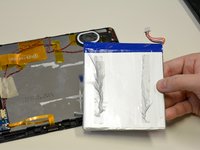
      • The battery should only be connected to the LCD by adhesive tape.

      • Using force, carefully remove the battery while holding the LCD in place.

      FixBot'a Sor

      Yorum Ekle

    1. Craig CMP801 LCD Screen Replacement, LCD Screen: adım 9, 3 resimden 1. Craig CMP801 LCD Screen Replacement, LCD Screen: adım 9, 3 resimden 2. Craig CMP801 LCD Screen Replacement, LCD Screen: adım 9, 3 resimden 3.
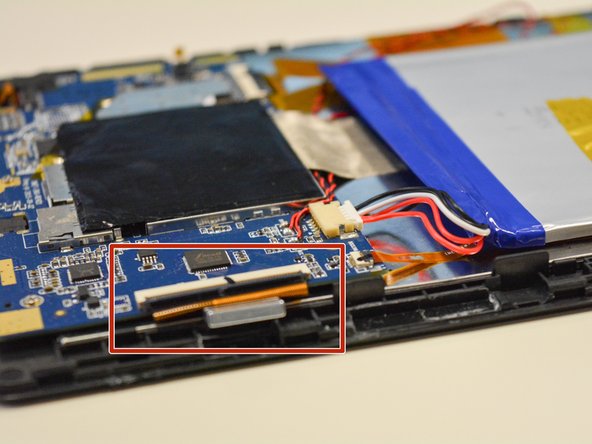
      • Open the three black flaps located on each side of the motherboard.

      FixBot'a Sor

      Yorum Ekle

    2. Craig CMP801 LCD Screen Replacement: adım 10, 2 resimden 1. Craig CMP801 LCD Screen Replacement: adım 10, 2 resimden 2.
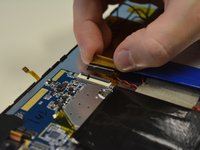
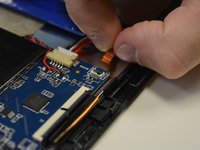
      • Then detach each of the three tabs from the LCD screen.

      FixBot'a Sor

      Yorum Ekle

    3. Craig CMP801 LCD Screen Replacement: adım 11, 2 resimden 1. Craig CMP801 LCD Screen Replacement: adım 11, 2 resimden 2.
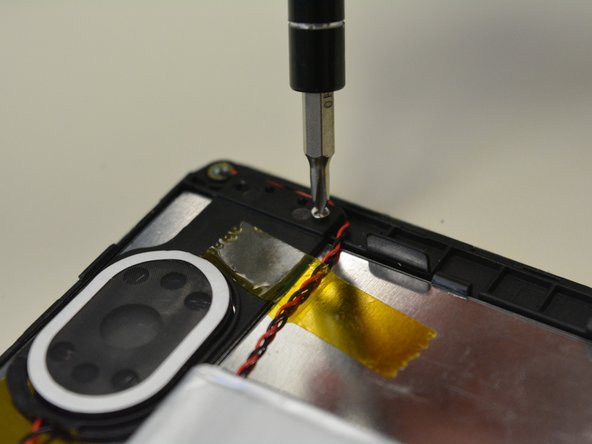
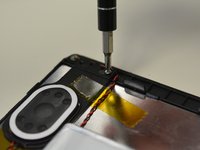
      • Using a Philips 0 Screwdriver, remove the screws connecting the speaker to the motherboard.

      • Remove black plastic speaker holder.

      FixBot'a Sor

      Yorum Ekle

    4. Craig CMP801 LCD Screen Replacement: adım 12, 1 resimden 1.
      • Remove the gray tape connecting the motherboard to the metal slate.

      • Use a spudger to separate the metal slate from the front touch screen.

      FixBot'a Sor

      Yorum Ekle

    5. Craig CMP801 LCD Screen Replacement: adım 13, 2 resimden 1. Craig CMP801 LCD Screen Replacement: adım 13, 2 resimden 2.
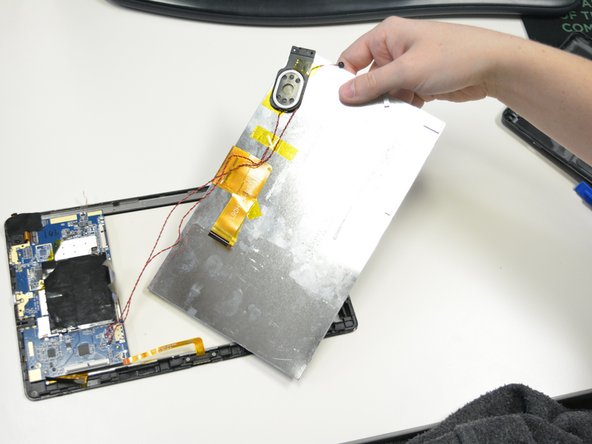
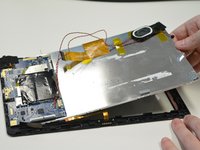
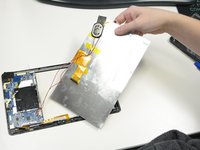
      • Carefully slide out the metal slate and LCD screen from underneath the motherboard.

      FixBot'a Sor

      Yorum Ekle

    6. Craig CMP801 LCD Screen Replacement: adım 14, 1 resimden 1.
      • Flip over the metal slate and separate the LCD screen from it.

      FixBot'a Sor

      Yorum Ekle

Sonuç

To reassemble your device, follow these instructions in reverse order.

İptal et: Bu kılavuzu tamamlamadım.

Bir başkası bu kılavuzu tamamladı.

0Kılavuz Yorumları

Yorum Ekle

İstatistikleri Görüntüle:

Son 24 Saat: 1

Son 7 gün: 9

Son 30 gün: 50

Her zaman: 1,538