Ana içeriğe geç
Onarım Topluluğuna Katılın - Hesap Oluşturun

Creative Zen X-Fi LCD Screen Replacement

Neye ihtiyacın var

  1. Creative Zen X-Fi LCD Screen Replacement, Detaching Front Case: adım 1, 3 resimden 1. Creative Zen X-Fi LCD Screen Replacement, Detaching Front Case: adım 1, 3 resimden 2. Creative Zen X-Fi LCD Screen Replacement, Detaching Front Case: adım 1, 3 resimden 3.
    • Using a spudger, wedge the tip between the front and back case to pry them apart.

    • Be careful to not apply excessive force since there are six fasteners on the screen's side that holds the cases firmly together.

    FixBot'a Sor

    Yorum Ekle

  2. Creative Zen X-Fi LCD Screen Replacement, Rubber Button Cover: adım 2, 1 resimden 1.
    • The black rubber button pad can be removed by simply picking it up.

    FixBot'a Sor

    Yorum Ekle

  3. Creative Zen X-Fi LCD Screen Replacement, Button Input Chip Part 1: adım 3, 1 resimden 1.
    • Flip the LCD screen off the midsection plate to gain access to the space around the input button chip.

    FixBot'a Sor

    Yorum Ekle

  4. Creative Zen X-Fi LCD Screen Replacement, Button Input Chip: adım 4, 1 resimden 1.
    • Using a spudger, pry off the button input chip from the mid-section of the device. To gain best leverage, start at the bottom right corner and level your way up the side of the chip.

    • Be aware that the button input chip is glued to the mid-section, so some extra force may be required.

    FixBot'a Sor

    Yorum Ekle

  5. Creative Zen X-Fi LCD Screen Replacement, Access Midsection Plate: adım 5, 1 resimden 1.
    • Lift open the LCD screen and button input chip to access the entire midsection plate.

    FixBot'a Sor

    Yorum Ekle

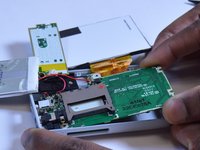
  6. Creative Zen X-Fi LCD Screen Replacement, Unscrew below Button Chip: adım 6, 1 resimden 1.
    • Use a Phillips Head screwdriver to unscrew the three 3/16 inch screws that were underneath the button input chip.

    FixBot'a Sor

    Yorum Ekle

  7. Creative Zen X-Fi LCD Screen Replacement, Unscrew below LCD Screen: adım 7, 1 resimden 1.
    • Use a Phillips Head screwdriver to unscrew the three 3/16 inch screws that were underneath the LCD screen.

    FixBot'a Sor

    Yorum Ekle

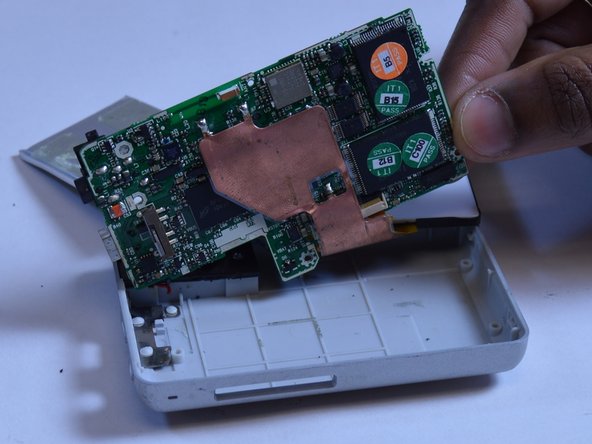
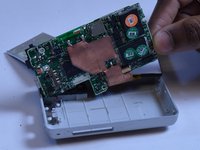
  8. Creative Zen X-Fi LCD Screen Replacement, Pull the Motherboard Out: adım 8, 2 resimden 1. Creative Zen X-Fi LCD Screen Replacement, Pull the Motherboard Out: adım 8, 2 resimden 2.
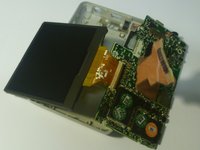
    • Lift the right edge of the motherboard off the back case.

    • Using two fingers to grip the edge of the board, slide the motherboard out of the case to the right.

    FixBot'a Sor

    Yorum Ekle

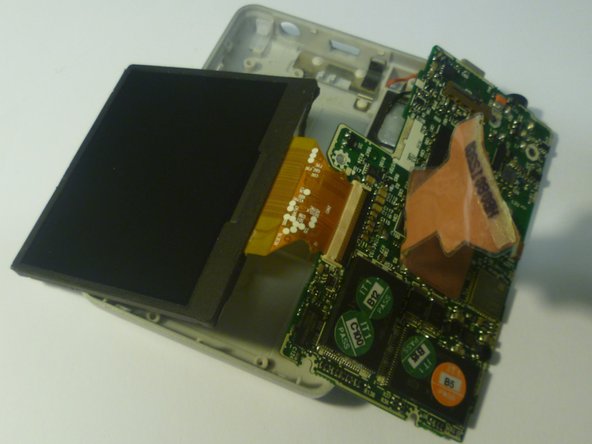
  9. Creative Zen X-Fi LCD Screen Replacement, Disconnect the LCD Screen: adım 9, 2 resimden 1. Creative Zen X-Fi LCD Screen Replacement, Disconnect the LCD Screen: adım 9, 2 resimden 2.
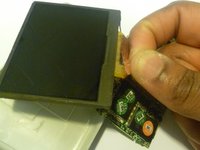
    • Use two fingers to peel back the edge of the ribbon connector that is glued to the bottom of the LCD screen.

    FixBot'a Sor

    Yorum Ekle

  10. Creative Zen X-Fi LCD Screen Replacement, Unlatch the LCD Screen: adım 10, 1 resimden 1.
    • Using a plastic opening tool, unlock the ribbon connector by unlatching the black lever that pins it on the motherboard.

    • Once the black lever arm is open, pull the ribbon connector out to disconnect the LCD screen.

    FixBot'a Sor

    Yorum Ekle

Sonuç

To reassemble your device, follow these instructions in reverse order.

İptal et: Bu kılavuzu tamamlamadım.

3 farklı kişi bu kılavuzu tamamladı.

Westley Courchene

Üyelik tarihi: 01/13/15

3.410 İtibar

14 adet Kılavuz yazıldı

0Kılavuz Yorumları

Yorum Ekle

İstatistikleri Görüntüle:

Son 24 Saat: 0

Son 7 gün: 14

Son 30 gün: 51

Her zaman: 1,968