Ana içeriğe geç
Onarım Topluluğuna Katılın - Hesap Oluşturun

Dell Alienware 13 Battery Replacement

Neye ihtiyacın var

  1. Dell Alienware 13 Battery Replacement, Base Panel: adım 1, 1 resimden 1.
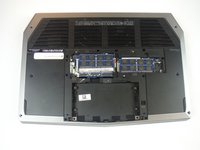
    • Working on an electrical device while plugged in can cause injury due to electrical shock. Ensure that all external power is disconnected from the device.

    • Close the device and turn the device over.

    FixBot'a Sor

    Yorum Ekle

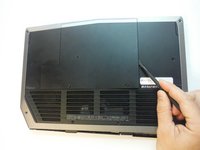
  2. Dell Alienware 13 Battery Replacement: adım 2, 1 resimden 1.
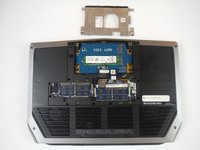
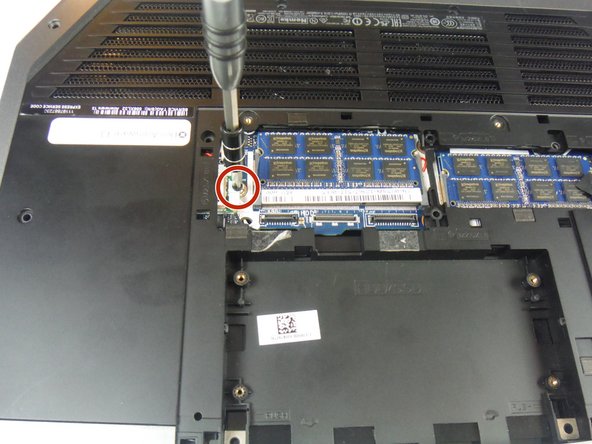
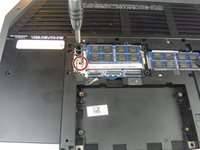
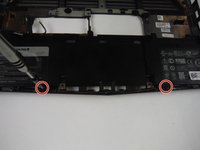
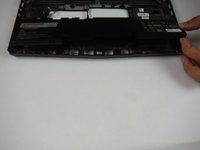
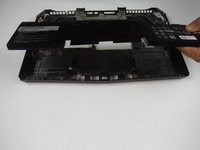
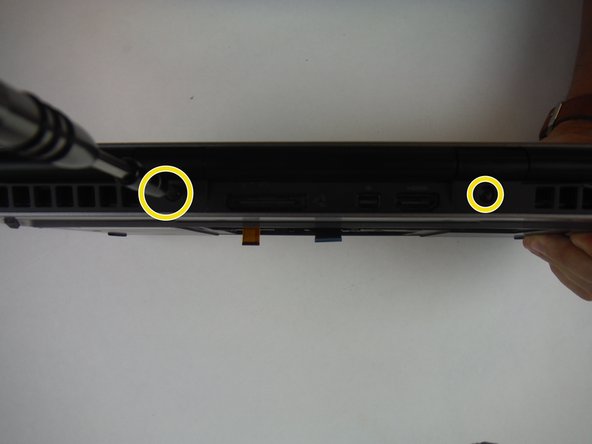
    • Remove (2) 5 mm Phillips head screws attaching the small access panel to the base using a Phillips # 1 screwdriver.

    • The (2) screws are attached to the base panel with retaining clips and won't completely detach from the panel.

    FixBot'a Sor
    Yorum Ekle

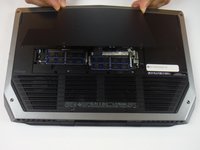
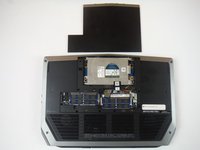
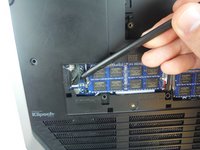
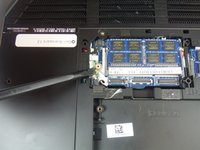
  3. Dell Alienware 13 Battery Replacement: adım 3, 3 resimden 1. Dell Alienware 13 Battery Replacement: adım 3, 3 resimden 2. Dell Alienware 13 Battery Replacement: adım 3, 3 resimden 3.
    Bu adımda kullanılan alet:
    Heavy-Duty Spudger
    $4.99
    FixBot'a Sor
    Yorum Ekle

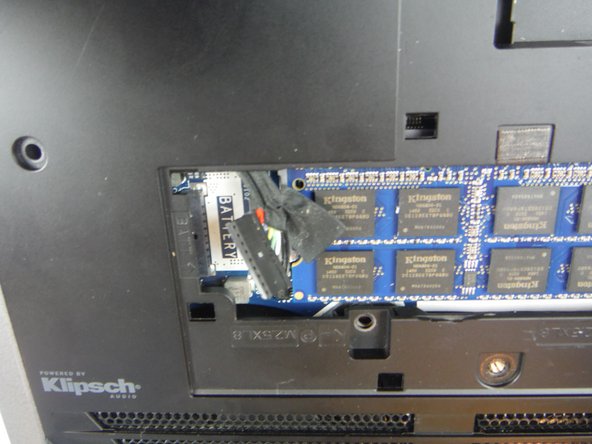
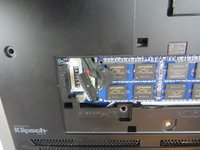
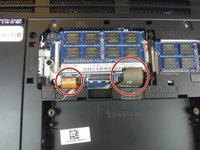
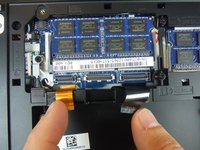
  4. Dell Alienware 13 Battery Replacement, Computer Base: adım 4, 2 resimden 1. Dell Alienware 13 Battery Replacement, Computer Base: adım 4, 2 resimden 2.
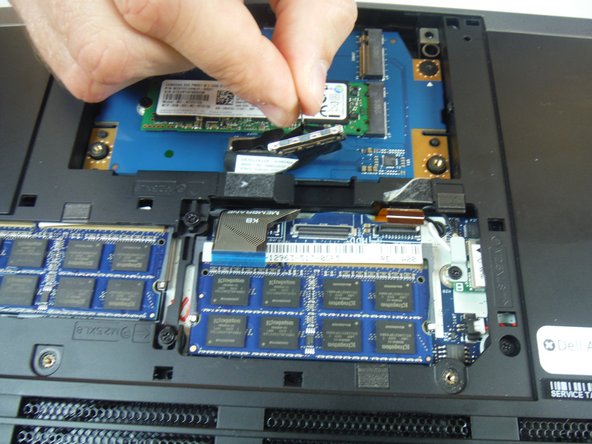
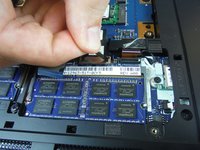
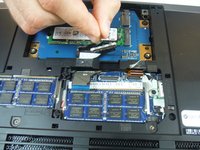
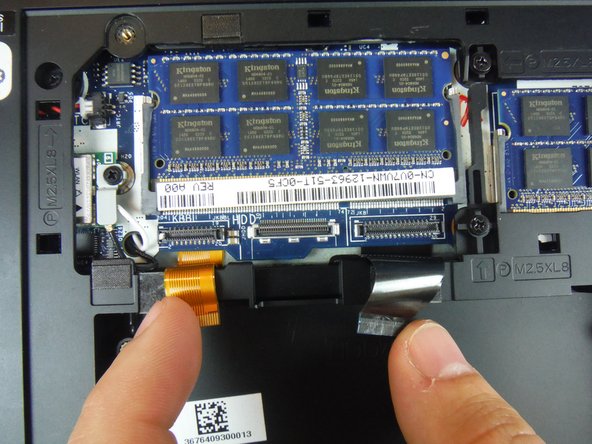
    • Disconnect the battery cable from the battery cable terminal.

    FixBot'a Sor
    Yorum Ekle

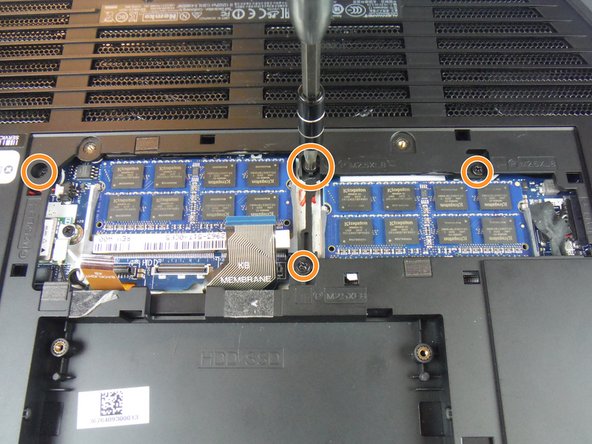
  5. Dell Alienware 13 Battery Replacement: adım 5, 1 resimden 1.
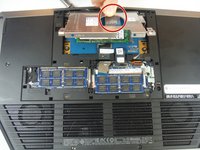
    • Remove (4) 6 mm Phillips head screws from the solid-state metal drive bracket, using a Phillips # 1 screwdriver.

    FixBot'a Sor

    Yorum Ekle

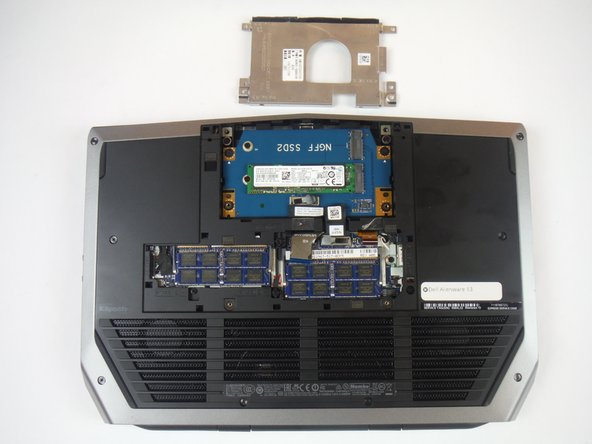
  6. Dell Alienware 13 Battery Replacement: adım 6, 2 resimden 1. Dell Alienware 13 Battery Replacement: adım 6, 2 resimden 2.
    • Grab the pull tab to pivot the solid-state drive bracket upwards. Remove the bracket from the computer base.

    FixBot'a Sor
    Yorum Ekle

  7. Dell Alienware 13 Battery Replacement: adım 7, 2 resimden 1. Dell Alienware 13 Battery Replacement: adım 7, 2 resimden 2.
    • Using the pull tab, disconnect the black solid-state drive cable from the system board.

    FixBot'a Sor
    Yorum Ekle

  8. Dell Alienware 13 Battery Replacement: adım 8, 1 resimden 1.
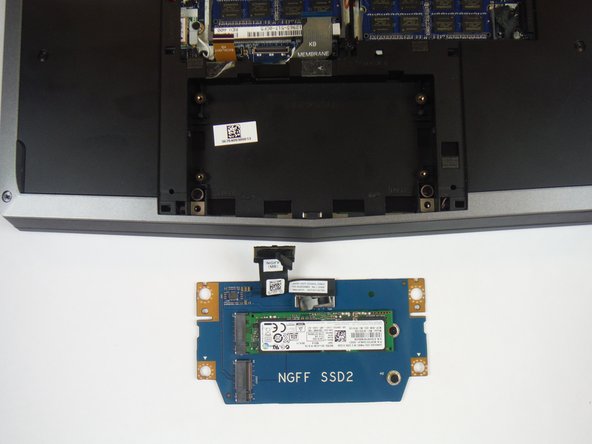
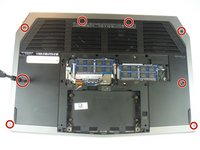
    • Remove (2) 3 mm Phillips head screws, using a Phillips # 0 screwdriver, that connect the solid-state drive assembly to the computer base.

    FixBot'a Sor
    Yorum Ekle

  9. Dell Alienware 13 Battery Replacement: adım 9, 2 resimden 1. Dell Alienware 13 Battery Replacement: adım 9, 2 resimden 2.
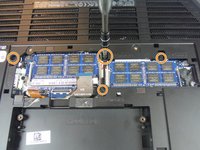
    • Lift up on the solid-state drive assembly to remove it from the computer base.

    FixBot'a Sor
    Yorum Ekle

  10. Dell Alienware 13 Battery Replacement: adım 10, 2 resimden 1. Dell Alienware 13 Battery Replacement: adım 10, 2 resimden 2.
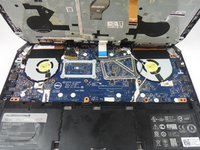
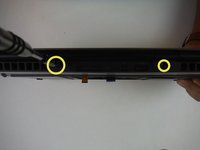
    • Locate two cables labeled, "KB Backlight" (orange) and "KB Membrane" (black). Lift up on the latches to disconnect the cables from the system board.

    • The latches that connect the cables to the system board are very delicate. Handle with care to avoid damaging them.

    FixBot'a Sor
    Yorum Ekle

  11. Dell Alienware 13 Battery Replacement: adım 11, 3 resimden 1. Dell Alienware 13 Battery Replacement: adım 11, 3 resimden 2. Dell Alienware 13 Battery Replacement: adım 11, 3 resimden 3.
    • Remove (8) 9 mm Phillips head screws using a Phillips # 1 screwdriver, that secures the palm-rest assembly to the computer base.

    • Remove (4) 8 mm Phillips head screws using a Phillips # 1 screwdriver.

    • Remove (2) 7 mm Phillips head screws using a Phillips # 1 screwdriver.

    FixBot'a Sor

    Yorum Ekle

  12. Dell Alienware 13 Battery Replacement: adım 12, 2 resimden 1. Dell Alienware 13 Battery Replacement: adım 12, 2 resimden 2.
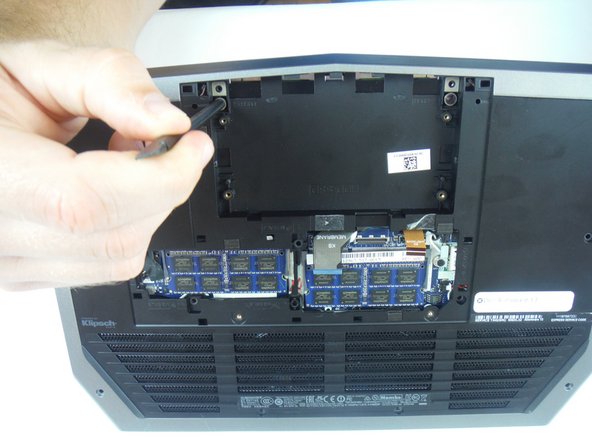
    • Lift the computer base slightly towards you and push the release tabs on the palm-rest assembly until it pops out using a spudger.

    FixBot'a Sor
    Yorum Ekle

  13. Dell Alienware 13 Battery Replacement: adım 13, 3 resimden 1. Dell Alienware 13 Battery Replacement: adım 13, 3 resimden 2. Dell Alienware 13 Battery Replacement: adım 13, 3 resimden 3.
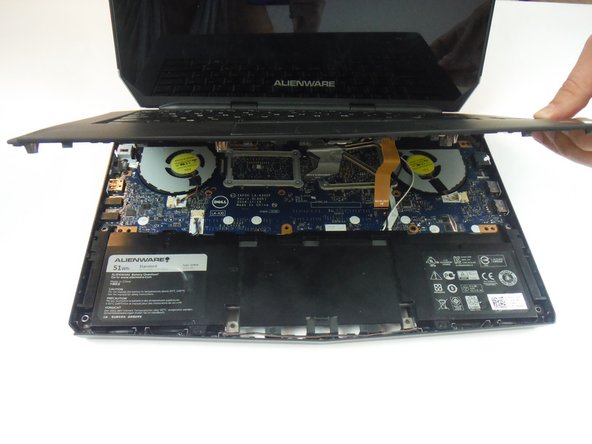
    • Turn the computer over and open the display as far as possible.
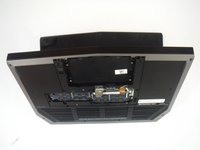
    • Using a plastic spudger, pry up along the edges of the palm-rest assembly.

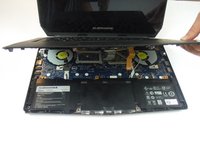
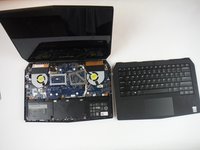
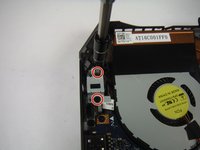
    • Gently lift the palm-rest assembly.

    FixBot'a Sor
    Yorum Ekle

  14. Dell Alienware 13 Battery Replacement: adım 14, 3 resimden 1. Dell Alienware 13 Battery Replacement: adım 14, 3 resimden 2. Dell Alienware 13 Battery Replacement: adım 14, 3 resimden 3.
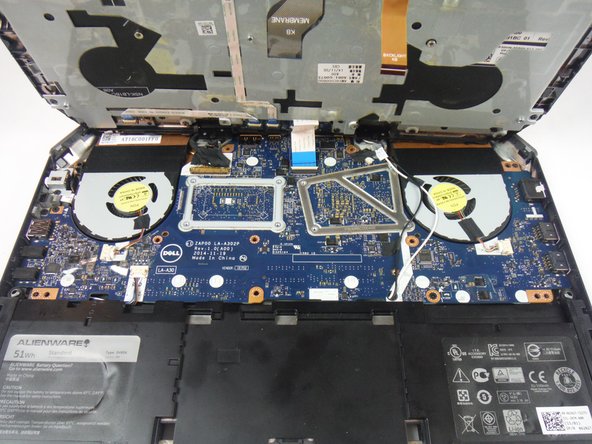
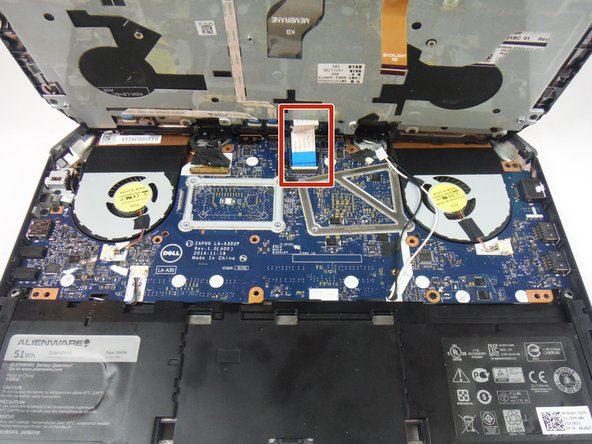
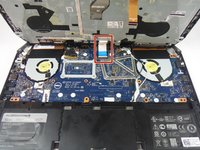
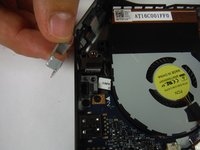
    • Lift the connector latch and disconnect the power-button board cable from the system board. Identified as a cable with a blue tab.

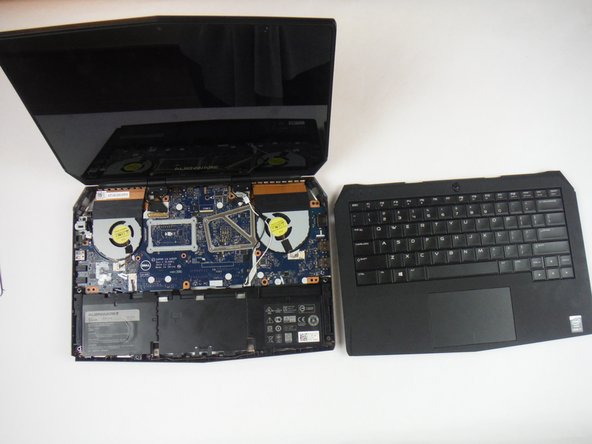
    • Lift the palm-rest assembly off the computer base.

    FixBot'a Sor
    Yorum Ekle

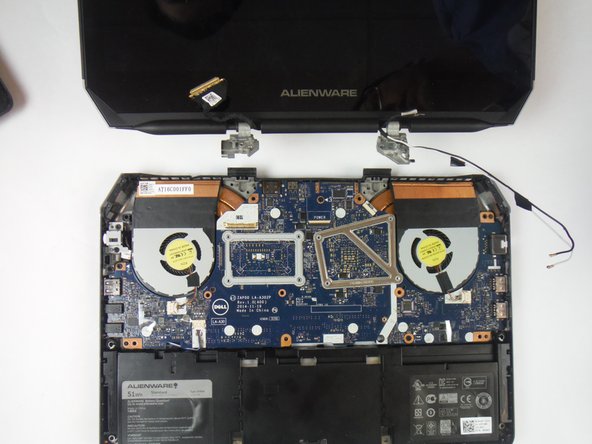
  15. Dell Alienware 13 Battery Replacement: adım 15, 3 resimden 1. Dell Alienware 13 Battery Replacement: adım 15, 3 resimden 2. Dell Alienware 13 Battery Replacement: adım 15, 3 resimden 3.
    • Open the display as far as possible.

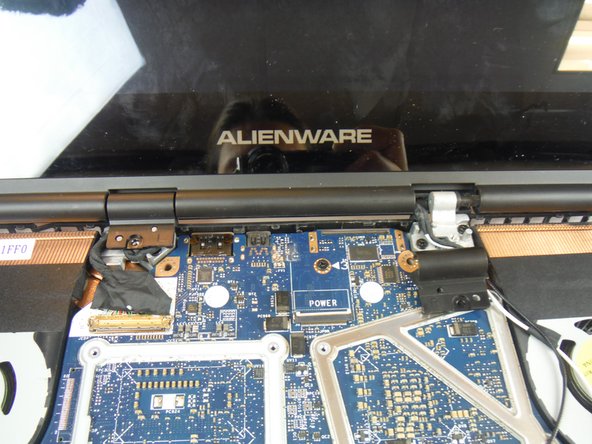
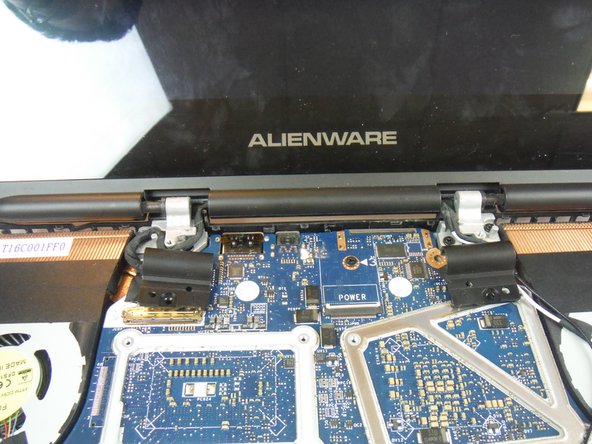
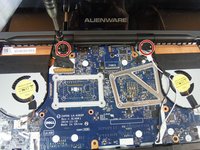
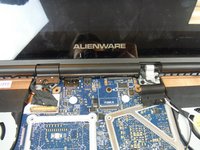
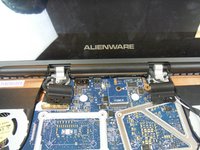
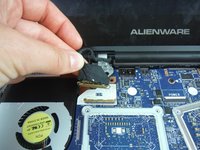
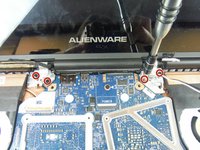
    • Remove (2) 3 mm Phillips head screws, using a Phillips head #0 screwdriver, that secure the hinge caps to the display hinges.

    • Slide and lift the hinge caps off the display hinges.

    FixBot'a Sor

    Yorum Ekle

  16. Dell Alienware 13 Battery Replacement: adım 16, 2 resimden 1. Dell Alienware 13 Battery Replacement: adım 16, 2 resimden 2.
    • Close the display and turn the computer over.

    • Remove (1) 2 mm Phillips head screw, using a Phillips head # 0 screwdriver, that secures the wireless-card bracket to the wireless card.

    FixBot'a Sor

    Yorum Ekle

  17. Dell Alienware 13 Battery Replacement: adım 17, 2 resimden 1. Dell Alienware 13 Battery Replacement: adım 17, 2 resimden 2.
    Bu adımda kullanılan alet:
    Heavy-Duty Spudger
    $4.99
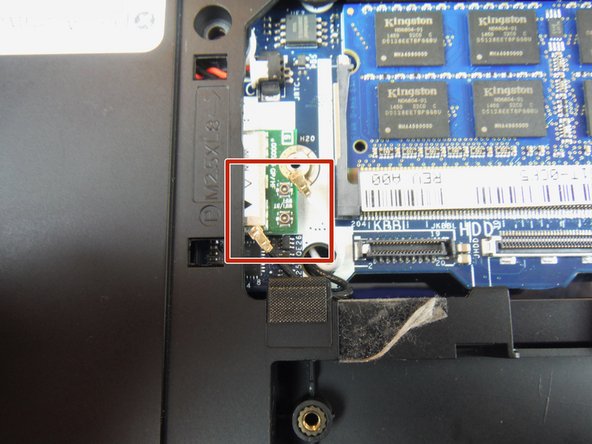
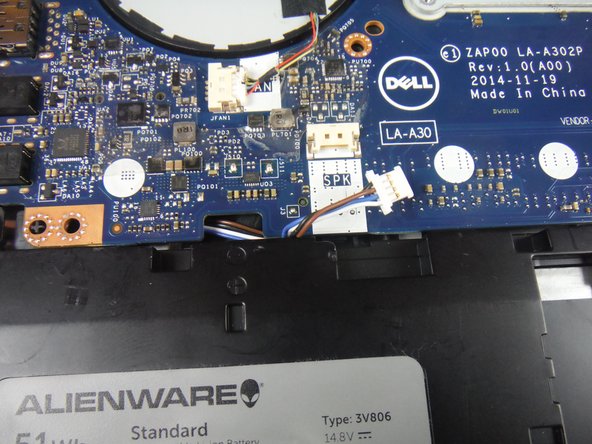
    • Disconnect the antenna cables from the wireless card using a heavy duty spudger. The wires can be removed by applying a force directed upward, away from the device.

    FixBot'a Sor
    Yorum Ekle

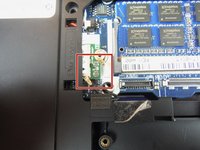
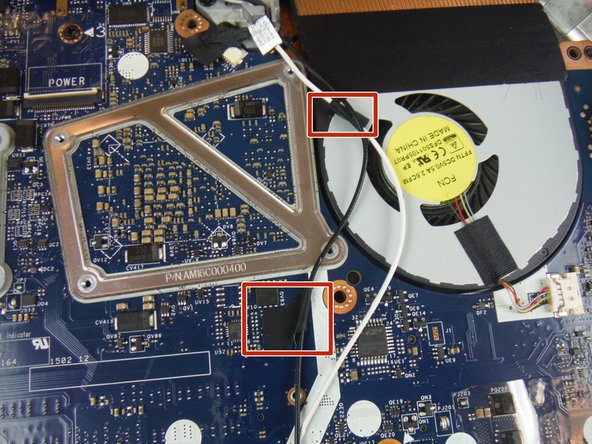
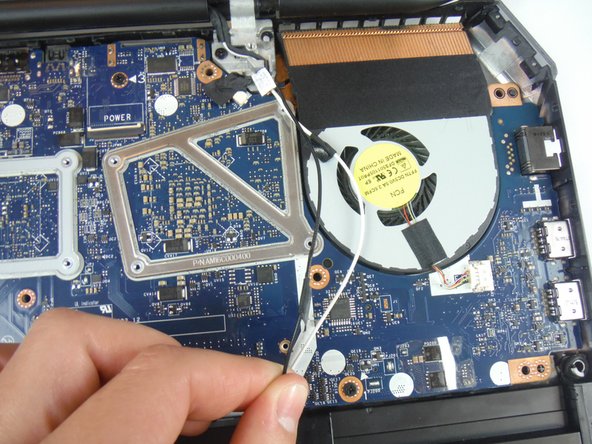
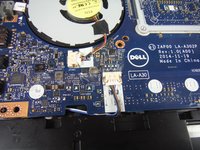
  18. Dell Alienware 13 Battery Replacement: adım 18, 3 resimden 1. Dell Alienware 13 Battery Replacement: adım 18, 3 resimden 2. Dell Alienware 13 Battery Replacement: adım 18, 3 resimden 3.
    • Turn the computer over and open the display.

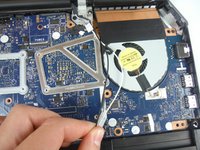
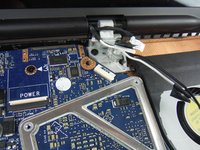
    • Peel off the adhesive tapes that secure the antenna cables to the system board.

    • Make note of how the cables are routed before removing any cables from their routing guide.

    FixBot'a Sor
    Yorum Ekle

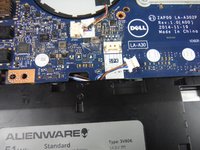
  19. Dell Alienware 13 Battery Replacement: adım 19, 3 resimden 1. Dell Alienware 13 Battery Replacement: adım 19, 3 resimden 2. Dell Alienware 13 Battery Replacement: adım 19, 3 resimden 3.
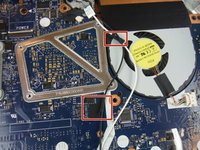
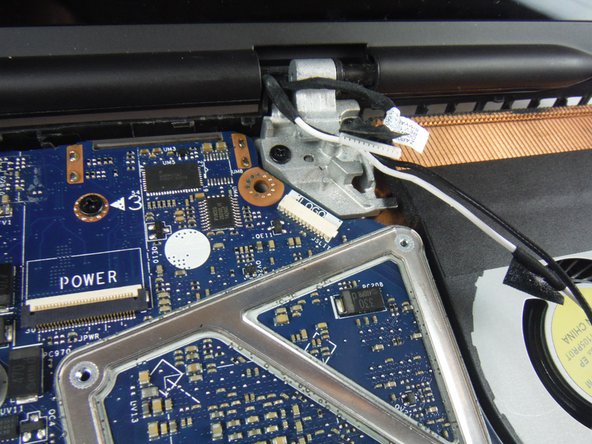
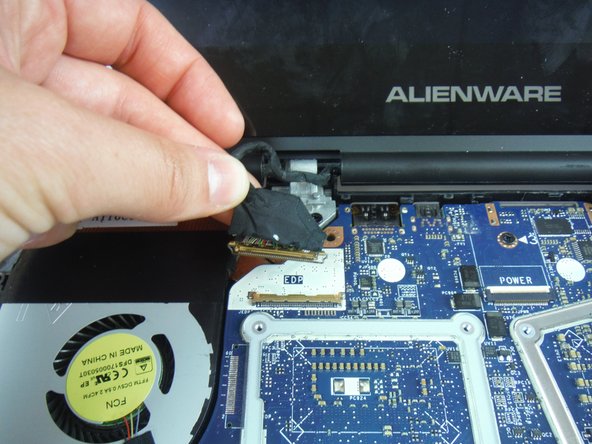
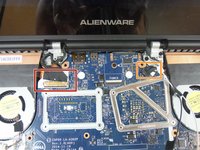
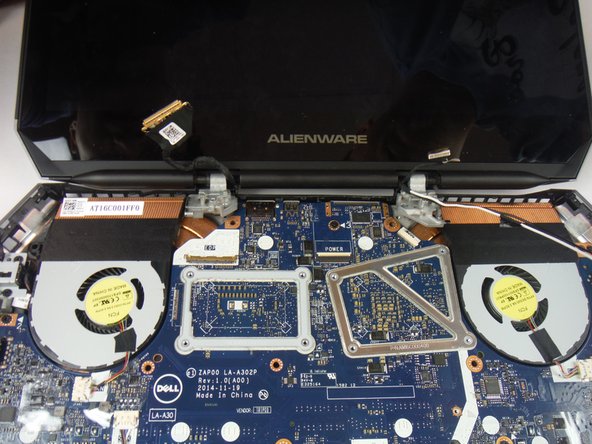
    • Lift the connector latch and disconnect the display cable from the system board.

    • Disconnect the logo-board cable from the system board.

    • Remove the antenna cables, display cable, and logo-board cable from the routing guides on the display hinges.

    FixBot'a Sor
    Yorum Ekle

  20. Dell Alienware 13 Battery Replacement: adım 20, 3 resimden 1. Dell Alienware 13 Battery Replacement: adım 20, 3 resimden 2. Dell Alienware 13 Battery Replacement: adım 20, 3 resimden 3.
    • Remove (4) 8 mm Phillips head screws, using a Phillips # 1 screwdriver, that secure the display assembly to the computer base.

    • Lift the display assembly off the computer base.

    FixBot'a Sor

    Yorum Ekle

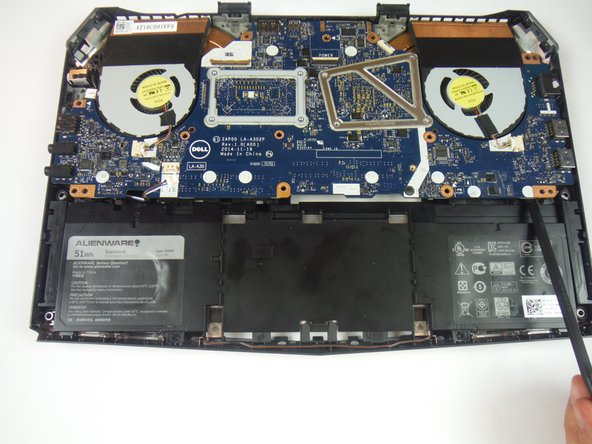
  21. Dell Alienware 13 Battery Replacement: adım 21, 2 resimden 1. Dell Alienware 13 Battery Replacement: adım 21, 2 resimden 2.
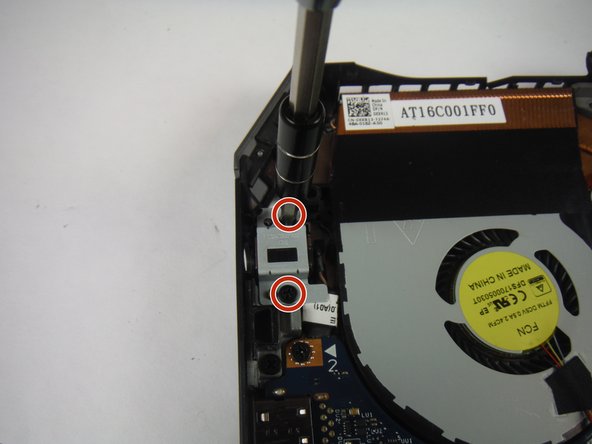
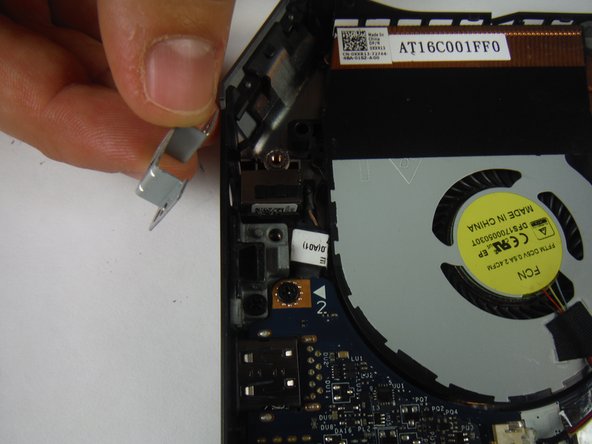
    • Remove the (2) 6 mm Phillips head screws securing the power adapter port bracket with a #1 Phillips screwdriver.

    • Lift and remove the power adapter port bracket.

    FixBot'a Sor
    Yorum Ekle

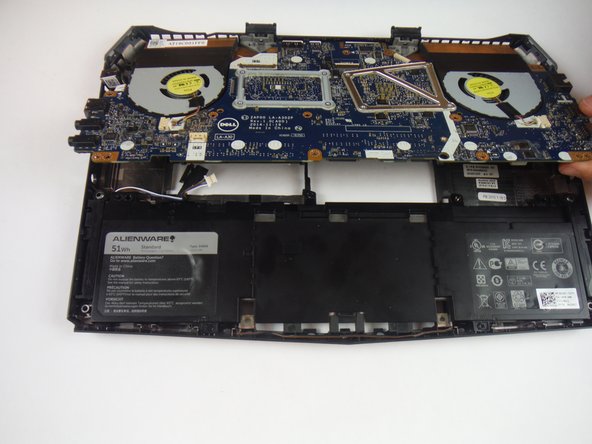
  22. Dell Alienware 13 Battery Replacement: adım 22, 1 resimden 1.
    • Lift up and remove the power adapter port from the computer base.

    FixBot'a Sor
    Yorum Ekle

  23. Dell Alienware 13 Battery Replacement: adım 23, 2 resimden 1. Dell Alienware 13 Battery Replacement: adım 23, 2 resimden 2.
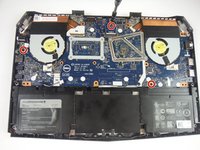
    • Disconnect the speaker cable connector from the service board.

    FixBot'a Sor
    Yorum Ekle

  24. Dell Alienware 13 Battery Replacement: adım 24, 3 resimden 1. Dell Alienware 13 Battery Replacement: adım 24, 3 resimden 2. Dell Alienware 13 Battery Replacement: adım 24, 3 resimden 3.
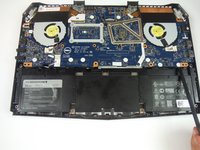
    • Remove (3) 6 mm Phillips head screws securing the service board with a #1 Phillips screwdriver.

    • Lift up on the service board assembly using a heavy duty spudger and slide the board towards the battery to remove from the base.

    FixBot'a Sor
    Yorum Ekle

  25. Dell Alienware 13 Battery Replacement, Battery: adım 25, 1 resimden 1.
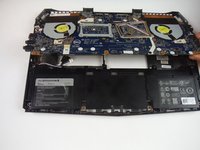
    • Remove the speaker cable from the cable clip on the battery.
    FixBot'a Sor

    Yorum Ekle

  26. Dell Alienware 13 Battery Replacement: adım 26, 3 resimden 1. Dell Alienware 13 Battery Replacement: adım 26, 3 resimden 2. Dell Alienware 13 Battery Replacement: adım 26, 3 resimden 3.
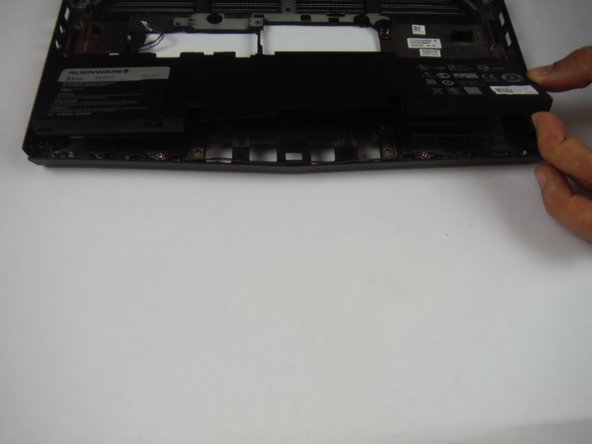
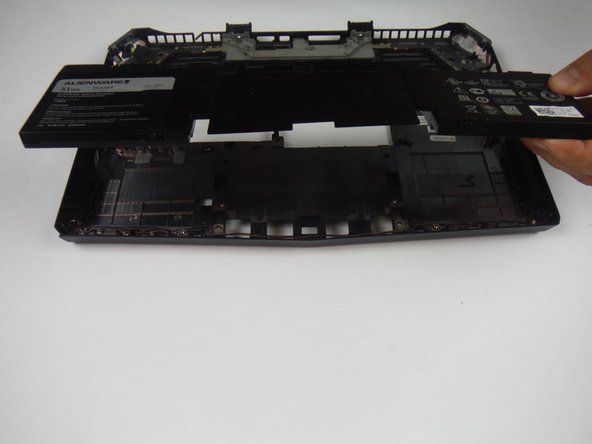
    • Remove (2) 6 mm Phillips head screws securing the battery to the computer base with a #1 Phillips screwdriver.

    • Lift up and remove the battery from the computer base.

    • Lithium can be explosive, especially when wet. Be careful when handling and disposing of lithium-ion batteries.

    FixBot'a Sor

    Yorum Ekle

Sonuç

To reassemble your device, follow these instructions in reverse order.

İptal et: Bu kılavuzu tamamlamadım.

4 farklı kişi bu kılavuzu tamamladı.

Adam Russell

Üyelik tarihi: 09/26/16

898 İtibar

6 adet Kılavuz yazıldı

Ekip

USF Tampa, Team 14-2, Eyestone Fall 2016 USF Tampa, Team 14-2, Eyestone Fall 2016 üyesi

USFT-EYESTONE-F16S14G2

3 Üyeler

7 adet Kılavuz yazıldı

2Kılavuz Yorumları

Please note, on slight variants of this. When battery is facing you with rear / hinge away. The right ide of motherboards has a clip cover on the USB C port, holding the motherboard down. Additionally, the 3x keyboard screws for lifting the palm rest were in the way. Almost every laptop i’ve EVER worked on for various dell/hp, ALWAYS have 2-4 screws for the keyboard. Please note this when writing tutorials as some models don’t open so easily. Be safe all, don’t rush things, and make sure you’re aware of what’s there proactively before ripping a laptop literally to pieces…

Peter McLaughlin - Yanıt Paylaş

I did complete this guide, and it does work for the most part. See below my suggested updates/edits to improve. Thank you for making this guide. Helped a ton for initial perspective.

Peter McLaughlin - Yanıt Paylaş

Yorum Ekle

İstatistikleri Görüntüle:

Son 24 Saat: 3

Son 7 gün: 14

Son 30 gün: 54

Her zaman: 9,351