Ana içeriğe geç
Onarım Topluluğuna Katılın - Hesap Oluşturun

Dell Inspiron 14-5447 Fan Replacement

Neye ihtiyacın var

    1. Dell Inspiron 14-5447 Fan Replacement, Battery: adım 1, 1 resimden 1.
      • Flip the laptop upside down to access the battery.

      FixBot'a Sor

      Yorum Ekle

    2. Dell Inspiron 14-5447 Fan Replacement: adım 2, 2 resimden 1. Dell Inspiron 14-5447 Fan Replacement: adım 2, 2 resimden 2.
      • Remove the two black 5.70mm Phillips#0 screws on the case's back.

      • Insert a plastic opening tool into the small slit, centered between the removed screws, and pry open the back cover

      FixBot'a Sor
      Yorum Ekle

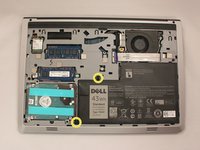
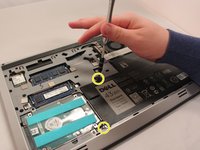
    3. Dell Inspiron 14-5447 Fan Replacement: adım 3, 2 resimden 1. Dell Inspiron 14-5447 Fan Replacement: adım 3, 2 resimden 2.
      • Remove the two 5.70mm Phillips #0 screws that secure the battery in place on its left side .

      • Treat the battery with care - puncturing or bending may cause damage to the battery and may result in fire or injury.

      FixBot'a Sor

      Yorum Ekle

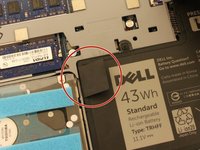
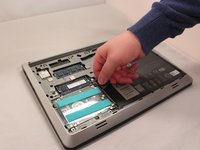
    4. Dell Inspiron 14-5447 Fan Replacement: adım 4, 2 resimden 1. Dell Inspiron 14-5447 Fan Replacement: adım 4, 2 resimden 2.
      • Use the black, plastic flap on the left side to pull the battery out.

      • Slowly lift the flap up and the battery should slide out.

      FixBot'a Sor

      Yorum Ekle

    1. Dell Inspiron 14-5447 Fan Replacement, Fan: adım 5, 1 resimden 1.
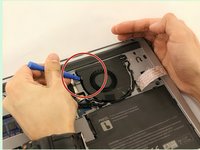
      • Locate the fan system in the top right corner.

      FixBot'a Sor
      Yorum Ekle

    2. Dell Inspiron 14-5447 Fan Replacement: adım 6, 2 resimden 1. Dell Inspiron 14-5447 Fan Replacement: adım 6, 2 resimden 2.
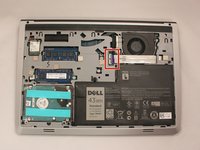
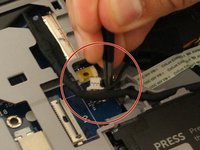
      • Look along the wide line of white cable until you find the tab insert.

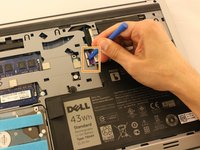
      • Remove the thick white cable crossing over the fan, using the blue spudger shown, to flip the securing flap holding down the cable.

      FixBot'a Sor
      Yorum Ekle

    3. Dell Inspiron 14-5447 Fan Replacement: adım 7, 2 resimden 1. Dell Inspiron 14-5447 Fan Replacement: adım 7, 2 resimden 2.
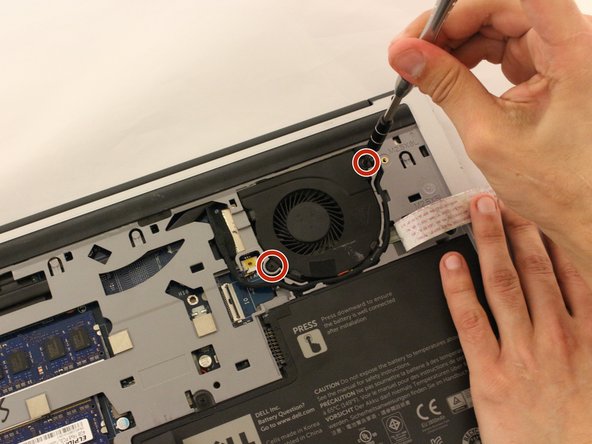
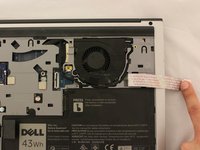
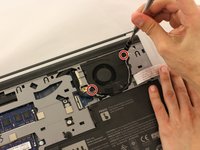
      • Move the cable over to the side to reveal the fan screws.

      • Remove the two black 5.70 mm screws from the fan.

      FixBot'a Sor
      Yorum Ekle

    4. Dell Inspiron 14-5447 Fan Replacement: adım 8, 2 resimden 1. Dell Inspiron 14-5447 Fan Replacement: adım 8, 2 resimden 2.
      Bu adımda kullanılan alet:
      Tweezers
      $4.99
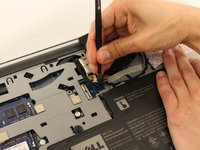
      • Use tweezers to remove the small cable attached to the fan.

      FixBot'a Sor

      Yorum Ekle

    5. Dell Inspiron 14-5447 Fan Replacement: adım 9, 2 resimden 1. Dell Inspiron 14-5447 Fan Replacement: adım 9, 2 resimden 2.
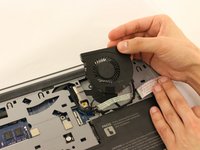
      • Using the opening tool, pry the fan out.

      • Remove the fan slowly to prevent damage to any wires or cables connected to the device.

      FixBot'a Sor

      Yorum Ekle

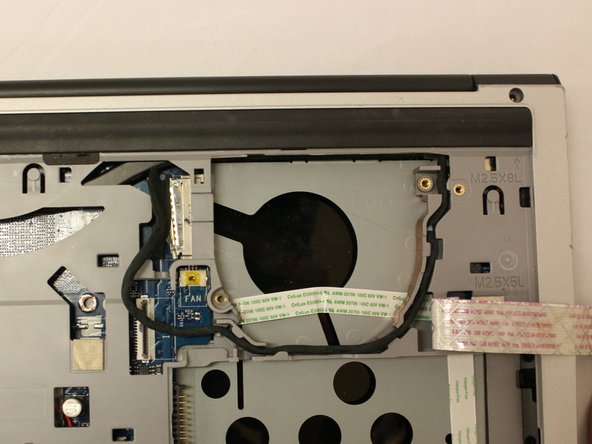
    6. Dell Inspiron 14-5447 Fan Replacement: adım 10, 1 resimden 1.
      • Now that the fan is removed, be sure to clean the area under the fan to prevent overheating.

      FixBot'a Sor

      Yorum Ekle

Sonuç

To reassemble your device, follow these instructions in reverse order.

İptal et: Bu kılavuzu tamamlamadım.

0Kılavuz Yorumları

Yorum Ekle

İstatistikleri Görüntüle:

Son 24 Saat: 0

Son 7 gün: 4

Son 30 gün: 21

Her zaman: 1,151