Ana içeriğe geç
Onarım Topluluğuna Katılın - Hesap Oluşturun

Dell Inspiron 6000 Fan Replacement

Neye ihtiyacın var

  1. Dell Inspiron 6000 Fan Replacement, Battery: adım 1, 1 resimden 1.
    • To prevent injury, make sure the laptop is unplugged before removing the battery.

    • Flip the laptop over, bottom-side up.

    FixBot'a Sor
    Yorum Ekle

  2. Dell Inspiron 6000 Fan Replacement: adım 2, 1 resimden 1.
    • Push the switch next to the battery.

    • At the same time, lift the battery away from the laptop.

    FixBot'a Sor

    Yorum Ekle

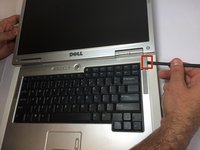
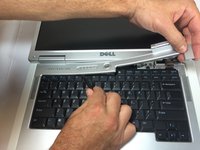
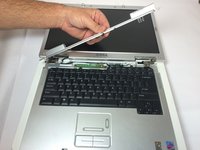
  3. Dell Inspiron 6000 Fan Replacement, Keyboard: adım 3, 3 resimden 1. Dell Inspiron 6000 Fan Replacement, Keyboard: adım 3, 3 resimden 2. Dell Inspiron 6000 Fan Replacement, Keyboard: adım 3, 3 resimden 3.
    • Place the laptop on flat surface.

    • Carefully open the laptop at far as it will go so that the back of screen is touching the flat surface.

    • Carefully take a spudger and separate part of the cover at the red circle.

    FixBot'a Sor

    Yorum Ekle

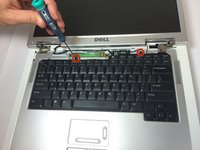
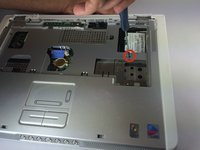
  4. Dell Inspiron 6000 Fan Replacement: adım 4, 2 resimden 1. Dell Inspiron 6000 Fan Replacement: adım 4, 2 resimden 2.
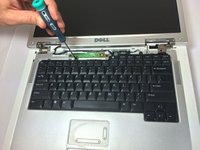
    • Remove two 4 mm Philips #00 screws.

    FixBot'a Sor
    Yorum Ekle

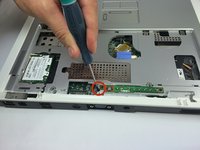
  5. Dell Inspiron 6000 Fan Replacement: adım 5, 1 resimden 1.
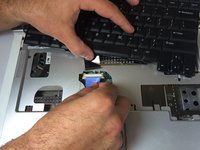
    • Gently lift the keyboard away from the laptop without harming the cord that is located at the bottom of the keyboard.

    FixBot'a Sor
    Yorum Ekle

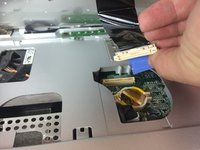
  6. Dell Inspiron 6000 Fan Replacement: adım 6, 3 resimden 1. Dell Inspiron 6000 Fan Replacement: adım 6, 3 resimden 2. Dell Inspiron 6000 Fan Replacement: adım 6, 3 resimden 3.
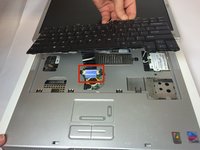
    • Gently pull the blue tab up until it comes away from computer.

    FixBot'a Sor

    Yorum Ekle

  7. Dell Inspiron 6000 Fan Replacement, Fan: adım 7, 1 resimden 1.
    • Unscrew the 4 mm Phillips #00 screw.

    • The screw will remain attached to the cord when fully removed.

    FixBot'a Sor

    Yorum Ekle

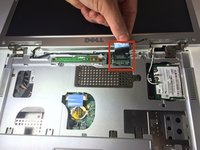
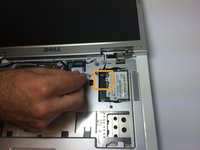
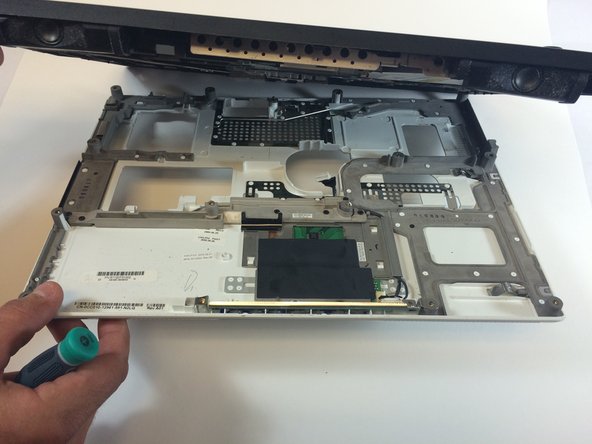
  8. Dell Inspiron 6000 Fan Replacement: adım 8, 2 resimden 1. Dell Inspiron 6000 Fan Replacement: adım 8, 2 resimden 2.
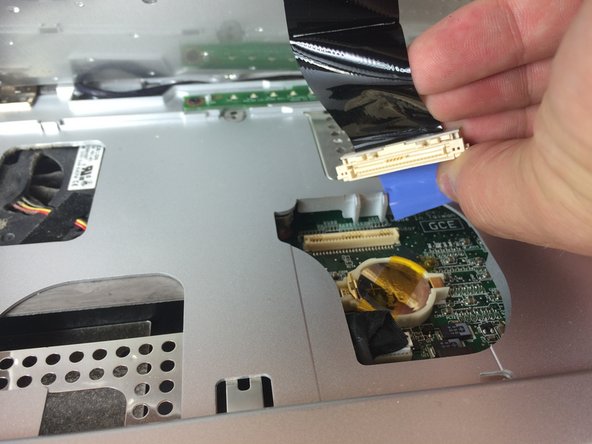
    • Gently pull the blue tab to separate the screen connection from the laptop.

    • Gently pull and disconnect the white and black cords from the power source.

    FixBot'a Sor
    Yorum Ekle

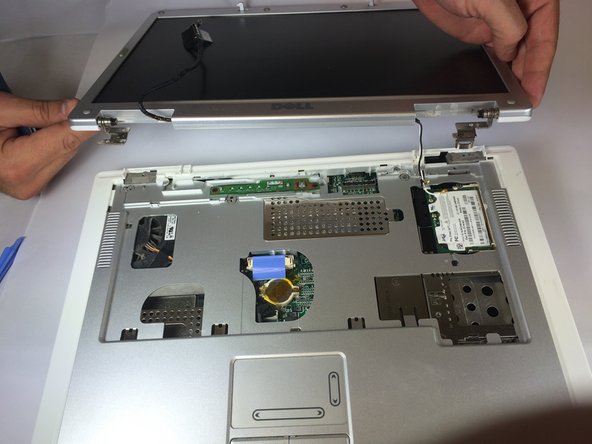
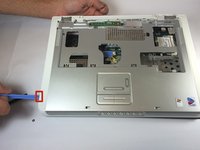
  9. Dell Inspiron 6000 Fan Replacement: adım 9, 2 resimden 1. Dell Inspiron 6000 Fan Replacement: adım 9, 2 resimden 2.
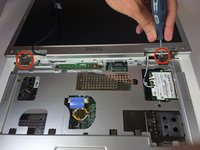
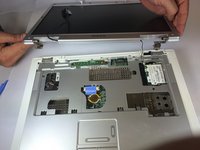
    • Remove four 4mm #00 Philips screws from the screen hinges.

    • Lift the screen away from the laptop.

    FixBot'a Sor
    Yorum Ekle

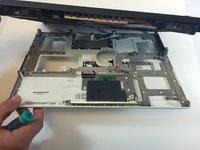
  10. Dell Inspiron 6000 Fan Replacement: adım 10, 2 resimden 1. Dell Inspiron 6000 Fan Replacement: adım 10, 2 resimden 2.
    • Remove two 4 mm Philips #00 screws that connect top of laptop to base..

    FixBot'a Sor
    Yorum Ekle

  11. Dell Inspiron 6000 Fan Replacement: adım 11, 1 resimden 1.
    • Flip laptop the over and remove thirteen 6mm Philips #00 screws.

    FixBot'a Sor

    Yorum Ekle

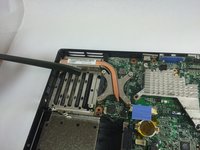
  12. Dell Inspiron 6000 Fan Replacement: adım 12, 2 resimden 1. Dell Inspiron 6000 Fan Replacement: adım 12, 2 resimden 2.
    • Insert the plastic opening tool in between the back and front plates of the laptop

    FixBot'a Sor

    Yorum Ekle

  13. Dell Inspiron 6000 Fan Replacement: adım 13, 1 resimden 1.
    • Remove two 4 mm Philips #00 screws.

    FixBot'a Sor

    Yorum Ekle

  14. Dell Inspiron 6000 Fan Replacement: adım 14, 1 resimden 1.
    • Remove the fan power cord

    FixBot'a Sor

    Yorum Ekle

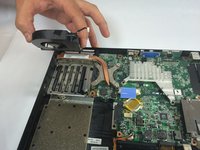
  15. Dell Inspiron 6000 Fan Replacement: adım 15, 2 resimden 1. Dell Inspiron 6000 Fan Replacement: adım 15, 2 resimden 2.
    • Using your hand, lift the fan from the laptop.

    FixBot'a Sor

    Yorum Ekle

Sonuç

To reassemble your device, follow these instructions in reverse order.

İptal et: Bu kılavuzu tamamlamadım.

5 farklı kişi bu kılavuzu tamamladı.

Jacob DeWar

Üyelik tarihi: 09/23/14

563 İtibar

3 adet Kılavuz yazıldı

Ekip

USF Tampa, Team 11-1, Blackwell Fall 2014 USF Tampa, Team 11-1, Blackwell Fall 2014 üyesi

USFT-BLACKWELL-F14S11G1

5 Üyeler

7 adet Kılavuz yazıldı

0Kılavuz Yorumları

Yorum Ekle

İstatistikleri Görüntüle:

Son 24 Saat: 1

Son 7 gün: 9

Son 30 gün: 32

Her zaman: 2,730