Neye ihtiyacın var
-
-
Disconnect AC power adaptor
-
Push battery release tabs inwards.
-
Slide the battery out of the computer.
-
-
-
Remove the two 4.8mm Phillips screws securing the plastic lids.
-
Slide the plastic lids of the case
-
-
-
-
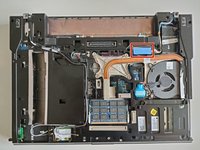
Grab the plastic pull tab secured to the display data cable lock and pull the display data cable connector straight up from its socket.
-
De-route the display data cable from the channel.
-
-
-
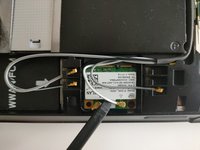
Using spudger lift and disconnect Wi-Fi antenna cable.
-
De-route the Wi-Fi antenna cable from it's channel.
-
-
-
Open your laptop so the display is perpendicular to the upper case.
-
Place your opened MacBook on a table as pictured.
-
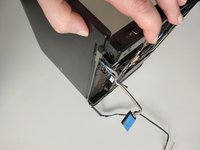
While holding the display and upper case together with your left hand, remove the two 4.8 mm Phillips screws from the display brackets.
-
Grab the upper case with your right hand and rotate the display slightly away from the upper case. Lift the display away from the upper case, minding any brackets or cables that may get caught.
-








To reassemble your device, follow these instructions in reverse order.



5Kılavuz Yorumları
How to fix the flickering of screen in Dell latitude E6400
I would start with resetting the connectors on motherboard side and then on the screen side. Then I would try replacing cables. Anything above that would require multimeter knowledge. Always start from cheapest to more expensive.
My display just went dark i don't know whats wrong with it, i tried to hard reset it, when i ask around say its backlights cos yesterday i was working properly today but today its giving me problems
Does the computer work on external monitor? If it doesn't then it is the GPU failure. If it works then see the comment above. Try reseating/replacing cables. You might bu able to get another broken unit and scavenge for screen or cables cheap. Good luck.
Any idea what could be the problem if the monitor doesn't come on its dim i & tried to adjust the brightness settings but it doesn't return to it normal state please help
