Ana içeriğe geç
Onarım Topluluğuna Katılın - Hesap Oluşturun

Dell Optiplex SX280 RAM Replacement

    1. Dell Optiplex SX280 RAM Replacement, Panel Cover: adım 1, 1 resimden 1.
      • Make sure the computer is turned off, by selecting the start menu and choosing “Shut Down”.

      • Ensure all cables, speakers and other devices are unplugged and turned off before opening the computer case.

      FixBot'a Sor

      Yorum Ekle

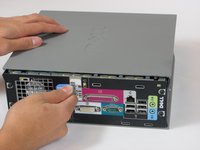
    2. Dell Optiplex SX280 RAM Replacement: adım 2, 2 resimden 1. Dell Optiplex SX280 RAM Replacement: adım 2, 2 resimden 2.
      • Lay the computer on its side; you will see a blue knob.

      • Turn this knob 90 deg clockwise.

      FixBot'a Sor

      Yorum Ekle

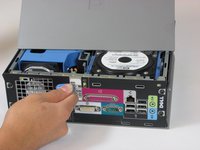
    3. Dell Optiplex SX280 RAM Replacement: adım 3, 2 resimden 1. Dell Optiplex SX280 RAM Replacement: adım 3, 2 resimden 2.
      • Slide the panel case forward about 1/2 inch while knob is turned.

      • Lift panel case off computer.

      FixBot'a Sor

      Yorum Ekle

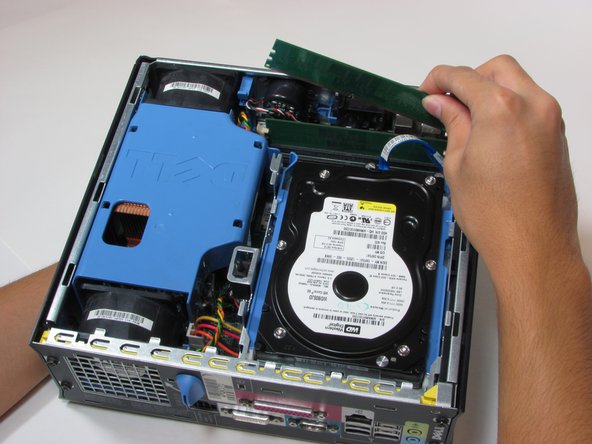
    1. Dell Optiplex SX280 RAM Replacement, RAM: adım 4, 1 resimden 1.
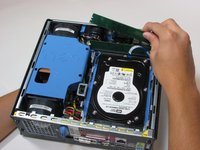
      • The RAM are the two green cards in the corner of the computer.

      • At each end of the card, there are two white clips securing the RAM to the Motherboard.

      FixBot'a Sor

      Yorum Ekle

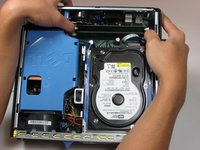
    2. Dell Optiplex SX280 RAM Replacement: adım 5, 2 resimden 1. Dell Optiplex SX280 RAM Replacement: adım 5, 2 resimden 2.
      • Push down both white clips with your thumbs until you hear a click.

      • The RAM cards can now be removed.

      FixBot'a Sor

      Yorum Ekle

Sonuç

To reassemble your device, follow these instructions (steps 1-3) in reverse order.

İptal et: Bu kılavuzu tamamlamadım.

8 farklı kişi bu kılavuzu tamamladı.

Wyatt

Üyelik tarihi: 10/06/10

784 İtibar

6 adet Kılavuz yazıldı

Ekip

Cal Poly, Team 22-4, Maness Fall 2010 Cal Poly, Team 22-4, Maness Fall 2010 üyesi

CPSU-MANESS-F10S22G4

4 Üyeler

52 adet Kılavuz yazıldı

0Kılavuz Yorumları

Yorum Ekle

İstatistikleri Görüntüle:

Son 24 Saat: 1

Son 7 gün: 10

Son 30 gün: 37

Her zaman: 5,873