Ana içeriğe geç
Onarım Topluluğuna Katılın - Hesap Oluşturun

Dell Precision T3400 Video Card Replacement

  1. Dell Precision T3400 Video Card Replacement, Remove the computer's side panel.: adım 1, 2 resimden 1. Dell Precision T3400 Video Card Replacement, Remove the computer's side panel.: adım 1, 2 resimden 2.
    • Lay the computer on its side so the panel faces up.

    • Push the cover release latch at the back of the computer's case. The cover should pop off and away from the computer.

    • Make sure the computer is on its side before you begin replacing any parts.

    FixBot'a Sor

    Yorum Ekle

  2. Dell Precision T3400 Video Card Replacement, Move the heat-sink assembly lever out of the way: adım 2, 1 resimden 1.
    • Push the tab on the blue plastic secure lever and pivot the lever down and away from the assembly

    • Make sure you ground yourself to prevent static discharge

    FixBot'a Sor

    Yorum Ekle

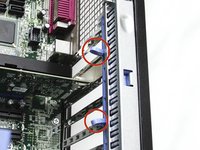
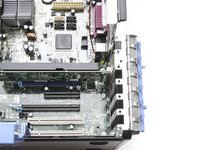
  3. Dell Precision T3400 Video Card Replacement, Open the video card secure hatch.: adım 3, 2 resimden 1. Dell Precision T3400 Video Card Replacement, Open the video card secure hatch.: adım 3, 2 resimden 2.
    • Squeeze the two release tabs together and pivot the secure hatch to the right to open.

    FixBot'a Sor

    Yorum Ekle

  4. Dell Precision T3400 Video Card Replacement, Remove the video card: adım 4, 1 resimden 1.
    • Hold the card by its top corner and metal bracket and pull it out of its slot.

    FixBot'a Sor

    Yorum Ekle

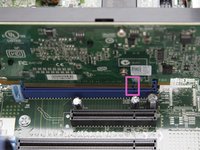
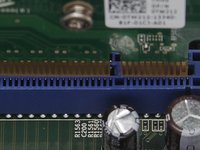
  5. Dell Precision T3400 Video Card Replacement, Install the new video card: adım 5, 2 resimden 1. Dell Precision T3400 Video Card Replacement, Install the new video card: adım 5, 2 resimden 2.
    • Match the new card’s connectors with the notches in the slot and gently push it into place. The card should click into position when inserted correctly.

    • Close the card door and move the blue plastic secure lever back into place.\

    • Ensure that the card you are replacing the existing card with meets wattage and connectivity requirements. Do not force a card into the slot.

    FixBot'a Sor

    Yorum Ekle

Sonuç

To reassemble your device, follow these instructions in reverse order. Step 1: Install new card and latch it in place. Step 2: Reinstall the side panel. Step 3: Plug everything back in

İptal et: Bu kılavuzu tamamlamadım.

8 farklı kişi bu kılavuzu tamamladı.

Josette Cormier

Üyelik tarihi: 09/10/13

13 İtibar

2 adet Kılavuz yazıldı

Ekip

UMass Dartmouth, Team 1-2, Gulbrandsen Fall 2013 UMass Dartmouth, Team 1-2, Gulbrandsen Fall 2013 üyesi

UMASSD-GULBRANDSEN-F13S1G2

3 Üyeler

14 adet Kılavuz yazıldı

1Rehber Yorum

Does it have PCI-E 2.0?

What dimensions the graphics card can have?

Maxime Raguenet - Yanıt Paylaş

Yorum Ekle

İstatistikleri Görüntüle:

Son 24 Saat: 2

Son 7 gün: 16

Son 30 gün: 52

Her zaman: 7,329