Ana içeriğe geç

Desktop PC GPU Replacement

Neye ihtiyacın var

  1. Desktop PC GPU Replacement, Create an Anti-Static Work Area: adım 1, 1 resimden 1.
    • Minimize exposure to items that can charge up and produce static electricity.

    • Use an anti-static wrist band.

  2. Desktop PC GPU Replacement, Turn Off Computer: adım 2, 1 resimden 1.
    • Power off PC via Windows.

    • Switch off Power Supply

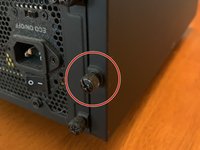
  3. Desktop PC GPU Replacement, Unscrew Case Side Panel: adım 3, 2 resimden 1. Desktop PC GPU Replacement, Unscrew Case Side Panel: adım 3, 2 resimden 2.
    • Put screws where you wont lose them

  4. Desktop PC GPU Replacement, Unplug Power Connector to GPU: adım 4, 1 resimden 1.
    • Be gentle to not pull with to much force when removing power cables.

  5. Desktop PC GPU Replacement, Flip GPU Lock on Motherboard: adım 5, 1 resimden 1.
    • Try not to touch other components.

    • Gently pull the card out of the slot.

  6. Desktop PC GPU Replacement, Insert New GPU: adım 7, 1 resimden 1.
    • Verify that the notch in the connector matches the motherboard before sliding in.

    • Carefully slide in GPU until you hear a click on the motherboard.

  7. Desktop PC GPU Replacement, Connect Power Cables: adım 8, 1 resimden 1.
    • Insert wisdom here.

  8. Desktop PC GPU Replacement, Re-Attach Side Panel: adım 9, 1 resimden 1.
    • Use same screws from step 2.

    • Flip power supply switch back to on.

    • Plug in PC and turn on.

    • If PC does not post go back through the steps to see if you missed something.

    • Go to manufacturer's website or use the CD that came with the card to download the latest drivers for the GPU to ensure better stability of GPU.

    • Enjoy your new GPU.

Sonuç

To reassemble your device, follow these instructions in reverse order.

2 farklı kişi bu kılavuzu tamamladı.

Joseph Thompson

Üyelik tarihi: 06/20/19

265 İtibar

1 Kılavuz yazıldı

0Kılavuz Yorumları

Yorum Ekle

İstatistikleri Görüntüle:

Son 24 Saat: 2

Son 7 gün: 21

Son 30 gün: 89

Her zaman: 1,370