Ana içeriğe geç
Onarım Topluluğuna Katılın - Hesap Oluşturun

HP Chromebook 11 G3 Keyboard Replacement

Neye ihtiyacın var

    1. HP Chromebook 11 G3 Keyboard Replacement, Keyboard Mount: adım 1, 2 resimden 1. HP Chromebook 11 G3 Keyboard Replacement, Keyboard Mount: adım 1, 2 resimden 2.
      • Flip the laptop upside down so that the lid lies flat on the table.

      • Remove the nine 6mm Phillips #00 screws that line the border.

      FixBot'a Sor

      Yorum Ekle

    2. HP Chromebook 11 G3 Keyboard Replacement: adım 2, 2 resimden 1. HP Chromebook 11 G3 Keyboard Replacement: adım 2, 2 resimden 2.
      Bu adımda kullanılan alet:
      Tweezers
      $4.99
      • Remove the two rubber feet closest to the hinge using tweezers.

      • Remove the two 6mm Phillips #00 screws revealed under these rubber feet.

      • The rubber feet may tear while removal; preventing this can be difficult, but it won’t harm the laptop. If desired, replace these rubber feet during reassembly.

      FixBot'a Sor

      Yorum Ekle

    3. HP Chromebook 11 G3 Keyboard Replacement: adım 3, 1 resimden 1.
      • Flip the laptop so it is in the upright position.

      • Open the lid.

      • Unsnap the keyboard mount along the border of the laptop using a plastic opening tool.

      • This may require more force than expected. Hearing loud clicks as the plastic opening tool slides along the seam is normal.

      FixBot'a Sor

      Yorum Ekle

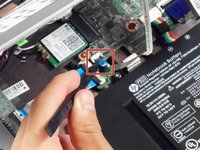
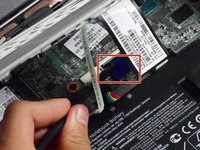
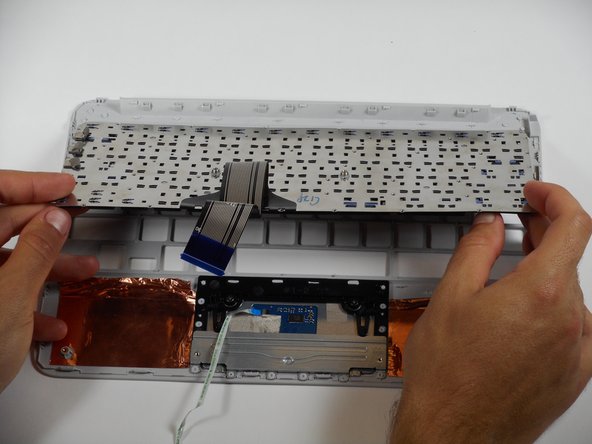
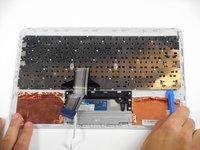
    4. HP Chromebook 11 G3 Keyboard Replacement: adım 4, 3 resimden 1. HP Chromebook 11 G3 Keyboard Replacement: adım 4, 3 resimden 2. HP Chromebook 11 G3 Keyboard Replacement: adım 4, 3 resimden 3.
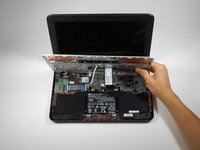
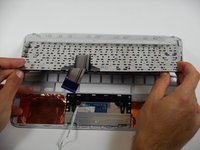
      • Tilt the keyboard mount up.

      • Use a spudger to flip up the two ZIF connector retaining flaps for the ribbon cables that connect the keyboard mount to the motherboard.

      • Gently remove both ribbon cables.

      FixBot'a Sor

      Yorum Ekle

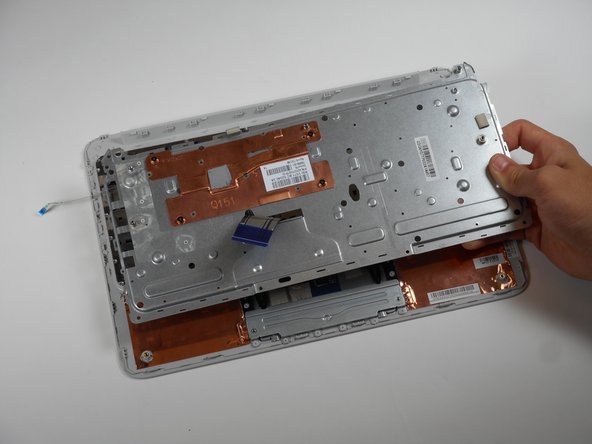
    5. HP Chromebook 11 G3 Keyboard Replacement: adım 5, 1 resimden 1.
      • Lift the keyboard mount out of the laptop.

      FixBot'a Sor

      Yorum Ekle

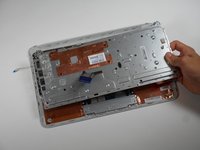
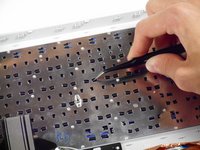
    1. HP Chromebook 11 G3 Keyboard Replacement, Keyboard: adım 6, 2 resimden 1. HP Chromebook 11 G3 Keyboard Replacement, Keyboard: adım 6, 2 resimden 2.
      Bu adımda kullanılan alet:
      Tweezers
      $4.99
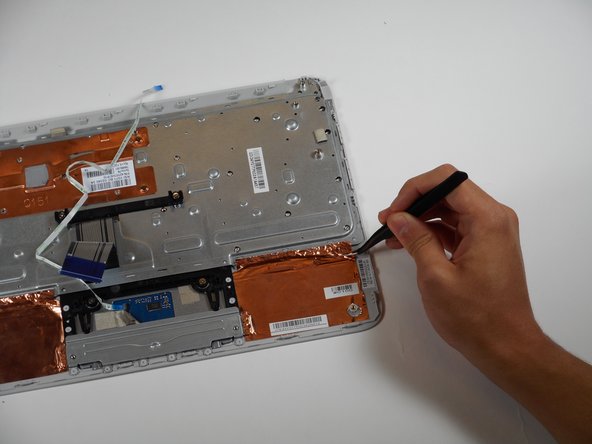
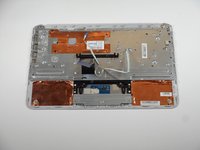
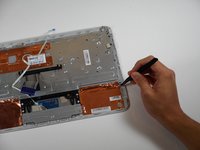
      • Flip the keyboard mount upside-down.

      • Using tweezers, peel off the two pieces of copper tape that keep the keyboard’s metal cover attached to the keyboard mount.

      FixBot'a Sor

      Yorum Ekle

    2. HP Chromebook 11 G3 Keyboard Replacement: adım 7, 1 resimden 1.
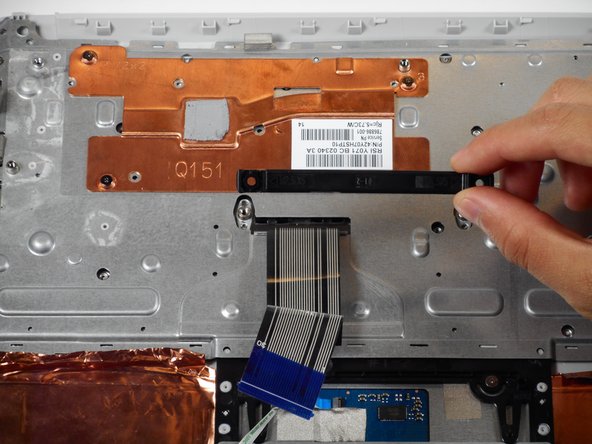
      • Using tweezers, pull back the three metallic-colored pieces of tape near the top left corner of the keyboard mount.

      FixBot'a Sor

      Yorum Ekle

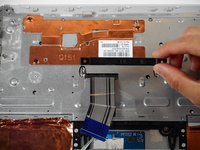
    3. HP Chromebook 11 G3 Keyboard Replacement: adım 8, 2 resimden 1. HP Chromebook 11 G3 Keyboard Replacement: adım 8, 2 resimden 2.
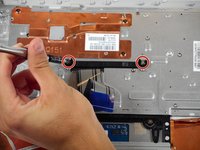
      • Remove the two 4 mm Phillips #00 screws located on either side of the horizontal black fastener located directly above the touchpad.

      • Lift the horizontal black fastener.

      FixBot'a Sor

      Yorum Ekle

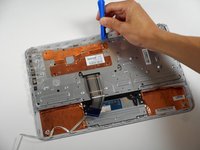
    4. HP Chromebook 11 G3 Keyboard Replacement: adım 9, 3 resimden 1. HP Chromebook 11 G3 Keyboard Replacement: adım 9, 3 resimden 2. HP Chromebook 11 G3 Keyboard Replacement: adım 9, 3 resimden 3.
      • Use a plastic opening tool to pry the edges of the metal cover.

      • Loosen the adhesive around the perimeter of the metal cover.

      • The adhesive can be difficult to remove. Use tweezers on any troubling sections. After removing the adhesive, take off the keyboard’s metal cover.

      • If the cover doesn’t come off, repeat prying around the edges with a plastic opening tool.

      • Lift the metal cover.

      • Apply adhesive during reassembly to fasten the metal cover onto the keyboard mount.

      • If only certain keys need replacement, stop here. Instead, use tweezers to remove individual keys by loosening their four snap-on clips from the metal backing.

      FixBot'a Sor

      Yorum Ekle

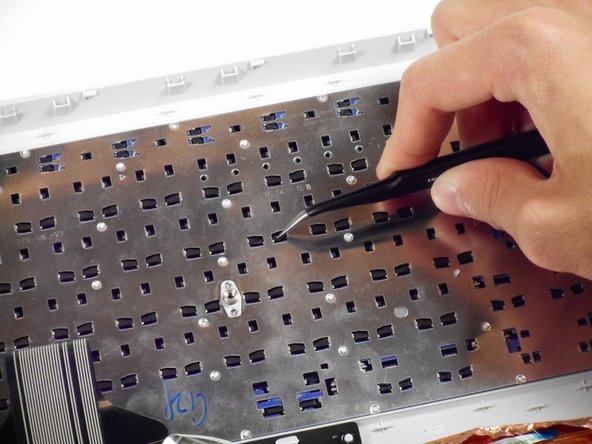
    5. HP Chromebook 11 G3 Keyboard Replacement: adım 10, 2 resimden 1. HP Chromebook 11 G3 Keyboard Replacement: adım 10, 2 resimden 2.
      • Use a plastic opening tool to disconnect the keyboard from the keyboard mount by prying along the keyboard’s perimeter.

      • Lots of adhesive attaches the keyboard to the keyboard mount. Loud snapping noises and gray, circular plastic debris are common during adhesive removal.

      • After removing enough adhesive, remove the keyboard’s backing.

      • Apply adhesive during reassembly to fasten the keyboard and its metal backing onto the keyboard mount.

      FixBot'a Sor

      Yorum Ekle

Sonuç

To reassemble your device, follow these instructions in reverse order.

İptal et: Bu kılavuzu tamamlamadım.

2 farklı kişi bu kılavuzu tamamladı.

Rahul Goyal

Üyelik tarihi: 04/26/17

1.401 İtibar

10 adet Kılavuz yazıldı

Ekip

Cal Poly, Team S23-G3, Livingston Spring 2017 Cal Poly, Team S23-G3, Livingston Spring 2017 üyesi

CPSU-LIVINGSTON-S17S23G3

4 Üyeler

100 adet Kılavuz yazıldı

1Rehber Yorum

Is it possible to get a keyboard that lights up for the HP Chromebook 11 G3? If so then how?

Vanessa Nations - Yanıt Paylaş

Yorum Ekle

İstatistikleri Görüntüle:

Son 24 Saat: 1

Son 7 gün: 8

Son 30 gün: 39

Her zaman: 2,647