Ana içeriğe geç
Onarım Topluluğuna Katılın - Hesap Oluşturun

HP Compaq C700 Fan Replacement

Neye ihtiyacın var

  1. HP Compaq C700 Fan Replacement, Keyboard: adım 1, 1 resimden 1.
    • It is advised to work on the device only when it is powered off so as to avoid electrocution risks.

    • Turn off computer by pressing and holding the power button.

    FixBot'a Sor

    Yorum Ekle

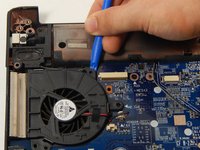
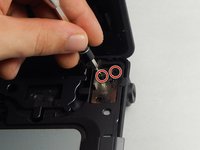
  2. HP Compaq C700 Fan Replacement: adım 2, 3 resimden 1. HP Compaq C700 Fan Replacement: adım 2, 3 resimden 2. HP Compaq C700 Fan Replacement: adım 2, 3 resimden 3.
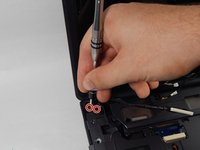
    • Locate and unscrew the two screws on the back marked with a small keyboard. These screws hold the keyboard in place.

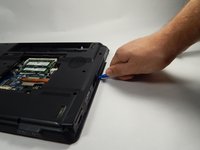
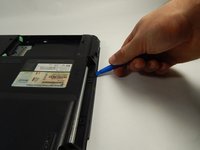
    • Locate the metal hooks where the keyboard connects to the laptop and use a metal spudger to gently pry up the keyboard.

    FixBot'a Sor

    Yorum Ekle

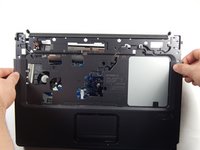
  3. HP Compaq C700 Fan Replacement: adım 3, 1 resimden 1.
    • Gently lift up and remove the keyboard.

    FixBot'a Sor

    Yorum Ekle

  4. HP Compaq C700 Fan Replacement, Fan: adım 4, 1 resimden 1.
    • Turn the laptop over so that you see the bottom.

    • Locate the twenty 3 mm Phillips head screws.

    • Unscrew them using the PH0 screwdriver

    FixBot'a Sor

    Yorum Ekle

  5. HP Compaq C700 Fan Replacement: adım 5, 1 resimden 1.
    • After unscrewing the 3 mm screws, remove the hard drive covering by lifting upward.

    FixBot'a Sor

    Yorum Ekle

  6. HP Compaq C700 Fan Replacement: adım 6, 1 resimden 1.
    • Remove the hard drive by pulling on the plastic tab and lifting upward.

    FixBot'a Sor
    Yorum Ekle

  7. HP Compaq C700 Fan Replacement: adım 7, 1 resimden 1.
    • Remove the covering that houses the RAM modules.

    FixBot'a Sor
    Yorum Ekle

  8. HP Compaq C700 Fan Replacement: adım 8, 1 resimden 1.
    • Locate and unscrew the two Phillips head 3 mm screws on the wireless card.

    FixBot'a Sor

    Yorum Ekle

  9. HP Compaq C700 Fan Replacement: adım 9, 1 resimden 1.
    • Unhook the two wires connecting to the wireless card by gently pulling them out.

    FixBot'a Sor

    Yorum Ekle

  10. HP Compaq C700 Fan Replacement: adım 10, 1 resimden 1.
    • Gently lift and pull out the card.

    FixBot'a Sor

    Yorum Ekle

  11. HP Compaq C700 Fan Replacement: adım 11, 1 resimden 1.
    Bu adımda kullanılan alet:
    Tweezers
    $4.99
    • Locate the power button connector wire. (This can be found where the keyboard sits.)

    • Using the tweezers, unhook the wire.

    FixBot'a Sor

    Yorum Ekle

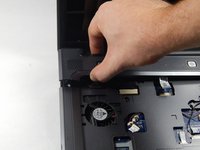
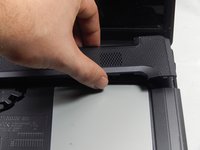
  12. HP Compaq C700 Fan Replacement: adım 12, 2 resimden 1. HP Compaq C700 Fan Replacement: adım 12, 2 resimden 2.
    • Press and hold the lock to pop the panel piece above the keyboard and pull up to remove it.

    FixBot'a Sor

    Yorum Ekle

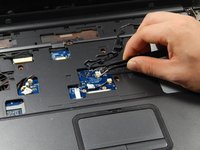
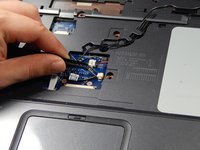
  13. HP Compaq C700 Fan Replacement: adım 13, 2 resimden 1. HP Compaq C700 Fan Replacement: adım 13, 2 resimden 2.
    • Unplug the remaining wires using the tweezers.

    FixBot'a Sor

    Yorum Ekle

  14. HP Compaq C700 Fan Replacement: adım 14, 1 resimden 1.
    • Gently pull out the three wires.

    FixBot'a Sor

    Yorum Ekle

  15. HP Compaq C700 Fan Replacement: adım 15, 2 resimden 1. HP Compaq C700 Fan Replacement: adım 15, 2 resimden 2.
    • Locate the four 3 mm Phillips head screws.

    • Unscrew them using the PH0 screwdriver.

    FixBot'a Sor

    Yorum Ekle

  16. HP Compaq C700 Fan Replacement: adım 16, 1 resimden 1.
    • Unhook the display connector wire.
    FixBot'a Sor
    Yorum Ekle

  17. HP Compaq C700 Fan Replacement: adım 17, 1 resimden 1.
    • Gently disconnect the display by pulling it upwards.

    FixBot'a Sor

    Yorum Ekle

  18. HP Compaq C700 Fan Replacement: adım 18, 1 resimden 1.
    • Locate the disk drive on the side of the device.

    • Remove it by pulling it all the way out.

    FixBot'a Sor

    Yorum Ekle

  19. HP Compaq C700 Fan Replacement: adım 19, 1 resimden 1.
    • Use the PH0 screwdriver to remove the two 3 mm Phillips head screws in the disk drive port.

    FixBot'a Sor

    Yorum Ekle

  20. HP Compaq C700 Fan Replacement: adım 20, 1 resimden 1.
    • Locate and unplug the touchpad connection using the tweezers.

    FixBot'a Sor

    Yorum Ekle

  21. HP Compaq C700 Fan Replacement: adım 21, 3 resimden 1. HP Compaq C700 Fan Replacement: adım 21, 3 resimden 2. HP Compaq C700 Fan Replacement: adım 21, 3 resimden 3.
    • Using the Opening tool, gently pry up the cover and remove it.

    FixBot'a Sor

    Yorum Ekle

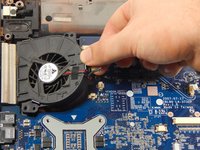
  22. HP Compaq C700 Fan Replacement: adım 22, 1 resimden 1.
    • Unplug the fan wire connection using the tweezers.

    FixBot'a Sor

    Yorum Ekle

  23. HP Compaq C700 Fan Replacement: adım 23, 1 resimden 1.
    • Locate the 3 mm Phillips head screw.

    • Unscrew it using the PH0 screwdriver.

    FixBot'a Sor

    Yorum Ekle

  24. HP Compaq C700 Fan Replacement: adım 24, 2 resimden 1. HP Compaq C700 Fan Replacement: adım 24, 2 resimden 2.
    • Using the opening tool, gently pry up and remove the fan.

    FixBot'a Sor

    Yorum Ekle

Sonuç

To reassemble your device, follow these instructions in reverse order.

İptal et: Bu kılavuzu tamamlamadım.

Bir başkası bu kılavuzu tamamladı.

Taylor Johansen

Üyelik tarihi: 10/20/16

711 İtibar

5 adet Kılavuz yazıldı

Ekip

UMass Dartmouth, Team 5-6, Martin Fall 2016 UMass Dartmouth, Team 5-6, Martin Fall 2016 üyesi

UMASSD-MARTIN-F16S5G6

3 Üyeler

6 adet Kılavuz yazıldı

0Kılavuz Yorumları

Yorum Ekle

İstatistikleri Görüntüle:

Son 24 Saat: 0

Son 7 gün: 9

Son 30 gün: 47

Her zaman: 1,699