Ana içeriğe geç
Onarım Topluluğuna Katılın - Hesap Oluşturun

How to Calibrate an Optical Fingerprint Sensor

  1. How to Calibrate an Optical Fingerprint Sensor, Download the app: adım 1, 3 resimden 1. How to Calibrate an Optical Fingerprint Sensor, Download the app: adım 1, 3 resimden 2. How to Calibrate an Optical Fingerprint Sensor, Download the app: adım 1, 3 resimden 3.
    • Download the Self Repair Assistant app from ApkMirror (2.0.44)

    • You may be prompted with a "File might be harmful" warning. If so, select "Download anyway."

    • Open the "My Files" app.

    • Navigate to the "Installation files" tab on the left side of the screen.

    FixBot'a Sor

    Yorum Ekle

  2. How to Calibrate an Optical Fingerprint Sensor, Install the app: adım 2, 2 resimden 1. How to Calibrate an Optical Fingerprint Sensor, Install the app: adım 2, 2 resimden 2.
    • Select the app on the right side of the screen.

    • If the app doesn't show up on this panel, skip to the next step.

    • Select "Install" to confirm the app's installation.

    • Skip the next two steps.

    FixBot'a Sor

    Yorum Ekle

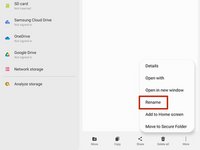
  3. How to Calibrate an Optical Fingerprint Sensor, Rename the app: adım 3, 3 resimden 1. How to Calibrate an Optical Fingerprint Sensor, Rename the app: adım 3, 3 resimden 2. How to Calibrate an Optical Fingerprint Sensor, Rename the app: adım 3, 3 resimden 3.
    • If your app didn't show up on the "Installation files" tab, follow the next two steps to rename the file.

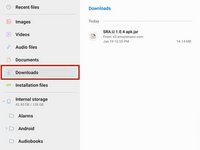
    • Navigate to the "Downloads" tab on the left side of the screen.

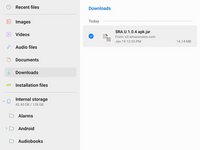
    • Long press the download file until an orange checkmark appears to the left of it.

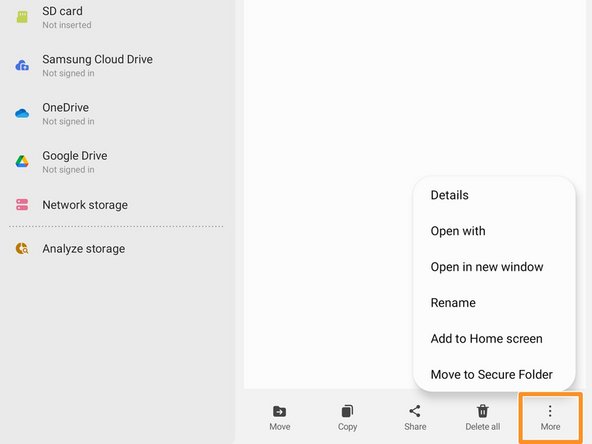
    • Navigate to the bottom of the screen and select the "More" option.

    FixBot'a Sor

    Yorum Ekle

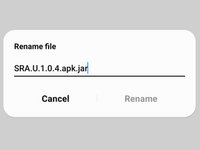
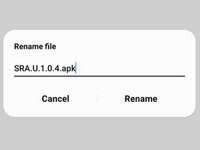
  4. How to Calibrate an Optical Fingerprint Sensor: adım 4, 3 resimden 1. How to Calibrate an Optical Fingerprint Sensor: adım 4, 3 resimden 2. How to Calibrate an Optical Fingerprint Sensor: adım 4, 3 resimden 3.
    • Select the "Rename" option.

    • Delete the .jar at the end of the app's name.

    • Your file should now appear in the "Installation files" tab.

    FixBot'a Sor

    Yorum Ekle

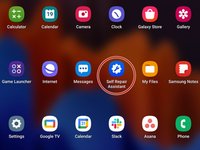
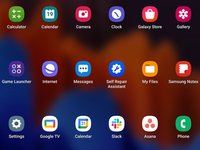
  5. How to Calibrate an Optical Fingerprint Sensor, Open the Self Repair Assistant app: adım 5, 2 resimden 1. How to Calibrate an Optical Fingerprint Sensor, Open the Self Repair Assistant app: adım 5, 2 resimden 2.
    • Open the Self Repair Assistant app.

    FixBot'a Sor

    Yorum Ekle

  6. How to Calibrate an Optical Fingerprint Sensor, Agree to the terms and conditions: adım 6, 1 resimden 1.
    • Select "Agree" to accept the Terms and Conditions.

    FixBot'a Sor

    Yorum Ekle

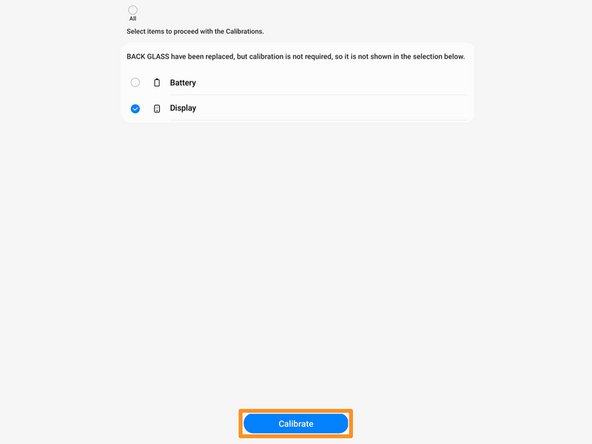
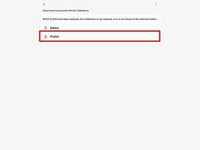
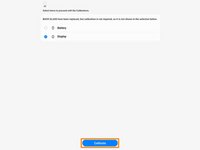
  7. How to Calibrate an Optical Fingerprint Sensor, Select the procedure: adım 7, 3 resimden 1. How to Calibrate an Optical Fingerprint Sensor, Select the procedure: adım 7, 3 resimden 2. How to Calibrate an Optical Fingerprint Sensor, Select the procedure: adım 7, 3 resimden 3.
    • Select the "Display" icon.

    • Select "Continue" at the bottom of the screen.

    • If you want to perform a battery cycle reset instead, follow this guide.

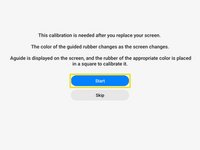
    • Select "Start" to begin the fingerprint sensor calibration.

    FixBot'a Sor

    Yorum Ekle

  8. How to Calibrate an Optical Fingerprint Sensor, Begin the fingerprint sensor calibration: adım 8, 2 resimden 1. How to Calibrate an Optical Fingerprint Sensor, Begin the fingerprint sensor calibration: adım 8, 2 resimden 2.
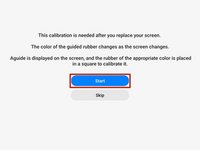
    • Select "Start" to begin the fingerprint sensor calibration.

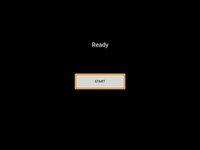
    • Once the screen turns black, select "Start" again.

    FixBot'a Sor

    Yorum Ekle

  9. How to Calibrate an Optical Fingerprint Sensor, Apply the white box: adım 9, 3 resimden 1. How to Calibrate an Optical Fingerprint Sensor, Apply the white box: adım 9, 3 resimden 2. How to Calibrate an Optical Fingerprint Sensor, Apply the white box: adım 9, 3 resimden 3.
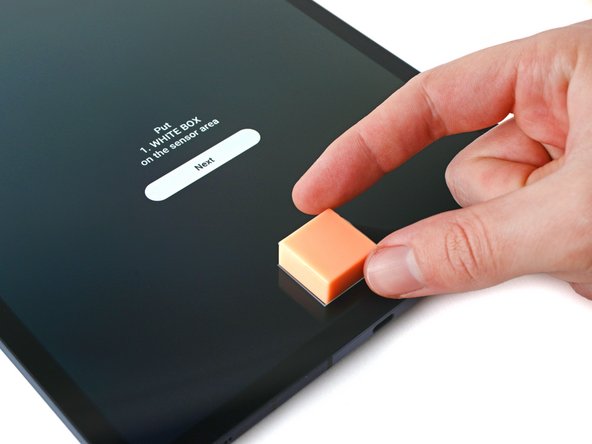
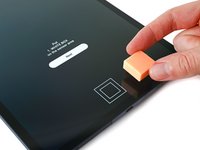
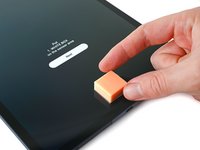
    • Place the white box over the outline near the bottom of the screen.

    • Cover the outline with the side on the box that matches the pattern.

    • Make sure the white box completely covers the outline. Deviations could result in a "Fail" result or an inaccurate calibration.

    FixBot'a Sor

    Yorum Ekle

  10. How to Calibrate an Optical Fingerprint Sensor: adım 10, 1 resimden 1.
    • Use your finger to press down on the white box.

    • While pressing down, use your other hand to select the "Next" icon near the top of the screen.

    • Continue pressing until the "Calibrating" disappears.

    FixBot'a Sor

    Yorum Ekle

  11. How to Calibrate an Optical Fingerprint Sensor, Apply the black box: adım 11, 3 resimden 1. How to Calibrate an Optical Fingerprint Sensor, Apply the black box: adım 11, 3 resimden 2. How to Calibrate an Optical Fingerprint Sensor, Apply the black box: adım 11, 3 resimden 3.
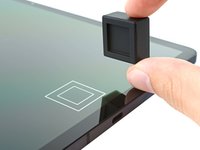
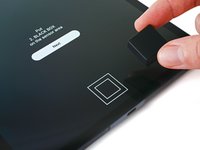
    • Place the black box over the outline near the bottom of the screen.

    • Cover the outline with the side on the box that matches the pattern.

    • Make sure the black box completely covers the outline. Deviations could result in a "Fail" result or an inaccurate calibration.

    FixBot'a Sor

    Yorum Ekle

  12. How to Calibrate an Optical Fingerprint Sensor: adım 12, 1 resimden 1.
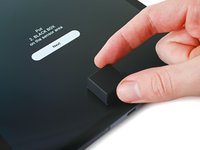
    • Use your finger to press down on the black box.

    • While pressing down, use your other hand to select the "Next" icon near the top of the screen.

    • Continue pressing until the "Calibrating" disappears.

    FixBot'a Sor

    Yorum Ekle

  13. How to Calibrate an Optical Fingerprint Sensor, Apply the small white box: adım 13, 3 resimden 1. How to Calibrate an Optical Fingerprint Sensor, Apply the small white box: adım 13, 3 resimden 2. How to Calibrate an Optical Fingerprint Sensor, Apply the small white box: adım 13, 3 resimden 3.
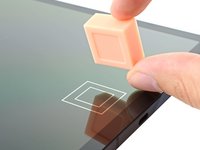
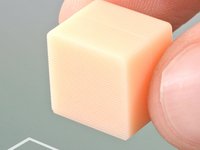
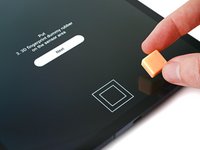
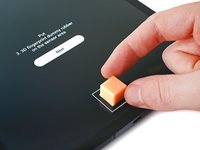
    • Place the side of the small white box with the grooves over the inner portion of the outline near the bottom of the screen.

    • Make sure the grooves on the box are vertical when placing it on the screen.

    • Make sure the white box completely covers the inner outline. Deviations could result in a "Fail" result or an inaccurate calibration.

    FixBot'a Sor

    Yorum Ekle

  14. How to Calibrate an Optical Fingerprint Sensor: adım 14, 3 resimden 1. How to Calibrate an Optical Fingerprint Sensor: adım 14, 3 resimden 2. How to Calibrate an Optical Fingerprint Sensor: adım 14, 3 resimden 3.
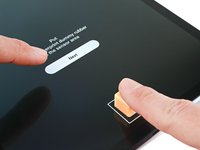
    • Use your finger to press down on the small white box.

    • While pressing down, use your other hand to select the "Next" icon near the top of the screen.

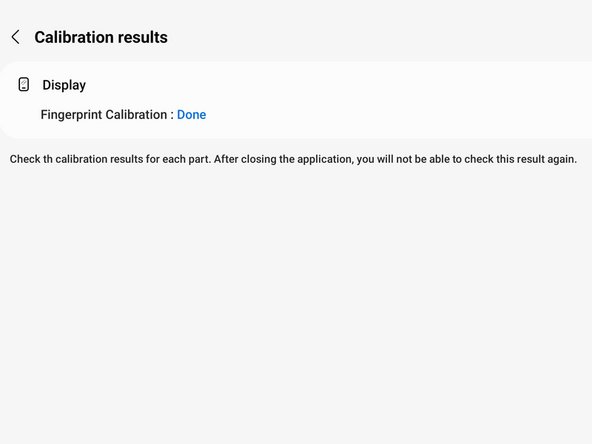
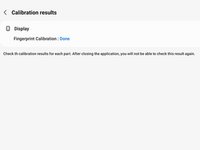
    • Continue pressing until "Done" appears at the top of the screen.

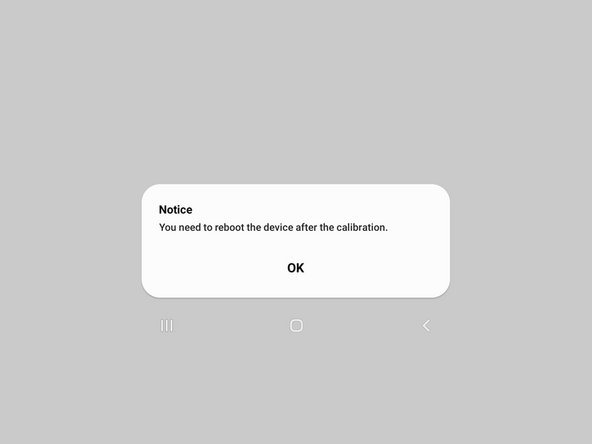
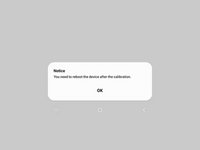
    • You may need to reset your device for the calibration to apply.

    FixBot'a Sor

    Yorum Ekle

Sonuç

Your optical fingerprint sensor is calibrated and ready for use.

If the calibration fails for any reason, repeat the calibration procedure.

İptal et: Bu kılavuzu tamamlamadım.

49 farklı kişi bu kılavuzu tamamladı.

Alex Diaz-Kokaisl

Üyelik tarihi: 01/16/22

239.051 İtibar

1.171 adet Kılavuz yazıldı

Ekip

iFixit iFixit üyesi

Staff

122 Üyeler

25.949 adet Kılavuz yazıldı

23Kılavuz Yorumları

When I open the app after installation I get this toast message "this model is NOT supported"

My device is a Galaxy A71

Pierre Ehab - Yanıt Paylaş

I have a Galaxy A70. "Fingerprint sensor Calibration needed" when I try to turn on Biometric. *# 0 *# says the sensor is alright (everything pass) But calibration = 1

HOW do I calibrate the sensor? The local samsung service center is trash

nombre20 apellido20 - Yanıt Paylaş

When I open the app after installation I get this toast message "this model is NOT supported" My device is a Galaxy A52

neskagu nikomu - Yanıt Paylaş

Hi there.

Unfortunately, as stated in the introduction, the only device supported right now is the Tab S7+ . Samsung plans to include more devices with time.

Alex Diaz-Kokaisl - Yanıt Paylaş

It showed not supported for this model... What should i do next

Salem Ekwuribe - Yanıt Paylaş

Yorum Ekle

İstatistikleri Görüntüle:

Son 24 Saat: 76

Son 7 gün: 651

Son 30 gün: 2,489

Her zaman: 219,141