Giriş
The Auto Boot feature powers on your laptop as soon as you open the lid, so it should be disabled before undertaking certain repairs. Auto Boot can be found on 2016 (and newer) MacBook Pros and 2017 (and newer) 12" Retina MacBooks.
This guide will walk you through the process of disabling Auto Boot, and then re-enabling it when your repair is complete.
Note: Disabling Auto Boot may not work on Apple’s newer ARM-based M series MacBooks released in late 2020 and later. At this time, we don’t know any procedure for disabling Auto Boot on devices equipped with Big Sur v11.1 or later.
-
-
-
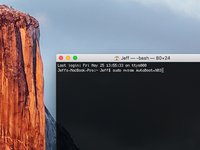
Copy and paste the following command (or type it exactly) into Terminal:
-
sudo nvram AutoBoot=%00
-
Press [return].
-
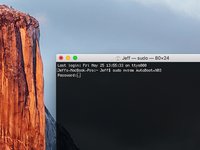
If you are prompted for an administrative password, type the password and press [return].
-
-
-
-
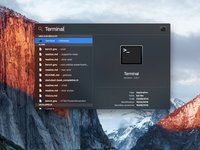
Power on your Mac and launch Terminal.
-
Copy and paste the following command (or type it exactly) into Terminal:
-
sudo nvram AutoBoot=%03
-
Press [return].
-
If you are prompted for an administrative password, type the password and press [return].
-


 FixBot'a Sor


Congrats! You're done.
İptal et: Bu kılavuzu tamamlamadım.
76 farklı kişi bu kılavuzu tamamladı.


29Kılavuz Yorumları
hello may i ask, how do u make it Jeff$? mine’s scarlet$ and i want to change it but idk how
You change the your user/Homefolder name
You do not need to change it for the command to work. But if you really do want to for a different reason, rename your home folder name.
I can’t type anything into the terminal…what am I doing wrong?
HELP
it doesn’t work on MacBook Air><
my sister’s pro did work, thanks!! but mine can’t do so. what should I do???
