Ana içeriğe geç
Onarım Topluluğuna Katılın - Hesap Oluşturun

How to fix iTunes error 9 in an Apple iPhone 6s

Neye ihtiyacın var

Videoya Genel Bakış

Fix iPhone 6s iTunes Error

  1. How to fix iTunes error 9 in an Apple iPhone 6s, Pentalobe Screws: adım 1, 1 resimden 1.
    • Before disassembling your iPhone, discharge the battery below 25%. A charged lithium-ion battery can catch fire and/or explode if accidentally punctured.

    • Power off your iPhone before beginning disassembly.

    • Remove the two 3.4 mm P2 Pentalobe screws on the bottom edge of the iPhone, on either side of the Lightning connector.

    FixBot'a Sor

    Yorum Ekle

  2. How to fix iTunes error 9 in an Apple iPhone 6s, Opening Procedure: adım 2, 1 resimden 1.
    Bu adımda kullanılan alet:
    Clampy - Anti-Clamp
    $24.95
    • If you don't have an Anti-Clamp, follow the next three steps to use a suction handle.

    • Apply mild heat to the lower edge of the iPhone using an iOpener or hair dryer for about a minute.

    • Heat softens the adhesive securing the display, making it easier to open.

    FixBot'a Sor

    Yorum Ekle

  3. How to fix iTunes error 9 in an Apple iPhone 6s: adım 3, 1 resimden 1.
    • Opening the display on the 6s separates a thin strip of adhesive around the perimeter of the display. If you prefer to replace the adhesive, have a set of new adhesive strips ready before you continue. It's possible to complete the repair without replacing the adhesive, and you probably won't notice any difference in functionality.

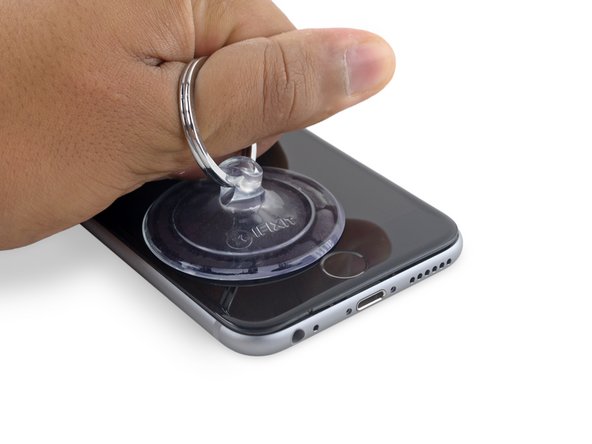
    • Apply a suction cup to the lower left corner of the display assembly.

    • Take care not to place the suction cup over the home button.

    • If your display is badly cracked, covering it with a layer of clear packing tape may allow the suction cup to adhere. Alternatively, very strong tape may be used instead of the suction cup. If all else fails, you can superglue the suction cup to the broken screen.

    FixBot'a Sor

    Yorum Ekle

  4. How to fix iTunes error 9 in an Apple iPhone 6s: adım 4, 2 resimden 1. How to fix iTunes error 9 in an Apple iPhone 6s: adım 4, 2 resimden 2.
    • Pull up on the suction cup with firm, constant pressure to create a slight gap between the front panel and rear case.

    • Take your time and apply firm, constant force. The display assembly is a much tighter fit than most devices and is held down with adhesive.

    • Pulling too hard may damage the display assembly. Apply just enough pressure to create a small gap between the display assembly and the rear case.

    • If you have any trouble, heat the front of the iPhone using an iOpener, hair dryer, or heat gun until it's slightly too hot to touch. This will help soften the adhesive securing the edges of the display.

    FixBot'a Sor

    Yorum Ekle

  5. How to fix iTunes error 9 in an Apple iPhone 6s: adım 5, 2 resimden 1. How to fix iTunes error 9 in an Apple iPhone 6s: adım 5, 2 resimden 2.
    • There is a notch on the underside of the display, just above the headphone jack. This is the safest place to begin prying the phone open.

    • Place the flat edge of a spudger into the gap between the screen and rear case, directly above the headphone jack.

    FixBot'a Sor

    Yorum Ekle

  6. How to fix iTunes error 9 in an Apple iPhone 6s: adım 6, 2 resimden 1. How to fix iTunes error 9 in an Apple iPhone 6s: adım 6, 2 resimden 2.
    • Twist the spudger to widen the gap between the front panel assembly and the rest of the phone.

    FixBot'a Sor

    Yorum Ekle

  7. How to fix iTunes error 9 in an Apple iPhone 6s: adım 7, 2 resimden 1. How to fix iTunes error 9 in an Apple iPhone 6s: adım 7, 2 resimden 2.
    • Insert the flat end of the spudger on the left side of the phone, between the display assembly and rear case.

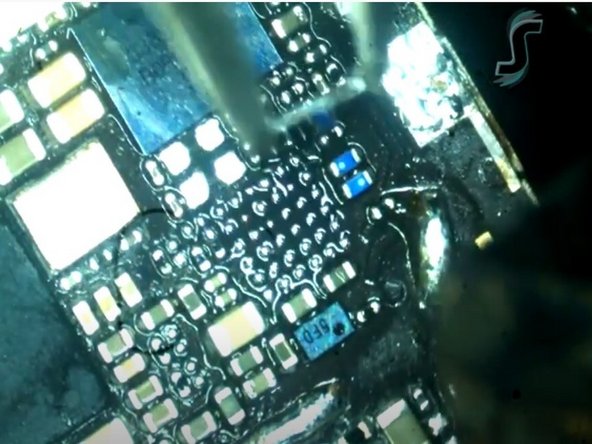
    • Slide the spudger up the side of the phone to separate the adhesive and pop the clips free.

    FixBot'a Sor

    Yorum Ekle

  8. How to fix iTunes error 9 in an Apple iPhone 6s: adım 8, 2 resimden 1. How to fix iTunes error 9 in an Apple iPhone 6s: adım 8, 2 resimden 2.
    • Remove the spudger and reinsert it on the bottom edge, where you pried the phone open.

    • Slide the spudger to the right, along the bottom edge of the phone.

    FixBot'a Sor

    Yorum Ekle

  9. How to fix iTunes error 9 in an Apple iPhone 6s: adım 9, 2 resimden 1. How to fix iTunes error 9 in an Apple iPhone 6s: adım 9, 2 resimden 2.
    • Slide the spudger up the right side to continue separating the adhesive and popping the display clips free from the iPhone.

    FixBot'a Sor

    Yorum Ekle

  10. How to fix iTunes error 9 in an Apple iPhone 6s: adım 10, 2 resimden 1. How to fix iTunes error 9 in an Apple iPhone 6s: adım 10, 2 resimden 2.
    • Use the suction cup to open the display, breaking the last of the adhesive.

    • Don't open the display more than 90º, as it is still connected at the top by three cables that may break if stretched.

    FixBot'a Sor

    Yorum Ekle

  11. How to fix iTunes error 9 in an Apple iPhone 6s: adım 11, 2 resimden 1. How to fix iTunes error 9 in an Apple iPhone 6s: adım 11, 2 resimden 2.
    • Pull up on the nub on the top side of the suction cup to remove it from the front panel.

    FixBot'a Sor

    Yorum Ekle

  12. How to fix iTunes error 9 in an Apple iPhone 6s: adım 12, 3 resimden 1. How to fix iTunes error 9 in an Apple iPhone 6s: adım 12, 3 resimden 2. How to fix iTunes error 9 in an Apple iPhone 6s: adım 12, 3 resimden 3.
    • Gently grasp the display assembly and lift it up to open the phone, using the clips at the top of the front panel as a hinge.

    • Open the display to about a 90º angle, and lean it against something to keep it propped up while you're working on the phone.

    • Add a rubber band to keep the display securely in place while you work. This prevents undue strain on the display cables.

    • In a pinch, you can use an unopened canned beverage to hold the display.

    • During reassembly, pause here if you wish to replace the adhesive around the edges of the display.

    • During reassembly, the camera end of the screen body needs to hook under the edge of the body. The hooks of the screen frame need to be under the rim of the main body and snugged toward the camera end to easily close the cover and have it properly clip.

    • These hooks are not really a proper hinge but clasps that need to be under the rim of the main phone frame/edge!! This way the screen easily will return to its closed state nicely gently snapping into place.

    • During reassembly, reverse order for getting the screen clipped back in means pressing along the right side top to bottom corner. Then the left.

    FixBot'a Sor

    Yorum Ekle

  13. How to fix iTunes error 9 in an Apple iPhone 6s, Battery Connector: adım 13, 1 resimden 1.
    Bu adımda kullanılan alet:
    Magnetic Project Mat
    $19.95
    • Remove two Phillips screws securing the battery connector bracket, of the following lengths:

    • One 2.9 mm screw

    • One 2.2 mm screw

    • Throughout this repair, keep track of each screw and make sure it goes back exactly where it came from to avoid damaging your iPhone.

    FixBot'a Sor

    Yorum Ekle

  14. How to fix iTunes error 9 in an Apple iPhone 6s: adım 14, 2 resimden 1. How to fix iTunes error 9 in an Apple iPhone 6s: adım 14, 2 resimden 2.
    • Remove the battery connector bracket from the iPhone.

    FixBot'a Sor

    Yorum Ekle

  15. How to fix iTunes error 9 in an Apple iPhone 6s: adım 15, 3 resimden 1. How to fix iTunes error 9 in an Apple iPhone 6s: adım 15, 3 resimden 2. How to fix iTunes error 9 in an Apple iPhone 6s: adım 15, 3 resimden 3.
    • Use the point of a spudger to disconnect the battery connector by prying it straight up from the logic board.

    FixBot'a Sor

    Yorum Ekle

  16. How to fix iTunes error 9 in an Apple iPhone 6s: adım 16, 2 resimden 1. How to fix iTunes error 9 in an Apple iPhone 6s: adım 16, 2 resimden 2.
    • Push the battery connector away from the logic board until it stays separated from its socket, so as to avoid any accidental connection to the battery while you work.

    FixBot'a Sor

    Yorum Ekle

  17. How to fix iTunes error 9 in an Apple iPhone 6s, Unfasten the display cable bracket: adım 17, 1 resimden 1.
    • Remove the following four Phillips screws securing the display cable bracket:

    • Three 1.2 mm screws

    • One 2.8 mm screw

    FixBot'a Sor

    Yorum Ekle

  18. How to fix iTunes error 9 in an Apple iPhone 6s: adım 18, 2 resimden 1. How to fix iTunes error 9 in an Apple iPhone 6s: adım 18, 2 resimden 2.
    • Remove the display cable bracket.

    FixBot'a Sor

    Yorum Ekle

  19. How to fix iTunes error 9 in an Apple iPhone 6s: adım 19, 2 resimden 1. How to fix iTunes error 9 in an Apple iPhone 6s: adım 19, 2 resimden 2.
    • Use a spudger or a clean fingernail to disconnect the front camera flex cable by prying it straight up from its socket on the logic board.

    FixBot'a Sor

    Yorum Ekle

  20. How to fix iTunes error 9 in an Apple iPhone 6s: adım 20, 2 resimden 1. How to fix iTunes error 9 in an Apple iPhone 6s: adım 20, 2 resimden 2.
    • Disconnect the digitizer cable by prying it straight up from its socket on the logic board.

    • When reconnecting the digitizer cable, do not press the center of the connector. Press one end of the connector, then press the opposite end. Pressing in the center of the connector can bend the component and cause digitizer damage.

    FixBot'a Sor

    Yorum Ekle

  21. How to fix iTunes error 9 in an Apple iPhone 6s: adım 21, 2 resimden 1. How to fix iTunes error 9 in an Apple iPhone 6s: adım 21, 2 resimden 2.
    • Make sure the battery is disconnected before you disconnect or reconnect the cable in this step.

    • Disconnect the display cable by prying it straight up from its socket on the logic board.

    FixBot'a Sor

    Yorum Ekle

  22. How to fix iTunes error 9 in an Apple iPhone 6s: adım 22, 1 resimden 1.
    FixBot'a Sor

    Yorum Ekle

  23. How to fix iTunes error 9 in an Apple iPhone 6s, Rear Camera: adım 23, 2 resimden 1. How to fix iTunes error 9 in an Apple iPhone 6s, Rear Camera: adım 23, 2 resimden 2.
    • Use the flat end of a spudger to disconnect the rear camera from its socket on the logic board.

    FixBot'a Sor

    Yorum Ekle

  24. How to fix iTunes error 9 in an Apple iPhone 6s: adım 24, 1 resimden 1.
    • Remove the following two Phillips screws over the rear camera bracket:

    • One 1.6 mm screw

    • One 2.0 mm screw

    FixBot'a Sor

    Yorum Ekle

  25. How to fix iTunes error 9 in an Apple iPhone 6s: adım 25, 2 resimden 1. How to fix iTunes error 9 in an Apple iPhone 6s: adım 25, 2 resimden 2.
    • Remove the camera bracket.

    FixBot'a Sor

    Yorum Ekle

  26. How to fix iTunes error 9 in an Apple iPhone 6s: adım 26, 2 resimden 1. How to fix iTunes error 9 in an Apple iPhone 6s: adım 26, 2 resimden 2.
    • Insert a spudger to the side of the camera, between the rear case and the camera module.

    • Gently pry up on the camera to nudge it out from its housing.

    FixBot'a Sor

    Yorum Ekle

  27. How to fix iTunes error 9 in an Apple iPhone 6s: adım 27, 2 resimden 1. How to fix iTunes error 9 in an Apple iPhone 6s: adım 27, 2 resimden 2.
    • Remove the camera.

    FixBot'a Sor

    Yorum Ekle

  28. How to fix iTunes error 9 in an Apple iPhone 6s, SIM Tray: adım 28, 2 resimden 1. How to fix iTunes error 9 in an Apple iPhone 6s, SIM Tray: adım 28, 2 resimden 2.
    • Insert a SIM card eject tool or a paperclip into the small hole in the SIM card tray.

    • Press to eject the tray.

    • This may require a significant amount of force.

    FixBot'a Sor

    Yorum Ekle

  29. How to fix iTunes error 9 in an Apple iPhone 6s: adım 29, 1 resimden 1.
    • Remove the SIM Card tray assembly from the iPhone.

    • When reinserting the SIM card, ensure that it is in the proper orientation relative to the tray.

    FixBot'a Sor

    Yorum Ekle

  30. How to fix iTunes error 9 in an Apple iPhone 6s, Logic Board: adım 30, 1 resimden 1.
    • Remove the two 2.3 mm Phillips screws securing the upper component cable connector bracket.

    FixBot'a Sor

    Yorum Ekle

  31. How to fix iTunes error 9 in an Apple iPhone 6s: adım 31, 2 resimden 1. How to fix iTunes error 9 in an Apple iPhone 6s: adım 31, 2 resimden 2.
    • Remove the upper component cable connector bracket.

    FixBot'a Sor

    Yorum Ekle

  32. How to fix iTunes error 9 in an Apple iPhone 6s: adım 32, 2 resimden 1. How to fix iTunes error 9 in an Apple iPhone 6s: adım 32, 2 resimden 2.
    • Remove the following five Phillips screws securing the top left Wi-Fi antenna:

    • Two 1.5mm screws

    • One 2.3 mm screw

    • One 1.9 mm screw

    • One 2.0 mm screw

    FixBot'a Sor

    Yorum Ekle

  33. How to fix iTunes error 9 in an Apple iPhone 6s: adım 33, 2 resimden 1. How to fix iTunes error 9 in an Apple iPhone 6s: adım 33, 2 resimden 2.
    • Remove the top left Wi-Fi antenna.

    FixBot'a Sor

    Yorum Ekle

  34. How to fix iTunes error 9 in an Apple iPhone 6s: adım 34, 2 resimden 1. How to fix iTunes error 9 in an Apple iPhone 6s: adım 34, 2 resimden 2.
    • Use the flat end of a spudger to disconnect the audio control cable from its socket on the logic board.

    FixBot'a Sor

    Yorum Ekle

  35. How to fix iTunes error 9 in an Apple iPhone 6s: adım 35, 2 resimden 1. How to fix iTunes error 9 in an Apple iPhone 6s: adım 35, 2 resimden 2.
    • Use the pointed tip of a spudger to disconnect the antenna cable from its socket on the upper right corner of the logic board.

    FixBot'a Sor

    Yorum Ekle

  36. How to fix iTunes error 9 in an Apple iPhone 6s: adım 36, 2 resimden 1. How to fix iTunes error 9 in an Apple iPhone 6s: adım 36, 2 resimden 2.
    • Use the pointed tip of a spudger to disconnect the antenna cable from its socket on the lower left corner of the logic board.

    FixBot'a Sor

    Yorum Ekle

  37. How to fix iTunes error 9 in an Apple iPhone 6s: adım 37, 2 resimden 1. How to fix iTunes error 9 in an Apple iPhone 6s: adım 37, 2 resimden 2.
    • Insert the flat end of a spudger underneath the Lightning connector ribbon cable. Lift up to disconnect it from its socket on the logic board.

    FixBot'a Sor

    Yorum Ekle

  38. How to fix iTunes error 9 in an Apple iPhone 6s: adım 38, 2 resimden 1. How to fix iTunes error 9 in an Apple iPhone 6s: adım 38, 2 resimden 2.
    • Gently pull up on the antenna cable to de-route it from the two clips on the right side of the logic board.

    FixBot'a Sor

    Yorum Ekle

  39. How to fix iTunes error 9 in an Apple iPhone 6s: adım 39, 1 resimden 1.
    • Remove the 1.3 mm Phillips screw securing the NFC bracket to the logic board.

    FixBot'a Sor

    Yorum Ekle

  40. How to fix iTunes error 9 in an Apple iPhone 6s: adım 40, 2 resimden 1. How to fix iTunes error 9 in an Apple iPhone 6s: adım 40, 2 resimden 2.
    • Remove the NFC bracket.

    FixBot'a Sor

    Yorum Ekle

  41. How to fix iTunes error 9 in an Apple iPhone 6s: adım 41, 2 resimden 1. How to fix iTunes error 9 in an Apple iPhone 6s: adım 41, 2 resimden 2.
    • Remove the following two Phillips screws:

    • One 2.5 mm screw at the top of the logic board

    • One 1.4 mm screw set into the upper edge of the rear case

    FixBot'a Sor

    Yorum Ekle

  42. How to fix iTunes error 9 in an Apple iPhone 6s: adım 42, 2 resimden 1. How to fix iTunes error 9 in an Apple iPhone 6s: adım 42, 2 resimden 2.
    • Remove the plastic clip.

    FixBot'a Sor

    Yorum Ekle

  43. How to fix iTunes error 9 in an Apple iPhone 6s: adım 43, 1 resimden 1.
    • Remove the final three screws securing the logic board to the rear case:

    • One 1.9 mm Phillips screw

    • One 2.5 mm hex nut

    • One 1.8 mm Phillips screw

    FixBot'a Sor

    Yorum Ekle

  44. How to fix iTunes error 9 in an Apple iPhone 6s: adım 44, 3 resimden 1. How to fix iTunes error 9 in an Apple iPhone 6s: adım 44, 3 resimden 2. How to fix iTunes error 9 in an Apple iPhone 6s: adım 44, 3 resimden 3.
    • Insert an opening pick below the lower edge of the logic board, between the board and the loudspeaker.

    • Use the opening pick to gently lift the logic board out of its housing.

    • Remove the logic board.

    FixBot'a Sor

    Yorum Ekle

  45. How to fix iTunes error 9 in an Apple iPhone 6s, How to fix iTunes error 9 in an Apple iPhone 6s: adım 45, 3 resimden 1. How to fix iTunes error 9 in an Apple iPhone 6s, How to fix iTunes error 9 in an Apple iPhone 6s: adım 45, 3 resimden 2. How to fix iTunes error 9 in an Apple iPhone 6s, How to fix iTunes error 9 in an Apple iPhone 6s: adım 45, 3 resimden 3.
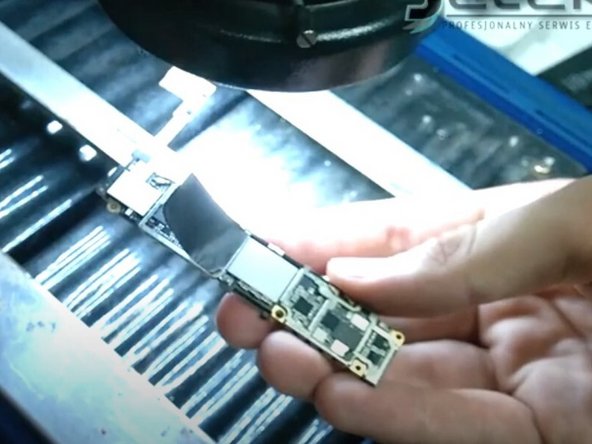
    • Remove the protective cover from the logic board.

    • Remove the black sticker from the logic board.

    FixBot'a Sor

    Yorum Ekle

  46. How to fix iTunes error 9 in an Apple iPhone 6s: adım 46, 3 resimden 1. How to fix iTunes error 9 in an Apple iPhone 6s: adım 46, 3 resimden 2. How to fix iTunes error 9 in an Apple iPhone 6s: adım 46, 3 resimden 3.
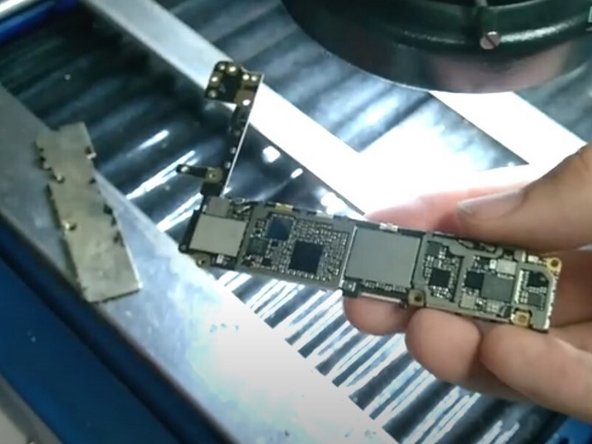
    • Place a heat shield over the other parts of the motherboard to avoid overheating.

    • Heat the affected area with a heat gun to reflow the solder.

    • Reflowing heats up all the soldering joints in an area so they become liquid enough to reinforce the bonds. This allows electricity to flow through the bond without unexpected resistance.

    FixBot'a Sor

    Yorum Ekle

  47. How to fix iTunes error 9 in an Apple iPhone 6s: adım 47, 1 resimden 1.
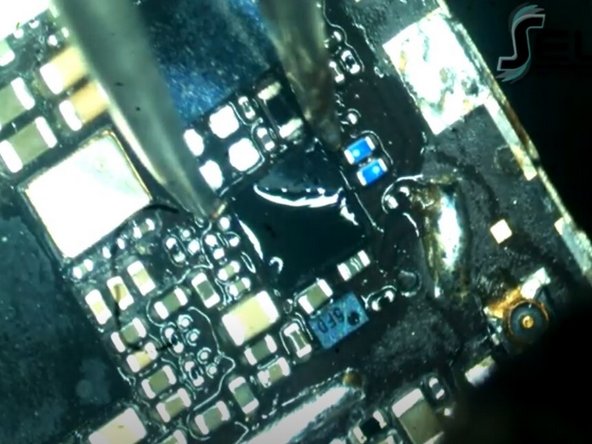
    • Re-solder a new tristar chip onto the logic board.

    • Apply a small amount of isopropyl alcohol to the areas where flux was applied.

    • The isopropyl alcohol will clean any remaining flux that was not burned off during the heating process.

    FixBot'a Sor

    Yorum Ekle

Sonuç

To reassemble your device, follow these instructions in reverse order.

İptal et: Bu kılavuzu tamamlamadım.

10 farklı kişi bu kılavuzu tamamladı.

Alex Sander

Üyelik tarihi: 02/28/17

39.379 İtibar

201 adet Kılavuz yazıldı

1Rehber Yorum

Does anybody have more detailed instructions? Maybe in written form? I don’t know where to find the board and which tools I need. And did I understand right - he’s boiling the board, so he’s heating it up?

Marcel - Yanıt Paylaş

Yorum Ekle

İstatistikleri Görüntüle:

Son 24 Saat: 4

Son 7 gün: 14

Son 30 gün: 114

Her zaman: 16,594