Ana içeriğe geç
Onarım Topluluğuna Katılın - Hesap Oluşturun
Interconnect Cables Removal

Salt Önkoşul
Bu sadece bir ön koşul kılavuzudur! Bu kılavuz başka bir prosedürün parçasıdır ve tek başına kullanılması amaçlanmamıştır.

Neye ihtiyacın var

  1. Interconnect Cables Removal, Safety precautions: adım 1, 2 resimden 1. Interconnect Cables Removal, Safety precautions: adım 1, 2 resimden 2.
    • Let your Pixel's battery drain below 25% before starting this repair. A charged lithium‑ion battery may catch fire if damaged.

    • Unplug all cables and completely power down your phone.

  2. Interconnect Cables Removal, Adhesive information: adım 2, 3 resimden 1. Interconnect Cables Removal, Adhesive information: adım 2, 3 resimden 2. Interconnect Cables Removal, Adhesive information: adım 2, 3 resimden 3.
    • Adhesive secures the perimeter of the rear cover to the frame.

    • When separating the adhesive, don't insert your tool more than 3 mm under the rear cover to avoid damaging the internal components.

    • Measure 3 mm from the tip and mark your opening pick with a permanent marker. Alternatively, you can tape a coin to a pick 3 mm from the tip.

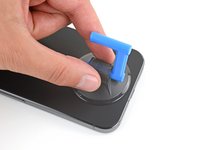
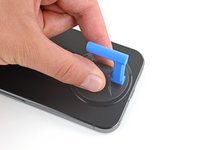
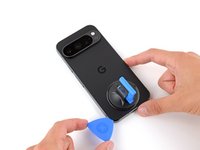
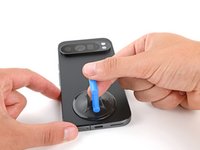
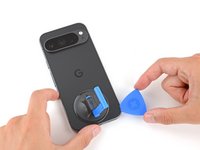
  3. Interconnect Cables Removal, Apply a suction handle: adım 3, 2 resimden 1. Interconnect Cables Removal, Apply a suction handle: adım 3, 2 resimden 2.
    • Attach a suction handle to the bottom edge of the rear cover, as close to the edge as possible.

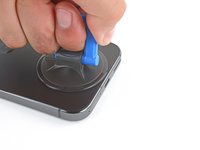
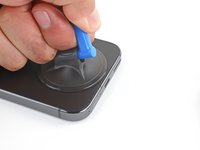
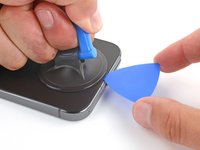
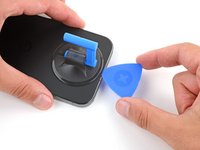
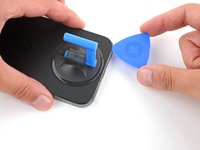
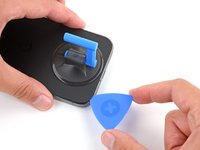
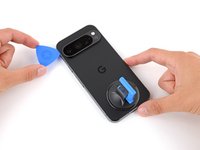
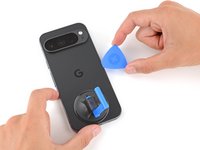
  4. Interconnect Cables Removal, Insert an opening pick: adım 4, 3 resimden 1. Interconnect Cables Removal, Insert an opening pick: adım 4, 3 resimden 2. Interconnect Cables Removal, Insert an opening pick: adım 4, 3 resimden 3.
    • Pull up on the suction handle with strong, steady force to create a small gap under the rear cover.

    • Insert the tip of an opening pick in the gap.

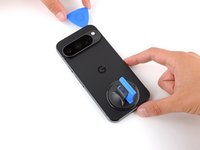
  5. Interconnect Cables Removal, Separate the rear cover adhesive: adım 5, 3 resimden 1. Interconnect Cables Removal, Separate the rear cover adhesive: adım 5, 3 resimden 2. Interconnect Cables Removal, Separate the rear cover adhesive: adım 5, 3 resimden 3.
    • Slide your opening pick along the bottom edge to separate the adhesive securing it.

    • Remember: don't insert the opening pick deeper than 3 mm.

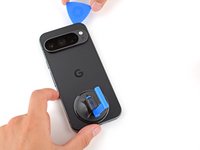
  6. Interconnect Cables Removal: adım 6, 3 resimden 1. Interconnect Cables Removal: adım 6, 3 resimden 2. Interconnect Cables Removal: adım 6, 3 resimden 3.
    • Slide your opening pick up the left edge and along the top edge to separate the adhesive.

  7. Interconnect Cables Removal: adım 7, 3 resimden 1. Interconnect Cables Removal: adım 7, 3 resimden 2. Interconnect Cables Removal: adım 7, 3 resimden 3.
    • Slide your pick down the right edge to separate the remaining adhesive.

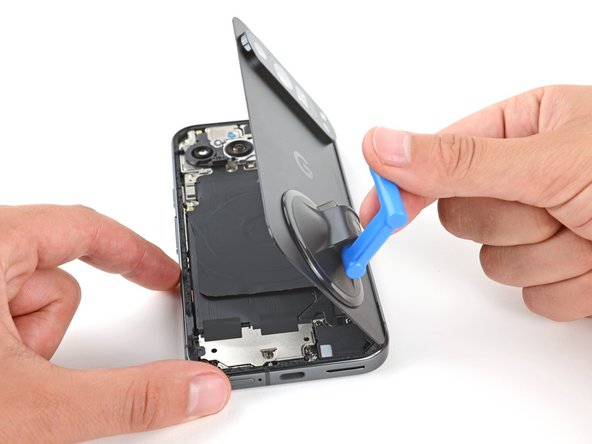
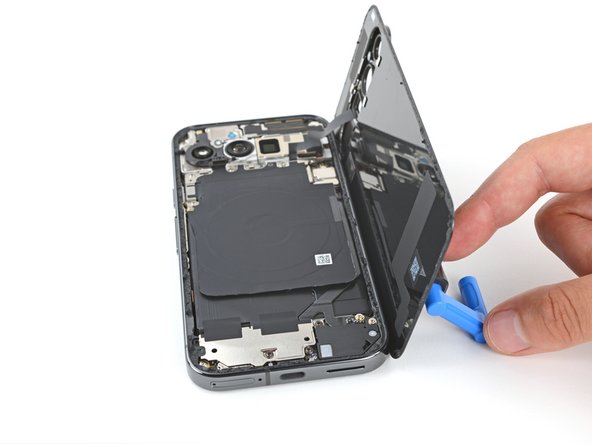
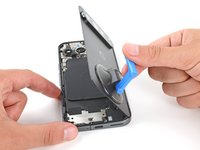
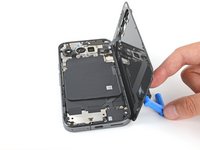
  8. Interconnect Cables Removal, Prop up the rear cover: adım 8, 3 resimden 1. Interconnect Cables Removal, Prop up the rear cover: adım 8, 3 resimden 2. Interconnect Cables Removal, Prop up the rear cover: adım 8, 3 resimden 3.
    • Don't try to fully remove the rear cover yet, as a ribbon cable on the right edge connects it to the phone.

    • Use the suction handle to lift the left edge of the rear cover and swing it over the right edge, like opening the cover of a book.

    • If you're having trouble, check the perimeter for any remaining adhesive and use your opening pick to separate it.

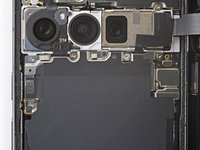
    • Prop up the rear cover with the suction handle so you can access the ribbon cable near the top right corner.

  9. Interconnect Cables Removal, Remove the wireless charging assembly: adım 9, 2 resimden 1. Interconnect Cables Removal, Remove the wireless charging assembly: adım 9, 2 resimden 2.
    Bu adımda kullanılan alet:
    FixMat
    $36.95
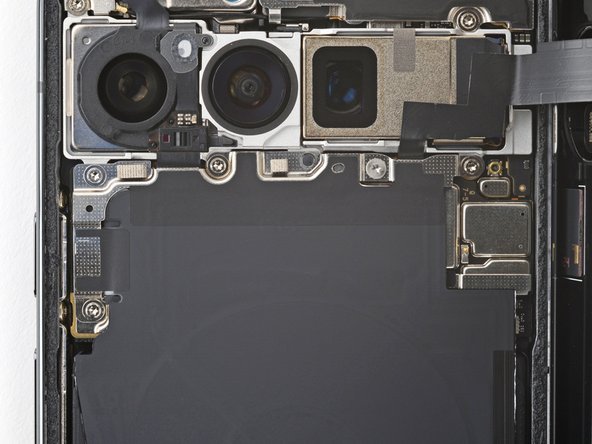
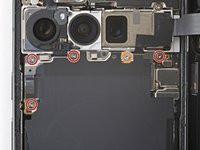
    • Throughout this repair, keep track of each screw and make sure it goes back exactly where it came from.

    • While the Pixel 9 Pro uses Torx Plus screws, standard Torx bits will also work. Make sure to apply constant, downward force to prevent stripping.

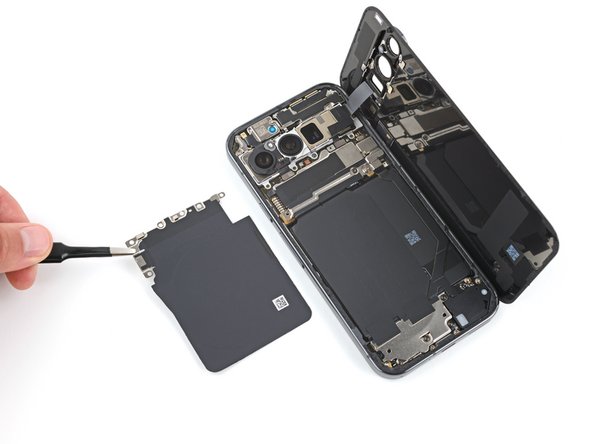
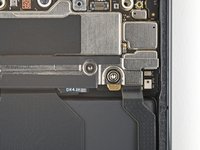
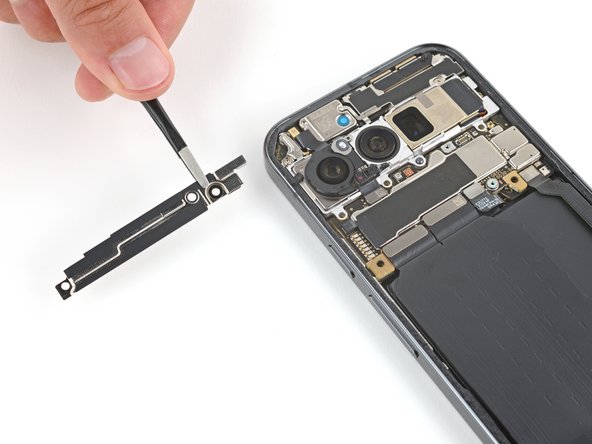
    • Use a Torx Plus 3IP screwdriver to remove the five screws securing the wireless charging assembly:

    • Four 5.4 mm‑long screws

    • One 1.5 mm‑long screw

    • This screw is non‑magnetic—you may need to use tweezers to remove it.

  10. Interconnect Cables Removal: adım 10, 3 resimden 1. Interconnect Cables Removal: adım 10, 3 resimden 2. Interconnect Cables Removal: adım 10, 3 resimden 3.
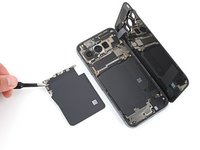
    • Be very careful not to damage the spring contacts under the top left edge of the wireless charging assembly.

    • Use tweezers or your fingers to remove the wireless charging assembly.

  11. Interconnect Cables Removal, Disconnect the rear cover: adım 11, 3 resimden 1. Interconnect Cables Removal, Disconnect the rear cover: adım 11, 3 resimden 2. Interconnect Cables Removal, Disconnect the rear cover: adım 11, 3 resimden 3.
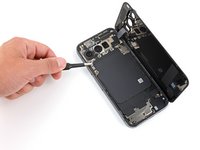
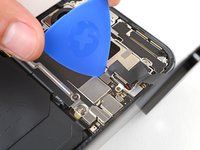
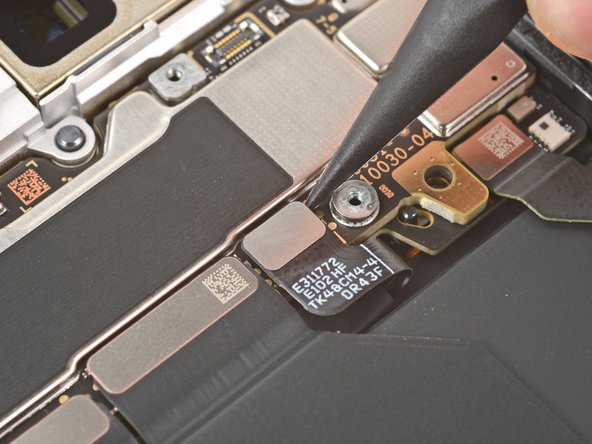
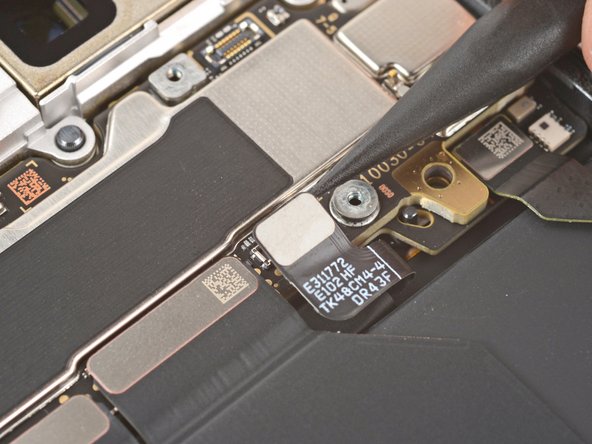
    • Insert the tip of an opening pick under the left edge of the rear cover press connector and pry straight up to disconnect it.

  12. Interconnect Cables Removal, Remove the rear cover: adım 12, 1 resimden 1.
    • Remove the rear cover.

    • During reassembly, follow this guide to apply new adhesive and install your rear cover.

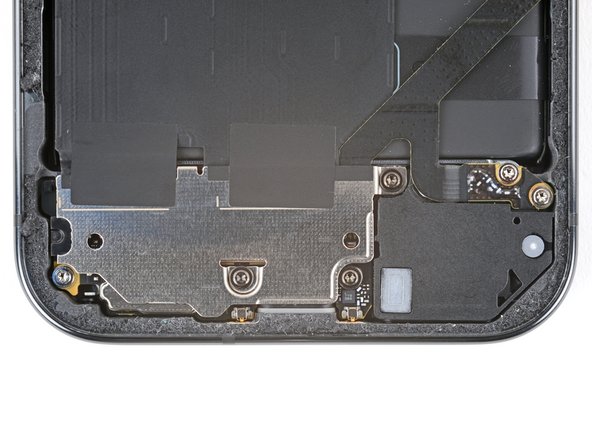
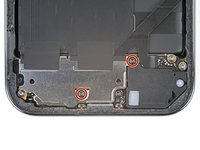
  13. Interconnect Cables Removal, Remove the cable cover: adım 13, 2 resimden 1. Interconnect Cables Removal, Remove the cable cover: adım 13, 2 resimden 2.
    • Use a Torx Plus 3IP screwdriver to remove the two screws securing the cable cover:

    • One 2.3 mm‑long screw

    • One 5.4 mm‑long screw

  14. Interconnect Cables Removal: adım 14, 2 resimden 1. Interconnect Cables Removal: adım 14, 2 resimden 2.
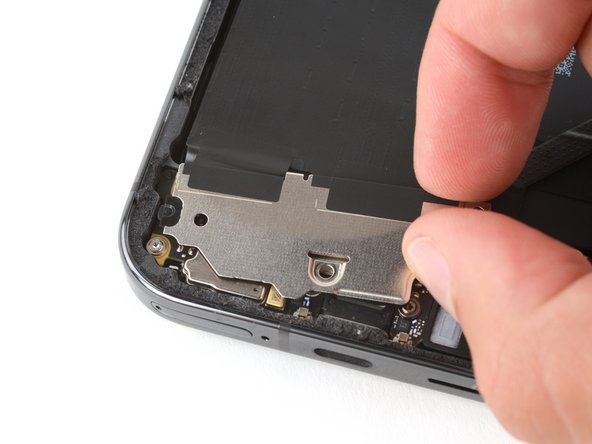
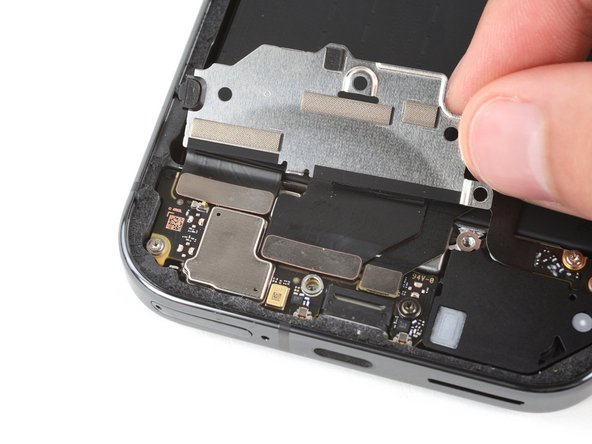
    • Use tweezers or your fingers to remove the cable cover.

  15. Interconnect Cables Removal, Disconnect the battery: adım 15, 3 resimden 1. Interconnect Cables Removal, Disconnect the battery: adım 15, 3 resimden 2. Interconnect Cables Removal, Disconnect the battery: adım 15, 3 resimden 3.
    • Insert the point of a spudger under the right edge of the battery press connector and pry straight up to disconnect it.

  16. Interconnect Cables Removal, Disconnect the logic board cables: adım 16, 3 resimden 1. Interconnect Cables Removal, Disconnect the logic board cables: adım 16, 3 resimden 2. Interconnect Cables Removal, Disconnect the logic board cables: adım 16, 3 resimden 3.
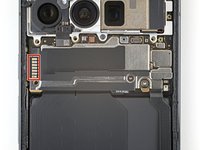
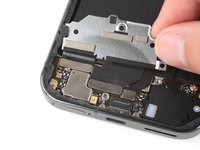
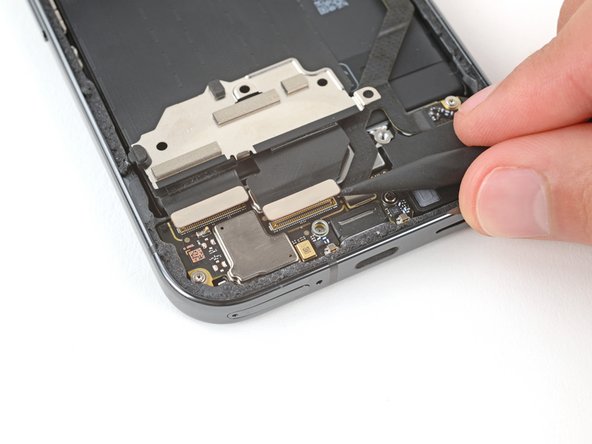
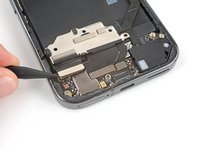
    • Use the flat end of a spudger to pry up and disconnect the press connector near the bottom left corner of the logic board.

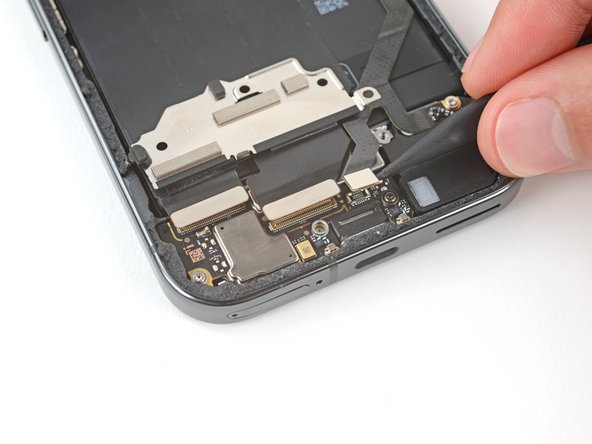
    • Use the point of a spudger to disconnect the press connector just to the right of the previous one.

  17. Interconnect Cables Removal: adım 17, 2 resimden 1. Interconnect Cables Removal: adım 17, 2 resimden 2.
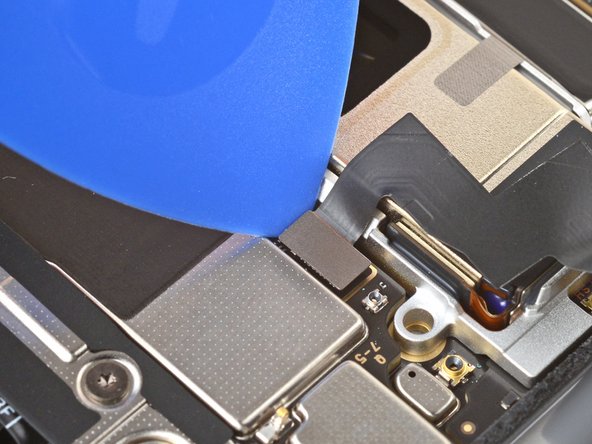
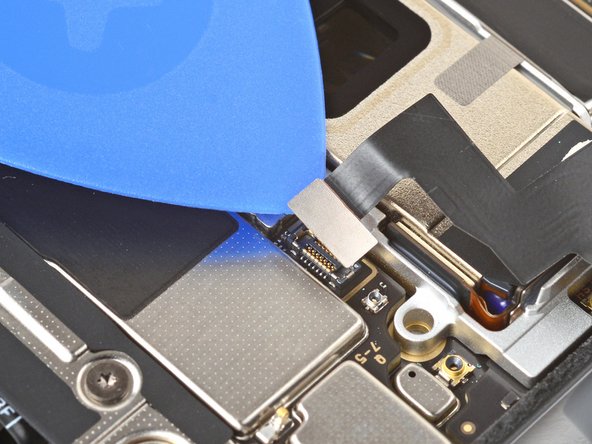
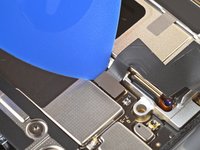
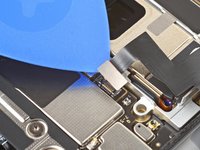
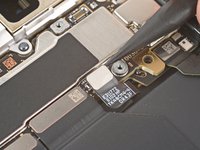
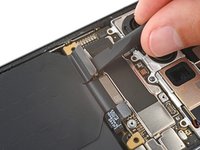
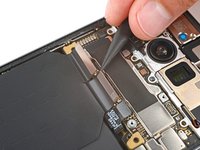
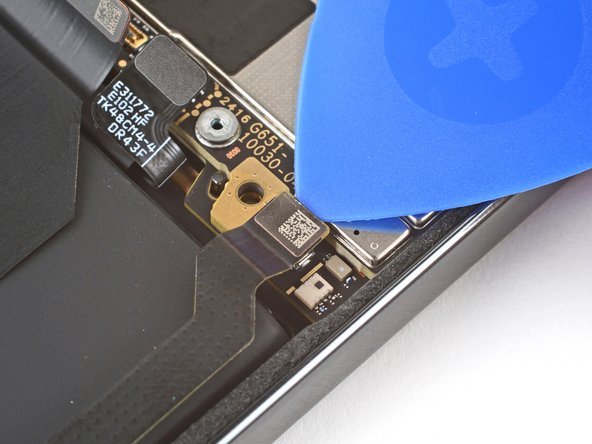
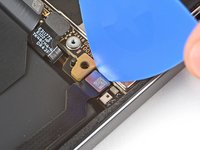
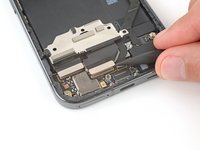
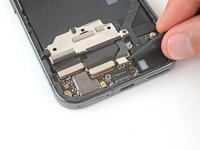
    • Insert the tip of an opening pick under the top edge of the press connector near the bottom right corner of the logic board.

    • Be very careful not to damage the small, surface-mounted components to the right of the connector.

    • Use the pick to pry up and disconnect the press connector.

  18. Interconnect Cables Removal, Move the charging board cover: adım 18, 2 resimden 1. Interconnect Cables Removal, Move the charging board cover: adım 18, 2 resimden 2.
    • Use a Torx Plus 3IP screwdriver to remove the two 4.3 mm‑long screws securing the charging board cover.

  19. Interconnect Cables Removal: adım 19, 3 resimden 1. Interconnect Cables Removal: adım 19, 3 resimden 2. Interconnect Cables Removal: adım 19, 3 resimden 3.
    • Use your fingers to pull the right edge of the charging board cover towards the top of your phone to unclip the left side of the cover.

    • Flip the cover away from the charging board so you can access its press connectors.

  20. Interconnect Cables Removal, Disconnect the charging board cables: adım 20, 3 resimden 1. Interconnect Cables Removal, Disconnect the charging board cables: adım 20, 3 resimden 2. Interconnect Cables Removal, Disconnect the charging board cables: adım 20, 3 resimden 3.
    • Be very careful not to damage any of the small, surface‑mounted components on the charging board.

    • Use the point of a spudger to pry up and disconnect the three press connectors on the top edge of the charging board.

  21. Interconnect Cables Removal, Remove the left interconnect cable: adım 21, 1 resimden 1.
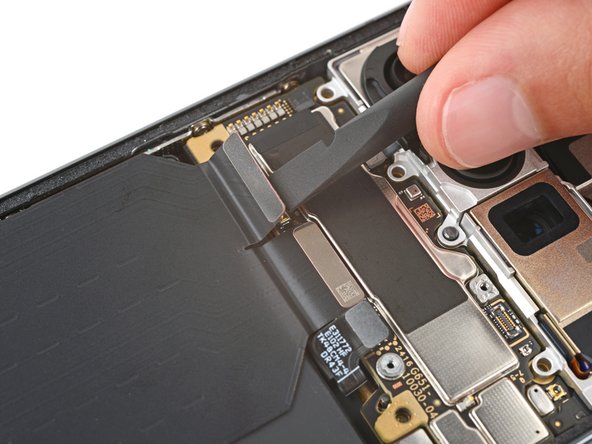
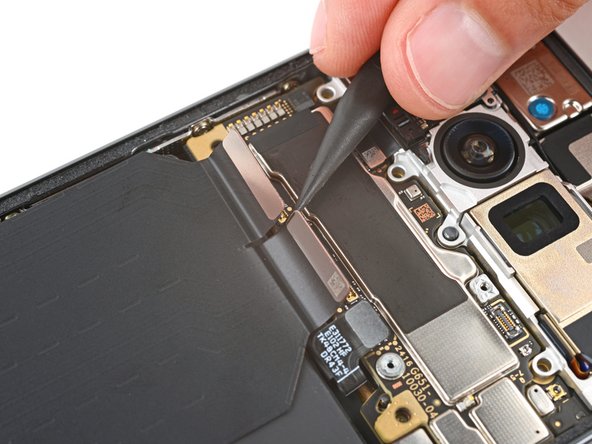
    • Use your fingers to remove the left interconnect cable.

  22. Interconnect Cables Removal, Remove the right interconnect cable: adım 22, 2 resimden 1. Interconnect Cables Removal, Remove the right interconnect cable: adım 22, 2 resimden 2.
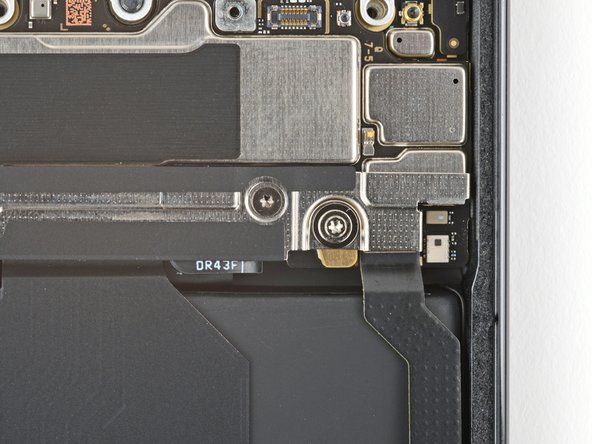
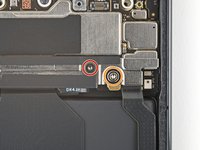
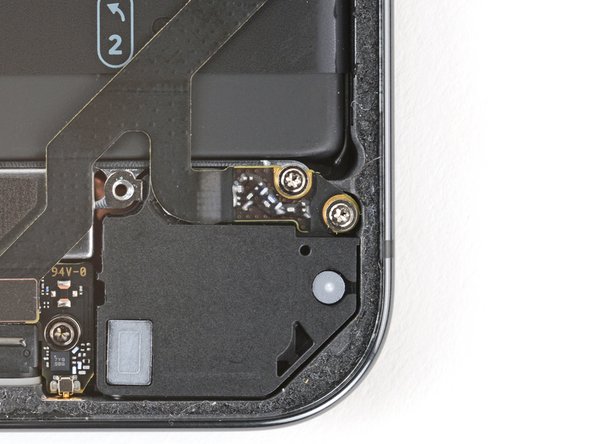
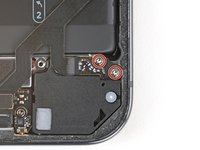
    • Use a Torx Plus 3IP screwdriver to remove the two 2.5 mm‑long screws securing the bottom of the right interconnect cable.

  23. Interconnect Cables Removal: adım 23, 1 resimden 1.
    • Use your fingers to remove the right interconnect cable.

Bitiş Çizgisi

Spencer Day

Üyelik tarihi: 09/14/22

160.409 İtibar

1.045 adet Kılavuz yazıldı

Ekip

iFixit iFixit üyesi

Staff

123 Üyeler

24.004 adet Kılavuz yazıldı

0Kılavuz Yorumları

Yorum Ekle

İstatistikleri Görüntüle:

Son 24 Saat: 2

Son 7 gün: 5

Son 30 gün: 15

Her zaman: 92