Ana içeriğe geç
Onarım Topluluğuna Katılın - Hesap Oluşturun

Le Pan S Screen Replacement

Neye ihtiyacın var

  1. Le Pan S Screen Replacement, Battery: adım 1, 1 resimden 1.
    • Remove the two 3.5 mm Phillips #00 screws that are covered by the micro SD port.

    • This cover is adjacent to the volume button on the side of the Le Pan S.

    FixBot'a Sor

    Yorum Ekle

  2. Le Pan S Screen Replacement: adım 2, 2 resimden 1. Le Pan S Screen Replacement: adım 2, 2 resimden 2.
    • Insert the spudger between the front and back panel in order to pry them apart.

    • Do this beside the volume button and the micro SD cover.

    • Pry open the rest of the Le Pan S by dragging the spudger across the side.

    FixBot'a Sor

    Yorum Ekle

  3. Le Pan S Screen Replacement: adım 3, 1 resimden 1.
    • Once the front and back faces are completely separated, remove the back cover to reveal the inside components.

    FixBot'a Sor

    Yorum Ekle

  4. Le Pan S Screen Replacement: adım 4, 2 resimden 1. Le Pan S Screen Replacement: adım 4, 2 resimden 2.
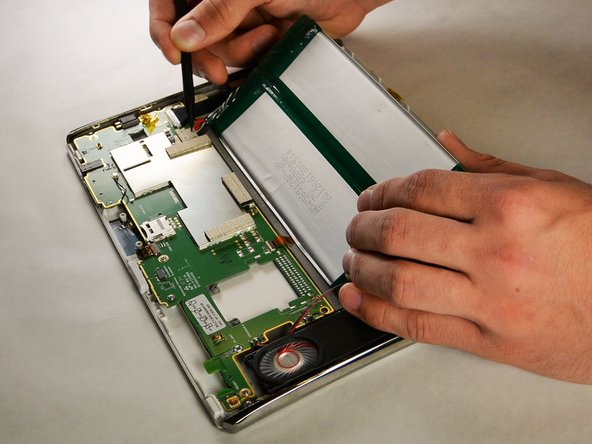
    • Disconnect the battery from the circuitry and lay it out of the way.

    • The best method to complete this is to pull the bundled cable connector out with your hands. Pull towards the wires and away from the electrical board. Use the spudger to further coax the cable out.

    • If you are replacing your battery, make sure to dispose of it properly.

    FixBot'a Sor

    Yorum Ekle

  5. Le Pan S Screen Replacement, Screen: adım 5, 1 resimden 1.
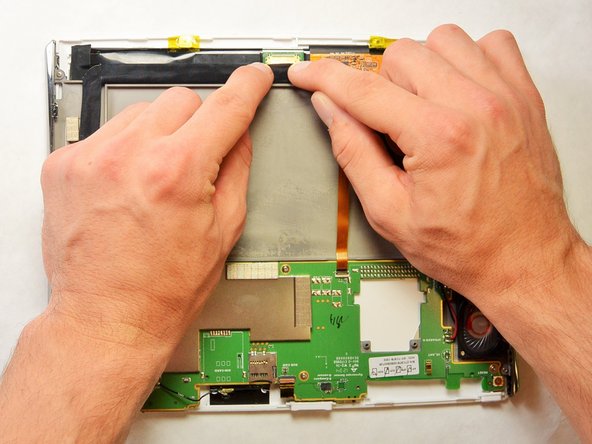
    • Remove the tape covering the end of the flat ribbon cable.

    FixBot'a Sor

    Yorum Ekle

  6. Le Pan S Screen Replacement: adım 6, 2 resimden 1. Le Pan S Screen Replacement: adım 6, 2 resimden 2.
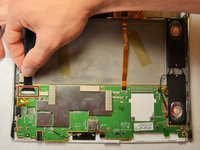
    • Disconnect the display cable connector by gently pulling the white connection head out of its base.

    • Repeat for the cable's other end attached near the top of the tablet.

    FixBot'a Sor

    Yorum Ekle

  7. Le Pan S Screen Replacement: adım 7, 1 resimden 1.
    • Disconnect the flat ribbon cable by disconnecting the zero insertion force (ZIF) connector.

    • This can be done by using a plastic opening tool, spudger, or fingernail to lift the retaining flap.

    FixBot'a Sor

    Yorum Ekle

  8. Le Pan S Screen Replacement: adım 8, 1 resimden 1.
    • Remove the six 2.5 mm Phillips #00 screws securing the green electrical board.

    FixBot'a Sor

    Yorum Ekle

  9. Le Pan S Screen Replacement: adım 9, 1 resimden 1.
    • Use the spudger to remove the vibration controller.

    FixBot'a Sor

    Yorum Ekle

  10. Le Pan S Screen Replacement: adım 10, 1 resimden 1.
    • Remove the four 3.5 mm Phillips #00 screws holding the speakers in place.

    FixBot'a Sor

    Yorum Ekle

  11. Le Pan S Screen Replacement: adım 11, 2 resimden 1. Le Pan S Screen Replacement: adım 11, 2 resimden 2.
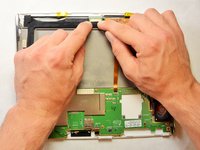
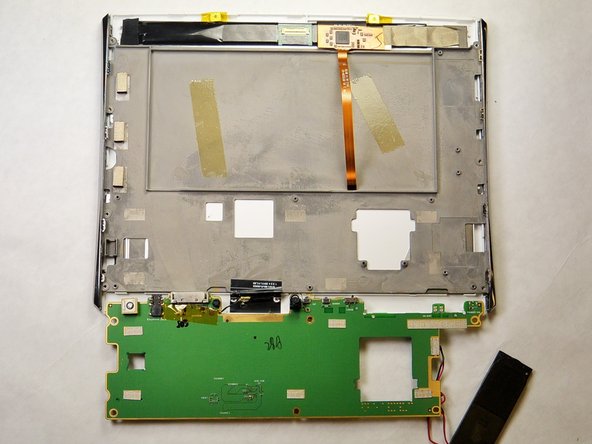
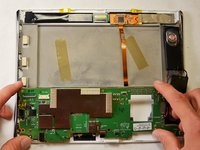
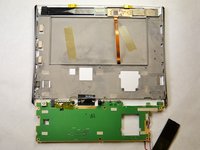
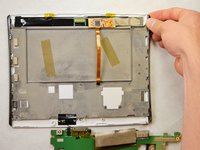
    • Flip the green electrical board back so that the screen is separated from the green board.

    • Be careful not to break the Wi-Fi antenna cable that is still soldered to the plastic casing.

    FixBot'a Sor

    Yorum Ekle

  12. Le Pan S Screen Replacement: adım 12, 1 resimden 1.
    • Remove the seven 3.5 mm Phillips #00 screws that connect the grey backing to the screen.

    FixBot'a Sor

    Yorum Ekle

  13. Le Pan S Screen Replacement: adım 13, 2 resimden 1. Le Pan S Screen Replacement: adım 13, 2 resimden 2.
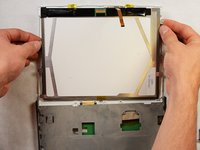
    • Take the gray backing off of the screen so that only the back of the LCD display is showing.

    FixBot'a Sor

    Yorum Ekle

  14. Le Pan S Screen Replacement: adım 14, 1 resimden 1.
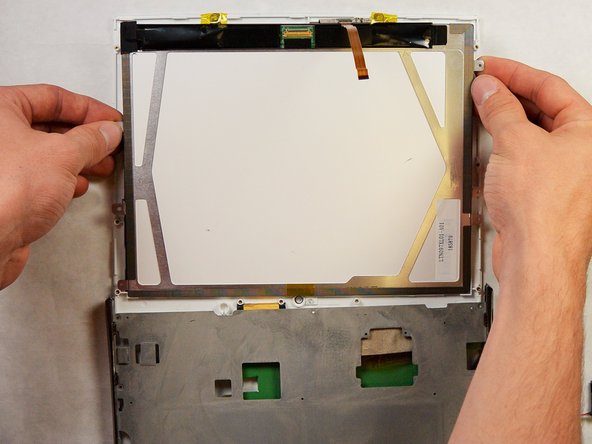
    • Remove the LCD display by lifting up carefully.

    • Place the display in an area where it will not be damaged.

    FixBot'a Sor

    Yorum Ekle

  15. Le Pan S Screen Replacement: adım 15, 1 resimden 1.
    • Flip the device over to the front.

    • Use a heat gun or hairdryer to help loosen any adhesive present on the screen. Start with a low, evenly applied heat and slowly increase the temperature as needed.

    • If you do not have a heat gun or hairdryer, use the metal opening tools mentioned in Step 16.

    • Use the plastic spudger and the plastic opening tool to prop the screen off of the adhesive at one corner.

    FixBot'a Sor

    Yorum Ekle

  16. Le Pan S Screen Replacement: adım 16, 1 resimden 1.
    • Slide the metal opening tools across the sides of the screen in order to separate the adhesive away from the screen.

    • Continue this process until all the sides of the screen are disconnected from the Le Pan S.

    • Make sure to scrape off any remaining adhesive from the housing before adding the new screen and adhesive.

    FixBot'a Sor

    Yorum Ekle

Sonuç

To reassemble your device, follow these instructions in reverse order.

İptal et: Bu kılavuzu tamamlamadım.

Bir başkası bu kılavuzu tamamladı.

Maria Dole

Üyelik tarihi: 09/17/15

395 İtibar

3 adet Kılavuz yazıldı

Ekip

IUPUI, Team 2-1, Harley Fall 2015 IUPUI, Team 2-1, Harley Fall 2015 üyesi

IUPUI-HARLEY-F15S2G1

5 Üyeler

10 adet Kılavuz yazıldı

1Rehber Yorum

Where can I find the replacement display screen for my Lepan TC802a tablet.

James

jrmpr@aol.com

James - Yanıt Paylaş

Yorum Ekle

İstatistikleri Görüntüle:

Son 24 Saat: 1

Son 7 gün: 9

Son 30 gün: 46

Her zaman: 1,526