Ana içeriğe geç
Onarım Topluluğuna Katılın - Hesap Oluşturun

Lenovo G40-30 Keyboard Replacement

Neye ihtiyacın var

    1. Lenovo G40-30 Keyboard Replacement, Battery: adım 1, 3 resimden 1. Lenovo G40-30 Keyboard Replacement, Battery: adım 1, 3 resimden 2. Lenovo G40-30 Keyboard Replacement, Battery: adım 1, 3 resimden 3.
      • At the top of the laptop you will see two switches, like in image one and two.

      • Pull the switches outwards with your thumb, towards the unlocked lock.

      FixBot'a Sor

      Yorum Ekle

    2. Lenovo G40-30 Keyboard Replacement: adım 2, 3 resimden 1. Lenovo G40-30 Keyboard Replacement: adım 2, 3 resimden 2. Lenovo G40-30 Keyboard Replacement: adım 2, 3 resimden 3.
      • Once both switches are pulled, the battery should pop out.

      FixBot'a Sor

      Yorum Ekle

    3. Lenovo G40-30 Keyboard Replacement: adım 3, 1 resimden 1.
      • Now you are ready to insert your new battery.

      FixBot'a Sor

      Yorum Ekle

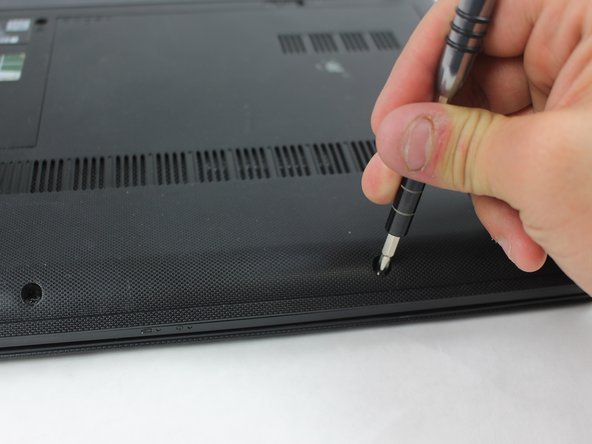
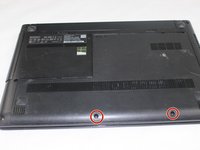
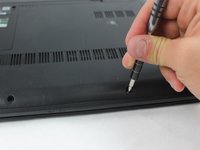
    1. Lenovo G40-30 Keyboard Replacement, Keyboard: adım 4, 2 resimden 1. Lenovo G40-30 Keyboard Replacement, Keyboard: adım 4, 2 resimden 2.
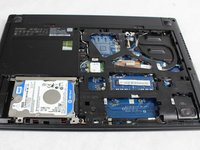
      • Use a JIS #1 screwdriver to remove the two 7 mm screws.

      FixBot'a Sor

      Yorum Ekle

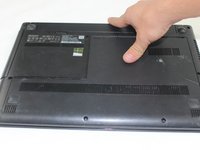
    2. Lenovo G40-30 Keyboard Replacement: adım 5, 2 resimden 1. Lenovo G40-30 Keyboard Replacement: adım 5, 2 resimden 2.
      • Remove the back panel by sliding it away from the battery.

      FixBot'a Sor

      Yorum Ekle

    3. Lenovo G40-30 Keyboard Replacement: adım 6, 1 resimden 1.
      • Use a JIS #1 screwdriver to remove the three 7 mm screws.

      FixBot'a Sor

      Yorum Ekle

    4. Lenovo G40-30 Keyboard Replacement: adım 7, 2 resimden 1. Lenovo G40-30 Keyboard Replacement: adım 7, 2 resimden 2.
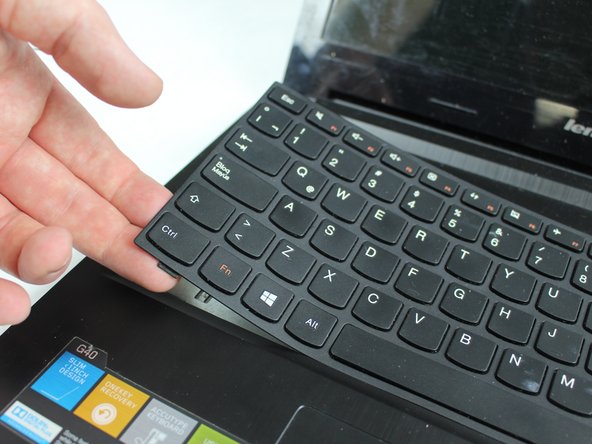
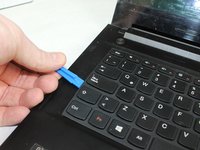
      • Wedge the plastic opening tool in-between the keyboard and the base of the laptop.

      • Continue using the plastic opening tool to pry around the edge until the keyboard is completely freed form the frame.

      • The keyboard should only be connected by a ribbon on the underside of the keyboard.

      • It is recommended that you slowly pull the keyboard out as your move around the edge. As in picture 2.

      • Be careful not to pull the keyboard too far away from the face as it will damage the data ribbon.

      FixBot'a Sor

      Yorum Ekle

    5. Lenovo G40-30 Keyboard Replacement: adım 8, 3 resimden 1. Lenovo G40-30 Keyboard Replacement: adım 8, 3 resimden 2. Lenovo G40-30 Keyboard Replacement: adım 8, 3 resimden 3.
      Bu adımda kullanılan alet:
      Tweezers
      $4.99
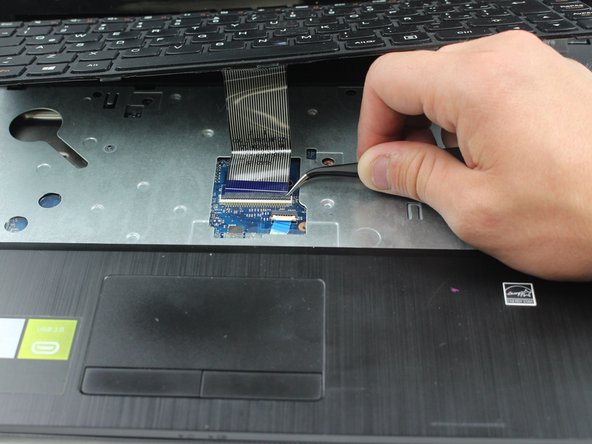
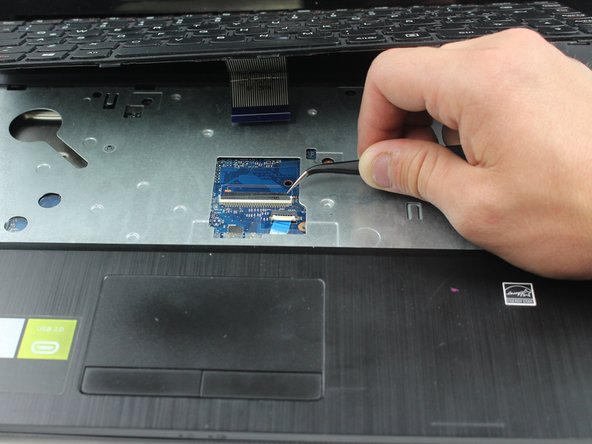
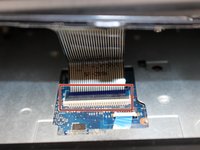
      • Use the tweezers to lift the black hinge on the ribbon connector.

      • Then pull the ribbon from the connector and remove the keyboard from the laptop.

      FixBot'a Sor

      Yorum Ekle

    6. Lenovo G40-30 Keyboard Replacement: adım 9, 1 resimden 1.
      • Now your keyboard is free to be replaced!

      FixBot'a Sor

      Yorum Ekle

Sonuç

To reassemble your device, follow these instructions in reverse order.

İptal et: Bu kılavuzu tamamlamadım.

2 farklı kişi bu kılavuzu tamamladı.

Luke

Üyelik tarihi: 02/08/18

326 İtibar

1 Kılavuz yazıldı

Ekip

1Rehber Yorum

thanks ….terimakasih sangat membantu…..

herman - Yanıt Paylaş

Yorum Ekle

İstatistikleri Görüntüle:

Son 24 Saat: 1

Son 7 gün: 11

Son 30 gün: 43

Her zaman: 2,679