Ana içeriğe geç
Onarım Topluluğuna Katılın - Hesap Oluşturun

Lenovo ThinkPad T440p RAM Replacement

Neye ihtiyacın var

    1. Lenovo ThinkPad T440p RAM Replacement, Battery: adım 1, 1 resimden 1.
      • Flip the laptop so that the back is facing up.

      FixBot'a Sor
      Yorum Ekle

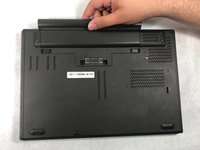
    2. Lenovo ThinkPad T440p RAM Replacement: adım 2, 2 resimden 1. Lenovo ThinkPad T440p RAM Replacement: adım 2, 2 resimden 2.
      • Slide the battery latches to the unlocked position.

      FixBot'a Sor

      Yorum Ekle

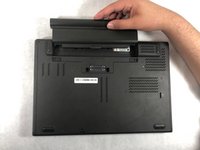
    3. Lenovo ThinkPad T440p RAM Replacement: adım 3, 2 resimden 1. Lenovo ThinkPad T440p RAM Replacement: adım 3, 2 resimden 2.
      • Slide the battery pack out of the battery slot.

      FixBot'a Sor

      Yorum Ekle

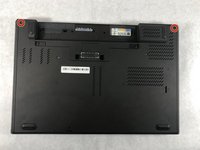
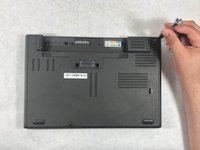
    1. Lenovo ThinkPad T440p RAM Replacement, Back Cover: adım 4, 2 resimden 1. Lenovo ThinkPad T440p RAM Replacement, Back Cover: adım 4, 2 resimden 2.
      • Use a Phillips #1 screwdriver to remove the two 8mm screws holding the back cover.

      FixBot'a Sor

      Yorum Ekle

    2. Lenovo ThinkPad T440p RAM Replacement: adım 5, 1 resimden 1.
      • Slide down the back cover.

      FixBot'a Sor

      Yorum Ekle

    3. Lenovo ThinkPad T440p RAM Replacement: adım 6, 1 resimden 1.
      • Remove the back cover.

      FixBot'a Sor

      Yorum Ekle

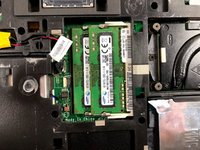
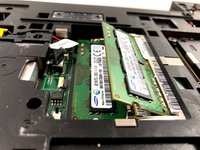
    1. Lenovo ThinkPad T440p RAM Replacement, RAM: adım 7, 3 resimden 1. Lenovo ThinkPad T440p RAM Replacement, RAM: adım 7, 3 resimden 2. Lenovo ThinkPad T440p RAM Replacement, RAM: adım 7, 3 resimden 3.
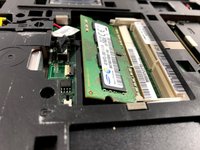
      • In the first memory slot, use your fingertips to spread the two white tabs that are holding down the RAM. The RAM will raise to an angle.

      FixBot'a Sor

      Yorum Ekle

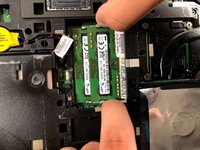
    2. Lenovo ThinkPad T440p RAM Replacement: adım 8, 1 resimden 1.
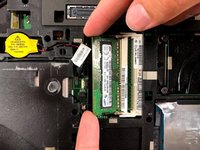
      • Remove the RAM by holding on its edges.

      FixBot'a Sor

      Yorum Ekle

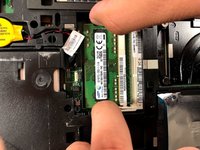
    3. Lenovo ThinkPad T440p RAM Replacement: adım 9, 3 resimden 1. Lenovo ThinkPad T440p RAM Replacement: adım 9, 3 resimden 2. Lenovo ThinkPad T440p RAM Replacement: adım 9, 3 resimden 3.
      • Repeat steps 1 and 2 to remove the second RAM.

      FixBot'a Sor

      Yorum Ekle

Sonuç

To reassemble your device, follow these instructions in reverse order.

İptal et: Bu kılavuzu tamamlamadım.

5 farklı kişi bu kılavuzu tamamladı.

Christian Abad

Üyelik tarihi: 03/20/19

1.780 İtibar

7 adet Kılavuz yazıldı

Ekip

UMass Dartmouth, Team S6-G5, Peak Spring 2019 UMass Dartmouth, Team S6-G5, Peak Spring 2019 üyesi

UMASSD-PEAK-S19S6G5

3 Üyeler

45 adet Kılavuz yazıldı

0Kılavuz Yorumları

Yorum Ekle

İstatistikleri Görüntüle:

Son 24 Saat: 1

Son 7 gün: 6

Son 30 gün: 51

Her zaman: 4,039