Bu çeviri bir makine tarafından oluşturulmuştur ve henüz bir kişi tarafından incelenmemiştir. Bu dili konuşuyor musunuz? İnceleme için.

Logitech Harmony Smart Keyboard Açma/Kapama Düğmesi Değişimi

Hayley Nichols ve 4 diğer katkıda bulunanlar
En son 19 Ağu 2026 tarihinde güncellendi
Görüntüleme: 5,5 B
İstatistikleri görüntüle:
- Son 24 Saat:
- 4
- Son 7 Gün:
- 34
- Son 30 Gün:
- 106
- Her zaman:
- 5.537
Yorumlar: 2
1 comment on steps, 1 guide comment.
Go to guide commentsTamamlandı: 2 3
2 kişi bu kılavuzu "tamamlandı" olarak işaretledi. Sıradaki sen olacak mısın?
3 kişi bu kılavuzu "tamamlandı" olarak işaretledi. Siz de dahil - harika iş!
Sık Kullanılanlar: 0 1
Hiç kimse bu kılavuzu favorilere eklemedi (ve abone olmadı). İlk mi olacaksın?
1 kişi bu kılavuzu favorilerine ekledi (ve abone oldu) — ve bu sizsiniz!
Öne Çıkan Öğrenci Kılavuzu
Bu kılavuz, çalışkan öğrencilerimizin alın teriyle üretildi ve iFixit kadrosu tarafından epey havalı bulunuyor.
Giriş
1. adıma git ↓Bu kılavuz, Logitech Harmony Smart Keyboard üzerindeki açma/kapama düğmesinin değiştirilmesi içindir.
Açma/kapama düğmesi (veya güç düğmesi), klavyeyi açıp kapatmanızı sağlar. Açma/kapama düğmesi, cihaz açıkken yeşil, kapalıyken kırmızı görünür.
Neye ihtiyacın var
Aletler
-
Spudger4.9


-
-
-
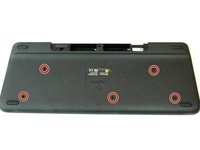
Klavyeyi arka tarafı üste gelecek şekilde ters çevirin.
 FixBot'a Sor
-
-
-
Her iki baş parmağınızı kullanarak üst batarya kilidine bastırın ve yukarı doğru kaydırın.
-
-
-
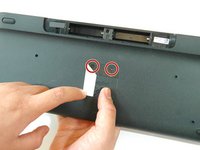
İki gizli 4,0 mm vidayı ortaya çıkarmak için orta etiketi soyun.
-
Bu iki vidayı bir Yıldız tornavidayla çıkarın.
-
-
-
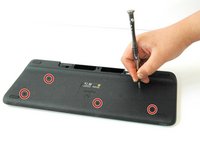
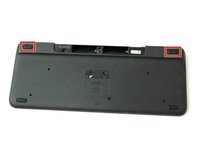
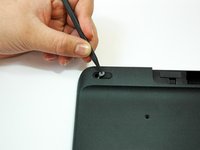
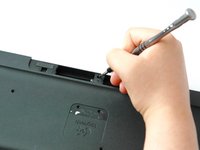
Plastik kanırtma aparatının sivri ucunu kullanarak sol üst ve sağ üstteki lastik etiketlerin her ikisini de yarıya kadar kaldırın.
-
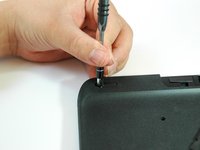
Bir yıldız tornavida kullanarak, lastik etiketlerin altındaki toplam iki adet 4,0 mm vidayı sökün.
-
-
-
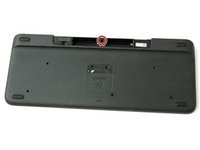
Batarya bölmesindeki üst orta 4,0 mm vidayı, Yıldız tornavida kullanarak sökün.
-
-
-
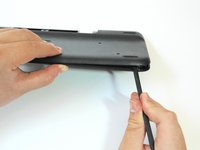
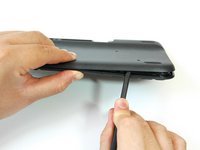
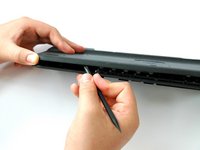
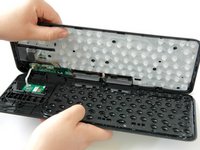
Plastik kanırtma aparatının yassı ucunu arka panel ile ön panel arasına yerleştirin.
-
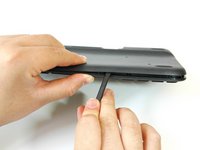
İki paneli birbirinden ayırmak için plastik kanırtma aparatının yassı ucunu sağdan sola doğru kaydırın.
-
-
-
-
-
-
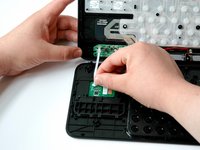
Fleks ribbon kablonun alt ucunu (beyaz şerit) baş ve işaret parmağınızla kavrayın.
-
Ardından şeridi kendinize doğru, kepçe hareketiyle kaydırarak çıkarın.
-
-
-
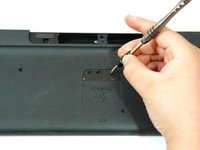
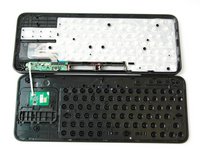
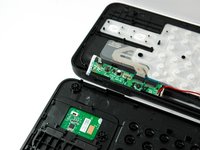
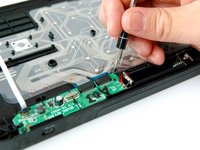
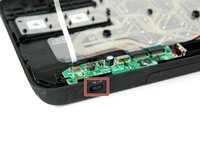
Ön paneli bir kenara koyun ve arka paneldeki açma/kapama anahtarının üzerinde bulunan yeşil kartı bulun.
-
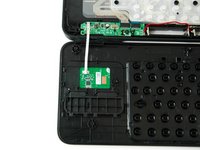
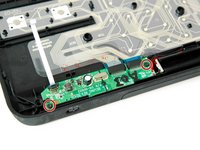
Yıldız tornavida (Phillips #1) kullanarak yeşil kartın her iki yanındaki 4.0 mm'lik iki vidayı sökün.
-
-
-
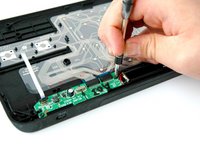
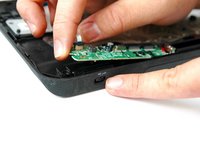
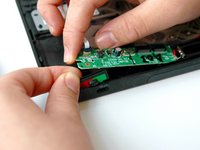
Yeşil kartın sol tarafını bir işaret parmağınızla kaldırıp tutun.
-
Açma/kapama anahtarını diğer işaret parmağınız ve baş parmağınızla kavrayıp çekerek çıkarın.
-
-


















Cihazınızı tekrar monte etmek için bu talimatları ters sırayla uygulayın.
İptal et: Bu kılavuzu tamamlamadım.
2 farklı kişi bu kılavuzu tamamladı.

Ekip

CSU Fullerton, Team S1-G2, Bruce Fall 2017 CSU Fullerton, Team S1-G2, Bruce Fall 2017 üyesi
CSUF-BRUCE-F17S1G2
3 Üyeler
60 adet Kılavuz yazıldı
1Rehber Yorum
please share switch rear side.. and where could we buy this switch.. ?
