Ana içeriğe geç
Onarım Topluluğuna Katılın - Hesap Oluşturun

MSI GE72 6QF Apache Pro RAM Replacement

Neye ihtiyacın var

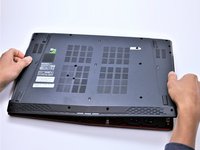
  1. MSI GE72 6QF Apache Pro RAM Replacement, Battery: adım 1, 2 resimden 1. MSI GE72 6QF Apache Pro RAM Replacement, Battery: adım 1, 2 resimden 2.
    • Make sure the laptop is off and unplugged (not charging).

    • With the laptop closed and upside down, unscrew the nineteen 5.5mm Phillips #1 screws that keep the back cover in place.

    FixBot'a Sor

    Yorum Ekle

  2. MSI GE72 6QF Apache Pro RAM Replacement: adım 2, 1 resimden 1.
    • Slide the optical drive out of the laptop.

    FixBot'a Sor

    Yorum Ekle

  3. MSI GE72 6QF Apache Pro RAM Replacement: adım 3, 1 resimden 1.
    • Use a Phillips screwdriver to remove the three screws along the edge of the optical drive bay.

    FixBot'a Sor

    Yorum Ekle

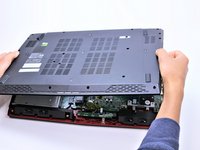
  4. MSI GE72 6QF Apache Pro RAM Replacement: adım 4, 2 resimden 1. MSI GE72 6QF Apache Pro RAM Replacement: adım 4, 2 resimden 2.
    • Using your fingers, gently loosen the edges of all four sides of the back cover.

    • Gently pull off the back cover.

    FixBot'a Sor

    Yorum Ekle

  5. MSI GE72 6QF Apache Pro RAM Replacement: adım 5, 2 resimden 1. MSI GE72 6QF Apache Pro RAM Replacement: adım 5, 2 resimden 2.
    • Unscrew the single 5.5mm Phillips #1 screw keeping the battery secure.

    FixBot'a Sor

    Yorum Ekle

  6. MSI GE72 6QF Apache Pro RAM Replacement: adım 6, 2 resimden 1. MSI GE72 6QF Apache Pro RAM Replacement: adım 6, 2 resimden 2.
    • Grab the battery with your fingers and gently pull it up and away from the rest of the laptop.

    FixBot'a Sor

    Yorum Ekle

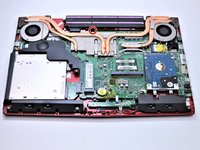
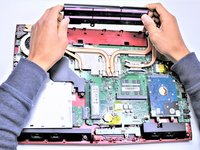
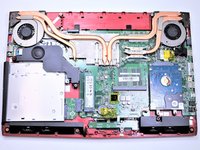
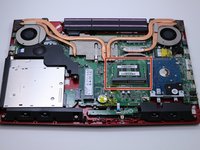
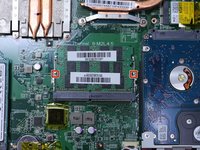
  7. MSI GE72 6QF Apache Pro RAM Replacement, RAM: adım 7, 2 resimden 1. MSI GE72 6QF Apache Pro RAM Replacement, RAM: adım 7, 2 resimden 2.
    • When you open the back cover, the RAM will be located as shown in the picture.

    FixBot'a Sor

    Yorum Ekle

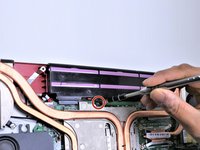
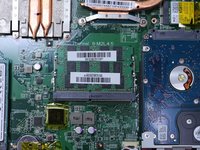
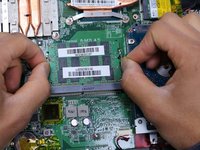
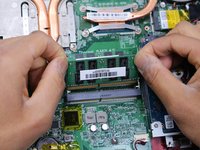
  8. MSI GE72 6QF Apache Pro RAM Replacement: adım 8, 3 resimden 1. MSI GE72 6QF Apache Pro RAM Replacement: adım 8, 3 resimden 2. MSI GE72 6QF Apache Pro RAM Replacement: adım 8, 3 resimden 3.
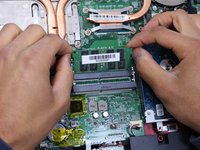
    • Press the hinges on the sides of the RAM chip as shown in the picture, in order to unlock it.

    • Carefully, slide it out at a 45 degree angle.

    • Don't press on the hinges too hard.

    • Be careful about the angle at which you're sliding out the chip.

    FixBot'a Sor

    Yorum Ekle

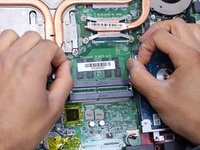
  9. MSI GE72 6QF Apache Pro RAM Replacement: adım 9, 3 resimden 1. MSI GE72 6QF Apache Pro RAM Replacement: adım 9, 3 resimden 2. MSI GE72 6QF Apache Pro RAM Replacement: adım 9, 3 resimden 3.
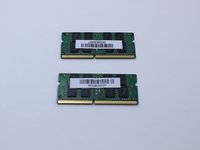
    • Similarly, press on the hinges on the sides of the other RAM chip, in order to unlock it.

    • Some laptop models might not come with two RAM chips, so if that is your case, you can skip this step.

    FixBot'a Sor

    Yorum Ekle

Sonuç

To reassemble your device, follow these instructions in reverse order.

İptal et: Bu kılavuzu tamamlamadım.

Bir başkası bu kılavuzu tamamladı.

Tanmay Kumar

Üyelik tarihi: 04/17/17

461 İtibar

4 adet Kılavuz yazıldı

Ekip

Cal Poly, Team S14-G4, Banghart Spring 2017 Cal Poly, Team S14-G4, Banghart Spring 2017 üyesi

CPSU-BANGHART-S17S14G4

4 Üyeler

8 adet Kılavuz yazıldı

1Rehber Yorum

Can you put more ram in this laptop like 32gb?

Can you put another ssd?

nojus.zibikas - Yanıt Paylaş

Yorum Ekle

İstatistikleri Görüntüle:

Son 24 Saat: 1

Son 7 gün: 12

Son 30 gün: 55

Her zaman: 5,496