Ana içeriğe geç
Onarım Topluluğuna Katılın - Hesap Oluşturun

MSI GP60 2PE Leopard Wireless Card Replacement

Neye ihtiyacın var

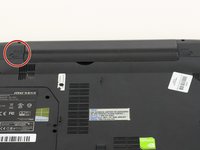
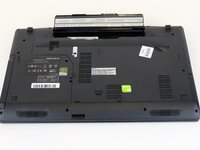
    1. MSI GP60 2PE Leopard Wireless Card Replacement, Battery: adım 1, 1 resimden 1.
      • Flip MSI GP60 2PE Leopard, so that the back is facing up.

      FixBot'a Sor

      Yorum Ekle

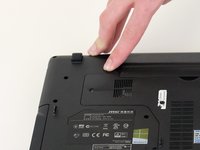
    2. MSI GP60 2PE Leopard Wireless Card Replacement: adım 2, 1 resimden 1.
      • Find the unlock tab located on the upper right side of the device, then slide it to the right.

      FixBot'a Sor
      Yorum Ekle

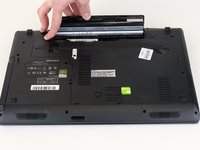
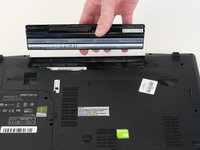
    3. MSI GP60 2PE Leopard Wireless Card Replacement: adım 3, 3 resimden 1. MSI GP60 2PE Leopard Wireless Card Replacement: adım 3, 3 resimden 2. MSI GP60 2PE Leopard Wireless Card Replacement: adım 3, 3 resimden 3.
      • Slide and hold the release tab on the left side of the battery, so that you can remove the battery.

      FixBot'a Sor
      Yorum Ekle

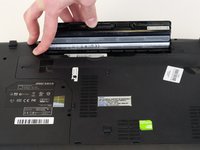
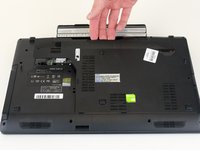
    4. MSI GP60 2PE Leopard Wireless Card Replacement: adım 4, 3 resimden 1. MSI GP60 2PE Leopard Wireless Card Replacement: adım 4, 3 resimden 2. MSI GP60 2PE Leopard Wireless Card Replacement: adım 4, 3 resimden 3.
      • While holding the release tab, remove the battery slowly.

      FixBot'a Sor

      Yorum Ekle

    1. MSI GP60 2PE Leopard Wireless Card Replacement, Back Panel: adım 5, 1 resimden 1.
      • Flip the device over so the back is facing up.

      FixBot'a Sor

      Yorum Ekle

    2. MSI GP60 2PE Leopard Wireless Card Replacement: adım 6, 2 resimden 1. MSI GP60 2PE Leopard Wireless Card Replacement: adım 6, 2 resimden 2.
      • Remove the four 5mm screws from the back of the device using a Phillips #00 screwdriver.

      • There is a screw located under the battery; lift the battery up to access it.

      FixBot'a Sor

      Yorum Ekle

    3. MSI GP60 2PE Leopard Wireless Card Replacement: adım 7, 2 resimden 1. MSI GP60 2PE Leopard Wireless Card Replacement: adım 7, 2 resimden 2.
      • Once all four screws are removed, lift the back off.

      FixBot'a Sor

      Yorum Ekle

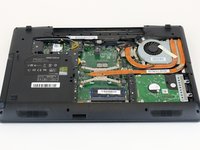
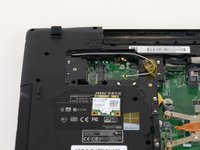
    1. MSI GP60 2PE Leopard Wireless Card Replacement, Wireless Card: adım 8, 1 resimden 1.
      • Locate the wireless card.

      FixBot'a Sor

      Yorum Ekle

    2. MSI GP60 2PE Leopard Wireless Card Replacement: adım 9, 1 resimden 1.
      • Using a Phillips #00 screwdriver, remove the one 2 mm screw that is holding the wireless card in place.

      FixBot'a Sor

      Yorum Ekle

    3. MSI GP60 2PE Leopard Wireless Card Replacement: adım 10, 1 resimden 1.
      • Carefully remove the wireless card.

      • Pay close attention to the two wires attached to wireless card.

      FixBot'a Sor

      Yorum Ekle

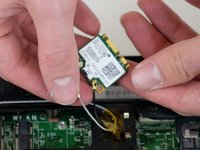
    4. MSI GP60 2PE Leopard Wireless Card Replacement: adım 11, 2 resimden 1. MSI GP60 2PE Leopard Wireless Card Replacement: adım 11, 2 resimden 2.
      • Remove the wires connecting to the wireless card by pinching around the base where they connect, then carefully disconnect them.

      • The wires should come off fairly easily.

      • Avoid yanking or pulling too hard. This can result in the wires breaking.

      FixBot'a Sor

      Yorum Ekle

Sonuç

To reassemble your device, follow these instructions in reverse order.

İptal et: Bu kılavuzu tamamlamadım.

2 farklı kişi bu kılavuzu tamamladı.

0Kılavuz Yorumları

Yorum Ekle

İstatistikleri Görüntüle:

Son 24 Saat: 3

Son 7 gün: 9

Son 30 gün: 32

Her zaman: 2,214