Ana içeriğe geç
Onarım Topluluğuna Katılın - Hesap Oluşturun

MacBook Pro 17" Unibody Hard Drive Replacement

Neye ihtiyacın var

  1. MacBook Pro 17" Unibody Hard Drive Replacement, Lower Case: adım 1, 1 resimden 1.
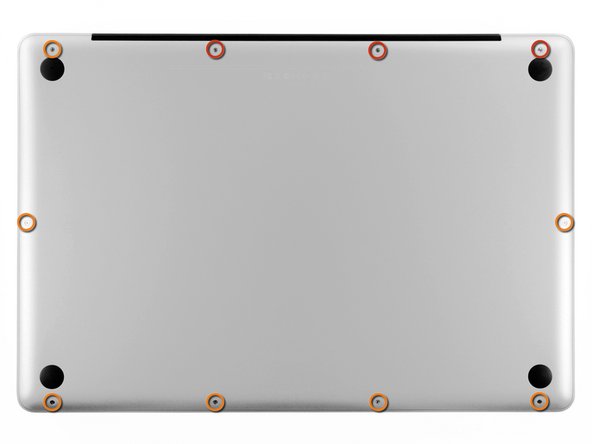
    • Remove the following ten screws securing the lower case to the upper case:

    • Three 13.5 mm Phillips screws.

    • Seven 3 mm Phillips screws.

    FixBot'a Sor

    Yorum Ekle

  2. MacBook Pro 17" Unibody Hard Drive Replacement: adım 2, 2 resimden 1. MacBook Pro 17" Unibody Hard Drive Replacement: adım 2, 2 resimden 2.
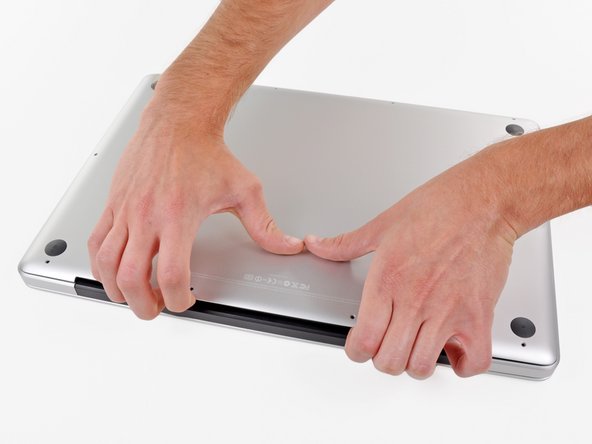
    • Wedge your fingers between the lower case and the vent, and lift upward to release the two clips holding the lower case to the upper case.

    • During reassembly, carefully align the lower case and then press it firmly until both clips engage.

    • Remove the lower case.

    FixBot'a Sor

    Yorum Ekle

  3. MacBook Pro 17" Unibody Hard Drive Replacement, Battery: adım 3, 3 resimden 1. MacBook Pro 17" Unibody Hard Drive Replacement, Battery: adım 3, 3 resimden 2. MacBook Pro 17" Unibody Hard Drive Replacement, Battery: adım 3, 3 resimden 3.
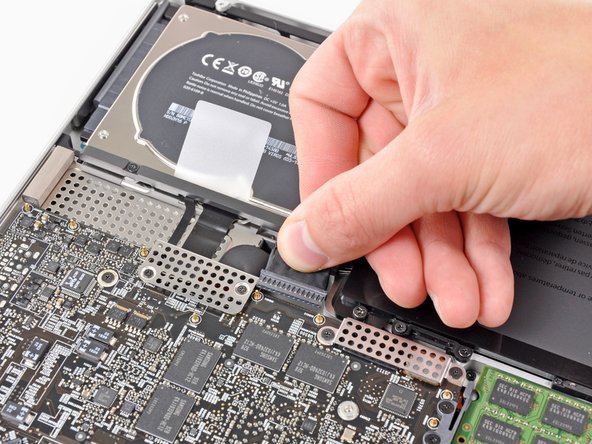
    • Whenever working near the logic board, it is always wise to first disconnect the battery to avoid short circuits.

    • If present, grab the plastic tab attached to the battery connector and pull it toward the front edge of the device. For Late-2011 models the battery connector will not have a tab and is simply a plug that inserts straight down into the motherboard--to remove pry the plug straight up.

    • If the plastic tab is missing, use a spudger to pry the connector up from its socket.

    • Pull the tab parallel to the face of the logic board.

    FixBot'a Sor

    Yorum Ekle

  4. MacBook Pro 17" Unibody Hard Drive Replacement, Hard Drive: adım 4, 1 resimden 1.
    • Remove the two Phillips screws securing the hard drive bracket to the upper case.

    • These screws are captive to the hard drive bracket.

    FixBot'a Sor

    Yorum Ekle

  5. MacBook Pro 17" Unibody Hard Drive Replacement: adım 5, 1 resimden 1.
    • Remove the hard drive bracket from the upper case.

    FixBot'a Sor

    Yorum Ekle

  6. MacBook Pro 17" Unibody Hard Drive Replacement: adım 6, 1 resimden 1.
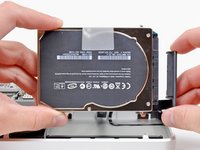
    • Use the hard drive's pull tab to lift it out of the upper case.

    • Don't try to completely remove the hard drive just yet! Its cable is still connected.

    FixBot'a Sor

    Yorum Ekle

  7. MacBook Pro 17" Unibody Hard Drive Replacement: adım 7, 2 resimden 1. MacBook Pro 17" Unibody Hard Drive Replacement: adım 7, 2 resimden 2.
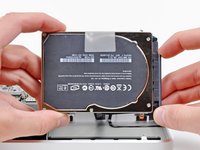
    • Pull the hard drive connector away from the body of the hard drive.

    • Remove the hard drive from your MacBook Pro.

    FixBot'a Sor

    Yorum Ekle

  8. MacBook Pro 17" Unibody Hard Drive Replacement, Hard Drive: adım 8, 2 resimden 1. MacBook Pro 17" Unibody Hard Drive Replacement, Hard Drive: adım 8, 2 resimden 2.
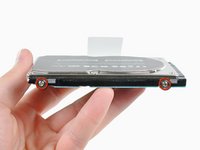
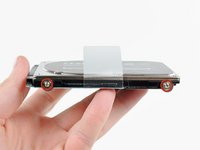
    • Remove the four T6 Torx screws around the outer edge of the hard drive.

    • If desired, peel off the plastic pull tab and transfer it to your new hard drive.

    • If you are installing a new hard drive, we have an OS X install guide to get you up and running.

    FixBot'a Sor

    Yorum Ekle

Sonuç

To reassemble your device, follow these instructions in reverse order.

İptal et: Bu kılavuzu tamamlamadım.

242 farklı kişi bu kılavuzu tamamladı.

12Kılavuz Yorumları

Very easy to follow. Replacing the HDD on these unibodies is super easy. Thanks for the guide.

tech4eleven - Yanıt Paylaş

Very easy, excepted for finding the right screw for Step 8. I replaced original HDD with a Samsung 840 EVO 500GB. Fine!

yello73 - Yanıt Paylaş

Exceptional instructions. If you're struggling to restore from a backup... connect your backup drive via cable, start your macbook, choose disk utilities, choose the new hard drive from the list on the left, if first aide options (repair/verify) are not available, erase and name the new drive, and then you should be able to restore from backup. :)

Deanna Ashby - Yanıt Paylaş

Thank goodness you posted this. I thought I messed up installation because there was no new HD when I turned on the laptop. I couldn't figure out how to restore. Then I saw this and tried it and it's restoring now. Thank you!!

catchpaco - Yanıt Paylaş

Very easy, Thank you for this tremendous guide. Works perfectly and I directly connected my old HDD to USB and restore all my information using the Migration Assistant app. Fine!

Abdullah Alqassar - Yanıt Paylaş

Yorum Ekle

İstatistikleri Görüntüle:

Son 24 Saat: 10

Son 7 gün: 57

Son 30 gün: 267

Her zaman: 279,083