Bu çeviri bir makine tarafından oluşturulmuştur ve henüz bir kişi tarafından incelenmemiştir. Bu dili konuşuyor musunuz? İnceleme için.

MacBook Pro sabit sürücü çıkarma

McKaila Ruud ve 4 diğer katkıda bulunanlar
En son 19 Ağu 2026 tarihinde güncellendi
Görüntüleme: 184 B
İstatistikleri görüntüle:
- Son 24 Saat:
- 36
- Son 7 Gün:
- 192
- Son 30 Gün:
- 761
- Her zaman:
- 184.080
Yorumlar: 17
3 comments on steps, 14 guide comments.
Go to guide commentsTamamlandı: 56 57
56 kişi bu kılavuzu "tamamlandı" olarak işaretledi. Sıradaki sen olacak mısın?
57 kişi bu kılavuzu "tamamlandı" olarak işaretledi. Siz de dahil - harika iş!
Sık Kullanılanlar: 3 4
3 kişi bu kılavuzu favorilerine ekledi (ve abone oldu). Sıradaki sen olacak mısın?
Siz de dahil olmak üzere 4 kişi bu kılavuzu favorilerine ekledi (ve abone oldu)!
Topluluk-Katkılı Kılavuz
Topluluğumuzdan muhteşem birisi bu kılavuzu hazırladı. Bu kılavuz iFixit elemanları tarafından oluşturulmamıştır.
Giriş
1. adıma git ↓Bu kılavuz, MacBook Pro'nuzdan sabit sürücüyü nasıl çıkaracağınızı gösterecektir.
*MacBook Pro'nuzun içini açmanın Apple garantinizi geçersiz kılacağını unutmayın.
Neye ihtiyacın var
Aletler

-
-
-
MacBook Pro'yu kapatın ve tüm güç kaynaklarıyla olan bağlantısını kesin. Cihazın sabit diski çıkarılırken güç bağlantısının kesilmemiş olması tehlike arz edebilir.
-
MacBook Pro'yu ters çevirin; Apple logosu masaya bakmalı ve siyah dizüstü bilgisayar menteşesi sizden en uzak tarafta olmalıdır.
 FixBot'a Sor
-
-
-
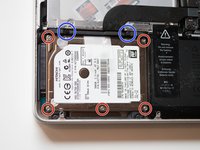
On adet vidayı bir yıldız tornavida ile sökün. Vidanın yalama olmasını önlemek için tornavidayı vidaya bastırın ve ardından sabit bir baskı uygulayarak çevirin.
-
Bir vidayı söktükten sonra, çıkarıldığı deliğin yanına yerleştirin. Birkaç adet daha uzun vida bulunduğu için, vidaları geri takma zamanı geldiğinde bu yöntem karışıklığı önleyecektir.
-
-
-
MacBook Pro'nuzun arka kapağını kaldırın ve bir kenara koyun. Yüksek bir ses çıkarabilir, bu normaldir.
-
-
-
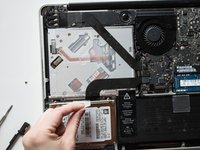
Sabit sürücüyü bulun. Menteşe sizden uzağa bakacak şekilde konumlandırdığınızda, sabit sürücü size en yakın olan sol alt köşede yer alır. Dikdörtgen şeklinde ve gümüş renklidir.
-
-
-
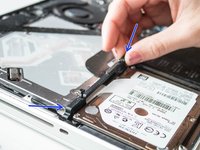
Sabit diski yerinde tutan siyah çubuğu bulun. Bu çubuk, sabit diskin üst kısmında yer alır.
-
Tornavida kullanarak siyah çubuk üzerindeki iki siyah vidayı gevşetin. Gümüş vidaları sökmamaya dikkat edin.
-
Siyah çubuğu sabit diskten çekerek çıkarın. Bir kenara koyun.
-
-
-
-
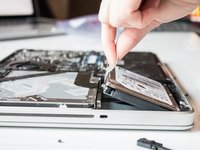
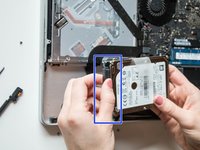
Sabit diski yerinden kaldırmak için plastik tırnağı çekin.
-
-
-
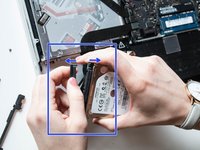
Sabit sürücünün yan tarafına takılı olan siyah çubuğu dikkatlice çekerek çıkarın. Bu siyah çubuk, bilgisayara bağlı kalmaya devam edecektir.
-
-






Bu bilgisayara yeni bir sabit sürücü takmak için bu talimatları tersten uygulayın. Eski sabit sürücüdeki montaj vidalarını sökerek ve bunları yeni sabit sürücüye vidalayarak başlayın.
Mevcut sabit sürücüyü harici bir sabit sürücü olarak kullanmayı planlıyorsanız, montaj vidalarını yerinde bırakın. Sabit sürücüyü içine koymak için bir sabit sürücü kutusu satın alın.
İptal et: Bu kılavuzu tamamlamadım.
56 farklı kişi bu kılavuzu tamamladı.

Ekip

14Kılavuz Yorumları
Great documentation, photography was very good.
wonderful, thank you very much.
