Ana içeriğe geç
Onarım Topluluğuna Katılın - Hesap Oluşturun

Microsoft Kinect Camera Replacement

Neye ihtiyacın var

  1. Microsoft Kinect Camera Replacement, Case: adım 1, 3 resimden 1. Microsoft Kinect Camera Replacement, Case: adım 1, 3 resimden 2. Microsoft Kinect Camera Replacement, Case: adım 1, 3 resimden 3.
    • Remove the two plastic strips off the bottom of the main Kinect housing using the metal spudger's sharper side.

    • Peel off the two Xbox 360 stickers from the bottom of the case to reveal two hidden screws.

    • Some force may be required to remove the adhesive. Applying heat to the adhesive may make it easier to remove.

    • Do not overheat as it may cause damage to the internal components.

    FixBot'a Sor

    Yorum Ekle

  2. Microsoft Kinect Camera Replacement: adım 2, 1 resimden 1.
    • Unscrew the six 12mm T10 Torx screws.

    FixBot'a Sor

    Yorum Ekle

  3. Microsoft Kinect Camera Replacement: adım 3, 3 resimden 1. Microsoft Kinect Camera Replacement: adım 3, 3 resimden 2. Microsoft Kinect Camera Replacement: adım 3, 3 resimden 3.
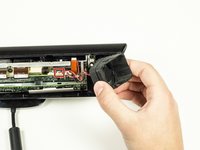
    • Remove the top portion of the case from the rest of the body.

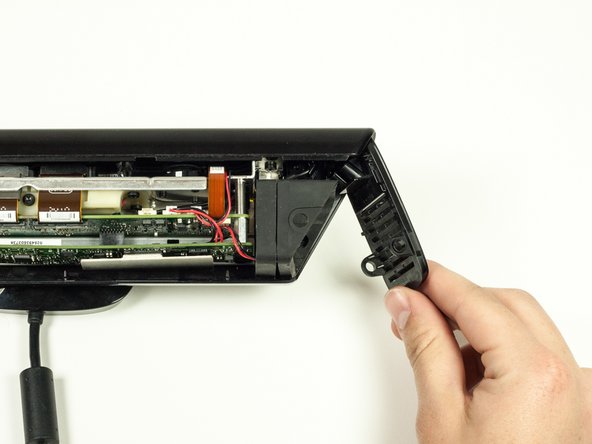
    • Detach the side portions of the case from the body.

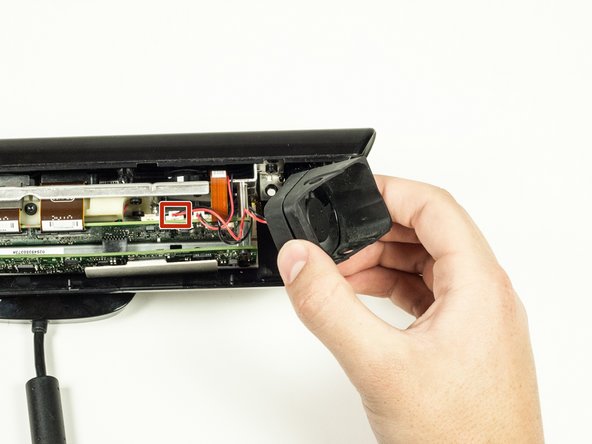
    • Remove the fan piece from the side of the body. Unplug it from the logic board to fully remove it.

    • When unplugging the fan, be sure to pull from the white connector at the end of the wire to avoid breaking it.

    FixBot'a Sor

    Yorum Ekle

  4. Microsoft Kinect Camera Replacement: adım 4, 1 resimden 1.
    • Remove the bottom portion of the case by sliding it out from under the body.

    • The bottom of the case may be difficult to remove if there is any residual adhesive. If the residual adhesive prevents you from removing the case, apply gentle heat and wiggle the case out.

    FixBot'a Sor

    Yorum Ekle

  5. Microsoft Kinect Camera Replacement: adım 5, 2 resimden 1. Microsoft Kinect Camera Replacement: adım 5, 2 resimden 2.
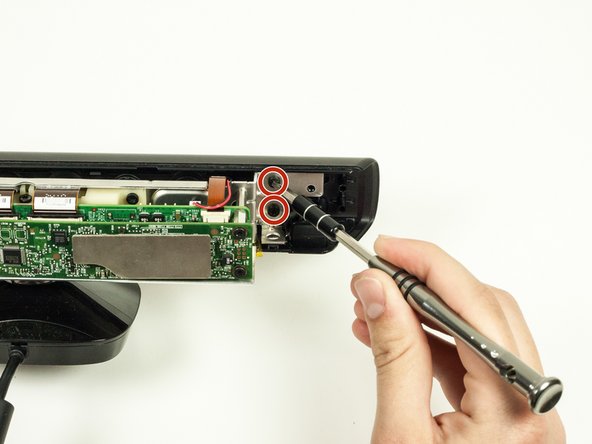
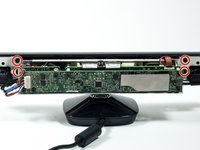
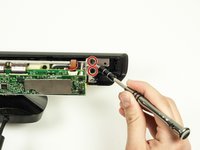
    • Remove the four 7mm T10 Torx screws (two on each side of the metal body).

    FixBot'a Sor

    Yorum Ekle

  6. Microsoft Kinect Camera Replacement: adım 6, 2 resimden 1. Microsoft Kinect Camera Replacement: adım 6, 2 resimden 2.
    • Remove the front portion of the case containing the lens coverings for the cameras.

    • The LED component is connected to the front portion of the case. To disconnect it, just pull it out of its plastic connector.

    FixBot'a Sor

    Yorum Ekle

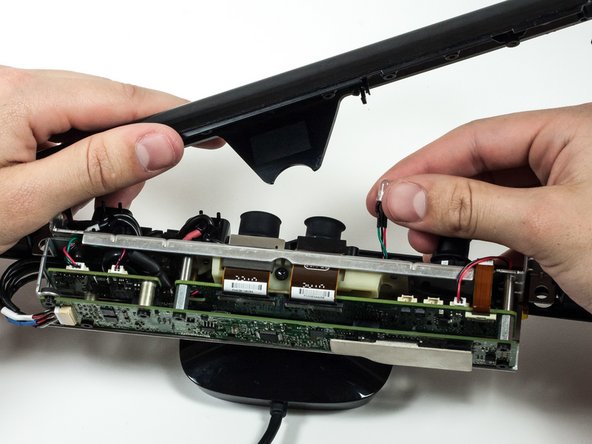
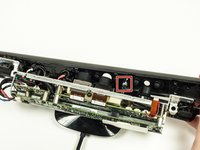
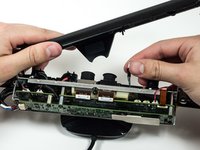
  7. Microsoft Kinect Camera Replacement, Microphone Panel: adım 7, 1 resimden 1.
    • Unplug the microphone from motherboard.

    FixBot'a Sor

    Yorum Ekle

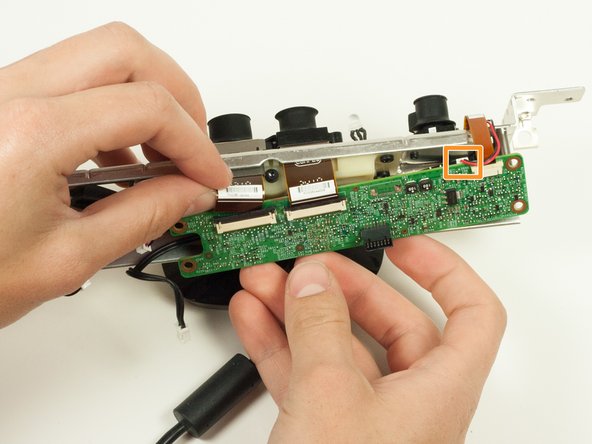
  8. Microsoft Kinect Camera Replacement: adım 8, 1 resimden 1.
    • Pull off the microphone panel and snake the cable that was connected to the motherboard through the hole on the camera panel.

    • Pull the cable out carefully to avoid damage.

    FixBot'a Sor

    Yorum Ekle

  9. Microsoft Kinect Camera Replacement, Motherboard: adım 9, 1 resimden 1.
    • Unscrew the seven 6.5mm T10 Torx screws.

    FixBot'a Sor

    Yorum Ekle

  10. Microsoft Kinect Camera Replacement: adım 10, 1 resimden 1.
    • Disconnect the bridge connecting the first and second layer of the motherboard.

    • Pull the first layer of the motherboard off.

    FixBot'a Sor

    Yorum Ekle

  11. Microsoft Kinect Camera Replacement: adım 11, 1 resimden 1.
    • Unplug the LED cable from the motherboard.

    FixBot'a Sor

    Yorum Ekle

  12. Microsoft Kinect Camera Replacement: adım 12, 1 resimden 1.
    • Unscrew the three 16.5mm screws using the 5mm Nut Driver.

    • Unscrew the one 6.5mm T10 Torx screw.

    FixBot'a Sor

    Yorum Ekle

  13. Microsoft Kinect Camera Replacement: adım 13, 2 resimden 1. Microsoft Kinect Camera Replacement: adım 13, 2 resimden 2.
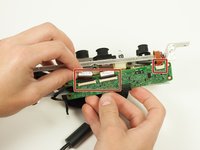
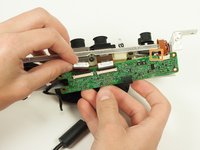
    • Remove the three ribbon cables.

    • Disconnect the left most camera from the motherboard.

    FixBot'a Sor

    Yorum Ekle

  14. Microsoft Kinect Camera Replacement, LED: adım 14, 1 resimden 1.
    • Gently pull the LED out of the front of the metal casing. It should slide out easily.

    FixBot'a Sor

    Yorum Ekle

  15. Microsoft Kinect Camera Replacement, Camera: adım 15, 1 resimden 1.
    • Unscrew the four 7mm T10 Torx screws from the plastic body.

    FixBot'a Sor

    Yorum Ekle

  16. Microsoft Kinect Camera Replacement: adım 16, 1 resimden 1.
    • Remove the gold metal cylindrical piece from the metal body on the left side of the Kinect.

    FixBot'a Sor

    Yorum Ekle

  17. Microsoft Kinect Camera Replacement: adım 17, 1 resimden 1.
    • Carefully remove the top body portion of the Kinect from the stand by guiding the cable through the hole on the underside of the body, then lifting the body off of the plastic stand.

    FixBot'a Sor

    Yorum Ekle

  18. Microsoft Kinect Camera Replacement: adım 18, 1 resimden 1.
    • Unscrew the nine 7mm T6 Torx screws from the metal body. These hold the cameras in place.

    FixBot'a Sor

    Yorum Ekle

  19. Microsoft Kinect Camera Replacement: adım 19, 1 resimden 1.
    • Remove the plastic body from the metal body by sliding it off of the metal cylinders.

    FixBot'a Sor

    Yorum Ekle

  20. Microsoft Kinect Camera Replacement: adım 20, 1 resimden 1.
    • Remove the two cameras on the left (which are connected) by pulling their ribbon cables through their respective slots.

    FixBot'a Sor

    Yorum Ekle

  21. Microsoft Kinect Camera Replacement: adım 21, 1 resimden 1.
    • Remove the right camera from the metal body by sliding the cable through the hole it lies in.

    • The cable can be difficult to slide through the hole because of the large rubber parts attached to it. To manage this, simply squeeze the rubber parts to fit through the hole.

    FixBot'a Sor

    Yorum Ekle

Sonuç

To reassemble your device, follow these instructions in reverse order.

İptal et: Bu kılavuzu tamamlamadım.

3 farklı kişi bu kılavuzu tamamladı.

Sumi Kime

Üyelik tarihi: 04/22/15

234 İtibar

2 adet Kılavuz yazıldı

Ekip

Cal Poly, Team 14-7, Amido Spring 2015 Cal Poly, Team 14-7, Amido Spring 2015 üyesi

CPSU-AMIDO-S15S14G7

4 Üyeler

6 adet Kılavuz yazıldı

0Kılavuz Yorumları

Yorum Ekle

İstatistikleri Görüntüle:

Son 24 Saat: 3

Son 7 gün: 14

Son 30 gün: 80

Her zaman: 3,519