Ana içeriğe geç

Motorola Atrix 4G Screen Replacement

Neye ihtiyacın var

  1. Motorola Atrix 4G Screen Replacement, Battery: adım 1, 1 resimden 1.
    • Pry the back cover off the back of the phone.

  2. Motorola Atrix 4G Screen Replacement: adım 2, 2 resimden 1. Motorola Atrix 4G Screen Replacement: adım 2, 2 resimden 2.
    Bu adımda kullanılan alet:
    Spudger
    $3.99
    • Insert a spudger into the small notch at the base of the battery.

    • Lift the battery out of the phone.

  3. Motorola Atrix 4G Screen Replacement, Antenna: adım 3, 2 resimden 1. Motorola Atrix 4G Screen Replacement, Antenna: adım 3, 2 resimden 2.
    Bu adımda kullanılan alet:
    T5 Torx Screwdriver
    $5.49
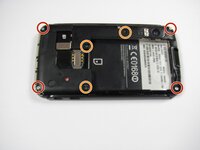
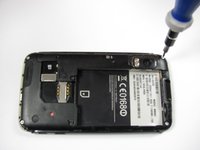
    • Remove the four 5.0 mm T5 Torx screws using a T5 Torx Screwdriver.

    • Remove the three 5.5 mm T5 Torx screws using a T5 Torx Screwdriver.

    • Use gentle force while unscrewing to avoid stripping the screws.

  4. Motorola Atrix 4G Screen Replacement: adım 4, 1 resimden 1.
    Bu adımda kullanılan alet:
    iFixit Opening Tool
    $1.99
  5. Motorola Atrix 4G Screen Replacement: adım 5, 2 resimden 1. Motorola Atrix 4G Screen Replacement: adım 5, 2 resimden 2.
    Bu adımda kullanılan alet:
    iFixit Opening Tool
    $1.99
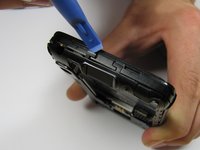
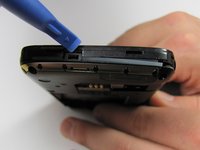
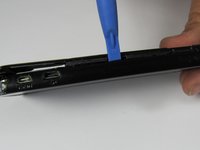
    • Gently lift the tabs located at the top of the phone using an opening tool.

    • Gently lift the tab located at the bottom of the phone with the same tool.

    • Use an opening tool, not your fingers, because the plastic tabs are easily broken.

  6. Motorola Atrix 4G Screen Replacement: adım 6, 2 resimden 1. Motorola Atrix 4G Screen Replacement: adım 6, 2 resimden 2.
    Bu adımda kullanılan alet:
    iFixit Opening Tool
    $1.99
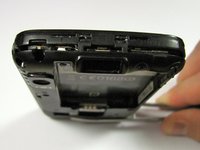
    • Insert an opening tool between the front and back of the case.

    • Slide the tool down the side of the phone.

    • Repeat the same process for the other side.

    • There should be a noticeable gap between the front and back cases. If not, repeat this step.

  7. Motorola Atrix 4G Screen Replacement: adım 7, 1 resimden 1.
    • Carefully lift the back case off the phone.

    • Do not completely separate the back case from the phone. The antenna is connected to both cases.

  8. Motorola Atrix 4G Screen Replacement: adım 8, 1 resimden 1.
    Bu adımda kullanılan alet:
    iFixit Opening Tool
    $1.99
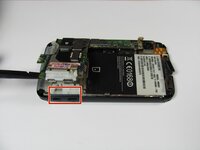
    • Slide an opening tool beneath the antenna and lift straight up from the motherboard.

    • Lift straight upwards, not at an angle, to avoid damaging the socket underneath.

  9. Motorola Atrix 4G Screen Replacement: adım 9, 1 resimden 1.
    • Ease the antenna from out of its guide along the side of the phone

    • Remove the back case and the antenna from the phone.

    • The antenna is soldered to the back case. When reassembling, do not pull it with too much force.

  10. Motorola Atrix 4G Screen Replacement, Motherboard: adım 10, 2 resimden 1. Motorola Atrix 4G Screen Replacement, Motherboard: adım 10, 2 resimden 2.
    Bu adımda kullanılan alet:
    Spudger
    $3.99
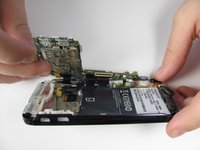
    • Insert a spudger between the black plastic and the motherboard.

    • Lift upwards with the spudger to dislodge the board.

    • The motherboard should lift up easily. If the white rubber piece shifts, move it back to its original place.

  11. Motorola Atrix 4G Screen Replacement: adım 11, 1 resimden 1.
    Bu adımda kullanılan alet:
    Spudger
    $3.99
    • Disconnect the press connectors using a spudger.

    • If you are unfamiliar with using connectors, consult this guide.

  12. Motorola Atrix 4G Screen Replacement: adım 12, 1 resimden 1.
    Bu adımda kullanılan alet:
    Spudger
    $3.99
    • Lift the white latch on the ZIF connector using a spudger.

    • Gently pull the black ribbon down and away from the latch.

  13. Motorola Atrix 4G Screen Replacement: adım 13, 1 resimden 1.
    • There should be five distinct parts of the phone: the back cover, the back case, the front case, the battery, and the motherboard.

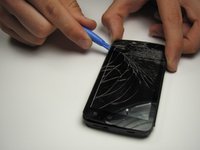
  14. Motorola Atrix 4G Screen Replacement, Screen: adım 14, 1 resimden 1.
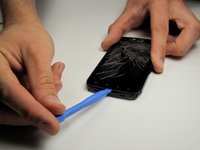
    • Using a heat gun or a hair dryer on high heat, soften the adhesive securing the glass screen.

    • Direct the hot air along the front edges of the glass until the phone is warm to the touch.

  15. Motorola Atrix 4G Screen Replacement: adım 15, 3 resimden 1. Motorola Atrix 4G Screen Replacement: adım 15, 3 resimden 2. Motorola Atrix 4G Screen Replacement: adım 15, 3 resimden 3.
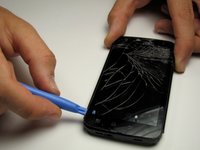
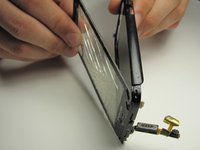
    • Using a plastic opening tool, carefully pry up the bottom of the display glass.

    • Slowly work your way around the phone, using the plastic opening tool to separate the glass from the phone.

    • As you work, the adhesive may cool and harden. You may need to heat up the glass again as you work your way around the screen.

  16. Motorola Atrix 4G Screen Replacement: adım 16, 2 resimden 1. Motorola Atrix 4G Screen Replacement: adım 16, 2 resimden 2.
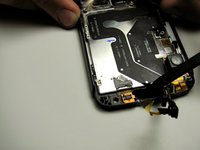
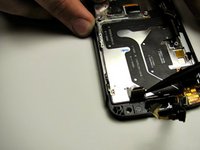
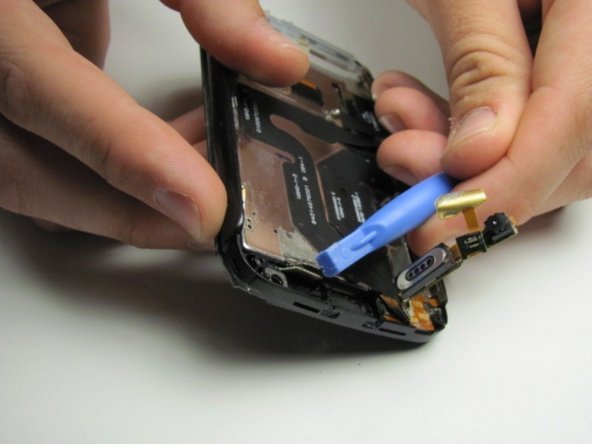
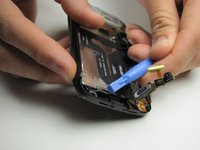
    • Using a spudger, lift up the digitizer cable that is attached to the glass.

    • Be careful not to damage the cable. It is glued in place and hard to remove.

  17. Motorola Atrix 4G Screen Replacement: adım 17, 3 resimden 1. Motorola Atrix 4G Screen Replacement: adım 17, 3 resimden 2. Motorola Atrix 4G Screen Replacement: adım 17, 3 resimden 3.
    • Now that the cable has been removed you can slide it through the opening and detach the glass.

    • Be careful as you pull the cable through the opening. The cable is easily damaged.

    • Once the cable is pushed through the slot, the glass can be fully removed.

Sonuç

To reassemble your device, follow these instructions in reverse order.

14 farklı kişi bu kılavuzu tamamladı.

Jake

Üyelik tarihi: 04/19/12

515 İtibar

2 adet Kılavuz yazıldı

Ekip

Cal Poly, Team 9-42, Regan Spring 2012 Cal Poly, Team 9-42, Regan Spring 2012 üyesi

CPSU-REGAN-S12S9G42

6 Üyeler

15 adet Kılavuz yazıldı

4Kılavuz Yorumları

Caution! It is IMPOSSIBLE to insert the cable of the digitizer through the opening without REMOVING FIRST the screen (not the digitizer).

The two parts of the cable of the digitizer (connector + chip) are glued together when you remove the broken one, but in the replacement, if you glue together they don't pass trought the hole without removing the screen.

If someone has arrived to pass them without removing the screen, congratulations: I've broken the cable of a new screen in the process :(

Hector Castillo - Yanıt
I had to do this process twice, and here's what I've learned:

1) The motherboard does not need to be removed. I suspect this guide has you remove it so you don't damage any components when heating the screen, but there's no physical reason to remove it.

2) Yes, passing the digitizer cable/chip through the hole in the plastic housing is a royal PIA. I may have ruined the first screen I tried it with. Doh! For the second go round, instead of removing the LCD (like Hector recommends above), I just made the hole bigger. How, you ask? I took an emory nail file and trimmed it with scissors to be just narrower than the hole - then I filed away! With a few minutes of careful filing, I was able to double the size of the hole the cable has to pass through. Voila! There's still plenty of plastic left for the double-sided tape to be applied on the inside. Just be sure to clean up all the plastic dust first with a small vacuum or Q-tip before re-installing the screen.

Ben Lake - Yanıt

tried this, broke first replacement digitizer screen , learned how to procede, Hector appears to be right if you remove the lcd screen it appears to double the size of the hole the cable passes through. what i would also like to see here are the following:

what material to use to "glue" the digitzer chip/connector together and in step 16 it shows the digitzer cable being removed from the metal it is attached to...how/what does one reattach it with?

Scott - Yanıt

Did anyone ever answer how to glue the flat cable (ground?) back on?

julieistesting -

Yorum Ekle

İstatistikleri Görüntüle:

Son 24 Saat: 0

Son 7 gün: 7

Son 30 gün: 42

Her zaman: 21,770