Ana içeriğe geç
Onarım Topluluğuna Katılın - Hesap Oluşturun

Motorola Xoom 2 Screen Replacement

Neye ihtiyacın var

  1. Motorola Xoom 2 Screen Replacement, Backplate: adım 1, 3 resimden 1. Motorola Xoom 2 Screen Replacement, Backplate: adım 1, 3 resimden 2. Motorola Xoom 2 Screen Replacement, Backplate: adım 1, 3 resimden 3.
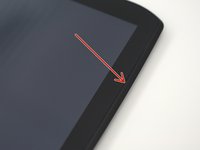
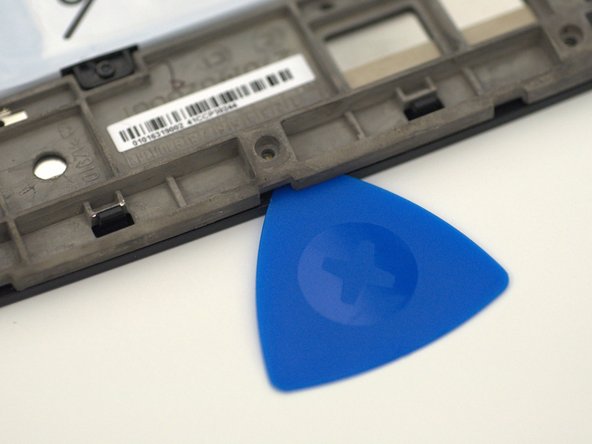
    • Pry off the silver top back cover (the panel around the camera) with iFixit opening picks or a similar implement.

    FixBot'a Sor

    Yorum Ekle

  2. Motorola Xoom 2 Screen Replacement: adım 2, 2 resimden 1. Motorola Xoom 2 Screen Replacement: adım 2, 2 resimden 2.
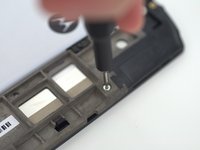
    • Using a T5 screwdriver, unscrew the four 1.5mm screws holding the main back cover. These screws are arranged in a line across the top of the back of the device.

    FixBot'a Sor

    Yorum Ekle

  3. Motorola Xoom 2 Screen Replacement: adım 3, 3 resimden 1. Motorola Xoom 2 Screen Replacement: adım 3, 3 resimden 2. Motorola Xoom 2 Screen Replacement: adım 3, 3 resimden 3.
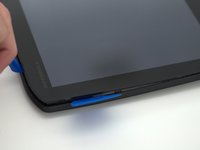
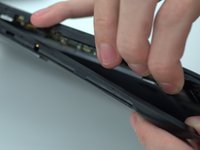
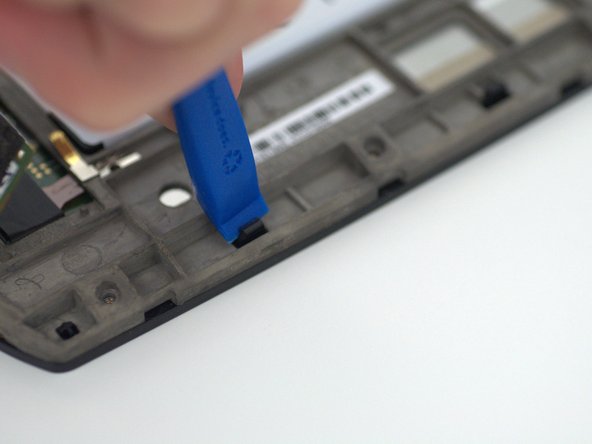
    • Turn the device over and using a pry tool and the opening picks, gently apply pressure between the outside edge of the seal marked with the arrow. Slowly move around the edges of the device, applying even pressure, and separate the back plate from the display.

    • There is adhesive between the back-plate and battery.

    FixBot'a Sor

    Yorum Ekle

  4. Motorola Xoom 2 Screen Replacement: adım 4, 1 resimden 1.
    • Remove the back plate from your device.

    FixBot'a Sor

    Yorum Ekle

  5. Motorola Xoom 2 Screen Replacement, Screen: adım 5, 2 resimden 1. Motorola Xoom 2 Screen Replacement, Screen: adım 5, 2 resimden 2.
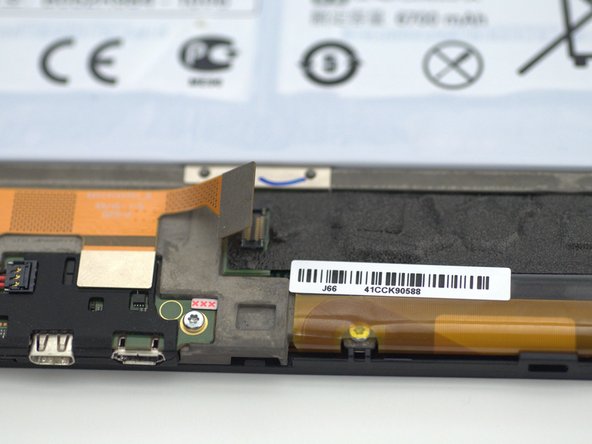
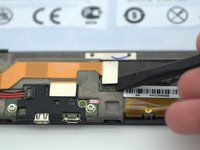
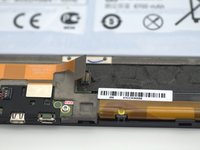
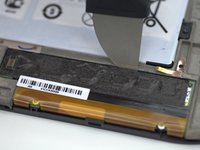
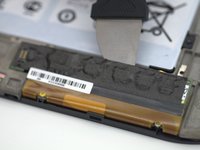
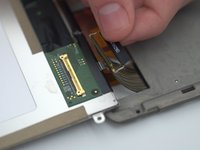
    • Using a pry tool, gently un-clip the orange ribbon cable attached to the left of the digitizer connector and fold the digitizer connector away from the device.

    FixBot'a Sor

    Yorum Ekle

  6. Motorola Xoom 2 Screen Replacement: adım 6, 3 resimden 1. Motorola Xoom 2 Screen Replacement: adım 6, 3 resimden 2. Motorola Xoom 2 Screen Replacement: adım 6, 3 resimden 3.
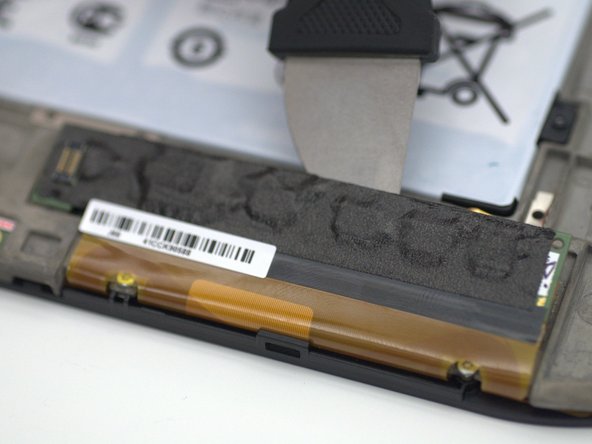
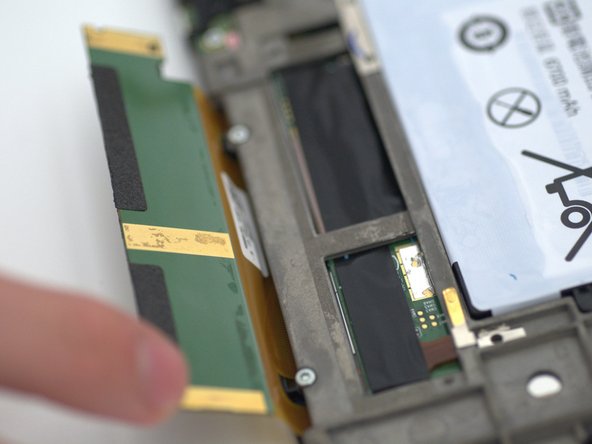
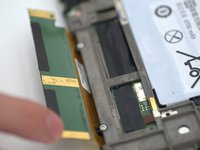
    • Using a pry tool, gently apply force along the crevice between the digitizer board and the chassis.

    • Using your fingers, gently bend the digitizer board to the position.

    • This step is mandatory to completely remove the screen assembly.

    FixBot'a Sor

    Yorum Ekle

  7. Motorola Xoom 2 Screen Replacement: adım 7, 3 resimden 1. Motorola Xoom 2 Screen Replacement: adım 7, 3 resimden 2. Motorola Xoom 2 Screen Replacement: adım 7, 3 resimden 3.
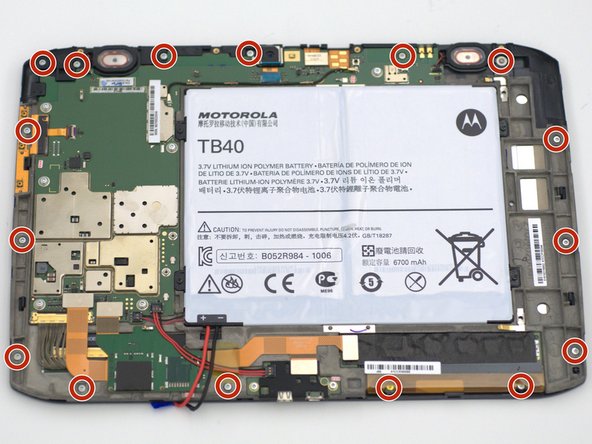
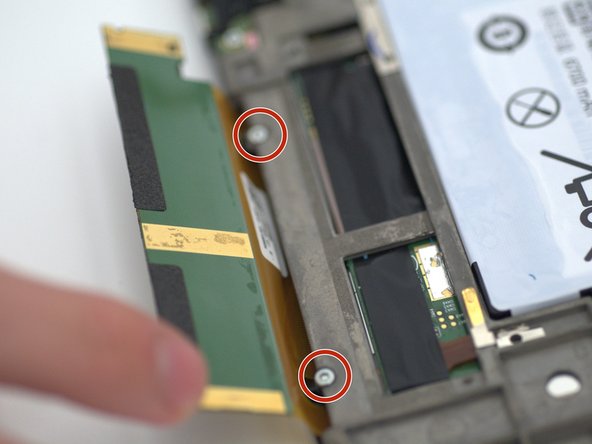
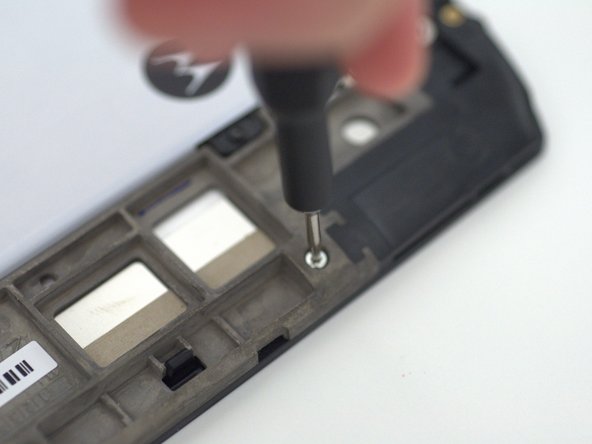
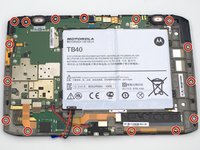
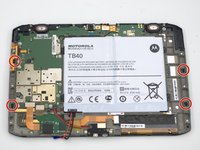
    • Unscrew the sixteen (16) 1.5mm screws using the T5 Torx screwdriver.

    • Two of the screws were previously hidden behind the digitizer connector.

    • The screw located in the top right of the device has a washer attached.

    FixBot'a Sor

    Yorum Ekle

  8. Motorola Xoom 2 Screen Replacement: adım 8, 3 resimden 1. Motorola Xoom 2 Screen Replacement: adım 8, 3 resimden 2. Motorola Xoom 2 Screen Replacement: adım 8, 3 resimden 3.
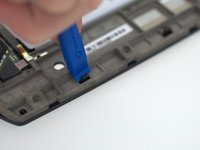
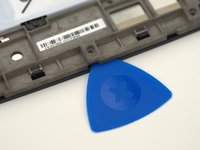
    • Using a prying tool, unclip the four black plastic tabs on the shorter edges of the device.

    • Inserting opening picks between the digitizer and the casing may make the process easier by helping to keep the tabs un-clipped.

    • Do not touch the LCD underneath, keep it as clean as possible!

    FixBot'a Sor

    Yorum Ekle

  9. Motorola Xoom 2 Screen Replacement: adım 9, 3 resimden 1. Motorola Xoom 2 Screen Replacement: adım 9, 3 resimden 2. Motorola Xoom 2 Screen Replacement: adım 9, 3 resimden 3.
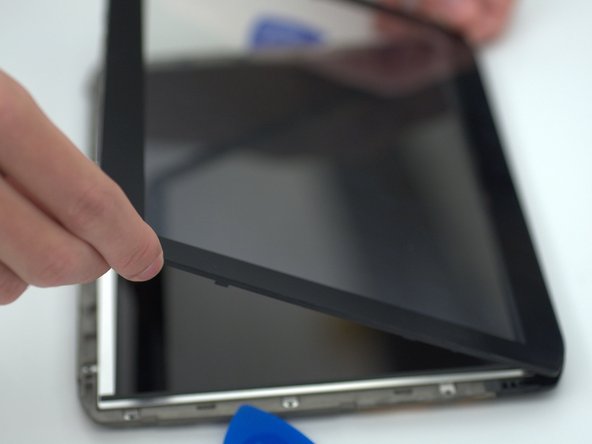
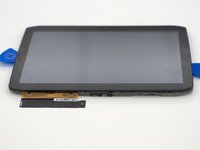
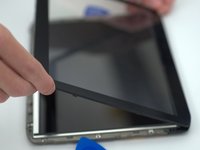
    • Carefully flip the device over and unfold the digitizer connector out from under the device.

    • Gently lift up on the bottom edge of the digitizer to remove it from the device.

    • Do not touch the LCD underneath, keep it as clean as possible!

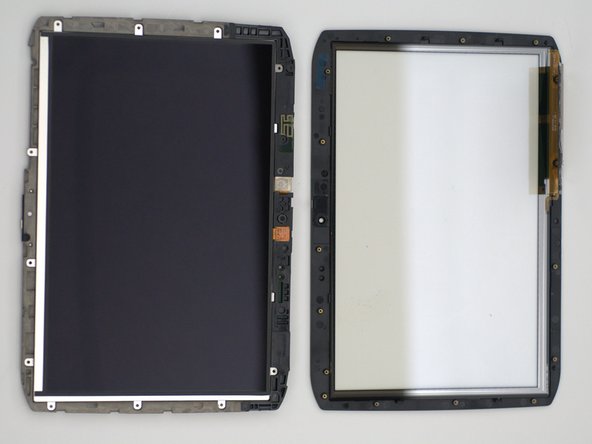
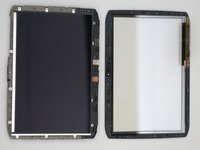
    • From here the digitizer may be replaced with a new one, the next steps continue to replace the LCD.

    FixBot'a Sor

    Yorum Ekle

  10. Motorola Xoom 2 Screen Replacement: adım 10, 3 resimden 1. Motorola Xoom 2 Screen Replacement: adım 10, 3 resimden 2. Motorola Xoom 2 Screen Replacement: adım 10, 3 resimden 3.
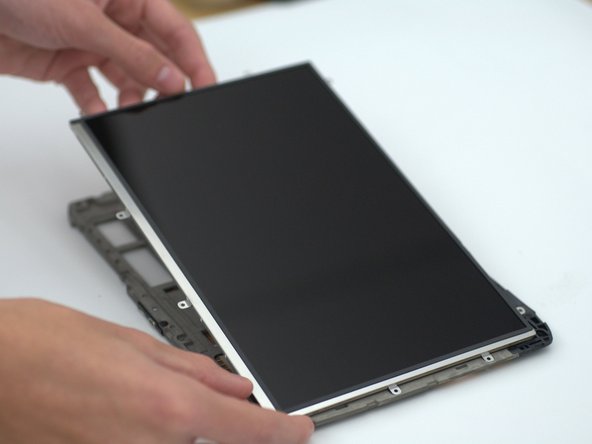
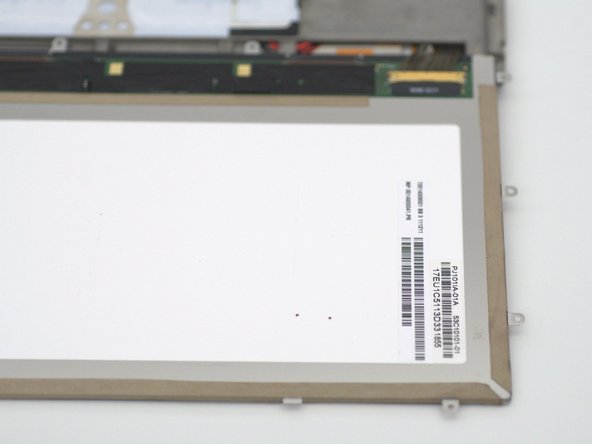
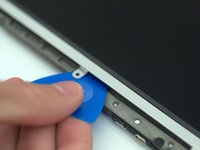
    • Using an opening pick, gently lift the LCD from the casing.

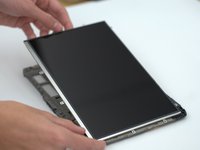
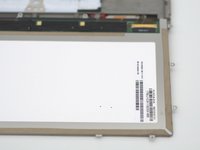
    • Holding the screw tabs with your hands, fold the LCD gently down to reveal the LCD connector located at the bottom right of the device.

    • Do not touch the LCD surface, keep it as clean as possible!

    • The LCD and the underside of the new digitizer may be cleaned by gently brushing it with a microfiber cloth.

    FixBot'a Sor

    Yorum Ekle

  11. Motorola Xoom 2 Screen Replacement: adım 11, 3 resimden 1. Motorola Xoom 2 Screen Replacement: adım 11, 3 resimden 2. Motorola Xoom 2 Screen Replacement: adım 11, 3 resimden 3.
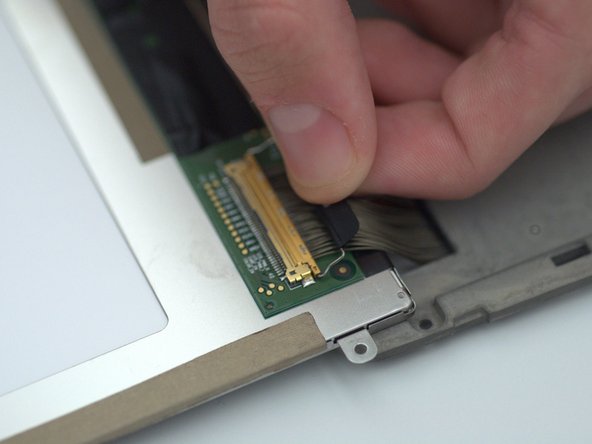
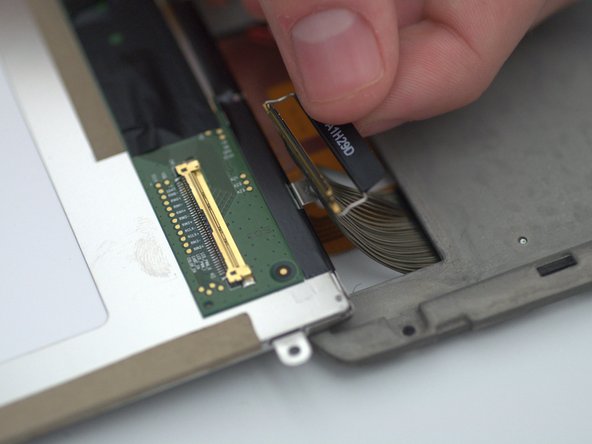
    • Gently lift up the tab and carefully pull it straight back, parallel to the cable, until the LCD cable is removed.

    • Slightly wiggling the tab can help to ease the connector apart.

    • Do not use excessive force to remove the connector, this risks the pins getting damaged rendering the cable and/or LCD unusable.

    FixBot'a Sor

    Yorum Ekle

  12. Motorola Xoom 2 Screen Replacement: adım 12, 1 resimden 1.
    • Remove the LCD from the device.

    FixBot'a Sor

    Yorum Ekle

Sonuç

To reassemble your device, follow these instructions in reverse order.

İptal et: Bu kılavuzu tamamlamadım.

Bir başkası bu kılavuzu tamamladı.

0Kılavuz Yorumları

Yorum Ekle

İstatistikleri Görüntüle:

Son 24 Saat: 0

Son 7 gün: 6

Son 30 gün: 22

Her zaman: 755