Ana içeriğe geç
Onarım Topluluğuna Katılın - Hesap Oluşturun

OLPC XO-4 Touch Antenna Replacement

Neye ihtiyacın var

    1. OLPC XO-4 Touch Antenna Replacement, Battery: adım 1, 1 resimden 1.
      • Turn the laptop upside-down, with the handle facing away from you.

      FixBot'a Sor

      Yorum Ekle

    2. OLPC XO-4 Touch Antenna Replacement: adım 2, 2 resimden 1. OLPC XO-4 Touch Antenna Replacement: adım 2, 2 resimden 2.
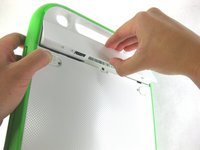
      • Pull the lock tabs towards the green outer edges of the laptop.

      • Hold the left lock tab in the unlock position until the battery is completely removed in the next step.

      FixBot'a Sor

      Yorum Ekle

    3. OLPC XO-4 Touch Antenna Replacement: adım 3, 2 resimden 1. OLPC XO-4 Touch Antenna Replacement: adım 3, 2 resimden 2.
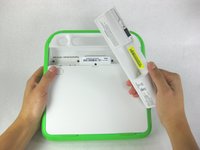
      • Lift up on the middle of the battery to remove it from the device.

      FixBot'a Sor

      Yorum Ekle

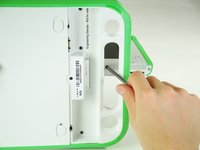
    1. OLPC XO-4 Touch Antenna Replacement, Screen Frame: adım 4, 3 resimden 1. OLPC XO-4 Touch Antenna Replacement, Screen Frame: adım 4, 3 resimden 2. OLPC XO-4 Touch Antenna Replacement, Screen Frame: adım 4, 3 resimden 3.
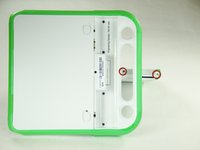
      • Remove the two 4mm Phillips #1 screws underneath the screen on the right-hand side.

      • Rotate the screen 180° and remove the other two screws.

      • You will have to put your screwdriver through the handle in order to reach the middle screw for both sides.

      FixBot'a Sor

      Yorum Ekle

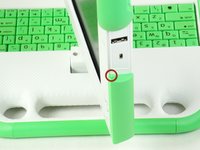
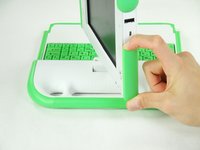
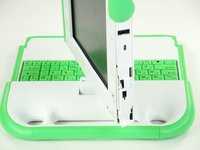
    2. OLPC XO-4 Touch Antenna Replacement: adım 5, 3 resimden 1. OLPC XO-4 Touch Antenna Replacement: adım 5, 3 resimden 2. OLPC XO-4 Touch Antenna Replacement: adım 5, 3 resimden 3.
      • Remove the green side panel by pressing down on the small green button on the top and sliding the panel up.

      • Repeat the step above for the panel on the other side.

      FixBot'a Sor

      Yorum Ekle

    3. OLPC XO-4 Touch Antenna Replacement: adım 6, 1 resimden 1.
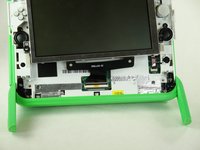
      • Be careful not to pull the bottom too far out because a ribbon cable is under the frame and can easily break.

      • Gently lift up the lower part of the frame and pull it down to free the screen frame.

      FixBot'a Sor

      Yorum Ekle

    4. OLPC XO-4 Touch Antenna Replacement: adım 7, 2 resimden 1. OLPC XO-4 Touch Antenna Replacement: adım 7, 2 resimden 2.
      • Lift the black connector and pull the ribbon cable out by the purple tab, freeing the frame.

      FixBot'a Sor

      Yorum Ekle

    1. OLPC XO-4 Touch Antenna Replacement, Screen: adım 8, 1 resimden 1.
      • Remove the four 7.62mm screws using a Phillips #1 screwdriver.

      FixBot'a Sor

      Yorum Ekle

    2. OLPC XO-4 Touch Antenna Replacement: adım 9, 2 resimden 1. OLPC XO-4 Touch Antenna Replacement: adım 9, 2 resimden 2.
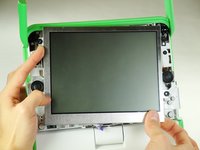
      • Be careful not to pull the screen out too far. There are two ribbon cables attached to the screen, and they can easily break.

      • Carefully lift the screen out.

      FixBot'a Sor

      Yorum Ekle

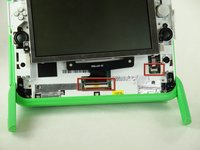
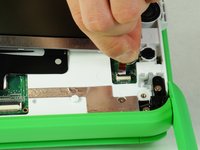
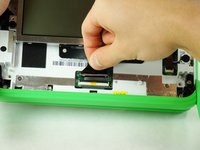
    3. OLPC XO-4 Touch Antenna Replacement: adım 10, 3 resimden 1. OLPC XO-4 Touch Antenna Replacement: adım 10, 3 resimden 2. OLPC XO-4 Touch Antenna Replacement: adım 10, 3 resimden 3.
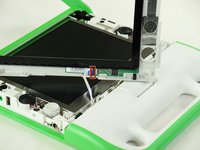
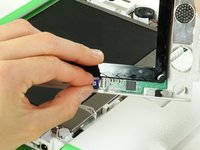
      • Notice that the laptop in this picture has been turned 180° with the antennas now below the screen.

      • For each ribbon cable, lift up the black connector and gently pull the ribbon cables out by the plastic tabs.

      FixBot'a Sor

      Yorum Ekle

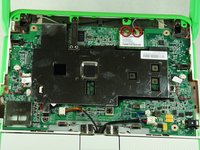
    4. OLPC XO-4 Touch Antenna Replacement: adım 11, 1 resimden 1.
      • Remove the screen from the laptop.

      FixBot'a Sor

      Yorum Ekle

    1. OLPC XO-4 Touch Antenna Replacement, Back Cover: adım 12, 1 resimden 1.
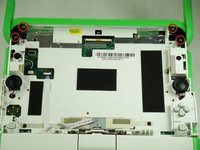
      • Remove the four 6mm screws using a Phillips #1 screwdriver.

      FixBot'a Sor

      Yorum Ekle

    2. OLPC XO-4 Touch Antenna Replacement: adım 13, 2 resimden 1. OLPC XO-4 Touch Antenna Replacement: adım 13, 2 resimden 2.
      • Rotate the top half of the laptop so that the back cover is facing you.

      • Pull up the tabs on the lower part of the back cover and pull it down and away from the antennas.

      • Remove the back cover by gently lifting it off of the laptop.

      FixBot'a Sor

      Yorum Ekle

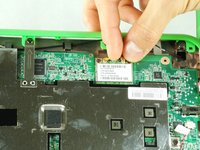
    1. OLPC XO-4 Touch Antenna Replacement, Antenna: adım 14, 3 resimden 1. OLPC XO-4 Touch Antenna Replacement, Antenna: adım 14, 3 resimden 2. OLPC XO-4 Touch Antenna Replacement, Antenna: adım 14, 3 resimden 3.
      • When pulling out connectors, make sure to hold the metal connector instead of the wire.

      • Gently unplug the two connectors by pulling them away from the motherboard.

      FixBot'a Sor

      Yorum Ekle

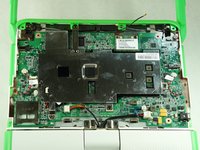
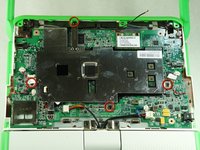
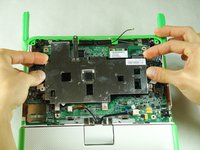
    2. OLPC XO-4 Touch Antenna Replacement: adım 15, 3 resimden 1. OLPC XO-4 Touch Antenna Replacement: adım 15, 3 resimden 2. OLPC XO-4 Touch Antenna Replacement: adım 15, 3 resimden 3.
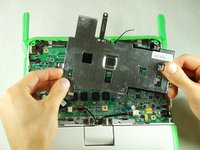
      • Unscrew the four black 4mm Phillips #1 screws holding the metal cover on.

      • Remove the metal cover by gently lifting it out of the laptop.

      FixBot'a Sor

      Yorum Ekle

    3. OLPC XO-4 Touch Antenna Replacement: adım 16, 2 resimden 1. OLPC XO-4 Touch Antenna Replacement: adım 16, 2 resimden 2.
      • Flip the top part of the laptop over so that you are looking at the front.

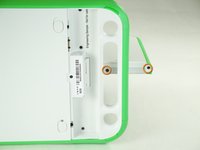
      • Unscrew the two 12.7mm Phillips #1 screws on each antenna ear clamp.

      • Remove the two outer clamps.

      FixBot'a Sor

      Yorum Ekle

    4. OLPC XO-4 Touch Antenna Replacement: adım 17, 3 resimden 1. OLPC XO-4 Touch Antenna Replacement: adım 17, 3 resimden 2. OLPC XO-4 Touch Antenna Replacement: adım 17, 3 resimden 3.
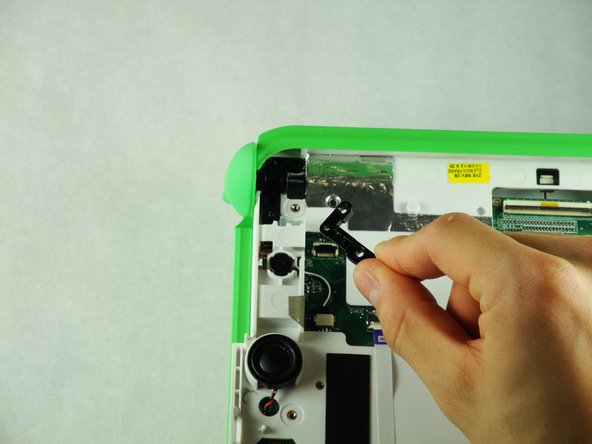
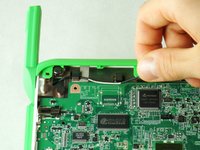
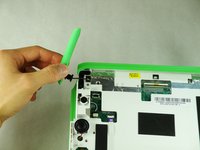
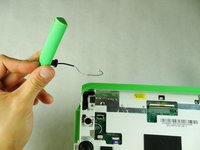
      • Remove the antenna wires from the black tabs.

      • On the front side of the laptop, carefully pull the wire through the hole and out.

      • Remove the antenna from the laptop.

      FixBot'a Sor

      Yorum Ekle

Sonuç

To reassemble your device, follow these instructions in reverse order.

İptal et: Bu kılavuzu tamamlamadım.

Bir başkası bu kılavuzu tamamladı.

Matthew Smith

Üyelik tarihi: 01/25/13

47 İtibar

4 adet Kılavuz yazıldı

Ekip

Cal Poly, Team 3-29, Amido Winter 2013 Cal Poly, Team 3-29, Amido Winter 2013 üyesi

CPSU-AMIDO-W13S3G29

4 Üyeler

40 adet Kılavuz yazıldı

0Kılavuz Yorumları

Yorum Ekle

İstatistikleri Görüntüle:

Son 24 Saat: 0

Son 7 gün: 8

Son 30 gün: 26

Her zaman: 881