Giriş
Dankzij de Wake Up Everyday-functie kun je op een vast tijdstip beginnen met dagelijkse taken, zonder dat je thuis of op kantoor hoeft te zijn
-
-
Wanneer je je computer opstart, druk je op de Del- of F2-toets, afhankelijk van je moederbord
-
-
-
With the arrow keys, move the header towards the Alimentation tab.
-
-
-
-
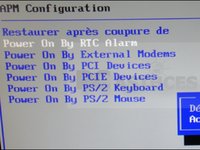
Once again with the arrow keys, higlight the APM Configuration option and press Enter.
-
-
-
Navigate to the Power On by RTC alarm and press Enter. Then, select the Enable option.
-
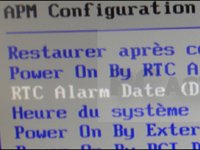
The RTC Alarm Date option allows you to set the number of days for when your computer will be able to start on its own.
-
Specify the desired hour for startup.
-
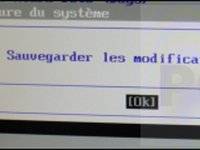
Press the F10 key and confirm by pressing Enter when Yes is highlighted. Your pc will start automatically at the specified time and number of days that were previously specified.
-


Als je BIOS deze optie niet heeft: Softwareoplossingen zijn beschikbaar en eenvoudig in te stellen
İptal et: Bu kılavuzu tamamlamadım.
2 farklı kişi bu kılavuzu tamamladı.
Bu çevirmenlere özel teşekkürler:
100%


Bu çevirmenler dünyayı onarmamıza yardım ediyor! Katkıda bulunmak ister misiniz?
Çeviriye Başlayın ›


1Rehber Yorum
To automatically start up a PC at a specific time, you can set up a scheduled task in the Windows Task Scheduler. Here are the steps:
Open the Task Scheduler by searching for it in the Start menu.
Click on "Create Basic Task" in the right-hand panel.
Give the task a name and description, and click "Next".
Select "Daily" as the trigger and click "Next".
Set the date and time when you want the computer to automatically start up, and click "Next".
Select "Start a program" as the action, and click "Next".
In the "Program/script" field, type "C:\Windows\System32\cmd.exe". In the "Add arguments (optional)" field, type "/c start".
Click "Next" and then "Finish".
The PC will now automatically start up at the specified time. Note that the PC must be in sleep or hibernate mode for this to work, not powered off.
Click here more information: https://crecentech.com/
