Bu çeviri bir makine tarafından oluşturulmuştur ve henüz bir kişi tarafından incelenmemiştir. Bu dili konuşuyor musunuz? İnceleme için.
Giriş
Bu rehber, artık düzgün şekilde tıklamayan bir tuşu nasıl onaracağınızı göstermek için adım adım talimatlar sunacaktır.
Neye ihtiyacın var
-
-
Bu adımda kullanılan alet:Tweezers$4.99
-
Plastik kapağı ve ağırlık paketini çıkarın.
-
İki adet 1.0 mm köpük kapağı cımbız ile çıkarın.
-
Plastik vida kapağını cımbızla soyarak çıkarın.
 FixBot'a Sor
-
-
-
-
1.0 mm'lik dört vidayı Ph #1 tornavidayla çıkarın.
-
Mouse'un üst kısmını nazikçe çıkarın.
-
-
-
-
-
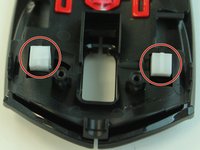
Farenin kapağını ters çevirin.
-
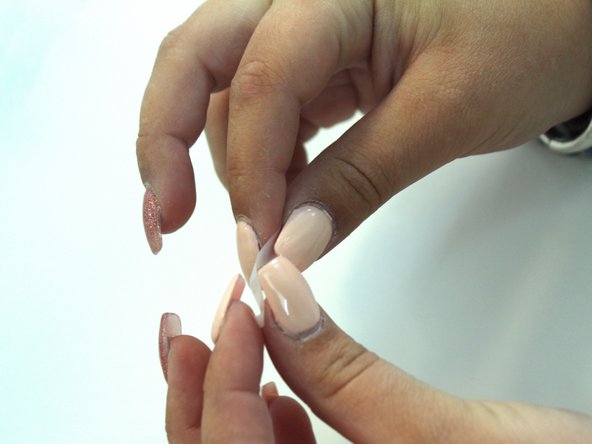
Bir parça bantı kendi üzerine katlayın. Bu, her iki tarafın da yapışkan olmasını sağlayacaktır.
-
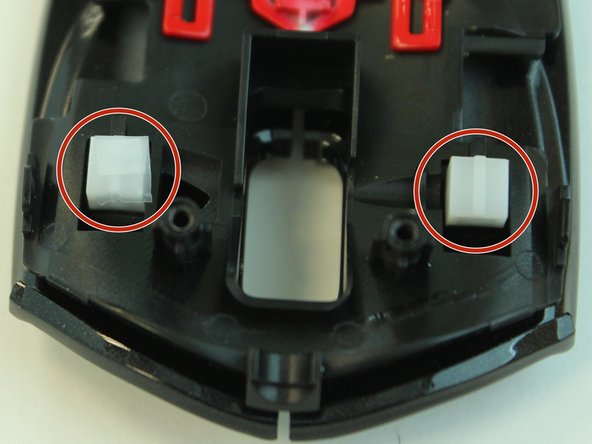
Her tıklamanın yüzey alanını artırmak için her iki düğmeyi de bantla kaplayın.
-
-


Cihazınızı tekrar toplamak için bu talimatları ters sırayla uygulayın.

Ekip

Linn Benton Community College, Team S2-G3, Johnson Spring 2018 Linn Benton Community College, Team S2-G3, Johnson Spring 2018 üyesi
LBCC-JOHNSON-S18S2G3
4 Üyeler
60 adet Kılavuz yazıldı
