Ana içeriğe geç
Onarım Topluluğuna Katılın - Hesap Oluşturun

Vtech InnoTab 3S Camera Replacement

Neye ihtiyacın var

  1. Vtech InnoTab 3S Camera Replacement, Rear Panel: adım 1, 3 resimden 1. Vtech InnoTab 3S Camera Replacement, Rear Panel: adım 1, 3 resimden 2. Vtech InnoTab 3S Camera Replacement, Rear Panel: adım 1, 3 resimden 3.
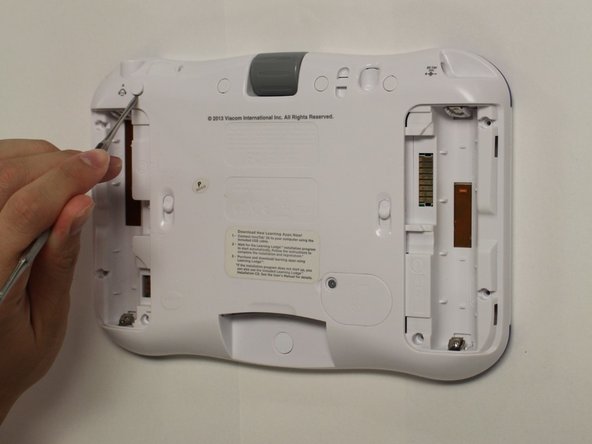
    • While holding the battery compartment locks down, slide the two battery doors outwards from the sides of the device.

    • Remove the batteries from the device.

    FixBot'a Sor

    Yorum Ekle

  2. Vtech InnoTab 3S Camera Replacement: adım 2, 2 resimden 1. Vtech InnoTab 3S Camera Replacement: adım 2, 2 resimden 2.
    • Remove six 7 mm screws from the interior of the battery compartment using a Phillips #1 screwdriver.

    FixBot'a Sor

    Yorum Ekle

  3. Vtech InnoTab 3S Camera Replacement: adım 3, 3 resimden 1. Vtech InnoTab 3S Camera Replacement: adım 3, 3 resimden 2. Vtech InnoTab 3S Camera Replacement: adım 3, 3 resimden 3.
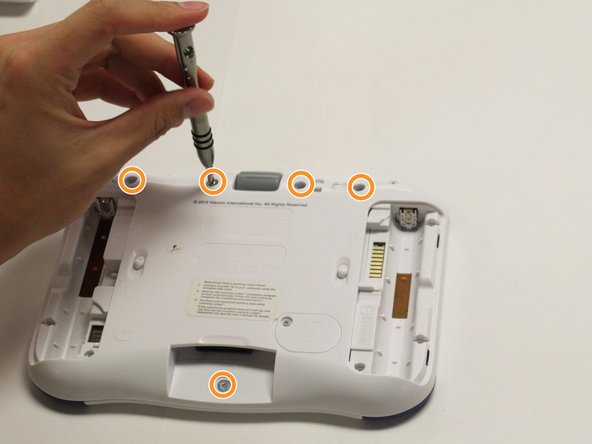
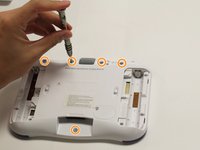
    • Using a nylon spudger, remove the five caps that hide the screws.

    • Potential for device damage: Be careful not to scrape the plastic from the device using the spudger.

    • When removing the caps, hold the spudger vertical to the board to make removal easier. Also try to push in with your spudger pointing towards the bottom of the device.

    • Remove the five 5 mm Phillips #1 screws from the rear panel of the device.

    FixBot'a Sor

    Yorum Ekle

  4. Vtech InnoTab 3S Camera Replacement: adım 4, 1 resimden 1.
    • Carefully remove the rear panel from the front panel of the device.

    • Once the rear panel is removed, you'll be able to see the motherboard and other components within the Vtech InnoTab 3s.

    FixBot'a Sor

    Yorum Ekle

  5. Vtech InnoTab 3S Camera Replacement, Camera: adım 5, 2 resimden 1. Vtech InnoTab 3S Camera Replacement, Camera: adım 5, 2 resimden 2.
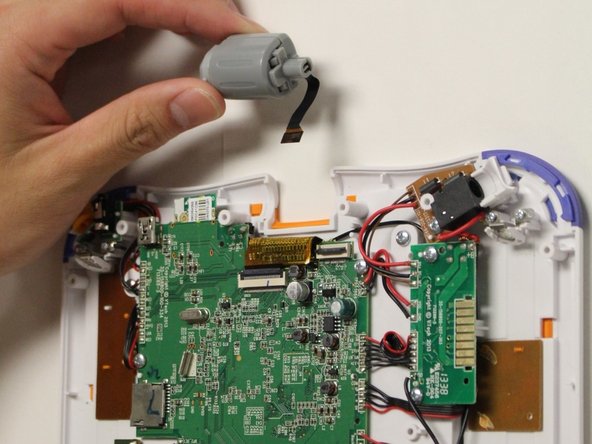
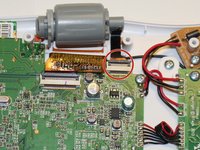
    • Using the tip of your finger, carefully pull the clip upwards to release the camera connection from the motherboard.

    • The connection between the motherboard and the camera is located at the near the top of the device.

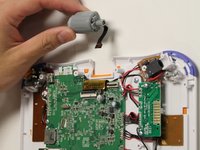
    • Remove the camera and the connecting wire from the the clip and attach the replacement cameras connection to the latch on the motherboard.

    • Carefully lower the latch until you hear a click to secure the new camera to the device.

    • Pulling or tugging on the connection between the camera and the circuit board may cause damage to the connection.

    FixBot'a Sor

    Yorum Ekle

Sonuç

To reassemble your device, follow these instructions in reverse order.

İptal et: Bu kılavuzu tamamlamadım.

2 farklı kişi bu kılavuzu tamamladı.

Karina Garcia

Üyelik tarihi: 08/30/15

878 İtibar

6 adet Kılavuz yazıldı

Ekip

USF Tampa, Team 8-2, Eyestone Fall 2015 USF Tampa, Team 8-2, Eyestone Fall 2015 üyesi

USFT-EYESTONE-F15S8G2

4 Üyeler

9 adet Kılavuz yazıldı

4Kılavuz Yorumları

Where do you get the replacement camera? I can't find them online.

rongennero - Yanıt Paylaş

I just did this whole thing...hoping it was a reset to the camera or something, but no, you need a replacement camera. Might be helpful to add that to the PARTS NEEDED part at the top, instead of saying "no parts required." UUGHHHH!

jpimash - Yanıt Paylaş

Where can i buy the camera?

Stephan Meyer - Yanıt Paylaş

kind of useless to post a replacement guide without suggesting a source for that replacement!!

Glen Fletcher - Yanıt Paylaş

Yorum Ekle

İstatistikleri Görüntüle:

Son 24 Saat: 0

Son 7 gün: 7

Son 30 gün: 44

Her zaman: 2,317