Ana içeriğe geç
Onarım Topluluğuna Katılın - Hesap Oluşturun

iMac G5 20" Model A1076 Hard Drive Replacement

Neye ihtiyacın var

  1. iMac G5 20" Model A1076 Hard Drive Replacement, Rear Panel: adım 1, 1 resimden 1.
    • Lay the iMac display-side down on a flat surface (putting a cloth under the screen to protect it from bumps).

    • Loosen the three Phillips screws securing the rear panel to the iMac.

    • These screws are captive in the iMac. The center screw will stop turning after about 3.5 turns and the outer screws will stop turning after about 5.5 turns. Do not try to remove these screws from your iMac.

    FixBot'a Sor

    Yorum Ekle

  2. iMac G5 20" Model A1076 Hard Drive Replacement: adım 2, 2 resimden 1. iMac G5 20" Model A1076 Hard Drive Replacement: adım 2, 2 resimden 2.
    • Lift the rear panel slightly near the bottom of the iMac.

    • Pull the rear panel toward yourself and remove it from the iMac.

    FixBot'a Sor

    Yorum Ekle

  3. iMac G5 20" Model A1076 Hard Drive Replacement, Hard Drive: adım 3, 1 resimden 1.
    • Remove the following three screws:

    • One shouldered 12.4 mm Phillips.

    • Two 7 mm T10 Torx.

    FixBot'a Sor

    Yorum Ekle

  4. iMac G5 20" Model A1076 Hard Drive Replacement: adım 4, 1 resimden 1.
    • The following action is optional. If you skip this step, be very careful not to strain the thermal sensor cable as you disconnect the hard drive cables and transfer this bracket to your new hard drive.

    • Lift the hard drive slightly and disconnect the hard drive thermal sensor connector.

    FixBot'a Sor

    Yorum Ekle

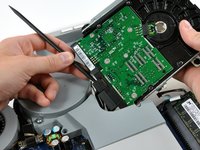
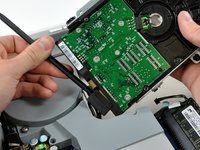
  5. iMac G5 20" Model A1076 Hard Drive Replacement: adım 5, 2 resimden 1. iMac G5 20" Model A1076 Hard Drive Replacement: adım 5, 2 resimden 2.
    • Insert the flat end of a spudger into the gap between the SATA data connector and the hard drive.

    • Twist the spudger to separate the SATA data connector from the hard drive, then disconnect it from the hard drive.

    • Repeat this process for the SATA power connector.

    FixBot'a Sor

    Yorum Ekle

  6. iMac G5 20" Model A1076 Hard Drive Replacement: adım 6, 1 resimden 1.
    • Lift the hard drive out of the iMac.

    • If you are installing a new hard drive, we have an OS X install guide to get you up and running.

    FixBot'a Sor

    Yorum Ekle

  7. iMac G5 20" Model A1076 Hard Drive Replacement, Hard Drive: adım 7, 1 resimden 1.
    • Remove the two 15 mm shouldered T10 Torx screws from the hard drive and remove the bracket.

    FixBot'a Sor

    Yorum Ekle

  8. iMac G5 20" Model A1076 Hard Drive Replacement: adım 8, 1 resimden 1.
    • Remove the two 6 mm T10 Torx screws from the hard drive and remove the hard drive bracket.

    • The hard drive bracket with the thermal sensor board is attached to the SATA connector side of the hard drive.

    • If you are installing a new hard drive, we have an OS X install guide to get you up and running.

    FixBot'a Sor

    Yorum Ekle

Sonuç

To reassemble your device, follow these instructions in reverse order.

İptal et: Bu kılavuzu tamamlamadım.

149 farklı kişi bu kılavuzu tamamladı.

1Rehber Yorum

Very helpful and easy guide. Thanks!

Bojan A - Yanıt Paylaş

Yorum Ekle

İstatistikleri Görüntüle:

Son 24 Saat: 3

Son 7 gün: 15

Son 30 gün: 104

Her zaman: 77,327