Öğrenci Katkılı Viki
Bu vikiyi, eğitim programımızdan harika bir öğrenci ekibi yaptı.
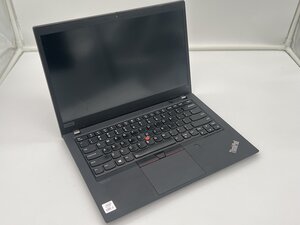
Dokunmatik matı kullanarak imlecinizi hareket ettirmeye veya tıklamaya çalıştığınızda tepki vermiyor. Dokunmatik matınızı tekrar çalışır hale getirmek için bu adımları izleyin!
Yazılımsal Hata
Dokunmatik matınız hareketlerinize yanıt vermiyorsa, sorun bilgisayarın kendisinden kaynaklanıyor olabilir.
- Fiziksel başlatma düğmesini yaklaşık 10 ila 30 saniye basılı tutarak bilgisayarınızı zorla yeniden başlatın
- Bilgisayar açıldıktan sonra dokunmatik matın yanıt verip vermediğini kontrol edin
Lenovo ThinkPad T14 cihazınızı yeniden başlatmanın bir yolu daha vardır
- Dizüstü bilgisayarın alt kısmında küçük bir delik bulun (toplu iğne büyüklüğünde olmalıdır)
- Dizüstü bilgisayarı tüm harici güç kaynaklarından çıkarın
- Bir ataş veya benzeri bir araç kullanarak, bilgisayar kapanıp sıfırlanana kadar düğmeyi yaklaşık 15 saniye basılı tutun
Kirli Dokunmatik Mat
Bilgisayarınızı sıfırladıktan sonra dokunmatik matınız hala yanıt vermiyorsa, sadece temizlenmesi gerekiyor olabilir.
- Dokunmatik matın yüzeyini temiz bir bezle (mikrofiber havlu en iyisi olacaktır) iyice temizleyin; bezi izopropil alkolle nemlendirebilir veya özel elektronik dezenfektan mendiller kullanabilirsiniz
Bağlantısı Kesilmiş Ribbon Kablo
Bilgisayarın içindeki bir bağlantı fiziksel olarak kopmuş olabilir.
- Dokunmatik mattan anakarta giden ve anakarttan dokunmatik mata gelen ribbon kablo bağlantılarını kontrol edin
- Her ikisinin de doğru şekilde oturduğundan emin olun
- Eğer oturmuşlarsa, her ikisini de ayırıp yeniden bağlamayı deneyin
Arızalı Dokunmatik Mat
Tüm bu adımları uyguladıktan sonra hala yanıt alamıyorsanız, dokunmatik matı değiştirmeniz gerekebilir. Lenovo ThinkPad T14 Gen 1 dokunmatik matını değiştirmek için bu kılavuzu izleyin

Ekip

University of North Texas, Team 5-1, Kilpatrick Fall 2025 University of North Texas, Team 5-1, Kilpatrick Fall 2025 üyesi
UNT-KILPATRICK-F25S5G1
4 Üyeler
72 adet Kılavuz yazıldı

0 Yorum