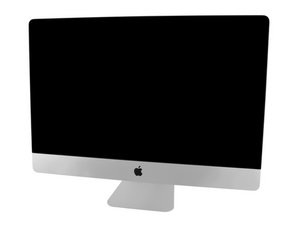
Model A1419 / EMC 2806 / Late 2014 or Mid 2015. 3.3 or 3.5 GHz Core i5 or 4.0 GHz Core i7 (ID iMac15,1); EMC 2834 late 2015 / 3.3 or 3.5 GHz Core i5 or 4.0 GHz Core i7 (iMac17,1) All with Retina 5K displays
Hi, I have just upgraded my iMac by adding 16GB (2x8GB) to the pristine 8GB (2x4GB). Since I know, but I may be wrong, that modules should be coupled, how do I have to do it?
By now I have made a try, putting physically close, in the 4 available trays, similar modules (4GB with 4GB, 8GB with 8GB).
This is the configuration I got from system info (RAM modules coupled in the same bank)
BANK0/DIMM0 8GB
BANK1/DIMM0 4GB
BANK0/DIMM1 8GB
BANK1/DIMM1 4GB
Is this correct, or should I insert them physically alternated, so they I have the same modules coupled in the same DIMM?
I tested a mix of two kinds of memory sticks with different size capacities and different benchmarks results
A) 2x4G Original Apple SK Hynix
B) 2x16GB Kinsgton HyperX Impact KHX2666C15S4/16G
my analysis:
the Apple Hynix is slower than the Kingston HyperX Impact as can be seen by comparing #1 and #2, where #2 was the fastest of all.
for the mix, #3 where the sticks are staggered was the fastest, but not as fast as #2 (apparently the Apple sticks being slower, bring the overall speed down???)
#4 mix (which if I am not mistaken is what Apple recommends) was the slowest by far in Novabench, 16K vs 26K MB/s, yet about the same as #3 mix in single-core Geekbench and bit faster than #1 in multi-core
for a while, I was running #2 with the 32GB Kingston, however, it seems that apps now require more and more memory, and so I just switched to configuration #3 with 40GB
After reading contradictory answers, I decided to make some tests to determine what the correct way to add (2 x 8 GB) RAM to existing (2 x 4 GB) RAM. And this are the results I found.
Tested on iMac (27-inch Mid 2011) Intel Core i7 - 3.4 Ghz with High Sierra:
With the following configuration from System Information / Memory (by BANK): ***
BANK 0/DIMM0: 4 GB - DDR3 - 1333 Mhz
BANK 1/DIMM0: 8 GB - DDR3 - 1333 Mhz
BANK 0/DIMM1: 4 GB - DDR3 - 1333 Mhz
BANK 1/DIMM1: 8 GB - DDR3 - 1333 Mhz
Geekbench 4 shows and memory bandwitdh at 8.76 GB/sec for Single-Core and 8.61 GB/sec for Multi-Core
Bu yoruma uygun yeri bulmak için bu konuyu kaydırın. Ardından, taşımak için "Bu yazıya yorum ekle"ye tıklayın.
5 Yorum:
Daniel (MQA) is correct. The identical matching ram should be paired by DIMM number and NOT Bank number. I ran the Geekbench test in both memory configurations, confirming similar findings. Thanks Daniel.
Is possible that same RAM sizes should be in DIMMs and not in BANKs? Maybe apple just call them differently. Because here is screenshot how looks 12GB from factory in iMac.
Bu yoruma uygun yeri bulmak için bu konuyu kaydırın. Ardından, taşımak için "Bu yazıya yorum ekle"ye tıklayın.
5 Yorum:
No, the word Bank is a JEDEC Standards term, and is using it correctly!
Your iMac uses a dual channel architecture to gain the most performance by Interleaving the same sized RAM modules. So when you have two of the SAME modules within a Bank you gain the best performance!
Yes, Mixing your RAM willy nilly will also work!
But, now you are forcing the computer to treat the RAM as a Single Channel AND running at the slowest common RAS & CAS speed of all of the RAM modules you have installed!
So I would reseat the modules as I outlined BANK 0 have the same sized modules (x2 2 GB) and BANK 1 the same sized modules (x2 4 GB).
Clearly the person who upgraded your system (it was not Apple) didn't know what they where doing ;-} Apple never shipped a 12 GB system. The dealer you bought your system from added the RAM.
Now one last point! Don't mix different makes or models of DIMM modules that are the same size! You want what we call a Matched Pair Here you can learn more soon that and RAS & CAS Memory DIMM's
I fully understand what is Dual channel and what advantages it has. What I don't understand why Apple is not using dual channel. For example I just upgraded old 2009 late iMac (RAMs from bottom), and it has 2 RAM modules "horizontally", and 2 slots above (again horizontally) was empty. If you look at any video on youtube, this is original position from factory, which is in OS represented as Bank0/Dimm1 and Bank1/Dimm1 - so different Banks. Thoughts?
Sadly, there is a lot of contradicting information on how the DIMM's need to be installed. So I understand your confusion.
As to the layout of what your 2009 iMac had I don't have one to reference so I can't tell you if the physical layout of the DIMM's (using two 2 GB DIMMS) where or were not installed correctly. The marking of the slot should tell you the layout if a Bank was across or one on top of the other. Its possible the person assembling the iMac messed up.
As I mustily maxed out our iMac or Mac Mini's with the same DIMM's I never needed to worry about it as I was always putting in four matching 4 GB DIMM's.
Why don't you prove to your self what is the best setup. Since you have a 2009 system with only 4 GB run a timed RAM test with the DIMMS across the banks and within the Bank to see which runs faster.
I put (by myself) the modules with the same size on the same banks.
After having this issues (my iMac freezed every once in a while) I send my iMac to Apple Store and after several days they found the memory was not in the correct position and they changed it so that the same size are on the same DIMM.
Sorry, I may be wrong, but I was told to use the same amount of RAM/memory in each channel/bank, 12 in each. the pristine configuration (4GB Slot 1 and 4GB Slot 3 - iMac Late 2015) would validate this (regarding to dual channel).
I found it really easy to upgrade the RAM on my iMac.
First, you can assume the factory installed ram is installed correctly so if you are not intending to swap those then do not remove them. They should both be in DIMM 0.
If you are filling two empty slots on a 4 slot iMac, just shove in a new matching pair and reboot. It should show the original pair occupying DIMM 0 and the new pair occupying DIMM 1 which is how you want it. You can disregard what banks they are in.
If you also want to replace the original memory, then remove the original SO-DIMMS and replace them with a matching pair. So, if you are looking at the 4 slots you have a top row and a bottom row (regardless whether your imac is lying face-up or face-down). You need to have a matching pair in the top slots and/or a matching pair in the bottom slots. You do not need to match a top slot with a bottom slot.
I tried the same size = same DIMM configuration (as above comments suggested it would be quicker) and my machine wouldn’t boot. Turns on but screen stays blank. Had to revert to installing by BANK. Any suggestions as to why?
I have the 2020 27" iMac with two 4 GB RAM (2667MHz) from Apple installed in slots 1 (Channel A/DiMM1) and 3 (Channel B DiMM1). When I followed the instructions, and installed two OWC 16GB RAM chips (2667MHz) in the free slots (2 and 4), it told me that my Mac had 4 memory slots each of which accepts a 2133 MHz DDR4 memory module - which is clearly incorrect! When I installed the 2 x 4GB Apple memory in slots 1 & 2 and the 2 x 16GB OWC in memory slots 3 & 4 it (correctly) told me that my Mac had 4 memory slots each of which accepts a 2667 MHz DDR4 memory module. So now I am completely non-plussed! I dint use Geekbench or anything but if the Mac thinks it has 2133 MHz memory modules, surely this is a bad thing????
@peter: cleverest answer ever. Had the same problem: 2x4 stock in 2&4, 2667 mhz (of course, from factory). Adding identical dimm’s from a 2019 27” in 1&3, got 2133 mhz slowdown. Placed stock in 1&2 and remaining in 3&4 solved the problem. My final opinion is: why Apple’s KB about ram installation in (at least) the 27” is not clear???
3 Yorum
my test results with 2019 iMac 8GB and 32GB
configurations (note: the bottom slot is Bank 0 the top slot is Bank 3)
#1: 8GB
Bank 0 Channel A DIMM 0 4GB
Bank 1 Channel A DIMM 1
Bank 2 Channel B DIMM 0 4GB
Bank 3 Channel B DIMM 1
#2: 32GB
Bank 0 Channel A DIMM 0 16GB
Bank 1 Channel A DIMM 1
Bank 2 Channel B DIMM 0 16GB
Bank 3 Channel B DIMM 1
#3: 40GB
Bank 0 Channel A DIMM 0 16GB
Bank 1 Channel A DIMM 1 4GB
Bank 2 Channel B DIMM 0 16GB
Bank 3 Channel B DIMM 1 4GB
#4: 40GB
Bank 0 Channel A DIMM 0 16GB
Bank 1 Channel A DIMM 1 16GB
Bank 2 Channel B DIMM 0 4GB
Bank 3 Channel B DIMM 1 4GB
test results Novabench - each test run three times and since results vary a bit, I am reporting an approximate range (for RAM test only)
#1 24.5K to 26.5K MB/s
#2 27K to 29.5K MB/s
#3 26.5K to 27.5K MB/s
#4 16.8K to 17.2K MB/s
test results Geekbench 5 (single/multi-core)
#1 1218-1220/5510-6856
#2 1310-1326/7850-8220
#3 1187-1197/7760-7880
#4 1187-1192/6250-7750
Avi Carmi tarafından
I tested a mix of two kinds of memory sticks with different size capacities and different benchmarks results
A) 2x4G Original Apple SK Hynix
B) 2x16GB Kinsgton HyperX Impact KHX2666C15S4/16G
my analysis:
the Apple Hynix is slower than the Kingston HyperX Impact as can be seen by comparing #1 and #2, where #2 was the fastest of all.
for the mix, #3 where the sticks are staggered was the fastest, but not as fast as #2 (apparently the Apple sticks being slower, bring the overall speed down???)
#4 mix (which if I am not mistaken is what Apple recommends) was the slowest by far in Novabench, 16K vs 26K MB/s, yet about the same as #3 mix in single-core Geekbench and bit faster than #1 in multi-core
see https://discussions.apple.com/thread/251... for what Apple recommended
for a while, I was running #2 with the 32GB Kingston, however, it seems that apps now require more and more memory, and so I just switched to configuration #3 with 40GB
hope this helps
Avi Carmi tarafından
After replacing the ram modules my iMac will not turn on
Br yan tarafından