Ana içeriğe geç
Onarım Topluluğuna Katılın - Hesap Oluşturun

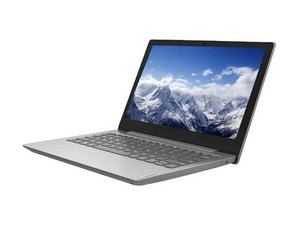
Lenovo IdeaPad 1-11ADA05, 28 Ocak 2022 tarihinde piyasaya sürülmüştür. Lenovo IdeaPad 1-11ADA05, öğrenciler ve günlük kullanıcılar için tasarlanmış, 2020 yılında piyasaya çıkan giriş seviyesi 11,6 inçlik bir dizüstü bilgisayardır. Windows 10 veya S modunda Windows 11 ile çalışır ve AMD Athlon Silver işlemciye sahiptir.

Laptop keyboard not working

The laptops key is not working any of the key not working
Bu soruyu yanıtla Ben de bu sorunu yaşıyorum

Bu iyi bir soru mu?

Puan 2

1 Yorum:

Hi @hmmbujhi,

Have you checked that the laptop is not in tablet mode, i.e. touchscreen keyboard works but the physical keyboard doesn't?

Has any liquid been spilled on the keyboard at all?

tarafından

Yorum Ekle

1 Cevap

Filtre ölçütü:


If none of the keys on your laptop are working, it could indicate a hardware or software issue. Here are a few steps you can try to troubleshoot the problem:

  1. Restart the Laptop: Sometimes, a simple restart can resolve temporary glitches. Restart your laptop and see if the keys start functioning again.
  2. Check for Physical Damage: Inspect the keyboard for any physical damage, such as spilled liquids or stuck keys. If you notice any damage, you may need to consult a technician for repairs or consider replacing the keyboard.
  3. Check the Keyboard Settings: Ensure that the keyboard settings on your laptop are correctly configured. Go to the "Control Panel" or "Settings" menu and check the keyboard settings. Make sure the correct language and keyboard layout are selected.
  4. Update Keyboard Drivers: Outdated or incompatible keyboard drivers can cause keyboard malfunctions. Visit the manufacturer's website and download the latest drivers for your laptop model. Install the updated drivers and check if the issue persists.
  5. Connect an External Keyboard: If possible, connect an external USB keyboard to your laptop and see if it works. If the external keyboard functions correctly, it suggests a problem with the laptop's built-in keyboard.
  6. Run a Virus Scan: Malware or viruses can sometimes interfere with keyboard functionality. Run a comprehensive scan using reliable antivirus software to ensure your system is clean.
  7. System Restore: If the issue started recently and you suspect it may be related to a software update or installation, you can try performing a system restore to a previous point when the keyboard was working correctly. This can help revert any system changes that might be causing the problem.
  8. Seek Professional Help: If none of the above steps resolve the issue, it is recommended to seek assistance from a professional technician or contact the manufacturer's support for further troubleshooting and guidance.

Bu yanıt yardımcı oldu mu?

Puan 0
Yorum Ekle

Yanıtını ekle

Hmm Bujhi sonsuza kadar minnettar olacak.
İstatistikleri Görüntüle:

Son 24 Saat: 0

Son 7 gün: 2

Son 30 gün: 17

Her zaman: 877