Ana içeriğe geç
Onarım Topluluğuna Katılın - Hesap Oluşturun

Alienware Pro Wireless Gaming Mouse Optical Lens Replacement

Neye ihtiyacın var

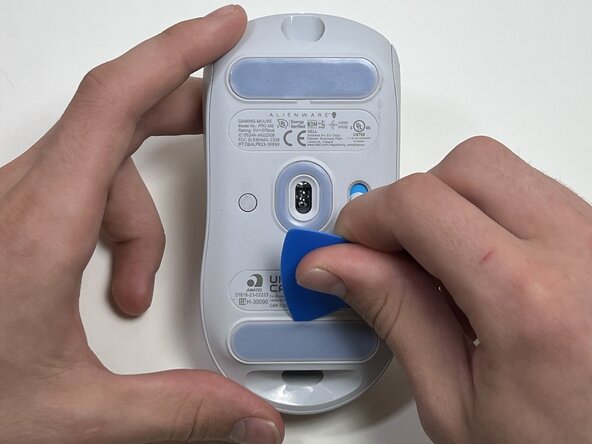
  1. Alienware Pro Wireless Gaming Mouse Optical Lens Replacement, Feet: adım 1, 3 resimden 1. Alienware Pro Wireless Gaming Mouse Optical Lens Replacement, Feet: adım 1, 3 resimden 2. Alienware Pro Wireless Gaming Mouse Optical Lens Replacement, Feet: adım 1, 3 resimden 3.
    • Flip the mouse over so the bottom is facing up..

    • Use an opening pick to gently peel the mouse foot off the bottom case.

    • The mouse feet warp easily so if you're not replacing them, be careful and don't rip them off. You will need them when you reassemble the mouse.

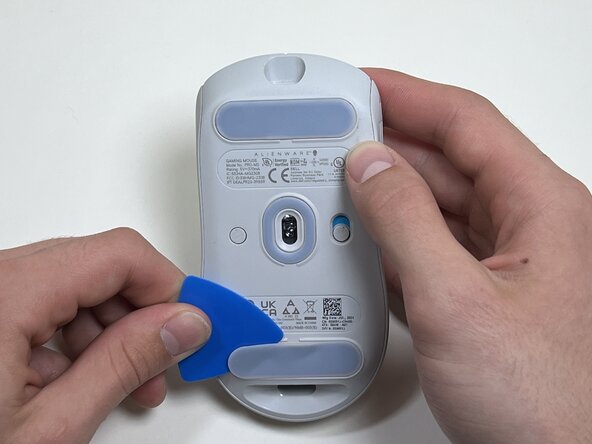
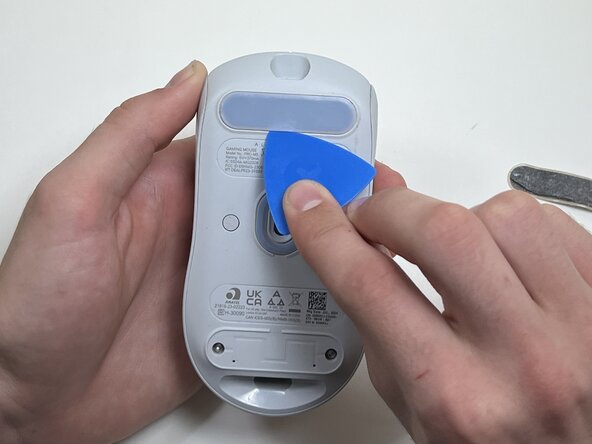
  2. Alienware Pro Wireless Gaming Mouse Optical Lens Replacement: adım 2, 2 resimden 1. Alienware Pro Wireless Gaming Mouse Optical Lens Replacement: adım 2, 2 resimden 2.
    • Peel and remove the other mouse foot.

  3. Alienware Pro Wireless Gaming Mouse Optical Lens Replacement, Battery: adım 3, 1 resimden 1.
    • Use a TR6 Torx security screwdriver to remove the four 6 mm screws under the foot pads.

  4. Alienware Pro Wireless Gaming Mouse Optical Lens Replacement: adım 4, 3 resimden 1. Alienware Pro Wireless Gaming Mouse Optical Lens Replacement: adım 4, 3 resimden 2. Alienware Pro Wireless Gaming Mouse Optical Lens Replacement: adım 4, 3 resimden 3.
    • Use your hands or a spudger to separate the bottom and top of the mouse.

    • Insert the end of the spudger in the seam between the top and bottom case, and slide it around the perimeter to release the clips holding it together.

    • You may hear a cracking sound when the clips are released.

  5. Alienware Pro Wireless Gaming Mouse Optical Lens Replacement: adım 5, 2 resimden 1. Alienware Pro Wireless Gaming Mouse Optical Lens Replacement: adım 5, 2 resimden 2.
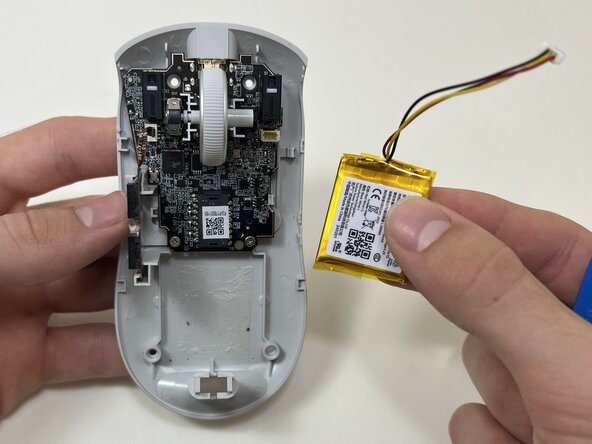
    • Use the pointed end of a spudger to push on alternating sides of the battery connector to "walk" it out of its socket.

    • Avoid pulling on the wires. If necessary, pull as close to the connector as possible to prevent damage to your mouse.

  6. Alienware Pro Wireless Gaming Mouse Optical Lens Replacement: adım 6, 2 resimden 1. Alienware Pro Wireless Gaming Mouse Optical Lens Replacement: adım 6, 2 resimden 2.
    • The battery is glued to the case.

    • Use an opening tool or spudger to loosen the adhesive under the battery.

    • Remove the battery.

  7. Alienware Pro Wireless Gaming Mouse Optical Lens Replacement, Side Button: adım 7, 2 resimden 1. Alienware Pro Wireless Gaming Mouse Optical Lens Replacement, Side Button: adım 7, 2 resimden 2.
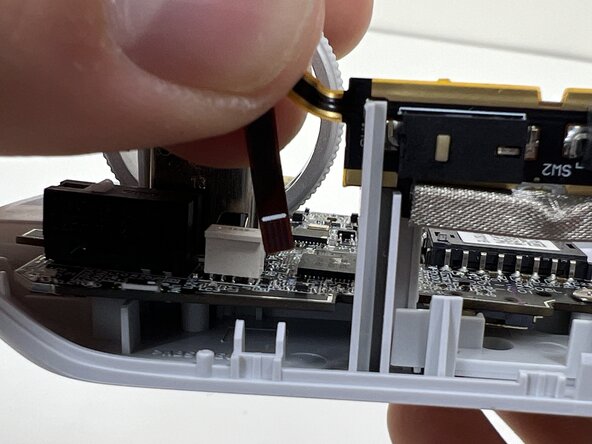
    • Pinch the upper part of the ribbon cable.

    • Pull the ribbon cable gently to detach it from the socket on the motherboard.

    • Make sure the ribbon line is facing the correct direction when reassembling the controller.

  8. Alienware Pro Wireless Gaming Mouse Optical Lens Replacement: adım 8, 2 resimden 1. Alienware Pro Wireless Gaming Mouse Optical Lens Replacement: adım 8, 2 resimden 2.
    • Lift the side button panel from the plastic frame.

  9. Alienware Pro Wireless Gaming Mouse Optical Lens Replacement, Scroll Wheel: adım 9, 3 resimden 1. Alienware Pro Wireless Gaming Mouse Optical Lens Replacement, Scroll Wheel: adım 9, 3 resimden 2. Alienware Pro Wireless Gaming Mouse Optical Lens Replacement, Scroll Wheel: adım 9, 3 resimden 3.
    • Hold the scroll wheel encoder steady and gently pull the scroll wheel to the right to remove it.

    • Only light force is needed—be gentle to avoid damaging nearby parts.

  10. Alienware Pro Wireless Gaming Mouse Optical Lens Replacement, Motherboard: adım 10, 1 resimden 1.
    • Use a Phillips #00 screwdriver to remove the two 5 mm screws at the bottom of the motherboard.

  11. Alienware Pro Wireless Gaming Mouse Optical Lens Replacement: adım 11, 1 resimden 1.
    • Gently pull the side clip away from the motherboard to release it from the plastic frame.

    • Use a spudger to release the board from the clips if that is easier.

  12. Alienware Pro Wireless Gaming Mouse Optical Lens Replacement: adım 12, 2 resimden 1. Alienware Pro Wireless Gaming Mouse Optical Lens Replacement: adım 12, 2 resimden 2.
    • Bend the front nose of the mouse body to release the motherboard.

    • Remove the motherboard from the bottom case.

  13. Alienware Pro Wireless Gaming Mouse Optical Lens Replacement, Optical Lens: adım 13, 2 resimden 1. Alienware Pro Wireless Gaming Mouse Optical Lens Replacement, Optical Lens: adım 13, 2 resimden 2.
    • On the bottom of the motherboard, remove the clear plastic lens.

Sonuç

To reassemble your device, follow these instructions in reverse order. Take your e-waste to an R2 or e-Stewards certified recycler.

Samuel Blanton

Üyelik tarihi: 09/29/25

363 İtibar

4 adet Kılavuz yazıldı

Ekip

0Kılavuz Yorumları

Yorum Ekle

İstatistikleri Görüntüle:

Son 24 Saat: 0

Son 7 gün: 0

Son 30 gün: 13

Her zaman: 57