Ana içeriğe geç
Onarım Topluluğuna Katılın - Hesap Oluşturun

Asus ROG Ally SSD Replacement

Neye ihtiyacın var

  1. Asus ROG Ally SSD Replacement, Prepare your device for disassembly: adım 1, 3 resimden 1. Asus ROG Ally SSD Replacement, Prepare your device for disassembly: adım 1, 3 resimden 2. Asus ROG Ally SSD Replacement, Prepare your device for disassembly: adım 1, 3 resimden 3.
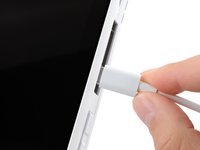
    • Let your device's battery drain below 25% before starting this repair—a charged lithium‑ion battery may catch fire if damaged.

    • Completely power off your device and unplug all cables.

    • Consider laying your device on a soft cloth to prevent scratching or damaging the screen during your repair.

    FixBot'a Sor

    Yorum Ekle

  2. Asus ROG Ally SSD Replacement, Unfasten the back cover: adım 2, 2 resimden 1. Asus ROG Ally SSD Replacement, Unfasten the back cover: adım 2, 2 resimden 2.
    Bu adımda kullanılan alet:
    FixMat
    $36.95
    • Throughout this repair, keep track of each screw and make sure it goes back exactly where it came from.

    • Use a Phillips #0 screwdriver to remove the five 17.2 mm‑long screws securing the top edge and bottom corners of the back cover.

    • Use a Phillips #0 screwdriver to fully loosen the remaining captive screw at the center of the bottom edge. This should create a small gap between the back cover and chassis.

    • Don't try to remove this screw.

    FixBot'a Sor

    Yorum Ekle

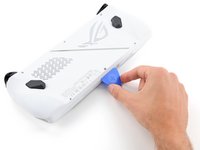
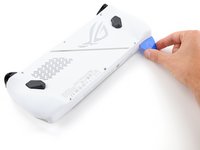
  3. Asus ROG Ally SSD Replacement, Insert an opening pick: adım 3, 3 resimden 1. Asus ROG Ally SSD Replacement, Insert an opening pick: adım 3, 3 resimden 2. Asus ROG Ally SSD Replacement, Insert an opening pick: adım 3, 3 resimden 3.
    • Insert the flat edge of an opening pick between the bottom edge of the back cover and chassis, near the captive screw.

    • Angle the pick upward and push it under the back cover.

    FixBot'a Sor

    Yorum Ekle

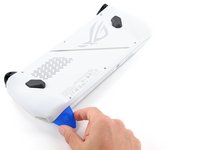
  4. Asus ROG Ally SSD Replacement, Release the back cover's clips: adım 4, 3 resimden 1. Asus ROG Ally SSD Replacement, Release the back cover's clips: adım 4, 3 resimden 2. Asus ROG Ally SSD Replacement, Release the back cover's clips: adım 4, 3 resimden 3.
    • Plastic clips secure the perimeter of the back cover. You should feel and hear them release during this step.

    • Slide the opening pick along the bottom edge and around the corners of the back cover to release the clips securing it.

    • Keep the pick at an upward angle under the back cover to help release the clips.

    FixBot'a Sor

    Yorum Ekle

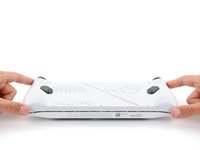
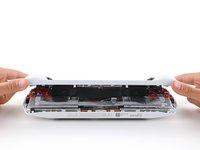
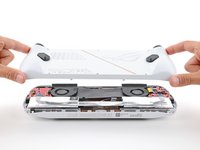
  5. Asus ROG Ally SSD Replacement, Remove the back cover: adım 5, 3 resimden 1. Asus ROG Ally SSD Replacement, Remove the back cover: adım 5, 3 resimden 2. Asus ROG Ally SSD Replacement, Remove the back cover: adım 5, 3 resimden 3.
    • Lift the bottom edge of the back cover off the chassis to release the remaining clips.

    • Remove the back cover.

    • During reassembly, lay the back cover onto your device and firmly push down around the perimeter to engage the clips.

    FixBot'a Sor

    Yorum Ekle

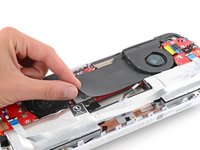
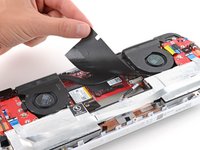
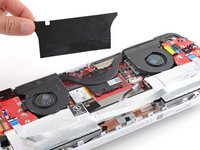
  6. Asus ROG Ally SSD Replacement, Remove the plastic cover: adım 6, 3 resimden 1. Asus ROG Ally SSD Replacement, Remove the plastic cover: adım 6, 3 resimden 2. Asus ROG Ally SSD Replacement, Remove the plastic cover: adım 6, 3 resimden 3.
    • Use your fingers to peel up and remove the black plastic cover between the fans.

    • Put the cover aside—you'll use it during reassembly.

    FixBot'a Sor

    Yorum Ekle

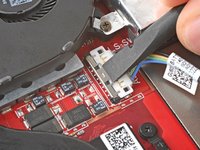
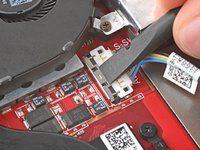
  7. Asus ROG Ally SSD Replacement, Unlatch the locking bar: adım 7, 3 resimden 1. Asus ROG Ally SSD Replacement, Unlatch the locking bar: adım 7, 3 resimden 2. Asus ROG Ally SSD Replacement, Unlatch the locking bar: adım 7, 3 resimden 3.
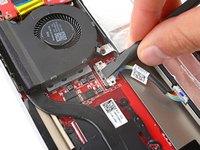
    • A metal locking bar secures the top edge of the battery connector

    • Use the flat end of a spudger to gently push the locking bar away from the connector to unlatch it.

    FixBot'a Sor

    Yorum Ekle

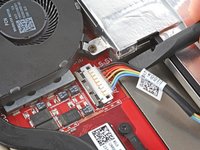
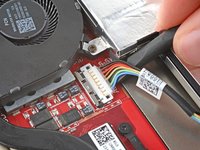
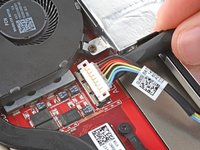
  8. Asus ROG Ally SSD Replacement, Disconnect the battery: adım 8, 3 resimden 1. Asus ROG Ally SSD Replacement, Disconnect the battery: adım 8, 3 resimden 2. Asus ROG Ally SSD Replacement, Disconnect the battery: adım 8, 3 resimden 3.
    • Make sure the locking bar is not covering the battery connector at all, or you may damage the socket and the locking bar.

    • Insert the flat end of a spudger under the center of the battery connector.

    • Lift the connector straight up and out of its socket to disconnect the battery.

    • During reassembly, use your fingers or the flat end of a spudger to firmly push the connector onto its socket until it clicks into place.

    FixBot'a Sor

    Yorum Ekle

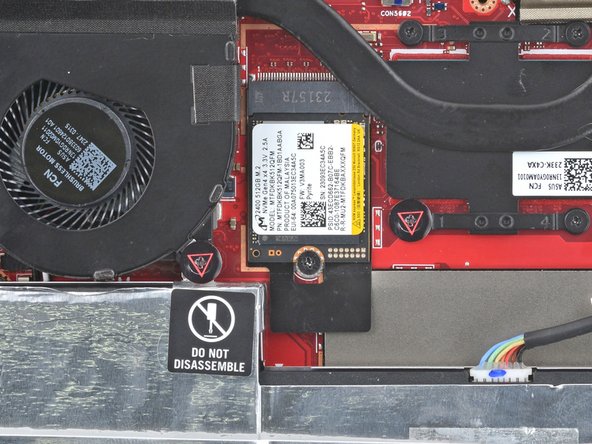
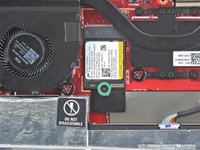
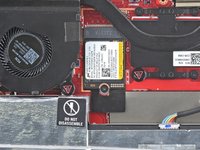
  9. Asus ROG Ally SSD Replacement, Unfasten the SSD: adım 9, 2 resimden 1. Asus ROG Ally SSD Replacement, Unfasten the SSD: adım 9, 2 resimden 2.
    • Use a Phillips #0 screwdriver to remove the 3.4 mm‑long screw securing the SSD.

    FixBot'a Sor

    Yorum Ekle

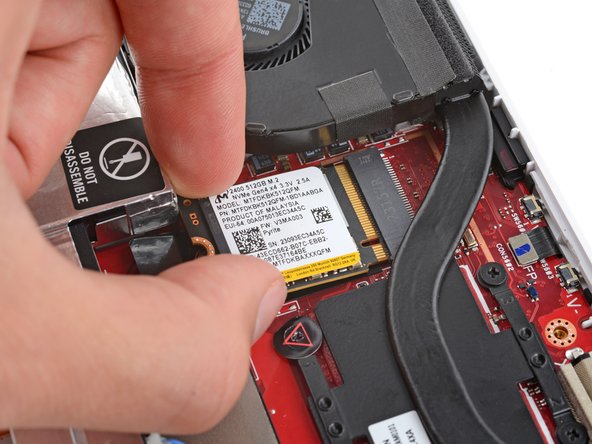
  10. Asus ROG Ally SSD Replacement, Remove the SSD: adım 10, 2 resimden 1. Asus ROG Ally SSD Replacement, Remove the SSD: adım 10, 2 resimden 2.
    • If you have trouble removing the SSD, you can remove the battery for easier access.

    • Grip the bottom corners of the SSD and slightly lift until it clears the screw post.

    • Do not lift more than this or you may damage the SSD and its socket.

    • Pull the SSD straight out of its socket and remove it.

    FixBot'a Sor

    Yorum Ekle

  11. Asus ROG Ally SSD Replacement: adım 11, 2 resimden 1. Asus ROG Ally SSD Replacement: adım 11, 2 resimden 2.
    • Once you've reassembled your device:

    • Plug your device in and turn it on. It should boot into the BIOS menu.

    • Navigate to the Advanced tab and click ASUS Cloud Recovery.

    • Follow the prompts to finish setting up your device.

    FixBot'a Sor

    Yorum Ekle

Sonuç

To reassemble your device, follow these instructions in reverse order.

Take your e-waste to an R2 or e-Stewards certified recycler.

Repair didn’t go as planned? Try some basic troubleshooting, or ask our Answers community for help.

İptal et: Bu kılavuzu tamamlamadım.

9 farklı kişi bu kılavuzu tamamladı.

Spencer Day

Üyelik tarihi: 09/14/22

194.581 İtibar

1.243 adet Kılavuz yazıldı

Ekip

iFixit iFixit üyesi

Staff

122 Üyeler

26.572 adet Kılavuz yazıldı

1Rehber Yorum

Hi Spencer. Look, I wanted to ask you a question, it turns out that my Asus rog ally is stuck on its home screen, as if it could not boot, I checked everything, disk, motherboard and everything is in order, I imagine the bios menu is broken, you could help me with that?

Sebastian - Yanıt Paylaş
Yorum Ekle

İstatistikleri Görüntüle:

Son 24 Saat: 16

Son 7 gün: 139

Son 30 gün: 508

Her zaman: 23,308