Ana içeriğe geç
Onarım Topluluğuna Katılın - Hesap Oluşturun

Framework Laptop 12 Display Replacement

Neye ihtiyacın var

  1. Framework Laptop 12 Display Replacement, Power down your laptop: adım 1, 3 resimden 1. Framework Laptop 12 Display Replacement, Power down your laptop: adım 1, 3 resimden 2. Framework Laptop 12 Display Replacement, Power down your laptop: adım 1, 3 resimden 3.
    • Before you begin repairs, unplug your laptop and shut it down from the operating system. This ensures that the laptop isn't in standby/suspend mode.

    • The indicator LEDs along the edges should be unlit. The laptop should be silent.

    • If you accidentally turn on the laptop during repair, hold the power button down for 10 seconds to shut it down.

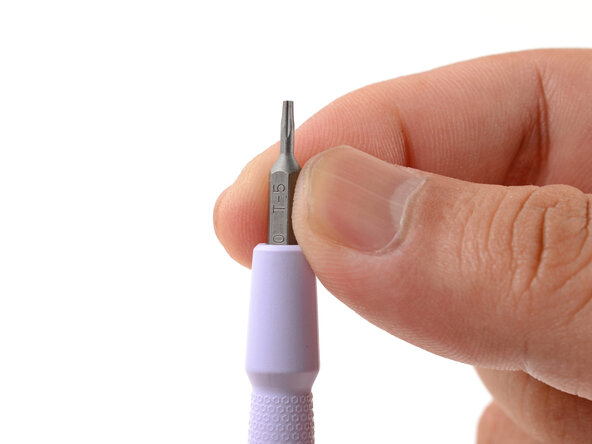
    • Make sure your Framework Screwdriver has the T5 Torx bit (labeled as T-5) facing outwards. If it's not, pull the bit out and flip it.

  2. Framework Laptop 12 Display Replacement, Open your laptop: adım 2, 2 resimden 1. Framework Laptop 12 Display Replacement, Open your laptop: adım 2, 2 resimden 2.
    • Open the laptop lid so that both the screen and the base lie flat on your work surface.

  3. Framework Laptop 12 Display Replacement, Remove the Display Cover: adım 3, 2 resimden 1. Framework Laptop 12 Display Replacement, Remove the Display Cover: adım 3, 2 resimden 2.
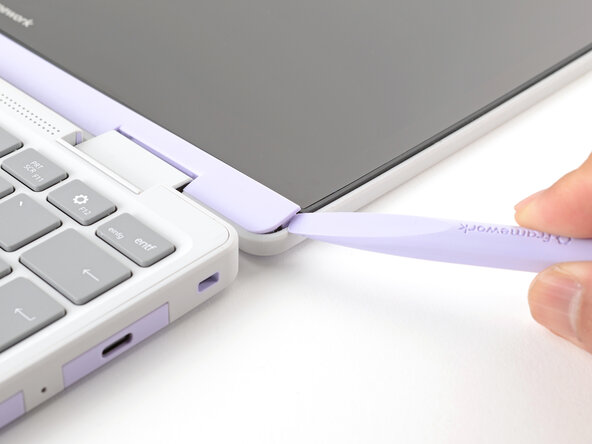
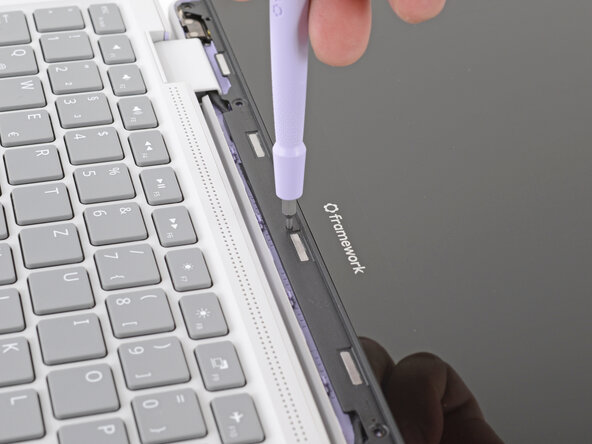
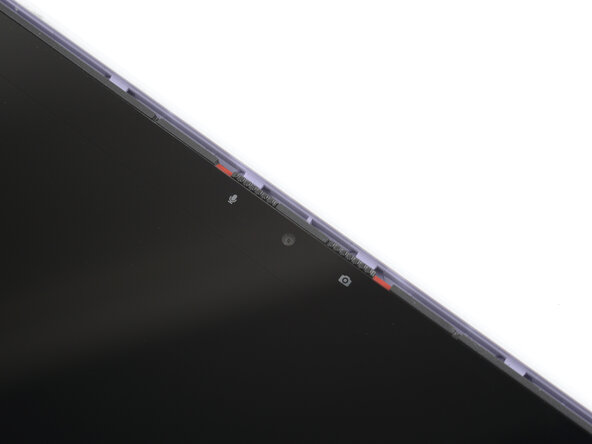
    • The Display Cover is held in place with magnets along the top edge and clips along the remaining edges.

    • Use the flat end of your Framework Screwdriver to pry up the right edge of the Display Cover.

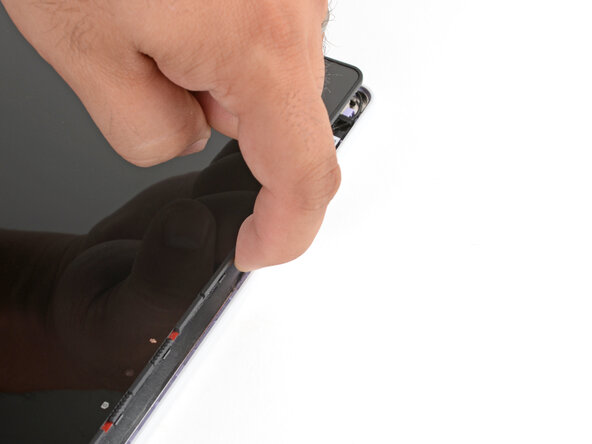
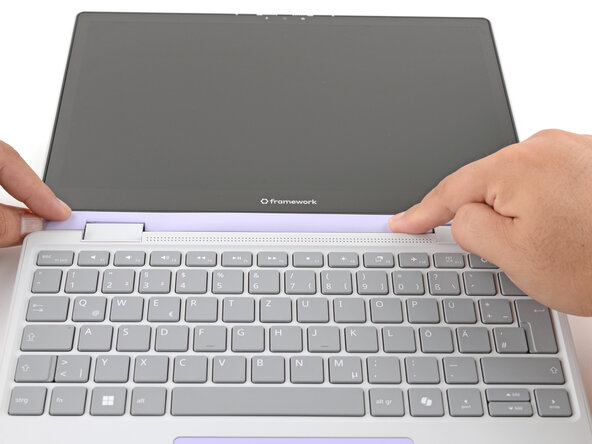
  4. Framework Laptop 12 Display Replacement: adım 4, 3 resimden 1. Framework Laptop 12 Display Replacement: adım 4, 3 resimden 2. Framework Laptop 12 Display Replacement: adım 4, 3 resimden 3.
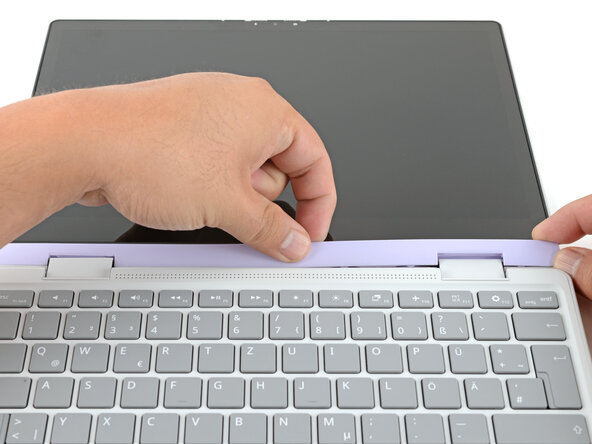
    • Slide your fingers under the top edge of the Display Cover to release it from the laptop.

  5. Framework Laptop 12 Display Replacement: adım 5, 2 resimden 1. Framework Laptop 12 Display Replacement: adım 5, 2 resimden 2.
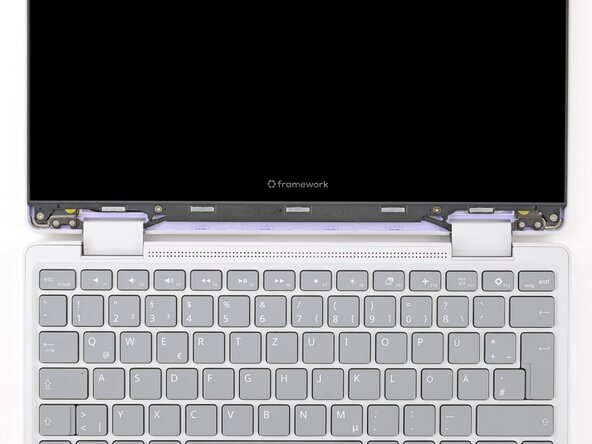
    • Remove the Display Cover.

  6. Framework Laptop 12 Display Replacement, Remove the display screws: adım 6, 2 resimden 1. Framework Laptop 12 Display Replacement, Remove the display screws: adım 6, 2 resimden 2.
    • Use your Framework Screwdriver to remove the four 3.3 mm‑long T5 Torx screws securing the display to the Top Cover.

    • These screws are not captive. Store them in a safe location for reassembly.

  7. Framework Laptop 12 Display Replacement, Slide the display down: adım 7, 3 resimden 1. Framework Laptop 12 Display Replacement, Slide the display down: adım 7, 3 resimden 2. Framework Laptop 12 Display Replacement, Slide the display down: adım 7, 3 resimden 3.
    • Insert the bit end of your Framework Screwdriver into the small hole on the display, below the Framework logo.

    • Slide the display down towards the hinge edge to release the tabs holding the top edge of the display in place.

  8. Framework Laptop 12 Display Replacement, Lift the display: adım 8, 2 resimden 1. Framework Laptop 12 Display Replacement, Lift the display: adım 8, 2 resimden 2.
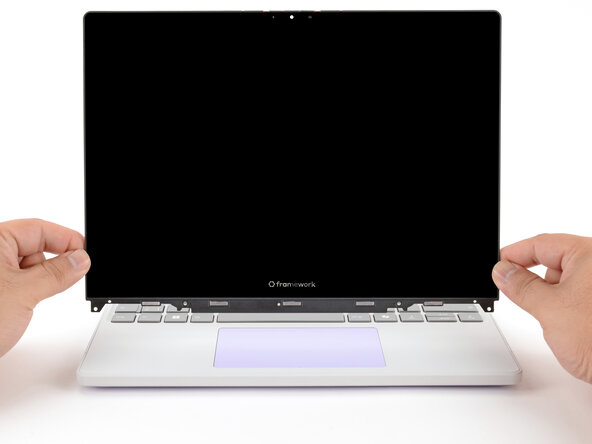
    • Use your fingers to lift the top edge of the display from the Top Cover.

  9. Framework Laptop 12 Display Replacement, Swing the display over: adım 9, 3 resimden 1. Framework Laptop 12 Display Replacement, Swing the display over: adım 9, 3 resimden 2. Framework Laptop 12 Display Replacement, Swing the display over: adım 9, 3 resimden 3.
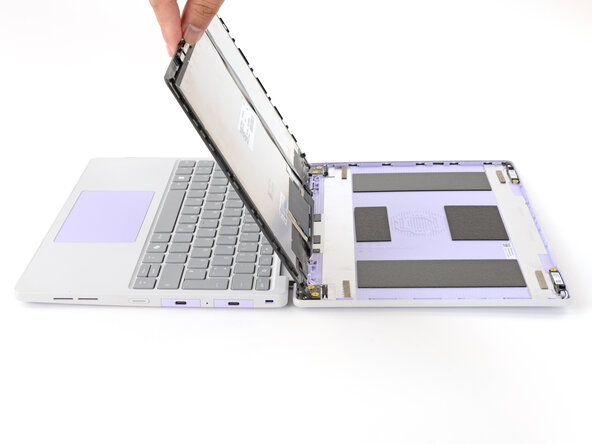
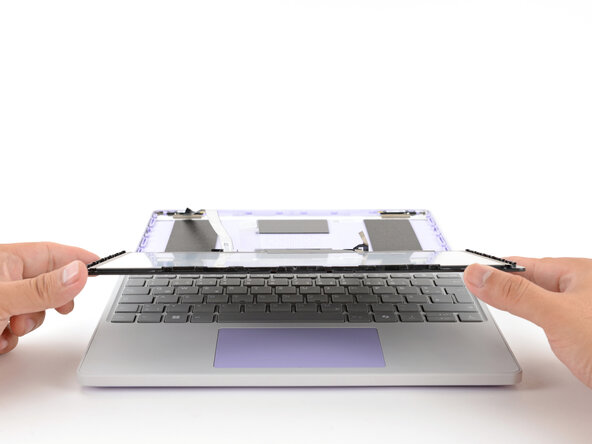
    • Use your fingers to carefully swing the display over so it lies on top of the keyboard.

  10. Framework Laptop 12 Display Replacement, Remove the webcam bracket: adım 10, 1 resimden 1.
    • Use your Framework Screwdriver to remove the two 3.3 mm‑long T5 Torx screws securing the webcam bracket on the top edge behind the display.

    • These screws are not captive. Store them in a safe location for reassembly.

  11. Framework Laptop 12 Display Replacement: adım 11, 2 resimden 1. Framework Laptop 12 Display Replacement: adım 11, 2 resimden 2.
    • Lift and remove the webcam bracket.

  12. Framework Laptop 12 Display Replacement, Disconnect the webcam: adım 12, 3 resimden 1. Framework Laptop 12 Display Replacement, Disconnect the webcam: adım 12, 3 resimden 2. Framework Laptop 12 Display Replacement, Disconnect the webcam: adım 12, 3 resimden 3.
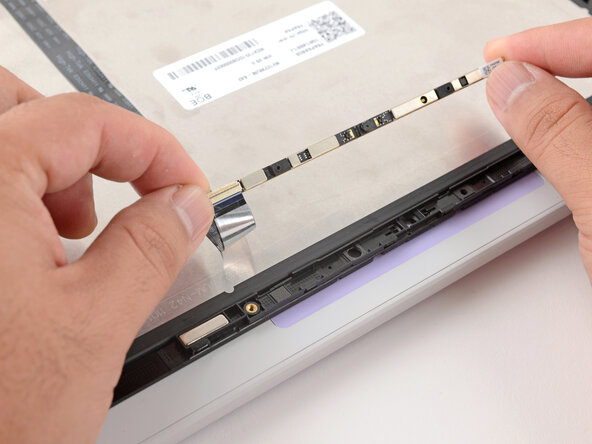
    • Use the flat end of your Framework Screwdriver to lift the webcam out of its recess.

    • Avoid touching the black camera module near the center of the webcam.

    • Flip the webcam over and gently hold it down with your fingers.

  13. Framework Laptop 12 Display Replacement: adım 13, 3 resimden 1. Framework Laptop 12 Display Replacement: adım 13, 3 resimden 2. Framework Laptop 12 Display Replacement: adım 13, 3 resimden 3.
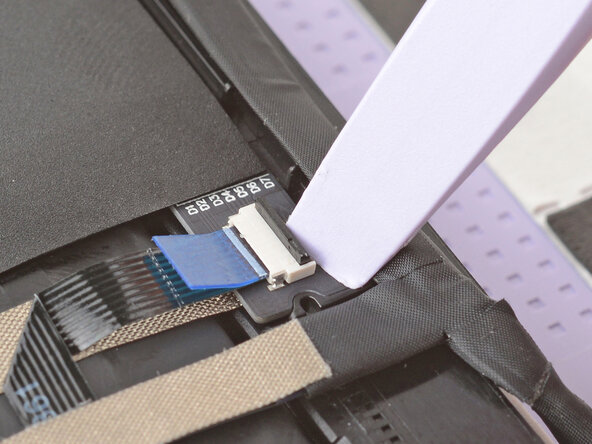
    • Use the flat end of your Framework Screwdriver or a fingernail to gently pry up the locking tab on the webcam cable ZIF connector.

  14. Framework Laptop 12 Display Replacement, Remove the webcam: adım 14, 3 resimden 1. Framework Laptop 12 Display Replacement, Remove the webcam: adım 14, 3 resimden 2. Framework Laptop 12 Display Replacement, Remove the webcam: adım 14, 3 resimden 3.
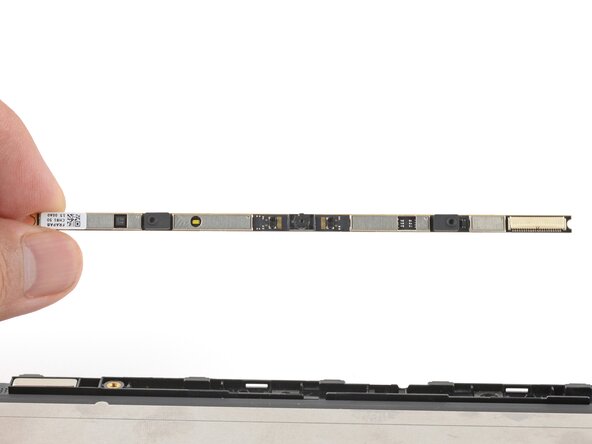
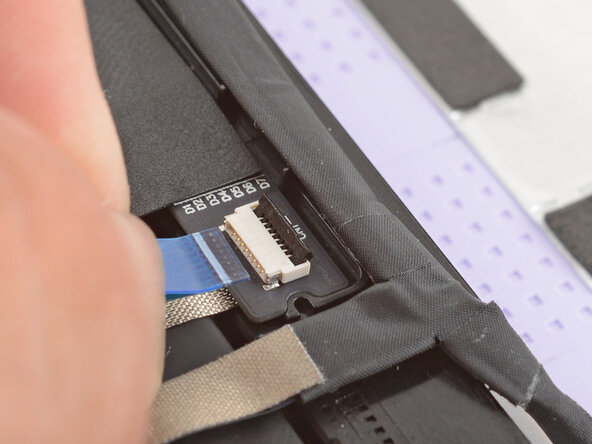
    • Slide the webcam cable out of its connector.

    • Remove the webcam.

  15. Framework Laptop 12 Display Replacement, Detach the webcam cable: adım 15, 3 resimden 1. Framework Laptop 12 Display Replacement, Detach the webcam cable: adım 15, 3 resimden 2. Framework Laptop 12 Display Replacement, Detach the webcam cable: adım 15, 3 resimden 3.
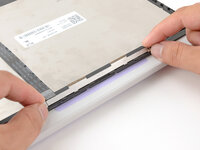
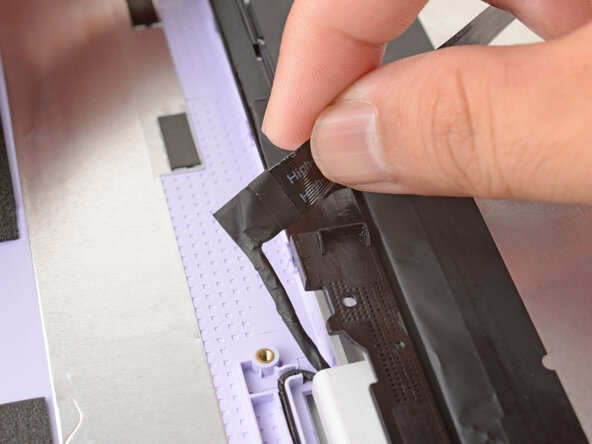
    • The webcam cable is lightly adhered to the display.

    • Grab the webcam cable with your fingers and slowly peel it away from the display.

    • Carefully move the cable off of the display.

  16. Framework Laptop 12 Display Replacement, Disconnect the touch control cable: adım 16, 3 resimden 1. Framework Laptop 12 Display Replacement, Disconnect the touch control cable: adım 16, 3 resimden 2. Framework Laptop 12 Display Replacement, Disconnect the touch control cable: adım 16, 3 resimden 3.
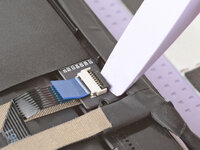
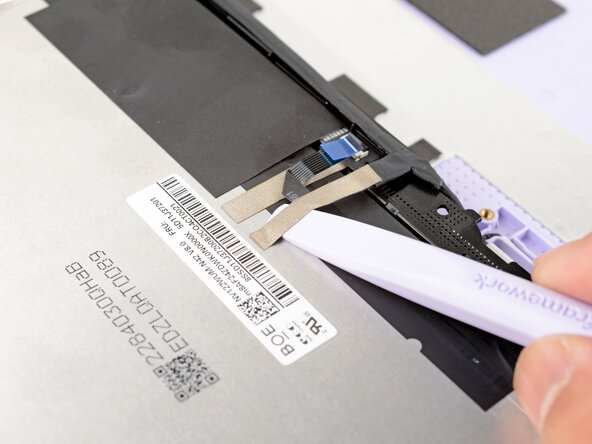
    • Use the flat end of your Framework Screwdriver or a fingernail to gently pry up the locking tab on the touch control ZIF connector near the hinge edge of the display.

    • Use your fingers to grab the touch control cable by the blue tab and slide the cable out of the connector.

  17. Framework Laptop 12 Display Replacement, Separate the silver tape: adım 17, 3 resimden 1. Framework Laptop 12 Display Replacement, Separate the silver tape: adım 17, 3 resimden 2. Framework Laptop 12 Display Replacement, Separate the silver tape: adım 17, 3 resimden 3.
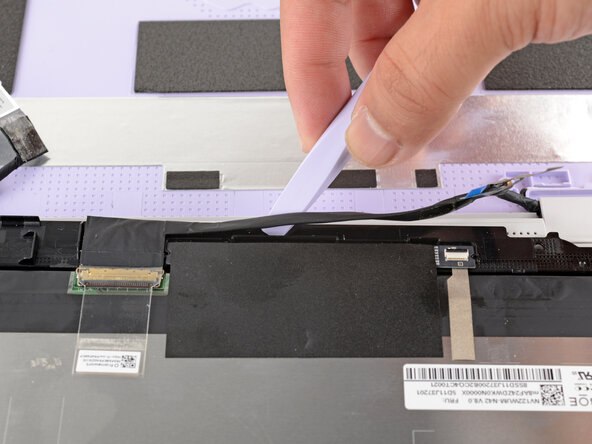
    • Slide the flat end of your Framework Screwdriver under the grounding tape securing the display cable.

    • Lift slowly to separate the tape from the display.

    • Keep this tape clean and intact during your repair. You'll use it to attach the cable during reassembly.

  18. Framework Laptop 12 Display Replacement, Detach the display cable: adım 18, 3 resimden 1. Framework Laptop 12 Display Replacement, Detach the display cable: adım 18, 3 resimden 2. Framework Laptop 12 Display Replacement, Detach the display cable: adım 18, 3 resimden 3.
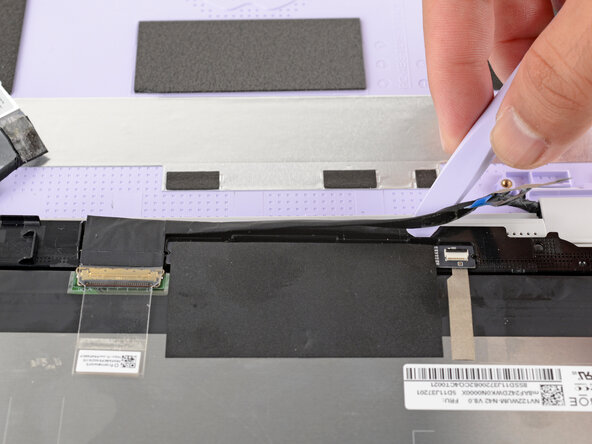
    • The display cable is lightly adhered to the bottom edge of the display.

    • Slide the flat end of your Framework Screwdriver under the length of the display cable to separate it from the display.

  19. Framework Laptop 12 Display Replacement, Disconnect the display cable: adım 19, 2 resimden 1. Framework Laptop 12 Display Replacement, Disconnect the display cable: adım 19, 2 resimden 2.
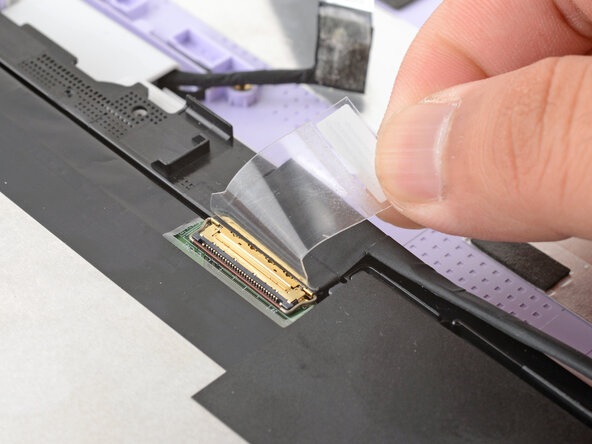
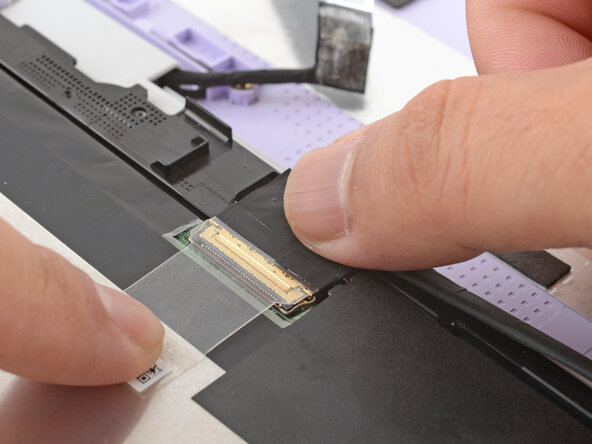
    • Use your fingers to peel up the clear tab covering the display cable connector.

  20. Framework Laptop 12 Display Replacement: adım 20, 2 resimden 1. Framework Laptop 12 Display Replacement: adım 20, 2 resimden 2.
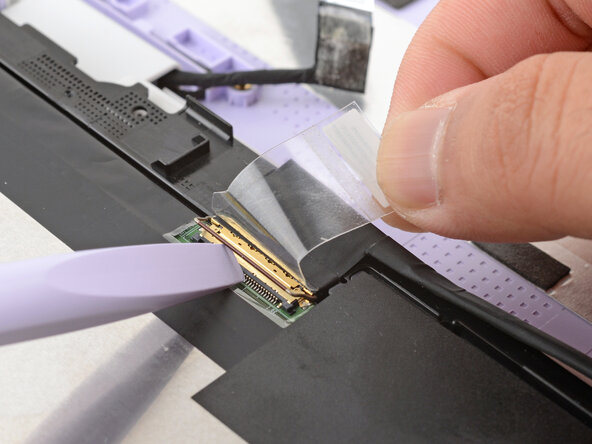
    • Use the flat end of your Framework Screwdriver to flip up the locking bar around the display connector.

  21. Framework Laptop 12 Display Replacement: adım 21, 2 resimden 1. Framework Laptop 12 Display Replacement: adım 21, 2 resimden 2.
    • Make sure the locking bar doesn't fall back in place while you disconnect the display cable.

    • Grasp the display cable near the connector and slide it out of the connector.

    • If you have trouble getting the cable to slide out, gently wiggle it to loosen the connection.

  22. Framework Laptop 12 Display Replacement, Remove the display: adım 22, 3 resimden 1. Framework Laptop 12 Display Replacement, Remove the display: adım 22, 3 resimden 2. Framework Laptop 12 Display Replacement, Remove the display: adım 22, 3 resimden 3.
    • Carefully lift and remove the display.

  23. Framework Laptop 12 Display Replacement, Disassembly complete: adım 23, 1 resimden 1.
    • Congratulations on completing disassembly! The remaining steps will show how to reassemble your Framework Laptop.

  24. Framework Laptop 12 Display Replacement, Prepare the replacement display: adım 24, 2 resimden 1. Framework Laptop 12 Display Replacement, Prepare the replacement display: adım 24, 2 resimden 2.
    • The Framework Display Kit comes with an extra webcam bracket. If you're not using this kit to repair your display, skip this step.

    • Inspect the replacement display and carefully peel off any protective liners.

    • Use your Framework Screwdriver to remove the two 3.3 mm‑long T5 Torx screws securing the webcam bracket on the replacement display.

    • Remove the webcam bracket.

    • Remove any protective liners that may be in the webcam recess. The liners are normally clear or colored plastic films that easily detach.

    • You can use the replacement bracket and screws, or you can reuse your existing ones.

  25. Framework Laptop 12 Display Replacement, Install the display: adım 25, 2 resimden 1. Framework Laptop 12 Display Replacement, Install the display: adım 25, 2 resimden 2.
    • Carefully lay the display screen-side down on top of the Input Cover. The edge with the webcam should lay near the touchpad edge.

    • The Input Cover magnets will align the display to itself.

    • Use your fingers to slide the display off the Input Cover magnets towards the hinge edge so that the display cable can reach its connector.

  26. Framework Laptop 12 Display Replacement: adım 26, 2 resimden 1. Framework Laptop 12 Display Replacement: adım 26, 2 resimden 2.
    • Use your fingers to grab the display cable by the clear tab and the locking bar.

    • Align the display cable with its connector and slide it in until it's fully seated.

  27. Framework Laptop 12 Display Replacement: adım 27, 3 resimden 1. Framework Laptop 12 Display Replacement: adım 27, 3 resimden 2. Framework Laptop 12 Display Replacement: adım 27, 3 resimden 3.
    • Swing the locking bar down over the connector.

    • If the locking bar can't swing all the way down around the connector, you'll need to insert the cable deeper into the connector.

    • Lay the clear tab over the connector and press it onto the display.

  28. Framework Laptop 12 Display Replacement: adım 28, 2 resimden 1. Framework Laptop 12 Display Replacement: adım 28, 2 resimden 2.
    • Slide the touch control cable into the ZIF connector up to the printed line on the cable.

    • Use your finger to flip down and gently press the locking tab in place.

  29. Framework Laptop 12 Display Replacement: adım 29, 2 resimden 1. Framework Laptop 12 Display Replacement: adım 29, 2 resimden 2.
    • Use your finger to press the display cable grounding tape onto the metal back of the display.

    • Use your fingers to press the display cable onto the display.

  30. Framework Laptop 12 Display Replacement: adım 30, 1 resimden 1.
    • Use your fingers to press the webcam cable onto the display.

  31. Framework Laptop 12 Display Replacement, Install the webcam: adım 31, 3 resimden 1. Framework Laptop 12 Display Replacement, Install the webcam: adım 31, 3 resimden 2. Framework Laptop 12 Display Replacement, Install the webcam: adım 31, 3 resimden 3.
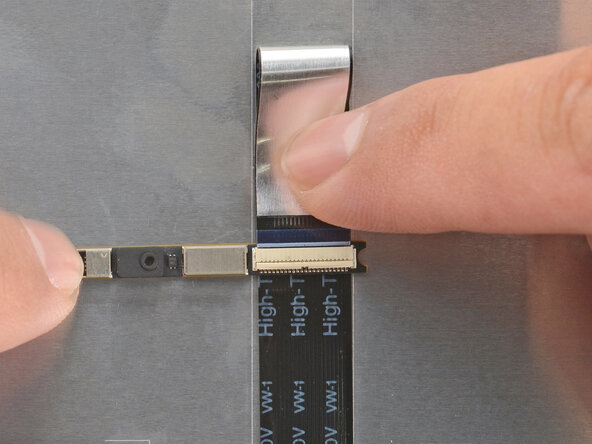
    • Bend an inch (2.5 cm) of the webcam cable over so that the shiny side is facing you.

    • Slide the webcam cable into the ZIF connector up to the printed line on the cable.

    • Use your finger to flip down and gently press the locking tab in place.

  32. Framework Laptop 12 Display Replacement: adım 32, 2 resimden 1. Framework Laptop 12 Display Replacement: adım 32, 2 resimden 2.
    • Use your fingers to flip the webcam back into its recess in the Top Cover.

  33. Framework Laptop 12 Display Replacement: adım 33, 3 resimden 1. Framework Laptop 12 Display Replacement: adım 33, 3 resimden 2. Framework Laptop 12 Display Replacement: adım 33, 3 resimden 3.
    • Align the webcam bracket to the Top Cover and lay it in place.

    • Make sure the tabs on the top edge of the webcam bracket sit in their slots on the top edge of the display.

  34. Framework Laptop 12 Display Replacement: adım 34, 1 resimden 1.
    • Use your Framework Screwdriver to install the two 3.3 mm‑long T5 Torx screws to secure the webcam.

  35. Framework Laptop 12 Display Replacement, Swing the display over: adım 35, 3 resimden 1. Framework Laptop 12 Display Replacement, Swing the display over: adım 35, 3 resimden 2. Framework Laptop 12 Display Replacement, Swing the display over: adım 35, 3 resimden 3.
    • Use your fingers to carefully swing the display over so it lies on top of the Top Cover.

  36. Framework Laptop 12 Display Replacement, Slide the display in place: adım 36, 3 resimden 1. Framework Laptop 12 Display Replacement, Slide the display in place: adım 36, 3 resimden 2. Framework Laptop 12 Display Replacement, Slide the display in place: adım 36, 3 resimden 3.
    • Align the display in the Top Cover such that the top edge of the display is slightly below the top edge of the Top Cover.

    • Use your fingers to slide the display upwards to latch the tabs on the top edge of the display.

    • The top edge shouldn't have any gaps when the display's in place.

  37. Framework Laptop 12 Display Replacement, Install the display screws: adım 37, 2 resimden 1. Framework Laptop 12 Display Replacement, Install the display screws: adım 37, 2 resimden 2.
    • Use your Framework Screwdriver to install the four 3.3 mm‑long T5 Torx screws to secure the display to the Top Cover.

    • Tighten the screws until they're snug. Don't over-tighten them, or you may damage the screw tabs.

  38. Framework Laptop 12 Display Replacement, Install the Display Cover: adım 38, 2 resimden 1. Framework Laptop 12 Display Replacement, Install the Display Cover: adım 38, 2 resimden 2.
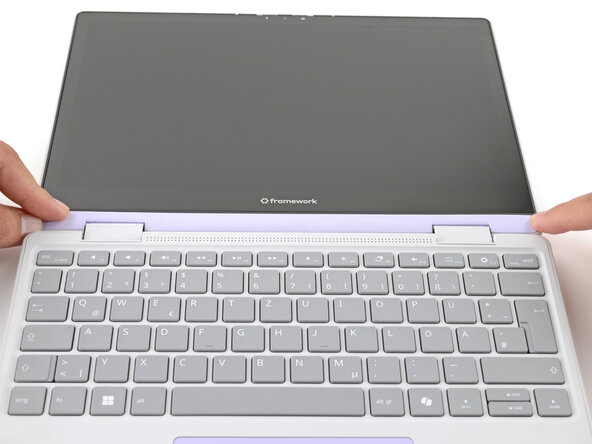
    • Align the Display Cover to the bottom of the display.

  39. Framework Laptop 12 Display Replacement: adım 39, 2 resimden 1. Framework Laptop 12 Display Replacement: adım 39, 2 resimden 2.
    • Use your finger to press along the length of the Display Cover to snap it onto the laptop.

    • Make sure all the clips along the left, top, and right edges are fully seated.

Sonuç

You finished fixing your Framework Laptop!

Take your e-waste to an R2 or e-Stewards certified recycler.

If you need help, contact Framework support.

Arthur Shi

Üyelik tarihi: 01/03/18

333.791 İtibar

847 adet Kılavuz yazıldı

Ekip

Guide Team Guide Team üyesi

Staff

10 Üyeler

17.478 adet Kılavuz yazıldı

0Kılavuz Yorumları

Yorum Ekle

İstatistikleri Görüntüle:

Son 24 Saat: 4

Son 7 gün: 21

Son 30 gün: 106

Her zaman: 1,244