Ana içeriğe geç
Onarım Topluluğuna Katılın - Hesap Oluşturun

Framework Laptop 13 Pro Wi-Fi Module Replacement

Neye ihtiyacın var

    1. Framework Laptop 13 Pro Wi-Fi Module Replacement, Before you begin: adım 1, 2 resimden 1. Framework Laptop 13 Pro Wi-Fi Module Replacement, Before you begin: adım 1, 2 resimden 2.
      • Unplug all cables and fully shut down your laptop from the OS.

      FixBot'a Sor

      Yorum Ekle

    1. Framework Laptop 13 Pro Wi-Fi Module Replacement, Loosen the Input Cover screws: adım 2, 2 resimden 1. Framework Laptop 13 Pro Wi-Fi Module Replacement, Loosen the Input Cover screws: adım 2, 2 resimden 2.
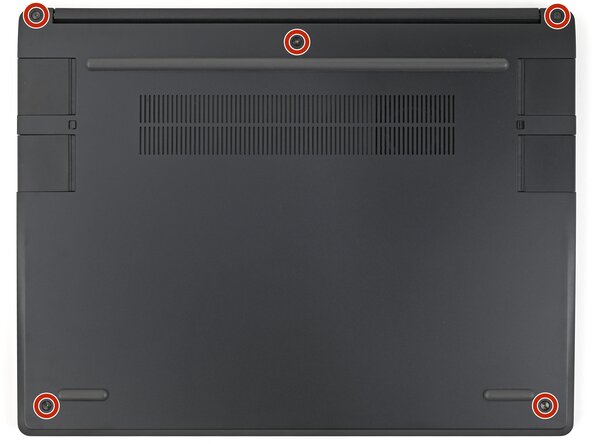
      • Use your Framework Screwdriver to loosen the five captive T5 Torx screws securing the Input Cover.

      FixBot'a Sor

      Yorum Ekle

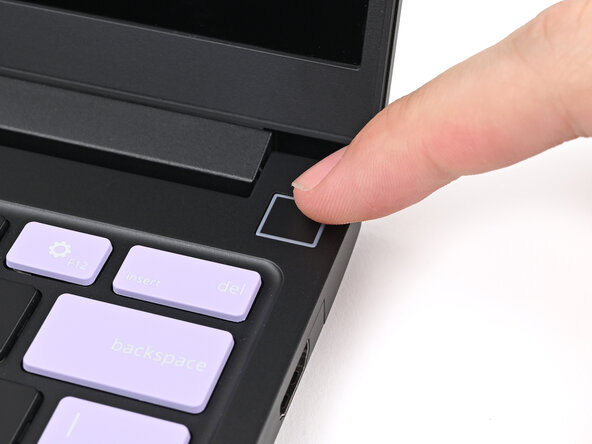
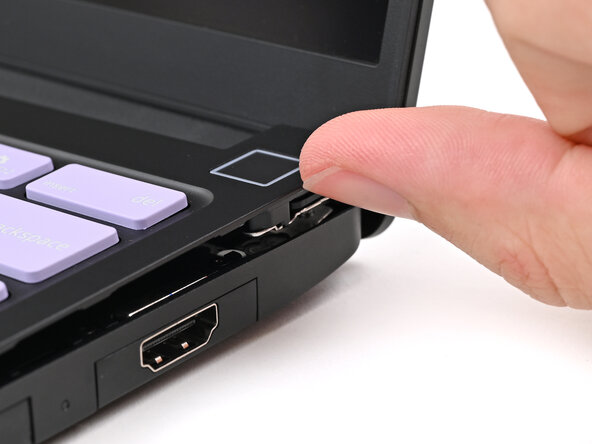
    2. Framework Laptop 13 Pro Wi-Fi Module Replacement, Lift the Input Cover: adım 3, 2 resimden 1. Framework Laptop 13 Pro Wi-Fi Module Replacement, Lift the Input Cover: adım 3, 2 resimden 2.
      • Flip over your laptop and open it.

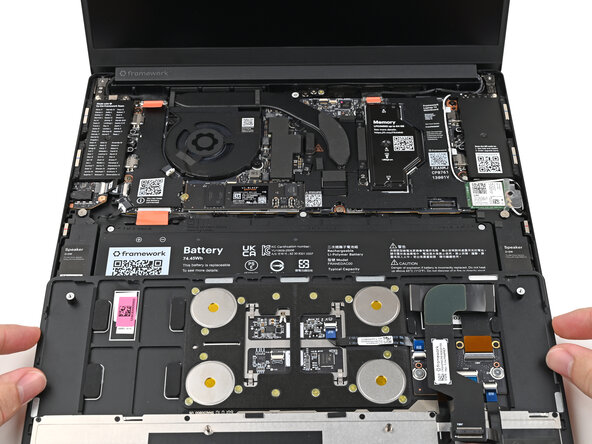
      • Use your fingers to lift the Input Cover up and release it from its magnets.

      • Don't fully remove the Input Cover yet, as it's still attached by the Touchpad Cable.

      • If you're having trouble lifting the Input Cover, you can leverage the gap at the bottom right corner to get your fingers fully under it.

      FixBot'a Sor

      Yorum Ekle

    3. Framework Laptop 13 Pro Wi-Fi Module Replacement, Flip over the Input Cover: adım 4, 2 resimden 1. Framework Laptop 13 Pro Wi-Fi Module Replacement, Flip over the Input Cover: adım 4, 2 resimden 2.
      • Flip the top of the Input Cover so the Keyboard is facing down.

      • Rest the Input Cover over the Battery, making sure the Touchpad Cable isn't being strained.

      • If the LEDs on the left and right sides of the Mainboard are flashing, then your laptop is still powered on. Make sure your laptop is completely powered off before continuing.

      FixBot'a Sor

      Yorum Ekle

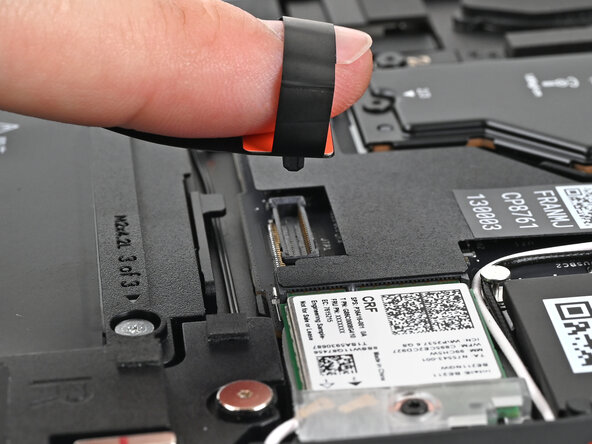
    4. Framework Laptop 13 Pro Wi-Fi Module Replacement, Disconnect the Touchpad Cable: adım 5, 2 resimden 1. Framework Laptop 13 Pro Wi-Fi Module Replacement, Disconnect the Touchpad Cable: adım 5, 2 resimden 2.
      • Insert your finger into the Touchpad Cable press connector loop.

      • Lift up to disconnect the Touchpad Cable from the Mainboard.

      FixBot'a Sor

      Yorum Ekle

    5. Framework Laptop 13 Pro Wi-Fi Module Replacement, Remove the Input Cover: adım 6, 2 resimden 1. Framework Laptop 13 Pro Wi-Fi Module Replacement, Remove the Input Cover: adım 6, 2 resimden 2.
      • Remove the Input Cover.

      FixBot'a Sor

      Yorum Ekle

    1. Framework Laptop 13 Pro Wi-Fi Module Replacement, Loosen the Wi-Fi module screw: adım 7, 2 resimden 1. Framework Laptop 13 Pro Wi-Fi Module Replacement, Loosen the Wi-Fi module screw: adım 7, 2 resimden 2.
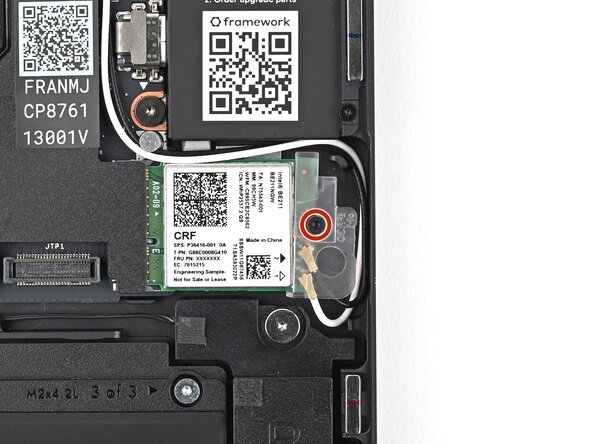
      • Use your Framework Screwdriver to loosen the captive T5 Torx screw securing the Wi-Fi module.

      • The module might pop up at a shallow angle when you loosen the screw.

      FixBot'a Sor

      Yorum Ekle

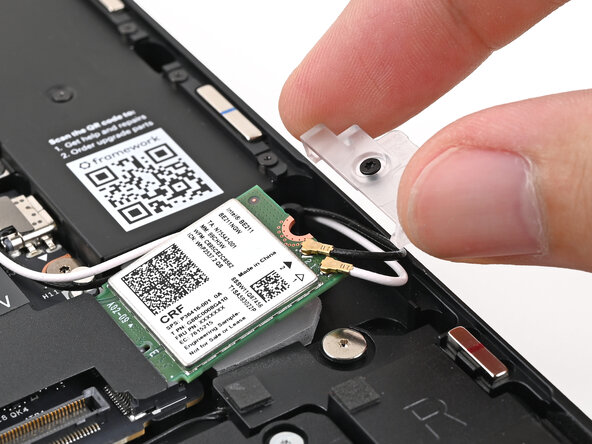
    2. Framework Laptop 13 Pro Wi-Fi Module Replacement, Remove the Wi-Fi module cover: adım 8, 2 resimden 1. Framework Laptop 13 Pro Wi-Fi Module Replacement, Remove the Wi-Fi module cover: adım 8, 2 resimden 2.
      • Slide the clear plastic cover straight off the module and remove it.

      FixBot'a Sor

      Yorum Ekle

    3. Framework Laptop 13 Pro Wi-Fi Module Replacement, Disconnect the Wi-Fi module: adım 9, 3 resimden 1. Framework Laptop 13 Pro Wi-Fi Module Replacement, Disconnect the Wi-Fi module: adım 9, 3 resimden 2. Framework Laptop 13 Pro Wi-Fi Module Replacement, Disconnect the Wi-Fi module: adım 9, 3 resimden 3.
      • While holding the Wi-Fi module down, insert the flat end of your Framework Screwdriver under one of the coaxial connectors, where the cable meets the metal head.

      • Lift the screwdriver straight up to disconnect the coaxial cable.

      • Repeat for the other coaxial cable.

      FixBot'a Sor

      Yorum Ekle

    1. Framework Laptop 13 Pro Wi-Fi Module Replacement, Remove the Wi-Fi module: adım 10, 2 resimden 1. Framework Laptop 13 Pro Wi-Fi Module Replacement, Remove the Wi-Fi module: adım 10, 2 resimden 2.
      • Grip the end of the Wi-Fi module with the screw hole and slide it out of its socket.

      FixBot'a Sor

      Yorum Ekle

    1. Framework Laptop 13 Pro Wi-Fi Module Replacement, Disassembly complete: adım 11, 1 resimden 1.
      • Congratulations on completing disassembly! The remaining steps will show how to reassemble your Framework Laptop.

      FixBot'a Sor

      Yorum Ekle

    1. Framework Laptop 13 Pro Wi-Fi Module Replacement, Insert the Wi-Fi module: adım 12, 2 resimden 1. Framework Laptop 13 Pro Wi-Fi Module Replacement, Insert the Wi-Fi module: adım 12, 2 resimden 2.
      • Grip the end of the Wi-Fi module with the screw hole and slide it straight into its socket.

      FixBot'a Sor

      Yorum Ekle

    1. Framework Laptop 13 Pro Wi-Fi Module Replacement, Reconnect the Wi-Fi module: adım 13, 3 resimden 1. Framework Laptop 13 Pro Wi-Fi Module Replacement, Reconnect the Wi-Fi module: adım 13, 3 resimden 2. Framework Laptop 13 Pro Wi-Fi Module Replacement, Reconnect the Wi-Fi module: adım 13, 3 resimden 3.
      • Hold the Wi-Fi module down with your finger.

      • Position the black antenna cable connector over the Wi-Fi module's coaxial socket labeled by the black arrow.

      • If you're unsure which cable goes where, refer to the arrows on the Wi-Fi module for which color cable matches with its connector.

      • Tweezers can help position the connector.

      • Use your finger to press the connector into place. You should feel a faint click, and the cable will stay attached to the socket by itself.

      • These connectors are delicate! If the connector doesn't feel like it's clicking in place, reposition the connector and try again.

      • Repeat the procedure with the white antenna cable.

      FixBot'a Sor

      Yorum Ekle

    2. Framework Laptop 13 Pro Wi-Fi Module Replacement: adım 14, 2 resimden 1. Framework Laptop 13 Pro Wi-Fi Module Replacement: adım 14, 2 resimden 2.
      • Slide the clear plastic cover onto the module and align its screw with the screw hole cutout.

      FixBot'a Sor

      Yorum Ekle

    3. Framework Laptop 13 Pro Wi-Fi Module Replacement, Tighten the Wi-Fi module screw: adım 15, 2 resimden 1. Framework Laptop 13 Pro Wi-Fi Module Replacement, Tighten the Wi-Fi module screw: adım 15, 2 resimden 2.
      • Use your Framework Screwdriver to tighten the captive T5 Torx screw securing the Wi-Fi module.

      FixBot'a Sor

      Yorum Ekle

    1. Framework Laptop 13 Pro Wi-Fi Module Replacement, Position the Input Cover: adım 16, 2 resimden 1. Framework Laptop 13 Pro Wi-Fi Module Replacement, Position the Input Cover: adım 16, 2 resimden 2.
      • Position the Input Cover, Keyboard down, on top of the laptop so it just covers the Battery.

      • This allows the Touchpad Cable to be folded over and reconnected without straining it.

      FixBot'a Sor

      Yorum Ekle

    2. Framework Laptop 13 Pro Wi-Fi Module Replacement, Connect the Touchpad Cable: adım 17, 2 resimden 1. Framework Laptop 13 Pro Wi-Fi Module Replacement, Connect the Touchpad Cable: adım 17, 2 resimden 2.
      • Insert your finger into the Touchpad Cable press connector loop.

      • Align the press connector over its socket and press down with your finger.

      • You should hear it "click" into place. If you're having trouble, reposition it and try again. Don't try to force the connector into place.

      FixBot'a Sor

      Yorum Ekle

    3. Framework Laptop 13 Pro Wi-Fi Module Replacement, Place the Input Cover: adım 18, 2 resimden 1. Framework Laptop 13 Pro Wi-Fi Module Replacement, Place the Input Cover: adım 18, 2 resimden 2.
      • Flip the Input Cover over the laptop and align the bottom edges.

      FixBot'a Sor

      Yorum Ekle

    4. Framework Laptop 13 Pro Wi-Fi Module Replacement: adım 19, 3 resimden 1. Framework Laptop 13 Pro Wi-Fi Module Replacement: adım 19, 3 resimden 2. Framework Laptop 13 Pro Wi-Fi Module Replacement: adım 19, 3 resimden 3.
      • Lay the Input Cover over the laptop and let the magnets snap it into place.

      • The bottom right corner of the Input Cover won't sit flush with the laptop until you tighten its screws.

      FixBot'a Sor

      Yorum Ekle

    5. Framework Laptop 13 Pro Wi-Fi Module Replacement, Reposition the laptop: adım 20, 1 resimden 1.
      • Close the laptop and flip it over.

      FixBot'a Sor

      Yorum Ekle

    6. Framework Laptop 13 Pro Wi-Fi Module Replacement, Tighten the Input Cover screws: adım 21, 2 resimden 1. Framework Laptop 13 Pro Wi-Fi Module Replacement, Tighten the Input Cover screws: adım 21, 2 resimden 2.
      • Use your Framework Screwdriver to tighten the five captive T5 Torx screws securing the Input Cover.

      • Don't overtighten the screws—just make sure they're snug.

      FixBot'a Sor

      Yorum Ekle

Sonuç

You finished fixing your Framework Laptop!

Take your e-waste to an R2 or e-Stewards certified recycler.

If you need help, contact Framework support.

İptal et: Bu kılavuzu tamamlamadım.

Alex Diaz-Kokaisl

Üyelik tarihi: 01/16/22

246.350 İtibar

1.203 adet Kılavuz yazıldı

0Kılavuz Yorumları

Yorum Ekle

İstatistikleri Görüntüle:

Son 24 Saat: 1

Son 7 gün: 9

Son 30 gün: 64

Her zaman: 99