Giriş
Guide created by KimJongIan
With help by iFixit users Andrew and MervDervis
This guide would not be possible without the script made by user tai1976 from gbatemp.net
Neye ihtiyacın var
-
-
Before doing any updates or software changes with the Hard Drive connected to the motherboard, make sure that all connections to the board are secure, such as the disc drive, otherwise you will brick the Motherboard, and will require a new one.
 FixBot'a Sor
-
-
-
Before beginning this guide, it is best to read through the steps for the hardware portion, as shown by iFixit user Andrew, at the following link.
-
You will also need a PC running Windows, and a hard drive reader (Sata Data and Sata Power to USB)
-
-
-
Connect the new hard drive to the PC. Make sure that the HDD is in a location where it will not be accidentally disconnected.
-
-
-
This process requires you to run a script to partition the HDD/SSD.
-
The links below are for both the download, and the original forum post for the script itself, which was created by user tai1976, of gbatemp.net
-
Un-zip the file.
-
-
-
Press the Windows key/Start menu and type in "CMD", right click, and select 'Run as Administrator"
-
Type the command "cd C:\Users\(Your Name)\Downloads\xboxonehdd-master-6.1\xboxonehdd-master\win"
-
Replace (Your name) with the name of your user profile.
-
-
-
-
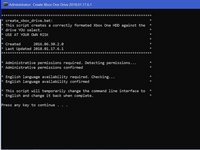
Run the command "create_xbox_drive"
-
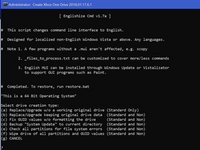
The next steps are to create a drive that has either 500GB, 1TB, or 2TB storage. If at anytime you get confused, there is a readme file in the folder you extracted that can help out as well.
-
-
-
For this tutorial, we are using the first option (a) Replace/Upgrade w/o a working original drive.
-
-
-
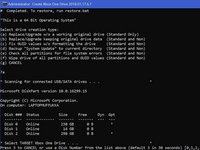
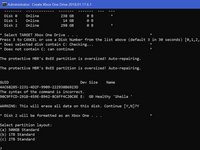
Make sure to choose the right drive to format, Disk 0 is almost always your operating system, DO NOT CHOOSE DISK 0.
-
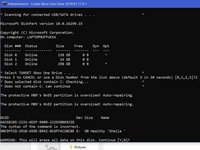
It will ask you to confirm your selection.
-
Then you will need to choose the size of the drive you have created.
-
-
-
Once the command line displays 6 lines of long numbers with "GUID" at the top, the command lines is finished.
-
If this doesn't work, clean the disk with diskpart, link below, and try again.
-
-
-
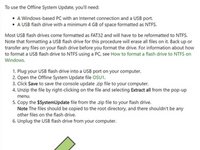
You need to go to the XBox official site and download a file called OSU 1.
-
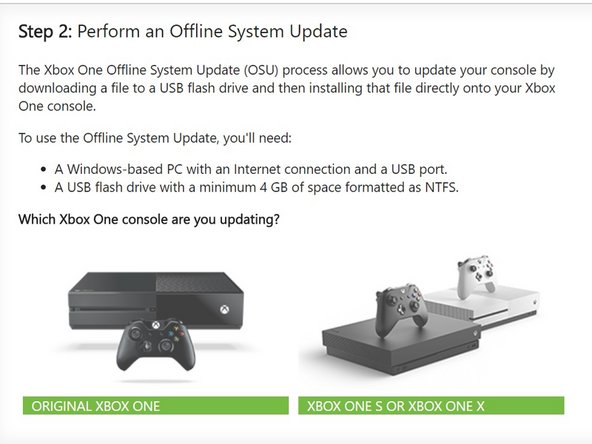
Select "I need to update my console offline"
-
Select "Xbox One S or Xbox One X"
-
Click the green link "OSU1" to start the download.
-
-
-
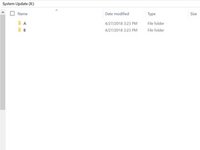
Navigate to the System Update (X) drive, and create 2 folders, one labeled "A" and one "B"
-
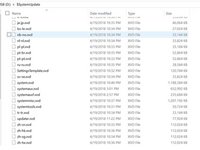
Extract all of the files from OSU1, and copy everything in $SystemUpdate, except for "updater.xvd"
-
Paste these files in the folders "A" and "B" that you created.
-
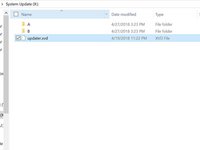
Copy "updater.xvd" from $SystemUpdate and paste it in the root of System Update (X)
-
Note that you will need to download the bootanim.dat and store it in folders "A" and "B" as well. There are two different versions you can download one for OG / S or the X. Without the file the Xbox will boot with a black screen to the menu and not the boot logo.
-
-
-
Safely eject the media and put it back into the XBox
-
Reassemble the XBox and then start it up
-
If the XBox gives you trouble, Factory Resetting it will fix it.
-
-
-
Some users have experienced sign in issues after an ssd upgrade. If this occurs, simply reset the console (keep games and apps if need be.) and that should resolve the issue.
-
Those who have their Xbox set to "energy saving" mode for startup may experience a 20-30 second black screen before boot. Changing this setting to "instant on" resolves this issue.
-
Now enjoy 20x faster r/w speeds and loading times a fraction that of a standard HDD.
-
-
-
You are now finished, enjoy your XBox!
-
Note: This does work with Solid State Drives.
-











To reassemble your device, put the hard drive back in the Xbox One S and reassemble.
İptal et: Bu kılavuzu tamamlamadım.
44 farklı kişi bu kılavuzu tamamladı.

48Kılavuz Yorumları
It doesn’t work for me. Always “No USB/SATA drives found”. All drives are “online”.
I have the same problem, I can’t decide what to do?
Диск ### Состояние Размер Свободно Дин GPT
-------- ------------- ------- ------- --- ---
Диск 0 В сети 1863 Gбайт 0 байт
Диск 1 В сети 3726 Gбайт 0 байт *
Диск 2 В сети 1863 Gбайт 0 байт
Диск 3 В сети 1863 Gбайт 1863 Gбайт
Диск 4 В сети 223 Gбайт 2048 Kбайт
Диск 5 Нет носителя 0 байт 0 байт
* No USB/SATA drives found *
* Script execution complete.
Doesn't work with soild state drives? Isn't that what's in there to begin with?
This does work with solid state drives, it doesn’t work, occasionally, with seagate drives.
