Giriş
Fan damage or normal wear may cause the computer to overheat during use. This guide shows how to replace the fan within the Lenovo V14-IIL laptop. Be sure to remove small parts carefully.
Before using this guide, make sure to review the Lenovo V14-IIL troubleshooting page to review if there may be a solution that does not require component replacement.
Make sure to power off your laptop completely and disconnect from any external power source before beginning the process.
Neye ihtiyacın var
-
-
-
Flip your laptop over and place on a flat surface so you can access the screws on the base cover.
-
Remove the six 7 mm screws from the back panel of the laptop using a Phillips #0 screwdriver.
-
Remove the four 4 mm screws from the bottom edge of the laptop using a Phillips #0 screwdriver.
 FixBot'a Sor
-
-
-
Use an iFixit opening tool to pry apart the case by sliding it along each side of the laptop.
-
-
-
-
-
-
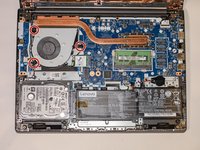
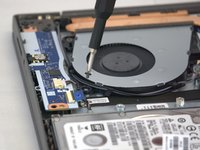
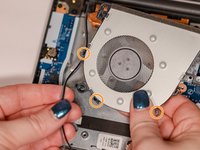
Using a Phillips #0 screwdriver, remove the three 6 mm screws holding the fan.
-
-
-
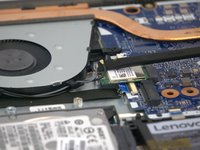
Using the spudger, disconnect the two wireless LAN cables (black and gray) from the wireless LAN card.
-
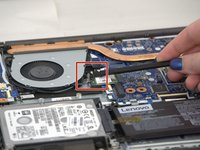
Remove the LAN cables from the three brackets on the fan.
-
-
-
Lift out the fan gently pulling until the four cables disconnect from the motherboard.
-
-





To reassemble your device, follow these instructions in reverse order.
İptal et: Bu kılavuzu tamamlamadım.
2 farklı kişi bu kılavuzu tamamladı.

Ekip

Tennessee Tech University, Team 1-2, Pickering Spring 2024 Tennessee Tech University, Team 1-2, Pickering Spring 2024 üyesi
TNTECH-PICKERING-S24S1G2
3 Üyeler
16 adet Kılavuz yazıldı
