Ana içeriğe geç
Onarım Topluluğuna Katılın - Hesap Oluşturun

Logitech Webcam Pro 9000 Motherboard Replacement

Neye ihtiyacın var

  1. Logitech Webcam Pro 9000 Motherboard Replacement, Front and Back Cover: adım 1, 2 resimden 1. Logitech Webcam Pro 9000 Motherboard Replacement, Front and Back Cover: adım 1, 2 resimden 2.
    • Remove the two 8 mm Phillips #0 screws on the back cover.

    • The motherboard connects the two covers together. DO NOT separate the two yet.

    • There is a button that loosens as the Phillips screws are removed. Don't be alarmed if it falls out.

    FixBot'a Sor

    Yorum Ekle

  2. Logitech Webcam Pro 9000 Motherboard Replacement: adım 2, 2 resimden 1. Logitech Webcam Pro 9000 Motherboard Replacement: adım 2, 2 resimden 2.
    • Remove the four 6mm Phillips #0 screws connecting the motherboard and front cover.

    • DO NOT detach the wire connecting the motherboard to the front cover.

    FixBot'a Sor

    Yorum Ekle

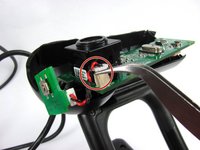
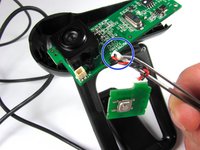
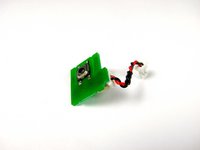
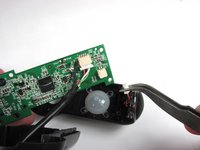
  3. Logitech Webcam Pro 9000 Motherboard Replacement, Snapshot button: adım 3, 3 resimden 1. Logitech Webcam Pro 9000 Motherboard Replacement, Snapshot button: adım 3, 3 resimden 2. Logitech Webcam Pro 9000 Motherboard Replacement, Snapshot button: adım 3, 3 resimden 3.
    • Grasp the white connector attaching the button chip wire to the motherboard.

    • Grab between the tabs and the socket.

    • Wiggle the connector back and forth to remove it from the connection box

    • Do not worry if you detach the red and black wire connection on the power button.

    FixBot'a Sor

    Yorum Ekle

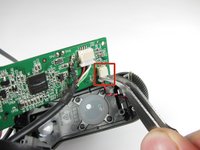
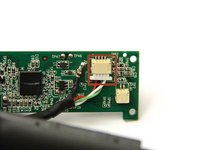
  4. Logitech Webcam Pro 9000 Motherboard Replacement, Microphone Connection: adım 4, 2 resimden 1. Logitech Webcam Pro 9000 Motherboard Replacement, Microphone Connection: adım 4, 2 resimden 2.
    • Grasp the white wire connector between the tabs and the socket.

    • Wiggle the connector back and forth to remove the front cover from the motherboard.

    FixBot'a Sor

    Yorum Ekle

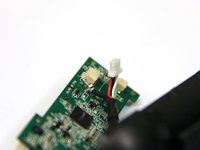
  5. Logitech Webcam Pro 9000 Motherboard Replacement, USB Connection: adım 5, 2 resimden 1. Logitech Webcam Pro 9000 Motherboard Replacement, USB Connection: adım 5, 2 resimden 2.
    Bu adımda kullanılan alet:
    Tweezers
    $4.99
    • Use tweezers to grasp the white wire connector on the back of the motherboard.

    • Wiggle the connector back and forth to remove it from the socket.

    FixBot'a Sor

    Yorum Ekle

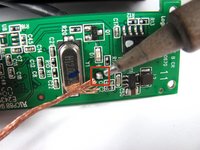
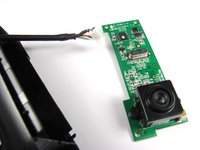
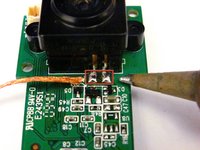
  6. Logitech Webcam Pro 9000 Motherboard Replacement: adım 6, 2 resimden 1. Logitech Webcam Pro 9000 Motherboard Replacement: adım 6, 2 resimden 2.
    • Desolder the joint on the front of the motherboard to completely detach the USB cable.

    • Follow this link to learn how to properly solder and desolder your parts.

    FixBot'a Sor

    Yorum Ekle

  7. Logitech Webcam Pro 9000 Motherboard Replacement, Camera: adım 7, 1 resimden 1.
    • Remove the two 8mm Phillips#0 screws on the back of the motherboard.

    FixBot'a Sor

    Yorum Ekle

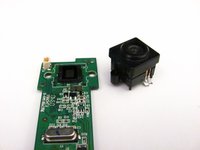
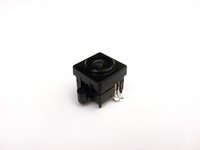
  8. Logitech Webcam Pro 9000 Motherboard Replacement: adım 8, 3 resimden 1. Logitech Webcam Pro 9000 Motherboard Replacement: adım 8, 3 resimden 2. Logitech Webcam Pro 9000 Motherboard Replacement: adım 8, 3 resimden 3.
    • Remove the camera from the motherboard by desoldering the two connections as shown.

    • Follow this link to learn how to properly solder and desolder your parts.

    FixBot'a Sor

    Yorum Ekle

Sonuç

To reassemble your device, follow these instructions in reverse order.

İptal et: Bu kılavuzu tamamlamadım.

Bir başkası bu kılavuzu tamamladı.

Cory Davis

Üyelik tarihi: 04/14/13

236 İtibar

4 adet Kılavuz yazıldı

Ekip

Cal Poly, Team 12-34, Amido Spring 2013 Cal Poly, Team 12-34, Amido Spring 2013 üyesi

CPSU-AMIDO-S13S12G34

4 Üyeler

16 adet Kılavuz yazıldı

0Kılavuz Yorumları

Yorum Ekle

İstatistikleri Görüntüle:

Son 24 Saat: 2

Son 7 gün: 10

Son 30 gün: 40

Her zaman: 2,558