Ana içeriğe geç
Onarım Topluluğuna Katılın - Hesap Oluşturun

MSI MS-1782 GPU Replacement

Neye ihtiyacın var

  1. MSI MS-1782 GPU Replacement, Back Cover: adım 1, 1 resimden 1.
    • Remove five 6.6 mm screws from the edges of the bottom cover using a JIS #1 screwdriver.

    • Remove one 5.6 mm screw from the center of the bottom cover using a JIS #1 screwdriver.

    FixBot'a Sor

    Yorum Ekle

  2. MSI MS-1782 GPU Replacement: adım 2, 3 resimden 1. MSI MS-1782 GPU Replacement: adım 2, 3 resimden 2. MSI MS-1782 GPU Replacement: adım 2, 3 resimden 3.
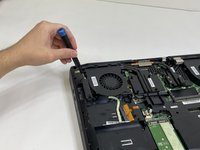
    • Use an iFixit opening pick to unclip the bottom cover.

    • It is ok to run the picks along the edges since there is nothing connected to the bottom cover. It is easier to start from the sides and then work your way forward.

    • After unclipping the bottom case, pull from the back of the laptop upwards using the lip of the bottom case as a handle.

    FixBot'a Sor

    Yorum Ekle

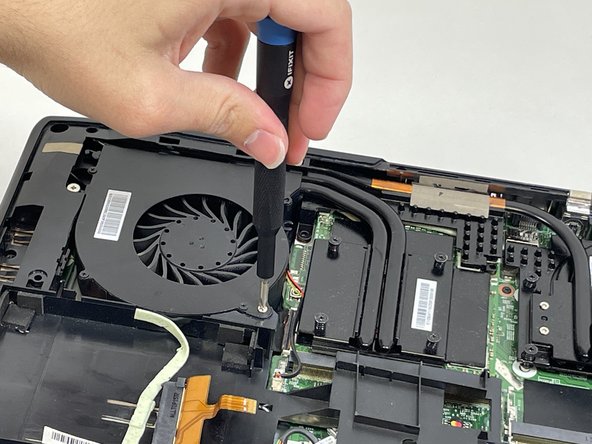
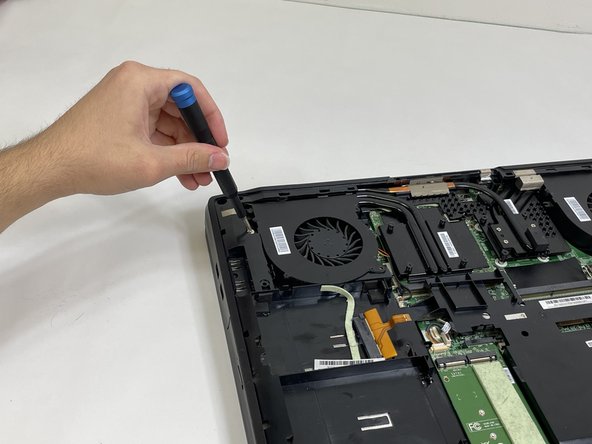
  3. MSI MS-1782 GPU Replacement, Cooling Assembly: adım 3, 3 resimden 1. MSI MS-1782 GPU Replacement, Cooling Assembly: adım 3, 3 resimden 2. MSI MS-1782 GPU Replacement, Cooling Assembly: adım 3, 3 resimden 3.
    • Loosen the captive screw on the left side of the left fan using a JIS #2 screwdriver.

    • Remove the 5.1 mm screw on the right side of the left fan using a JIS #2 screwdriver.

    FixBot'a Sor

    Yorum Ekle

  4. MSI MS-1782 GPU Replacement: adım 4, 3 resimden 1. MSI MS-1782 GPU Replacement: adım 4, 3 resimden 2. MSI MS-1782 GPU Replacement: adım 4, 3 resimden 3.
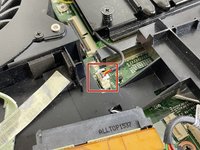
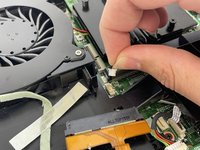
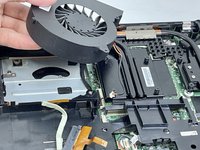
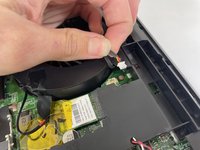
    • Gently detach the fan connector.

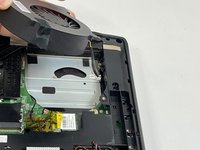
    • Remove the fan by lifting it out of its housing.

    • Be sure to handle the wire delicately; if not it will break.

    FixBot'a Sor

    Yorum Ekle

  5. MSI MS-1782 GPU Replacement: adım 5, 3 resimden 1. MSI MS-1782 GPU Replacement: adım 5, 3 resimden 2. MSI MS-1782 GPU Replacement: adım 5, 3 resimden 3.
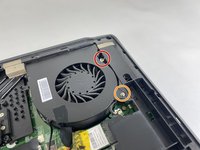
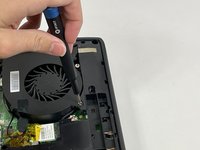
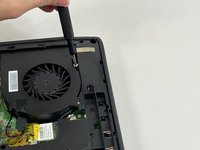
    • Loosen the captive screw on the top of the right fan using a JIS #2 screwdriver.

    • Remove the 3.6 mm screw on the bottom of the right fan using a JIS #2 screwdriver.

    FixBot'a Sor

    Yorum Ekle

  6. MSI MS-1782 GPU Replacement: adım 6, 3 resimden 1. MSI MS-1782 GPU Replacement: adım 6, 3 resimden 2. MSI MS-1782 GPU Replacement: adım 6, 3 resimden 3.
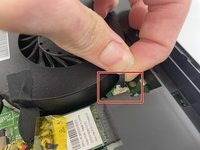
    • Gently detach the fan connector.

    • Remove the fan by lifting it out of its housing.

    • Be sure to handle the wire delicately; if not it will break.

    FixBot'a Sor

    Yorum Ekle

  7. MSI MS-1782 GPU Replacement: adım 7, 3 resimden 1. MSI MS-1782 GPU Replacement: adım 7, 3 resimden 2. MSI MS-1782 GPU Replacement: adım 7, 3 resimden 3.
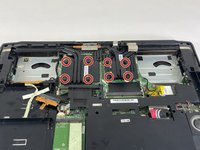
    • Loosen the eight captive screws holding the heat sink in place using a JIS #2 screwdriver.

    • Be sure to follow the numbers that are next to the screws on the heatsink. This evenly removes pressure on the components when removing the heatsink.

    FixBot'a Sor

    Yorum Ekle

  8. MSI MS-1782 GPU Replacement: adım 8, 3 resimden 1. MSI MS-1782 GPU Replacement: adım 8, 3 resimden 2. MSI MS-1782 GPU Replacement: adım 8, 3 resimden 3.
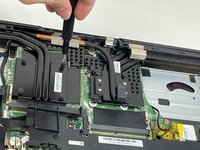
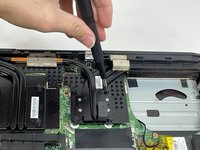
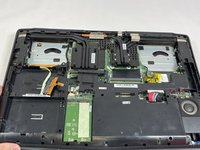
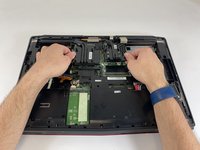
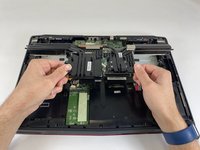
    • Gently lift the heat sink and then pull forwards towards you.

    FixBot'a Sor

    Yorum Ekle

  9. MSI MS-1782 GPU Replacement, GPU: adım 9, 3 resimden 1. MSI MS-1782 GPU Replacement, GPU: adım 9, 3 resimden 2. MSI MS-1782 GPU Replacement, GPU: adım 9, 3 resimden 3.
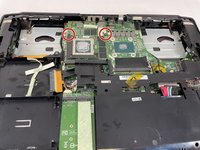
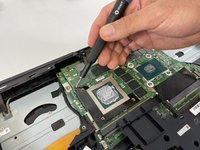
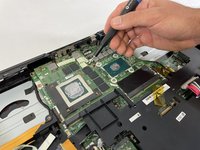
    • Remove the two 5.0 mm screws holding the GPU by using a JIS #1 screwdriver.

    FixBot'a Sor

    Yorum Ekle

  10. MSI MS-1782 GPU Replacement: adım 10, 3 resimden 1. MSI MS-1782 GPU Replacement: adım 10, 3 resimden 2. MSI MS-1782 GPU Replacement: adım 10, 3 resimden 3.
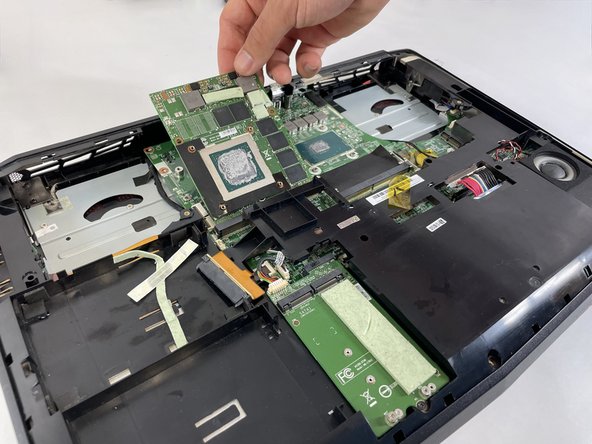
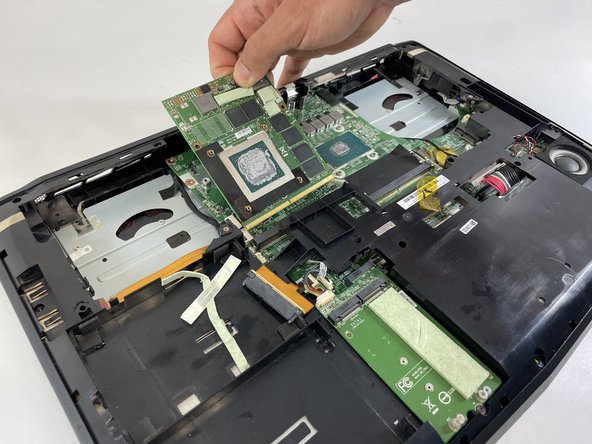
    • Gently lift the GPU and pull to remove it from the laptop.

    FixBot'a Sor

    Yorum Ekle

Sonuç

To reassemble your device, follow these instructions in reverse order.

İptal et: Bu kılavuzu tamamlamadım.

Enmanuel Mota

Üyelik tarihi: 03/08/23

229 İtibar

2 adet Kılavuz yazıldı

0Kılavuz Yorumları

Yorum Ekle

İstatistikleri Görüntüle:

Son 24 Saat: 0

Son 7 gün: 8

Son 30 gün: 24

Her zaman: 832