Ana içeriğe geç
Onarım Topluluğuna Katılın - Hesap Oluşturun

Screen Replacement

Neye ihtiyacın var

  1. Screen Replacement, Back Cover: adım 1, 3 resimden 1. Screen Replacement, Back Cover: adım 1, 3 resimden 2. Screen Replacement, Back Cover: adım 1, 3 resimden 3.
    • Insert the plastic opening tool into the middle of the bottom edge of the device. The tool should be inserted within the seam between the back and front covers.

    • Slide the opening tool to the right and slowly continue to separate the back cover from the device.

    • Avoid prying on the buttons, as they are easily damaged.

    FixBot'a Sor

    Yorum Ekle

  2. Screen Replacement: adım 2, 1 resimden 1.
    • Pull the cover off of the device once about three quarters of the cover has been pried open using the plastic opening tool.

    FixBot'a Sor

    Yorum Ekle

  3. Screen Replacement, Battery: adım 3, 1 resimden 1.
    • Remove masking tape from the battery.

    FixBot'a Sor

    Yorum Ekle

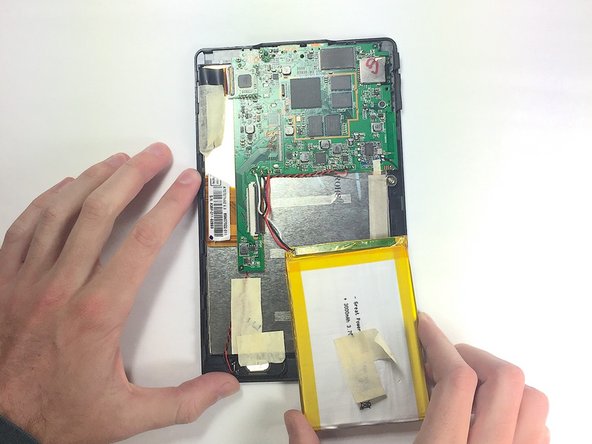
  4. Screen Replacement: adım 4, 3 resimden 1. Screen Replacement: adım 4, 3 resimden 2. Screen Replacement: adım 4, 3 resimden 3.
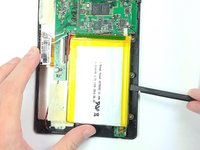
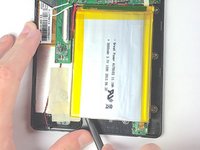
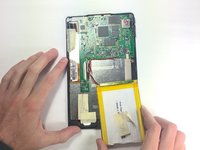
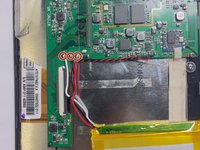
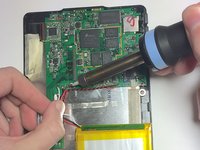
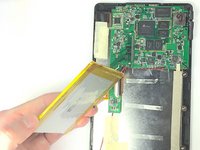
    • Pry the battery from the base using the nylon spudger and move it away from the motherboard.

    • Handle the battery with care to avoid damaging it.

    FixBot'a Sor

    Yorum Ekle

  5. Screen Replacement: adım 5, 3 resimden 1. Screen Replacement: adım 5, 3 resimden 2. Screen Replacement: adım 5, 3 resimden 3.
    FixBot'a Sor

    Yorum Ekle

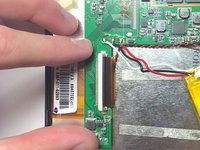
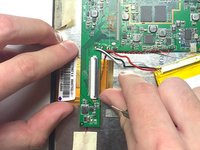
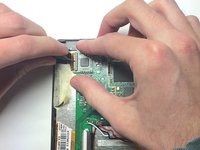
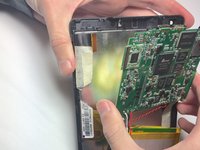
  6. Screen Replacement, Motherboard: adım 6, 3 resimden 1. Screen Replacement, Motherboard: adım 6, 3 resimden 2. Screen Replacement, Motherboard: adım 6, 3 resimden 3.
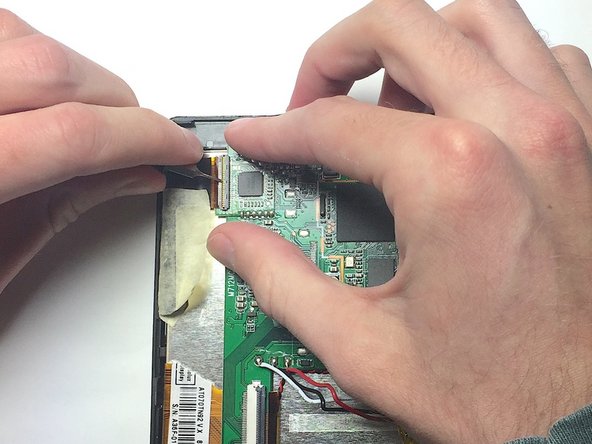
    • Remove the two ZIF connectors attached to the motherboard by flipping up the black tabs before pulling the ribbon cable away.

    • Only use a fingernail or nylon spudger to flip up the retaining flap. Using metal tools may damage delicate components.

    FixBot'a Sor

    Yorum Ekle

  7. Screen Replacement: adım 7, 1 resimden 1.
    • Use the nut driver and J00 bit to remove the three 4 mm screws.

    FixBot'a Sor

    Yorum Ekle

  8. Screen Replacement: adım 8, 3 resimden 1. Screen Replacement: adım 8, 3 resimden 2. Screen Replacement: adım 8, 3 resimden 3.
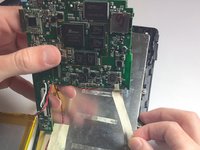
    • Peel back metal tape that is hiding the auxiliary port wires.

    • Remove tape that is holding the speaker wires in place.

    • Lift up on the motherboard to release it from the tablet.

    FixBot'a Sor

    Yorum Ekle

  9. Screen Replacement, Screen: adım 9, 1 resimden 1.
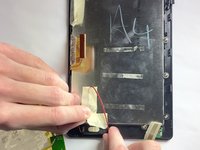
    • Use the nut driver and the J0 bit to unscrew the four 4 mm screws

    FixBot'a Sor

    Yorum Ekle

  10. Screen Replacement: adım 10, 2 resimden 1. Screen Replacement: adım 10, 2 resimden 2.
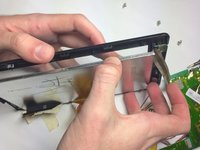
    • If your are replacing a broken screen be careful when handling broken glass.

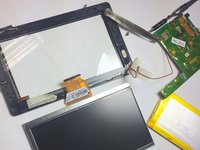
    • Remove the screen from the front cover of the device. At this point there should be no other component holding the screen down.

    FixBot'a Sor

    Yorum Ekle

Sonuç

To reassemble your device, follow these instructions in reverse order.

İptal et: Bu kılavuzu tamamlamadım.

Bir başkası bu kılavuzu tamamladı.

Walker Karstens

Üyelik tarihi: 10/30/16

364 İtibar

3 adet Kılavuz yazıldı

Ekip

Baylor, Team 4-1, Williams Fall 2016 Baylor, Team 4-1, Williams Fall 2016 üyesi

BU-WILLIAMS-F16S4G1

4 Üyeler

14 adet Kılavuz yazıldı

0Kılavuz Yorumları

Yorum Ekle

İstatistikleri Görüntüle:

Son 24 Saat: 1

Son 7 gün: 23

Son 30 gün: 87

Her zaman: 3,501