Ana içeriğe geç
Onarım Topluluğuna Katılın - Hesap Oluşturun

ThinkPad T420 Memory Replacement

Neye ihtiyacın var

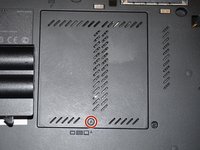
  1. ThinkPad T420 Memory Replacement, Change note: adım 1, 2 resimden 1. ThinkPad T420 Memory Replacement, Change note: adım 1, 2 resimden 2.
    Bu adımda kullanılan alet:
    Essential Electronics Toolkit
    $29.95
    • Due to the EET missing several components present in the Pro Tech Go and only being $20 cheaper, the EET has been removed. The EET will work for this guide as-is, but if you are shopping for a new toolkit to complete this guide, the Pro Tech Go (new or refurbished, refurbished is ~$32 cheaper), or Pro Tech ($79 new/~$59.95 refurb) is the current recommended toolkit for this guide.

    • If you are interested in a refurbished kit stock levels change frequently but can be found here.

    FixBot'a Sor

    Yorum Ekle

  2. ThinkPad T420 Memory Replacement, Unlock the battery: adım 2, 3 resimden 1. ThinkPad T420 Memory Replacement, Unlock the battery: adım 2, 3 resimden 2. ThinkPad T420 Memory Replacement, Unlock the battery: adım 2, 3 resimden 3.
    • If completing a step like a clone of your old hard drive/SSD, DO NOT remove the battery until the process is complete!

    • Unlock the latch locking the battery in the laptop.

    • NOTE: To remove the battery, the tab must be held in to avoid having the lock reinitiate inside the laptop.

    FixBot'a Sor

    Yorum Ekle

  3. ThinkPad T420 Memory Replacement, Release the battery: adım 3, 3 resimden 1. ThinkPad T420 Memory Replacement, Release the battery: adım 3, 3 resimden 2. ThinkPad T420 Memory Replacement, Release the battery: adım 3, 3 resimden 3.
    • After unlocking the battery, remove the battery from the reverse way it is installed to remove it from the laptop.

    FixBot'a Sor

    Yorum Ekle

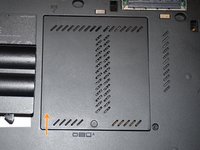
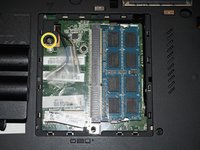
  4. ThinkPad T420 Memory Replacement, Remove the RAM door: adım 4, 3 resimden 1. ThinkPad T420 Memory Replacement, Remove the RAM door: adım 4, 3 resimden 2. ThinkPad T420 Memory Replacement, Remove the RAM door: adım 4, 3 resimden 3.
    • EET owners: Your kit has this bit. No purchase needed.

    • If you are removing this cover to upgrade/replace your lower RAM module, the keyboard screw DOES NOT need to be removed.

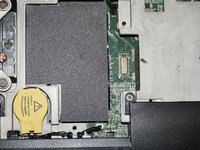
    • WWAN ready systems ship with antenna covers over these cables. Someone installed a WLAN card in this T420 which disabled the better card and was removed.

    • Loosen the screw in red (Phillips #2). This screw stays captive in the bottom RAM door cover, and does not need to be removed.

    • Pull the cover up with a fingernail or a nonmarring pry tool.

    • Remove the screw retaining the keyboard.

    FixBot'a Sor

    Yorum Ekle

  5. ThinkPad T420 Memory Replacement, Remove the keyboard: adım 5, 3 resimden 1. ThinkPad T420 Memory Replacement, Remove the keyboard: adım 5, 3 resimden 2. ThinkPad T420 Memory Replacement, Remove the keyboard: adım 5, 3 resimden 3.
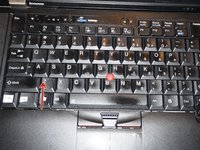
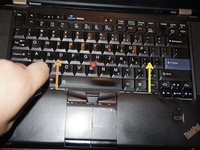
    • Open the laptop.

    • To remove the keyboard, release the keyboard hooks using a plastic pry tool.

    • Once the keyboard is loose, remove it from the chassis.

    FixBot'a Sor

    Yorum Ekle

  6. ThinkPad T420 Memory Replacement, Disconnect the keyboard: adım 6, 3 resimden 1. ThinkPad T420 Memory Replacement, Disconnect the keyboard: adım 6, 3 resimden 2. ThinkPad T420 Memory Replacement, Disconnect the keyboard: adım 6, 3 resimden 3.
    • To reinstall the keyboard, refer to the steps in this guide.

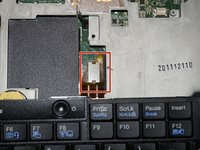
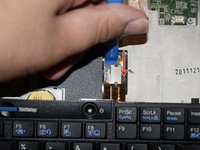
    • This step can be skipped if you remove the keyboard to upgrade/replace the RAM. However, disconnecting it may allow for better access to the upper (Keyboard) RAM module.

    • If you have a can of compressed air available, some of the dust can be removed at this point. Further disassembly is required for a full cleaning.

    • Disconnect the keyboard from the motherboard. Use a plastic pry tool for this step.

    FixBot'a Sor

    Yorum Ekle

  7. ThinkPad T420 Memory Replacement, RAM module - Bottom: adım 7, 3 resimden 1. ThinkPad T420 Memory Replacement, RAM module - Bottom: adım 7, 3 resimden 2. ThinkPad T420 Memory Replacement, RAM module - Bottom: adım 7, 3 resimden 3.
    • Unclip the RAM module by pulling the memory retention tabs back.

    • Remove the existing module by pulling the module from the side, at a 90 degree angle.

    FixBot'a Sor

    Yorum Ekle

  8. ThinkPad T420 Memory Replacement, RAM module - keyboard: adım 8, 3 resimden 1. ThinkPad T420 Memory Replacement, RAM module - keyboard: adım 8, 3 resimden 2. ThinkPad T420 Memory Replacement, RAM module - keyboard: adım 8, 3 resimden 3.
    • To reinstall the keyboard, refer to the steps in this guide.

    • Lift the plastic cover hiding the RAM module.

    • Unlatch the tabs retaining the memory module.

    • Pull the module out from a 90 degree angle.

    FixBot'a Sor

    Yorum Ekle

Sonuç

To reassemble your device, follow these instructions in reverse order.

İptal et: Bu kılavuzu tamamlamadım.

16 farklı kişi bu kılavuzu tamamladı.

Nick

Üyelik tarihi: 11/10/09

103.384 İtibar

68 adet Kılavuz yazıldı

Ekip

Master Techs Master Techs üyesi

Community

333 Üyeler

1.485 adet Kılavuz yazıldı

2Kılavuz Yorumları

What tool might one use as a pry?

commander - Yanıt Paylaş

The plastic pry tool will also work for the bottom RAM/mSATA part. I can usually get it open without the assistance of pry tools.

Nick - Yanıt Paylaş

Yorum Ekle

İstatistikleri Görüntüle:

Son 24 Saat: 8

Son 7 gün: 30

Son 30 gün: 136

Her zaman: 21,860