Giriş
This repair guide was authored by the iFixit staff and hasn’t been endorsed by Google. Learn more about our repair guides here.
Follow this guide to replace a cracked, broken, or non‑responsive screen on your Google Pixel 10a phone.
If your screen doesn't come with adhesive pre‑installed, you'll need replacement screen adhesive to complete this repair.
Note: Any repair can compromise the water resistance of your phone. Retaining water resistance after the repair depends on how accurately the new adhesives are applied and how clean the mating surfaces are.
Neye ihtiyacın var
-
-
Unplug all cables and completely power down your Pixel.
-
-
-
Apply overlapping strips of packing tape to the cracked glass until the whole screen is covered—this will allow the suction cup to stick to the screen.
-
Consider wearing safety glasses to protect your eyes from any glass shaken free during the repair.
-
-
-
Use a hair dryer, heat gun, or a heat pad to heat the right edge of the screen until it's slightly too hot to touch.
-
-
-
Place a small block (like an eraser) under the right edge to prop it up so you'll have room to insert an opening tool.
-
-
-
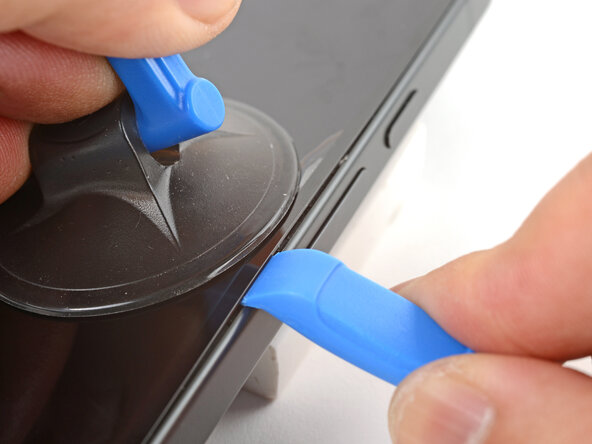
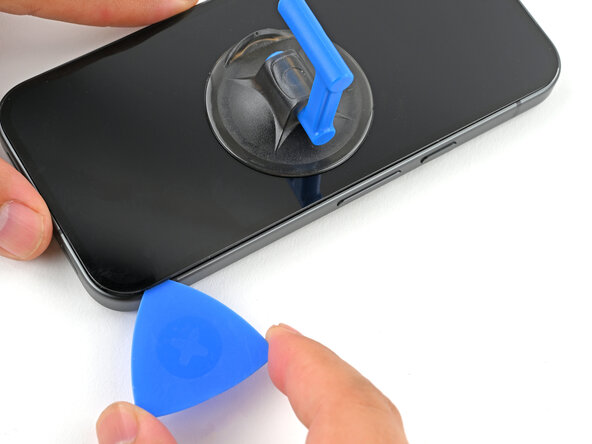
Apply a suction handle to the center of the screen's right edge.
-
Pull up on the suction handle with strong, steady force to create a gap.
-
Press the edge of the opening tool (curved downwards) into the gap.
-
-
-
Apply a suction handle to the center of the screen's right edge.
-
Pull up on the suction handle with strong, steady force to create a gap.
-
Insert the tip of the metal opening pick into the gap.
-
-
-
Use a hair dryer or heat gun to heat the right edge of the screen until it's slightly too hot to the touch.
-
-
-
-
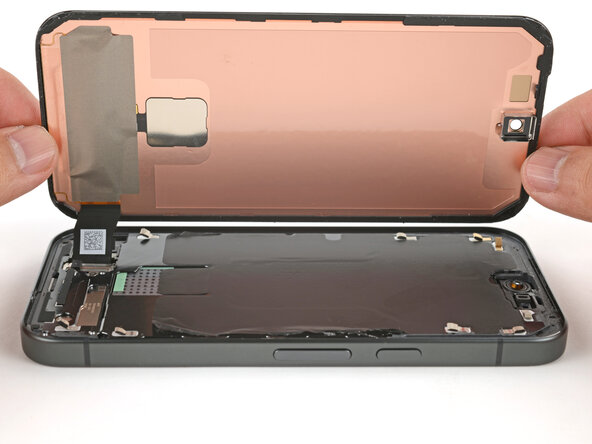
Slide the opening pick down to the bottom-right corner to separate the adhesive.
-
Leave the opening pick there to keep the adhesive from resealing.
-
-
-
Use a Torx Plus 3IP screwdriver to remove the 1.9 mm‑long screw securing the screen connector cover.
-
-
-
Congratulations on completing disassembly! The remaining steps will show how to reassemble your phone.
-
-
-
Check your original screen for a black plastic perimeter. If it's not on the screen, it's still attached to the frame.
-
Use an opening pick to pry up and remove the black plastic perimeter from the frame.
-
-
-
Lay the screen next to the phone so the screen connector can comfortably reach the socket.
-
-
-
Align the screen press connector over its socket and gently press down with your finger—first on one of the short sides, then on the other—until the connector clicks into place.
-
-
-
Lay the screen connector cover in place and slide it upwards slightly to latch the top edge.
-
-
-
Flip the screen onto onto the frame.
-
Remove the plastic liner covering the screen.
-
Carefully power on the phone, making sure nothing touches the screen while it powers on.
-
Use Google’s Pixel Update and Software Repair tool to calibrate your fingerprint sensor.
-
Run a diagnostics test with the built-in Pixel Diagnostic tool to make sure the screen's working properly.
-
Once you've confirmed screen functionality, fully power off your phone before resuming reassembly.
-
-
-
Use your fingers and tweezers to remove all remaining liners from the screen.
-
Make sure no liners cover the front-facing camera area.
-










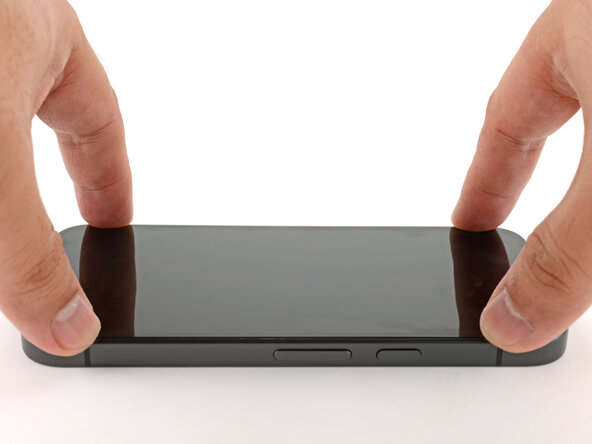


Congratulations on completing your repair!
Take your e-waste to an R2 or e-Stewards certified recycler.
Repair didn’t go as planned? Try some basic troubleshooting, or ask our Answers community for help.

